Quick answer
Do these 4 first: set Power mode to Best performance, choose Adjust for best performance in Performance Options, turn off unneeded Startup apps, and keep at least 20% of your drive free. Together they give the biggest speed gain on a weak PC.
Windows 11 officially needs a 64-bit CPU, 4 GB RAM, 64 GB storage and TPM 2.0. It runs best with 8 GB RAM and an SSD. On weaker hardware the settings below matter a lot.
Pick your PC type
Why Windows 11 feels slow on weak hardware
| Bottleneck | Symptom | Fix |
|---|---|---|
| Power limits | Low clock speed, lag on battery | Tweak 1 |
| Animations and transparency | Slow menus and window moves | Tweak 2 |
| Too many startup apps | Slow after login, disk at 100% | Tweak 3 |
| Background apps, widgets | High RAM at idle | Tweak 4 |
| Full or cluttered drive | Freezes, slow installs | Tweak 5 |
| Low RAM | Apps close, stutter | Tweak 6 |
| Old graphics driver | Low FPS, flicker | Tweak 7 |
| Updates running in background | Random slowdowns | Tweak 8 |
1Set Power mode to Best performance
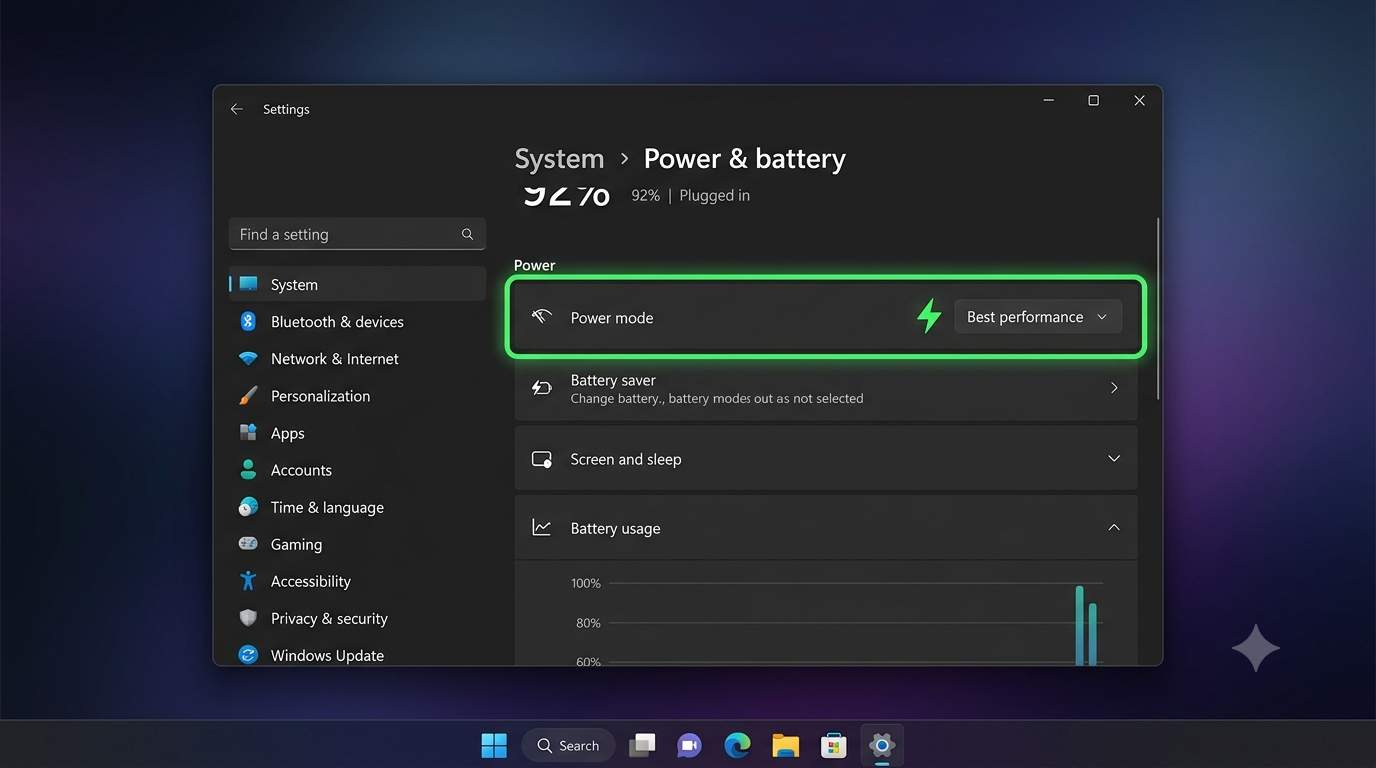
- Open Settings → System → Power & battery.
- Set Power mode to Best performance (plugged in). On a laptop battery choose Balanced to keep run time.
Shortcut: press Windows + R and run ms-settings:powersleep. If the battery drops too fast, see laptop battery draining fast.
2Turn off visual effects
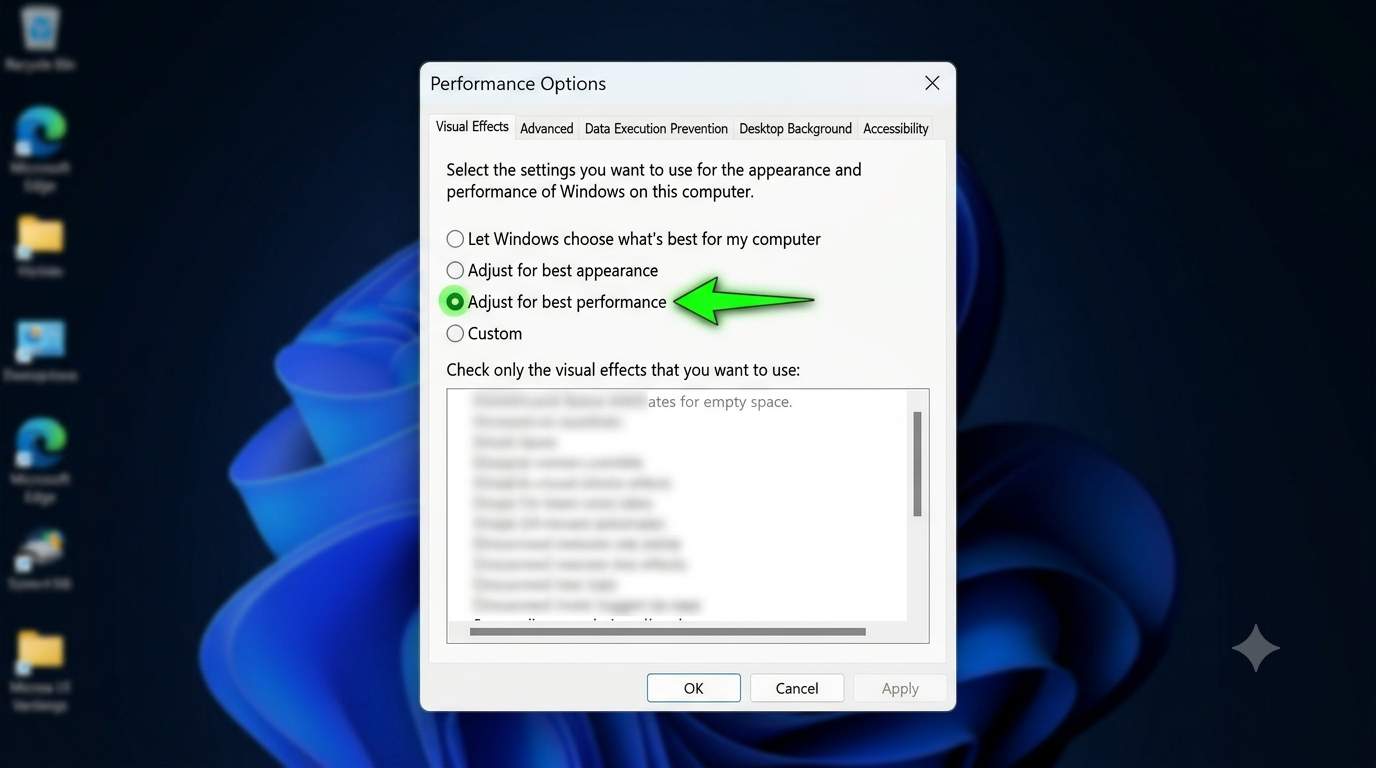
- Press Windows + R, run
SystemPropertiesPerformance.exe. - Choose Adjust for best performance, then tick Smooth edges of screen fonts so text stays readable. Click Apply.
- Open Settings → Accessibility → Visual effects and turn off Transparency effects and Animation effects.
- Open Settings → Personalization → Colors and switch off Transparency effects if still on.
If the right-click menu still lags, see fix slow right-click menu.
3Disable startup apps
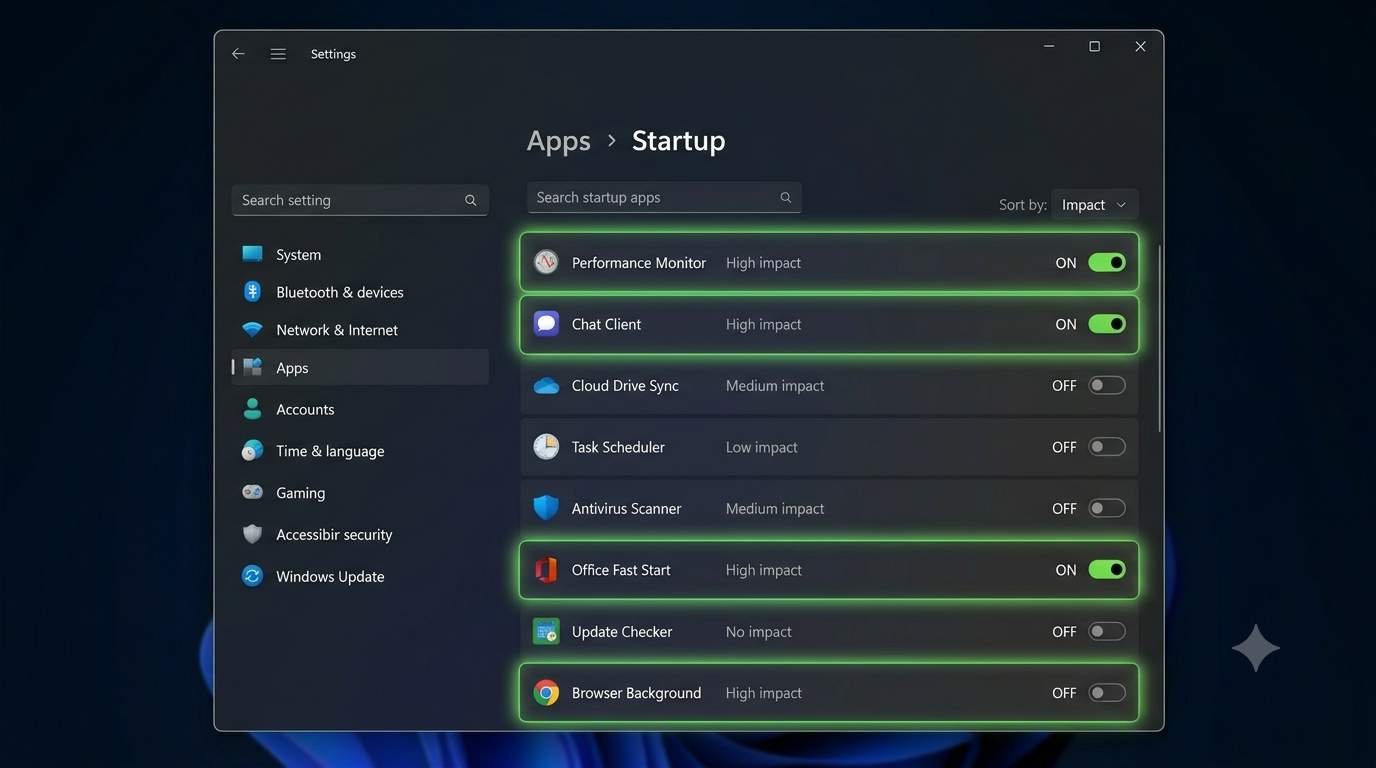
- Open Settings → Apps → Startup, or press Ctrl + Shift + Esc and open Startup apps.
- Sort by Startup impact. Turn off chat apps, launchers, updaters and anything marked High that you do not need at once.
- Leave security software, touchpad and audio drivers on.
Still slow after sign-in? Read Windows 11 laptop slow after login.
4Cut background apps, widgets and extras
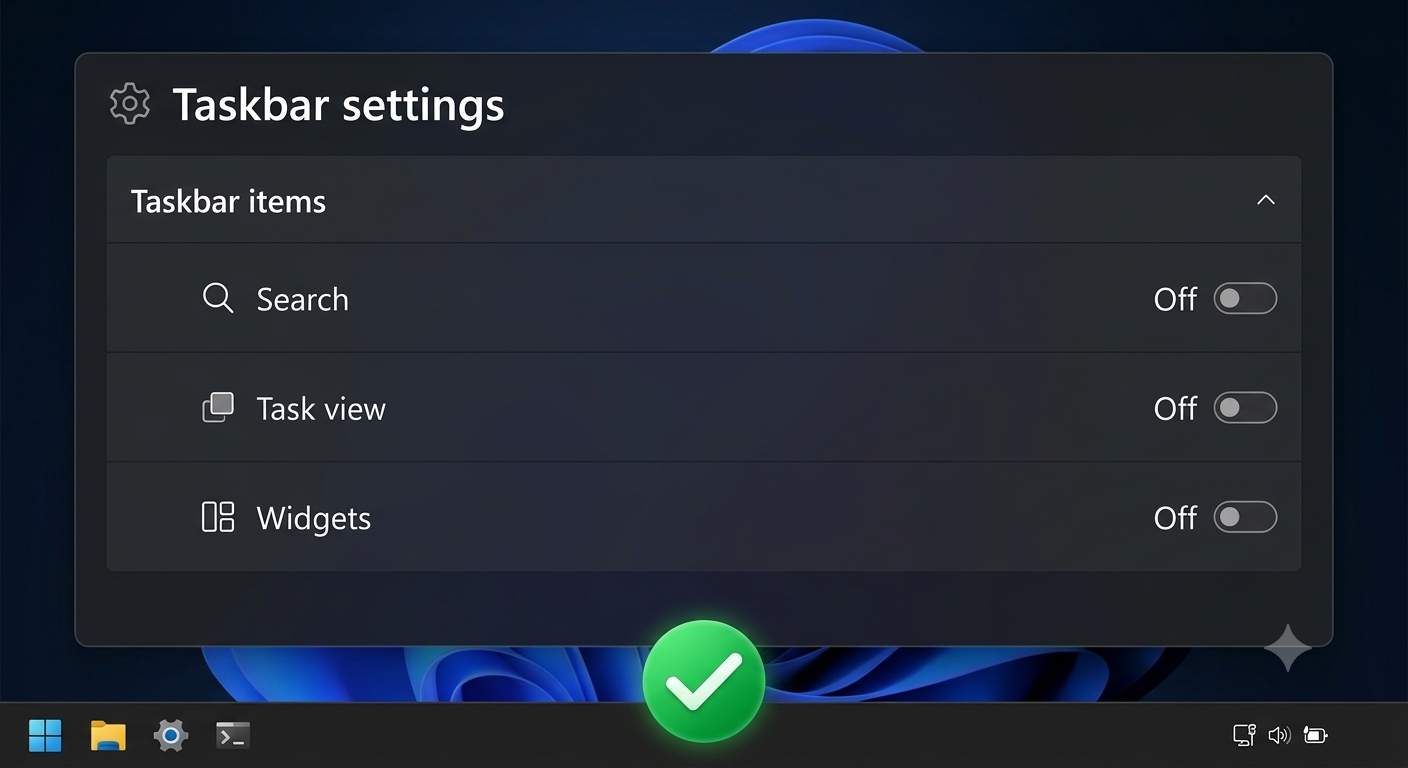
- Settings → Apps → Installed apps: click the three dots on an app, open Advanced options and set Background apps permissions to Never for apps you rarely use.
- Taskbar settings: turn off Widgets, Task view and Search if unused.
- Settings → Personalization → Start: turn off Show recommended files.
- Settings → Privacy & security → Search permissions: use Classic search and turn off cloud content search.
- Uninstall bloatware you never use from Installed apps.
5Free up storage and use Storage Sense
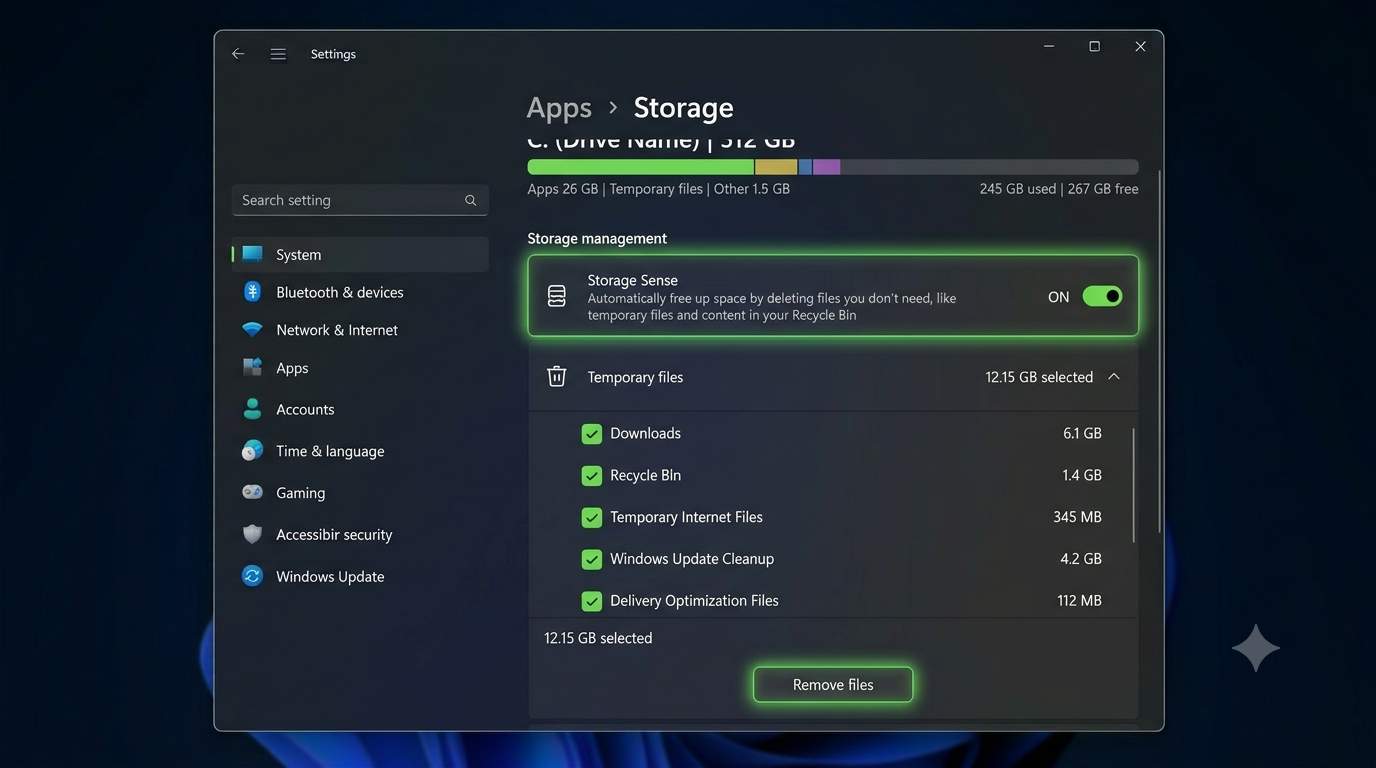
- Open Settings → System → Storage and turn on Storage Sense.
- Click Temporary files, tick items such as Temporary files and Recycle Bin, then Remove files.
- Run
cleanmgrand choose Clean up system files to remove old update leftovers. - Keep at least 20% free on C:. On a hard drive, open Defragment and Optimize Drives and run Optimize. Never defrag an SSD manually; Windows handles it.
6Check virtual memory (page file)
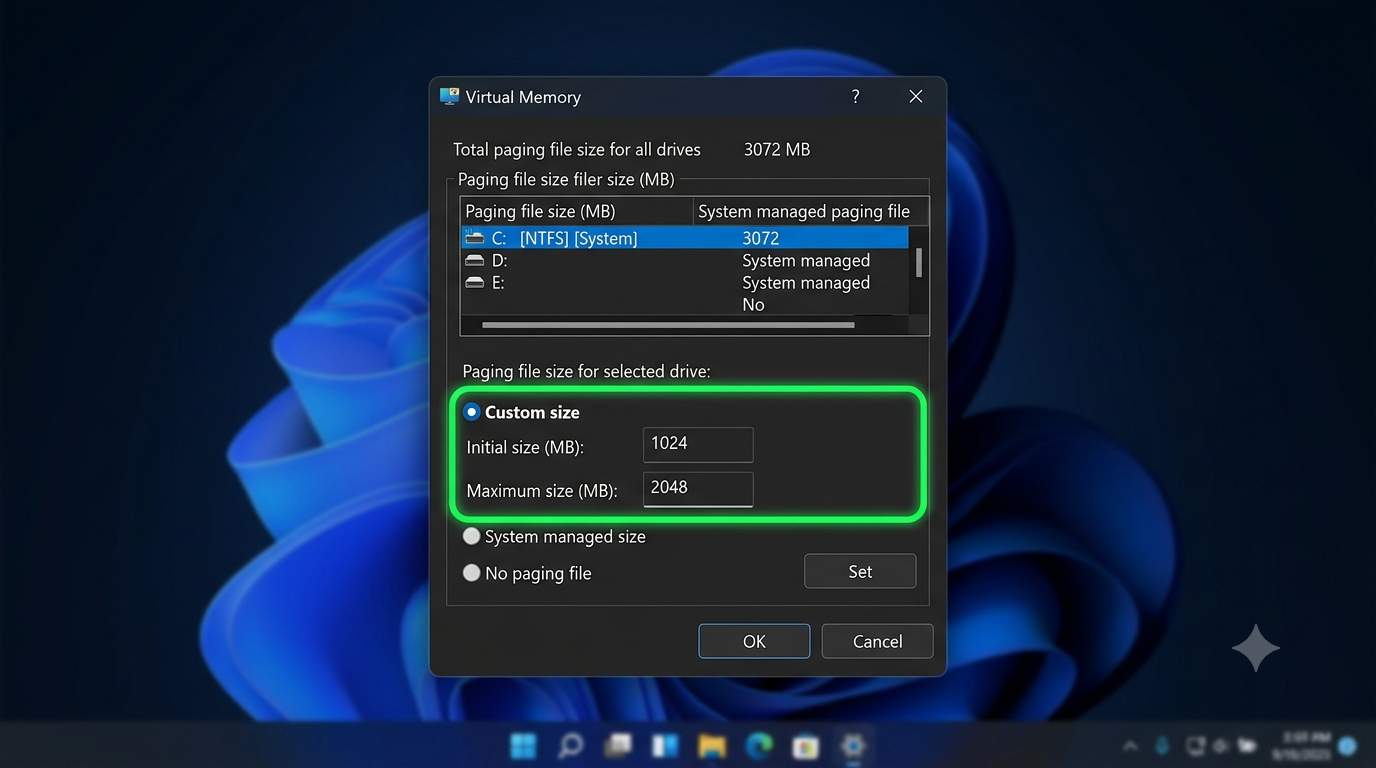
- Run
SystemPropertiesPerformance.exe, open Advanced → Virtual memory → Change. - Leave Automatically manage on for most PCs.
- With 4 GB RAM and freezing, untick it, pick your SSD, choose Custom size and enter about 6144 MB initial and 12288 MB maximum. Click Set and restart.
Do not put the page file on a very full drive or on a slow USB drive.
7Update graphics driver and set GPU preference
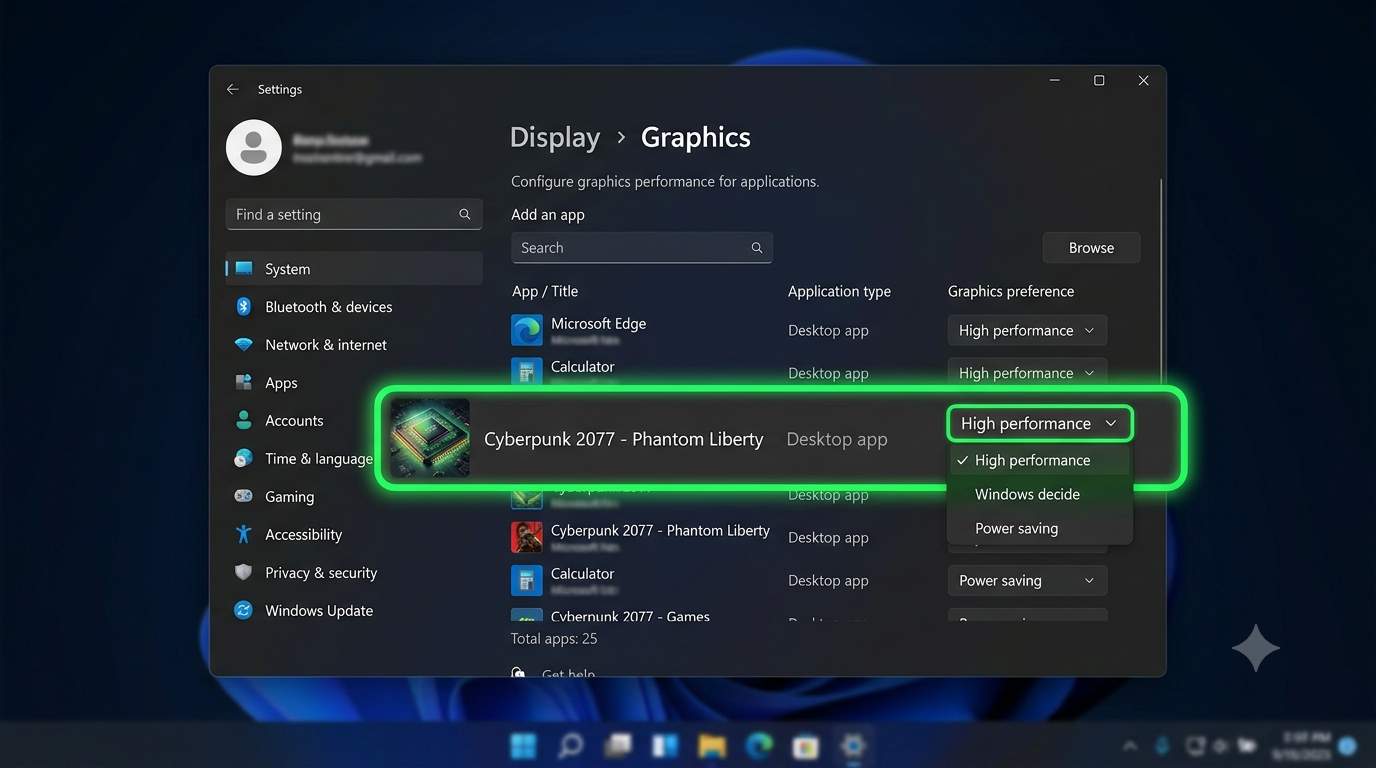
- Download the latest driver from your PC maker, Intel, AMD or NVIDIA. Avoid driver-updater tools.
- Open Settings → System → Display → Graphics, add your game and set it to High performance on laptops with two GPUs.
- Set display resolution to Recommended and refresh rate to 60 Hz unless you need more.
- If the screen glitches, press Windows + Ctrl + Shift + B to reset the driver.
8Control Windows Update timing
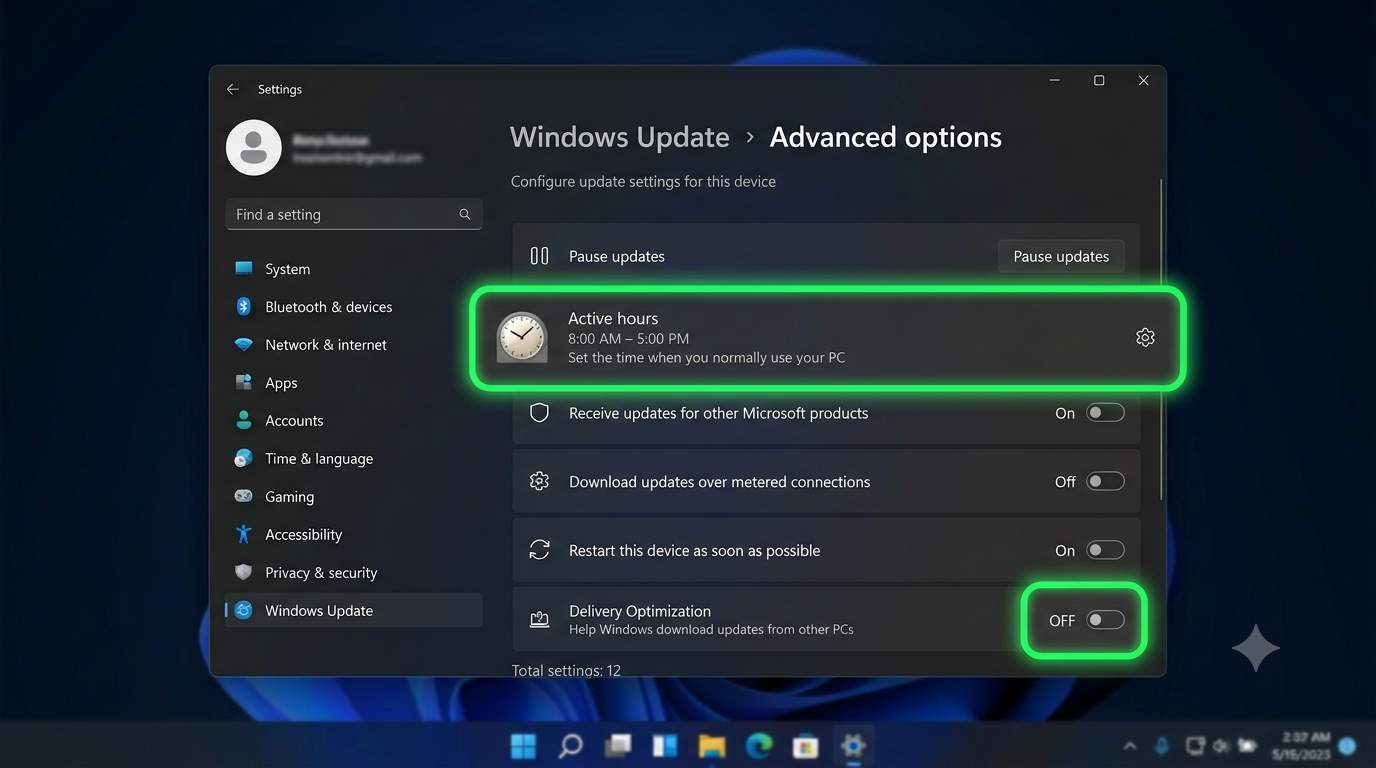
- Open Settings → Windows Update → Advanced options and set Active hours to when you use the PC.
- Turn off Get the latest updates as soon as they are available to avoid early builds.
- Turn off Delivery Optimization sharing: Allow downloads from other PCs set to Off.
Never disable updates or Windows Security for speed. If updates fail, see update errors fix.
Extra settings for gaming on a low-end PC
| Setting | Where | Do this |
|---|---|---|
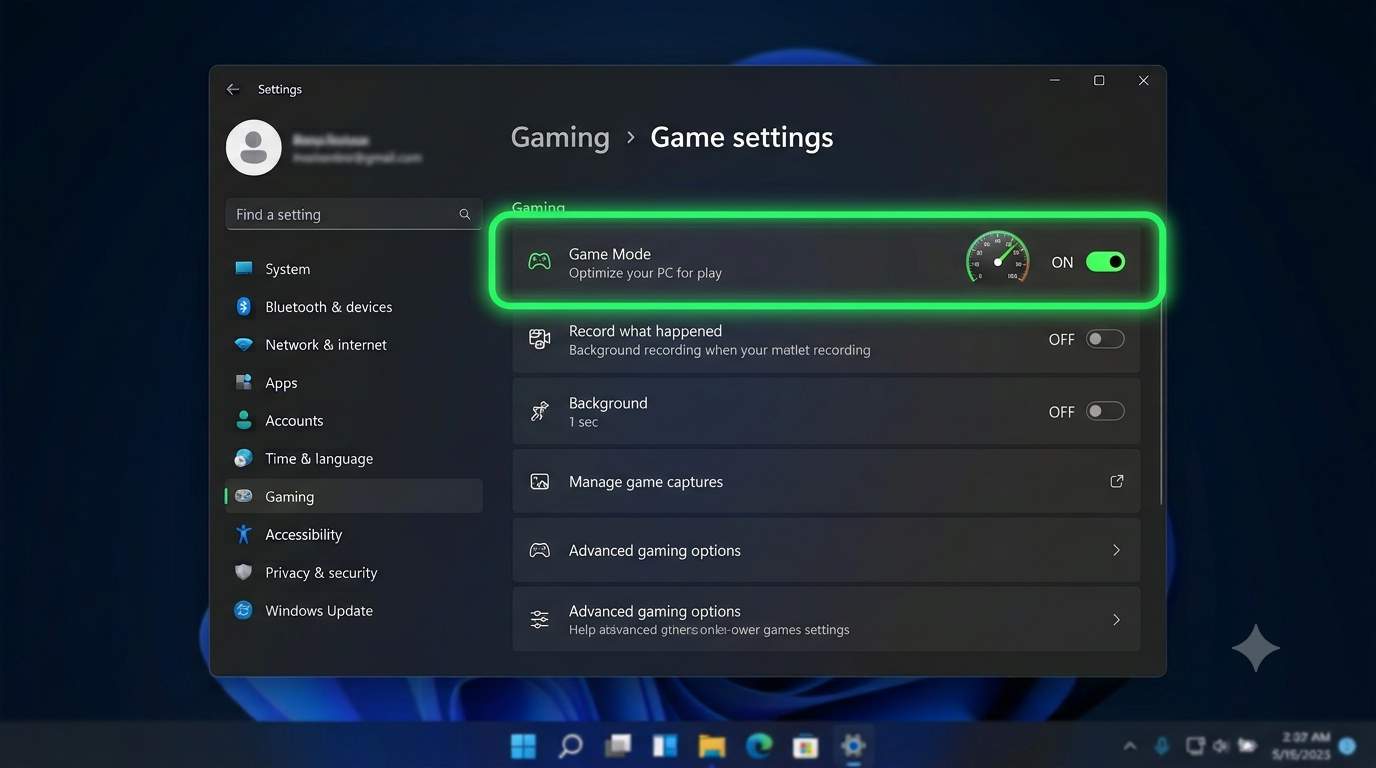
| Game Mode | Settings → Gaming → Game Mode | Keep On |
| Xbox Game Bar captures | Settings → Gaming → Captures | Turn off background recording |
| Variable refresh, Auto HDR | Settings → System → Display → Graphics | Off if FPS is low |
| Browser tabs and launchers | Taskbar | Close them before playing |
| In-game graphics | Game menu | Lower resolution scale, shadows and effects first. Works for Fortnite, Valorant, Minecraft |
Tip: Memory integrity (Core isolation) can cost a few FPS, but it is a security feature. Keep it on unless a driver tells you otherwise.
When settings are not enough
- Upgrade to an SSD: the biggest real-world speed jump for a hard-drive PC.
- Go from 4 GB to 8 GB RAM if your board allows it.
- Clean dust and re-paste the CPU if fans are loud and speed drops (thermal throttling).
- A fresh start with Reset this PC can remove years of clutter. Back up first.
- Internet slow, not the PC? See fix slow internet. If Settings will not open: Settings not working.
Frequently asked questions
What are the best Windows 11 settings for a low-end PC?
Set Power mode to Best performance, choose Adjust for best performance in Performance Options, disable unneeded startup apps, turn off background apps and widgets, keep 20 percent of the drive free and update the graphics driver.
Is Windows 11 good for low-end PCs?
It runs acceptably on 8 GB RAM and an SSD. On 4 GB RAM or a hard drive it feels slow unless you trim startup apps and visual effects.
Should Game Mode be on for a low-end PC?
Yes. It reduces background activity while a game runs. Turn off Xbox Game Bar recording and captures because they use CPU and disk.
How much virtual memory should I set?
Leave System managed size for most PCs. With 4 GB RAM and frequent freezing, set a custom size on an SSD of about 1.5 times RAM initial and 3 times RAM maximum.
Does turning off visual effects really help?
Yes on weak graphics or 4 GB RAM. Menus and windows respond faster and a little memory and GPU time is freed.
Will these settings improve FPS in games?
A little. For bigger gains lower in-game resolution and shadows, update drivers and close the browser while you play.
Can I speed up Windows 11 without buying hardware?
Yes, all eight tweaks are free. The best paid upgrades are an SSD, then more RAM.
Are these steps safe?
Yes. They use built-in Windows settings and can be reversed. Do not disable Windows Security or Windows Update to gain speed.
Was this guide helpful?
Tell us in one tap. Your message opens ready to send, with no sign-up needed.
Can’t Fix Your PC Problem? Get Remote Support.
Tell us what is happening and get guided help in a secure remote session. Free diagnosis, fix after pay.
Get HelpReferences
Last updated and reviewed: . ConfirmFix is an independent troubleshooting guide and is not affiliated with Microsoft.