What's In This Guide
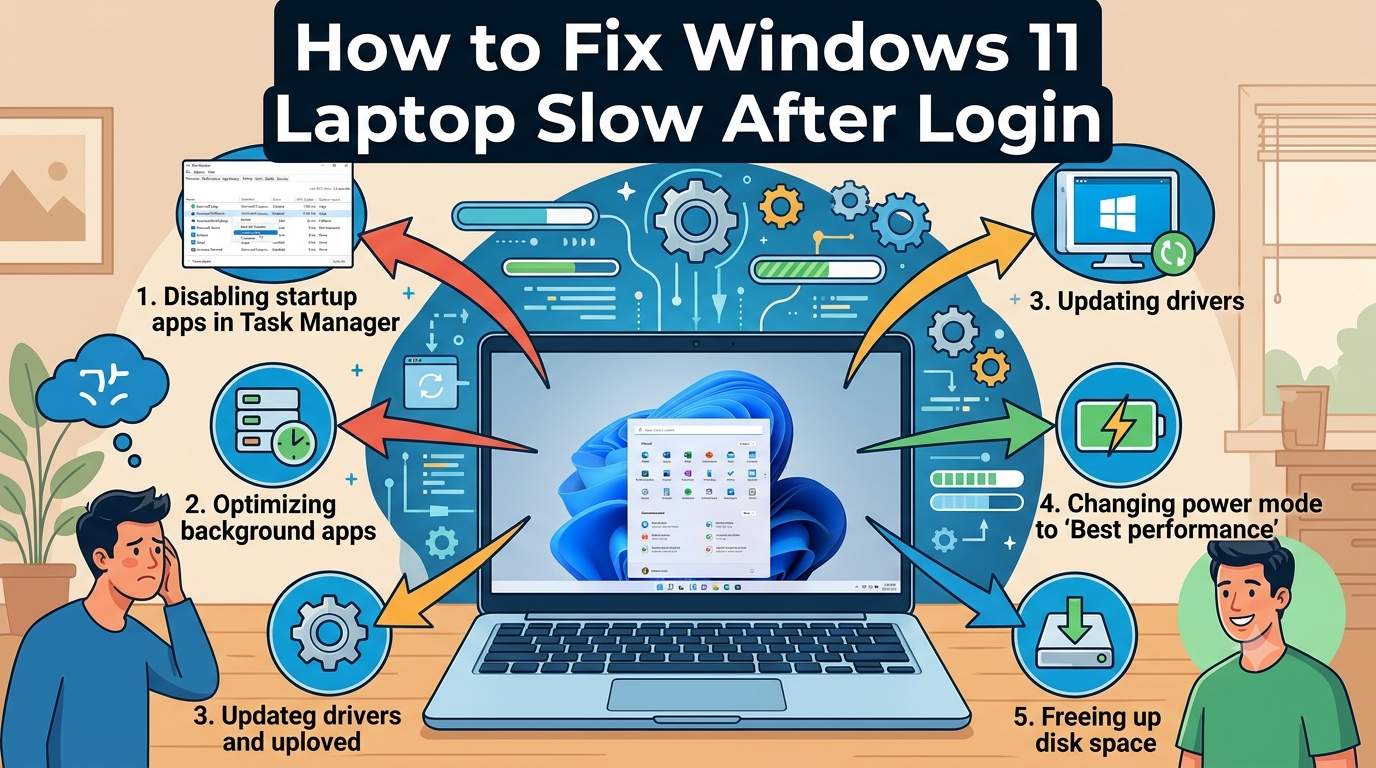
01. Quick Overview: Slow After Login at a Glance
| Item | Details |
|---|---|
| What you see | Desktop appears, but the taskbar, Start menu or File Explorer respond slowly for 1–5 minutes |
| Why it happens | Many apps and services start at once and compete for the disk, CPU and memory right after sign-in |
| Common triggers | Startup apps, cloud sync, antivirus scans, pending update tasks, low disk space, old drivers, a hard drive (HDD) |
| Work or school PC | Group Policy and network drive lookups at sign-in can add delay |
| Safest first fix | Disable high-impact startup apps you don't need straight away |
| Skills needed | Opening Task Manager and Settings |
02. Symptom and Cause Finder
| What You See | Likely Cause | First Fix |
|---|---|---|
| Disk at 100% for minutes | HDD, indexing, antivirus scan or update task | Sections 6 and 3 |
| Many apps open one by one | Too many startup apps | Section 4 |
| High CPU from OneDrive or sync apps | Cloud sync catching up at sign-in | Section 5 |
| Antivirus or Defender using CPU | Scan at login, or two security tools running | Sections 3 and 8 |
| Memory almost full | Startup load on 4–8 GB RAM | Sections 4 and 5 |
| Slow only on domain or work network | Group Policy or mapped drive timeout | Ask IT, see section 9 |
| Slow only on one user account | Corrupted profile | Section 13 |
| Slowdown began after an update | Pending tasks, driver mismatch | Sections 7 and 8 |
03. Find the Culprit in Task Manager
- Open Task Manager immediately after sign-in. Press
Ctrl + Shift + Esc. Don't wait until things calm down. - Sort the Processes tab. Click the CPU, Memory and Disk headers in turn and note the top three names.
- Check the Performance tab. Disk stuck near 100% with high response time points to storage. High CPU points to scans or sync.
- Look up unfamiliar names. Right-click a process, choose Open file location, and see which app owns it.
- Re-check at 5 minutes. If the load drops, it's a one-time startup burst, so trimming startup items will help most.
04. Disable Startup Apps: The Fastest Fix
- Open Task Manager > Startup apps. Or go to Settings > Apps > Startup.
- Sort by Startup impact. Disable the High impact apps you don't need right away: chat apps, game launchers, updaters, printer and OEM helper tools.
- Restart and compare. If it's still slow, disable the Medium impact ones too, a few at a time.
- Check the Startup folder. Some apps never appear in the list. Press
Win + Rand run the commands below.
Disabling a startup entry doesn't uninstall the app. You can re-enable it any time from the same list.
05. Background Apps and Restarted Apps
For per-app control, open Settings > Apps > Installed apps, pick an app, then Advanced options, and set Background apps permissions to Never for apps you rarely use.
06. Disk, Storage and SSD Checks
- Free up space. Keep roughly 15–20% of your drive free. Use Settings > System > Storage > Temporary files and Cleanup recommendations.
- Run Optimize Drives. Search "Defragment and Optimize Drives". On an SSD this runs TRIM; on an HDD it defragments.
- Check the drive type. If Task Manager's Performance tab shows your system drive as HDD, an SSD upgrade is the most effective hardware fix.
- Check drive health. Look at your maker's tool or run the command below. "OK" is good; anything else needs a backup first.
07. Repair System Files with DISM and SFC
Open Terminal (Admin) and run these in order. Each can take several minutes, so don't interrupt them. Restart afterward.
08. Updates, Drivers and Security Software
- Install Windows updates. Go to Settings > Windows Update > Check for updates, then restart. Updates can finish background tasks at your next sign-in.
- Update chipset, storage and graphics drivers from your laptop maker's support page, not a driver-updater tool.
- Run one antivirus. Two real-time scanners fighting at login is a known slowdown. Microsoft Defender alone is enough for most people.
- Run an offline scan. Windows Security > Virus & threat protection > Scan options > Microsoft Defender Antivirus (offline scan).
09. Read the Event Log for the Exact Culprit
Open Event Viewer and go to Applications and Services Logs > Microsoft > Windows > Diagnostics-Performance > Operational. Slow boot and logon events are often logged here and can name the app or service responsible.
Clean boot test: run msconfig, open Services, tick Hide all Microsoft services, then Disable all. Disable startup items in Task Manager and restart. If it's fast, re-enable items in small groups until the lag returns. Undo the clean boot afterward.
Work or school PC: a slow domain controller, many Group Policy settings or unreachable mapped drives can delay the desktop. Report the event details to your IT team.
10. Fix Methods Compared
| Method | Data Loss Risk | Typical Time | Best For |
|---|---|---|---|
| Disable startup apps | None | 5–10 min | Many apps launching |
| Limit background apps | None | 5–10 min | Sync and idle load |
| Free space + Optimize Drives | None | 10–20 min | Full or slow drive |
| DISM + SFC | None | 15–40 min | Corruption after updates |
| Driver and Windows updates | None | 15–30 min | Old chipset or storage drivers |
| Clean boot test | Low | 20–40 min | No obvious culprit |
| New user profile | Low (copy files) | 20–30 min | One account only |
| Reset this PC (keep files) | Apps removed | 45–90 min | Everything else failed |
11. Effort vs. Risk Meter
12. Do's and Don'ts for a Slow Desktop
- ✔️Check Task Manager right after sign-in
- ✔️Change one thing at a time and re-test
- ✔️Disable only startup apps you recognize
- ✔️Keep 15–20% of your drive free
- ✔️Back up files before any repair
- ✖️Run Reset this PC as step one
- ✖️Install "PC booster" or registry cleaners
- ✖️Run two antivirus programs together
- ✖️Disable Microsoft services in bulk
- ✖️Skip drive health checks on an old HDD
13. Which Fix For Your Situation
| Your Situation | Start With | Then Try |
|---|---|---|
| Many apps opening after login | Disable High-impact startup apps | Medium-impact apps, Startup folder |
| Disk 100% on an HDD | Free space, Optimize Drives | SSD upgrade |
| Slow after a Windows update | Wait 10–15 min, restart, DISM + SFC | Driver updates from maker |
| High CPU from sync or antivirus | Pause sync, remove duplicate AV | Offline Defender scan |
| Slow on one account only | Create a new local account to test | Move files to the new profile |
| No cause found | Clean boot | Back up, then Reset (keep files) |
14. Prevent the Slowdown Returning
15. Final Summary
The Order That Works Best
Catch the slowdown in Task Manager, disable high-impact startup apps, limit background and sync apps, then free disk space and repair system files. Update Windows and drivers from official sources before trying a clean boot or a new profile.
Reset this PC only after everything else fails, and back up first. If an HDD is the bottleneck, no setting will fully fix it: an SSD will.