In This Guide
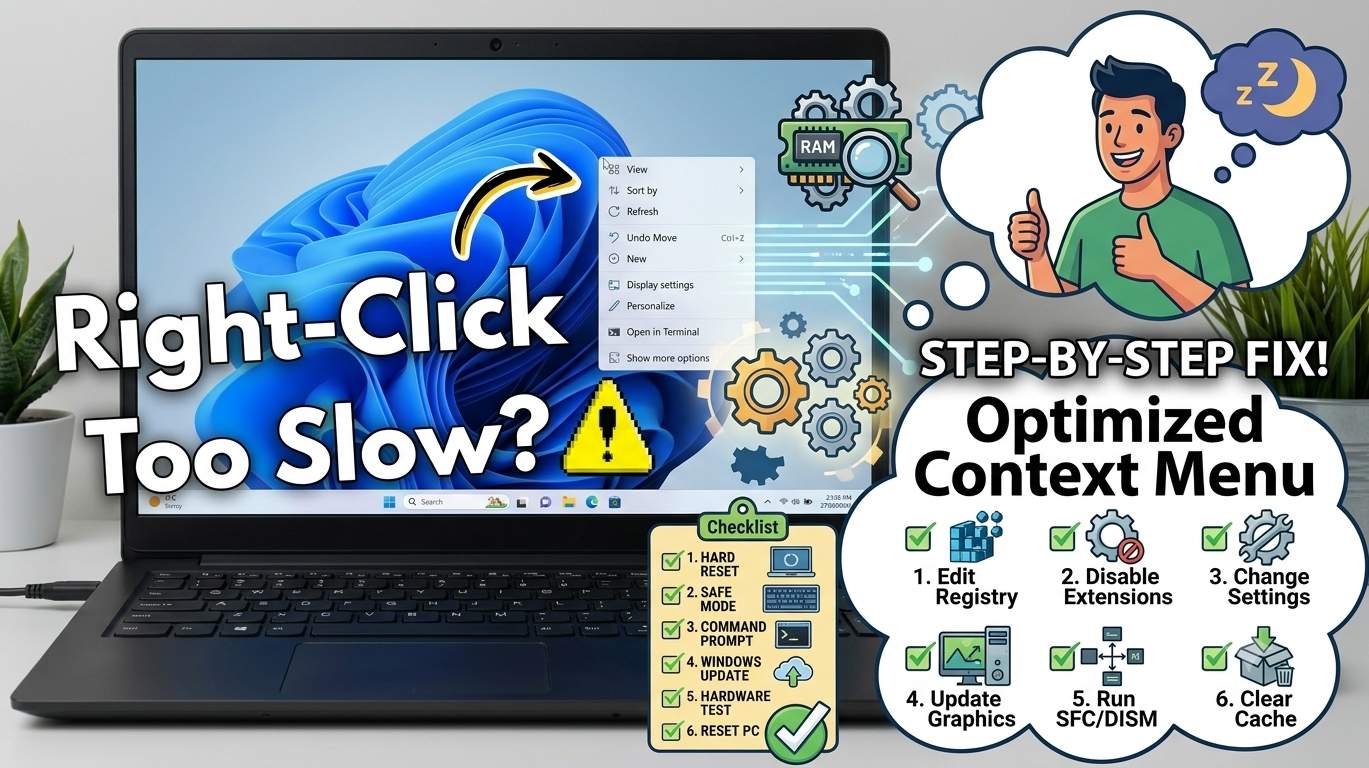
01. Quick Answer
| Method | What to do | Time | Best for |
|---|---|---|---|
| 1 | Restart Windows Explorer (and Your PC) | 1 min | Sudden slowness, menu lags after long uptime |
| 2 | Disable Third-Party Shell Extensions With ShellExView | 10 min | First right-click slow, menu freezes, many apps installed |
| 3 | Update or Remove Apps That Slow the Menu | 10 min | Slow only in synced folders, desktop or network locations |
| 4 | Clear the File Explorer and Icon Cache | 5 min | Explorer hangs on right-click, wrong or slow icons |
| 5 | Switch to the Classic Right-Click Menu | 2 min | Windows 11 menu is slow but classic menu is fast |
02. Which Symptom Do You Have?
A slow right-click menu has several different causes. Match your symptom first so you apply the right method.
| What you see | What it usually means | Start with |
|---|---|---|
| First right-click slow, second normal | Shell or sync extension waiting | Method 2, 3 |
| Every right-click takes seconds | Slow or broken shell extension | Method 2 |
| Slow only on desktop or in synced folders | OneDrive or cloud tool | Method 3 |
| Slow only on network drives | Network latency or extension | Method 3 |
| Show more options is also slow | Many extensions or cache issue | Method 2, 4 |
| Explorer freezes or crashes on right-click | Faulty extension or damaged files | Method 2, Advanced |
| Started after an update | Update or app incompatibility | Method 1, Advanced |
03. Step 0: The First 60 Seconds
Do these quick checks before changing anything.
Checklist
- Right-click in three places: the desktop, a plain local folder and a OneDrive or network folder. Note where it is slow.
- Right-click twice. If only the first right-click is slow, a shell or sync integration is likely.
- Try "Show more options" (Shift + F10 opens it directly). If the classic menu is also slow, suspect extensions.
- Check the system load with Ctrl + Shift + Esc. High CPU, memory or disk use slows every menu.
- Think back: did it start after installing an app or after an update?
04. Method 1: Restart Windows Explorer (and Your PC)
Time: 1 min | Best for: Sudden slowness, menu lags after long uptime
Windows Explorer draws the desktop, taskbar and File Explorer, and it also loads the right-click menu handlers. After days of uptime or a sleep cycle, a stuck handler can make every right-click slow. Restarting Explorer reloads everything without closing your apps.
Steps
- Press Ctrl + Shift + Esc to open Task Manager.
- Find Windows Explorer, right-click it and choose Restart.
- Right-click a file on the desktop and a file in File Explorer to compare.
- If it is still slow, use Start → Power → Restart (not Shut down) so Fast Startup does not keep the old state.
From Command Prompt
taskkill /f /im explorer.exe
start explorer.exe
05. Method 2: Disable Third-Party Shell Extensions With ShellExView
Time: 10 min | Best for: First right-click slow, menu freezes, many apps installed
This is the most effective fix. Apps such as cloud-sync tools, archivers, graphics drivers, antivirus and code tools add their own entries to the right-click menu through shell extensions. Windows loads them when you right-click, so one slow or broken extension delays the whole menu.
Steps
- Download ShellExView from the official NirSoft website, extract it and run it as administrator.
- Click Options → Filter by Extension Type → Context Menu.
- Click Options → Hide All Microsoft Extensions. The remaining items are third-party.
- Select suspicious entries (cloud-sync, graphics, archive tools, antivirus), then click Disable Selected Items (the red button or F7).
- Restart Windows Explorer and test right-click.
- If it is fixed, re-enable items in halves until the slow one returns, then leave that one disabled or update its app.
06. Method 3: Update or Remove Apps That Slow the Menu
Time: 10 min | Best for: Slow only in synced folders, desktop or network locations
Slowness that happens only in certain places often points to an integration waiting on a sync or network call. One July 2026 Microsoft forum case described a 2 to 3 second first right-click that was normal on the second try; a Microsoft community reply suggested testing a plain local file outside OneDrive or synced folders, then checking sync tools, backup tools, antivirus and file-status icon extensions.
Steps
- Right-click a file on a plain local folder (for example on a folder in
C:\Temp) and compare it with the desktop and synced folders. - If only synced folders are slow, check OneDrive, Google Drive, Dropbox or backup tools: update them, pause syncing and retest.
- Right-click a file on a network drive; slow only there means network latency or the mapped drive.
- Open Settings → Apps → Installed apps and uninstall tools you no longer use (old archivers, PDF tools, graphics utilities).
- Update the graphics driver and your antivirus. Some reports tie the NVIDIA context menu extension or specific antivirus extensions to a broken or slow menu.
07. Method 4: Clear the File Explorer and Icon Cache
Time: 5 min | Best for: Explorer hangs on right-click, wrong or slow icons
A damaged icon or thumbnail cache can make Explorer hang when it builds the menu. Clearing Explorer history and rebuilding the icon cache is safe; icons may flicker for a few seconds while Windows rebuilds them.
Clear Explorer history
- Open File Explorer → ⋯ → Options.
- On General → Privacy, click Clear.
- Turn off Show recently used files if you want less work on each open.
Rebuild the icon cache
taskkill /f /im explorer.exe
del /a /q "%localappdata%\IconCache.db"
del /a /f /q "%localappdata%\Microsoft\Windows\Explorer\iconcache*"
start explorer.exe
08. Method 5: Switch to the Classic Right-Click Menu
Time: 2 min | Best for: Windows 11 menu is slow but classic menu is fast
Windows 11's compact menu hides many commands behind Show more options, which adds an extra step and an extra delay. A registry tweak restores the classic full menu directly. It is reversible and only affects your user account. Create a restore point first.
Turn the classic menu on
reg.exe add "HKCU\Software\Classes\CLSID\{86ca1aa0-34aa-4e8b-a509-50c905bae2a2}\InprocServer32" /f /ve
taskkill /f /im explorer.exe
start explorer.exe
Undo it
reg.exe delete "HKCU\Software\Classes\CLSID\{86ca1aa0-34aa-4e8b-a509-50c905bae2a2}" /f
taskkill /f /im explorer.exe
start explorer.exe09. If the 5 Methods Do Not Help: Advanced Steps
Try these only after the five methods, from simplest to most thorough.
1. Repair system files
In an administrator Terminal, run DISM first, then SFC, then restart.
DISM /Online /Cleanup-Image /RestoreHealth
sfc /scannow
2. Install Windows updates
Open Settings → Windows Update → Check for updates and install optional updates and driver updates. Microsoft has improved Explorer and context menu performance in cumulative updates before, and a restart after updates matters.
3. Do a clean boot
- Press Windows key + R, run
msconfig. - On Services, tick Hide all Microsoft services and click Disable all.
- Disable startup apps in Task Manager, restart and test.
- Re-enable items in halves to find the culprit, then set Normal startup again.
4. Test a new user profile
Create a temporary local account in Settings → Accounts → Other users. If right-click is fast there, your profile or its Explorer settings are damaged.
5. Use System Restore or uninstall the update
If it began after an update, use Update history → Uninstall updates, or System Restore with a point from before the delay. Back up your files first.
10. 2026 Updates and Known Issues
The items below mix user reports and press coverage. I did not find an official Microsoft-confirmed slow-menu bug for 2026, and release plans may change, so check Windows release health for your build.
| Issue | What was reported | What helped |
|---|---|---|
| First right-click slow, second normal | A July 2026 Microsoft community post described a 2 to 3 second delay on the first right-click on the desktop and in File Explorer, even after disabling third-party menu extensions. A reply pointed to shell or sync integrations | Test a local file outside synced folders; check OneDrive, backup tools, antivirus and file-status icon extensions (Method 3) |
| Faster right-click menu being developed | A July 31, 2026 report says Microsoft is building a more compact, faster menu with a Customize option to hide or reorder items. Release timing is not confirmed | Use Methods 1 to 5 until it ships; check Windows Update |
| Antivirus or graphics extensions breaking the new menu | Reports mention a vertical scroll bar or a broken fast menu with some antivirus extensions, and a case where disabling the NVIDIA context menu extension fixed it | Disable the extension in ShellExView, update the app or driver (Method 2) |
11. Hardware Causes to Rule Out
Quick hardware checks
- Check Task Manager for disk at 100% or memory above 90%.
- Run Windows Memory Diagnostic (search for it in Start) if freezes are random.
- Check drive health with the maker's tool and keep a backup.
12. Symptom to Fix Table
| Symptom | Likely cause | Go to |
|---|---|---|
| First right-click slow, second normal | Shell or sync extension waiting | Method 2, 3 |
| Every right-click takes seconds | Slow or broken shell extension | Method 2 |
| Slow only on desktop or in synced folders | OneDrive or cloud tool | Method 3 |
| Slow only on network drives | Network latency or extension | Method 3 |
| Show more options is also slow | Many extensions or cache issue | Method 2, 4 |
| Explorer freezes or crashes on right-click | Faulty extension or damaged files | Method 2, Advanced |
| Started after an update | Update or app incompatibility | Method 1, Advanced |
13. How to Prevent It
🏆 Bottom Line
Most slow right-click menus come from one slow shell extension. Restart Windows Explorer first, then use ShellExView to hide Microsoft extensions and disable third-party menu handlers in small groups. Check cloud-sync and graphics tools if the delay only appears in certain places, clear the icon cache, and use the classic-menu registry tweak if you want the full menu faster. Leave DISM, SFC, clean boot and system restore for last, and create a restore point before registry changes.