In This Guide
01. Quick Answer
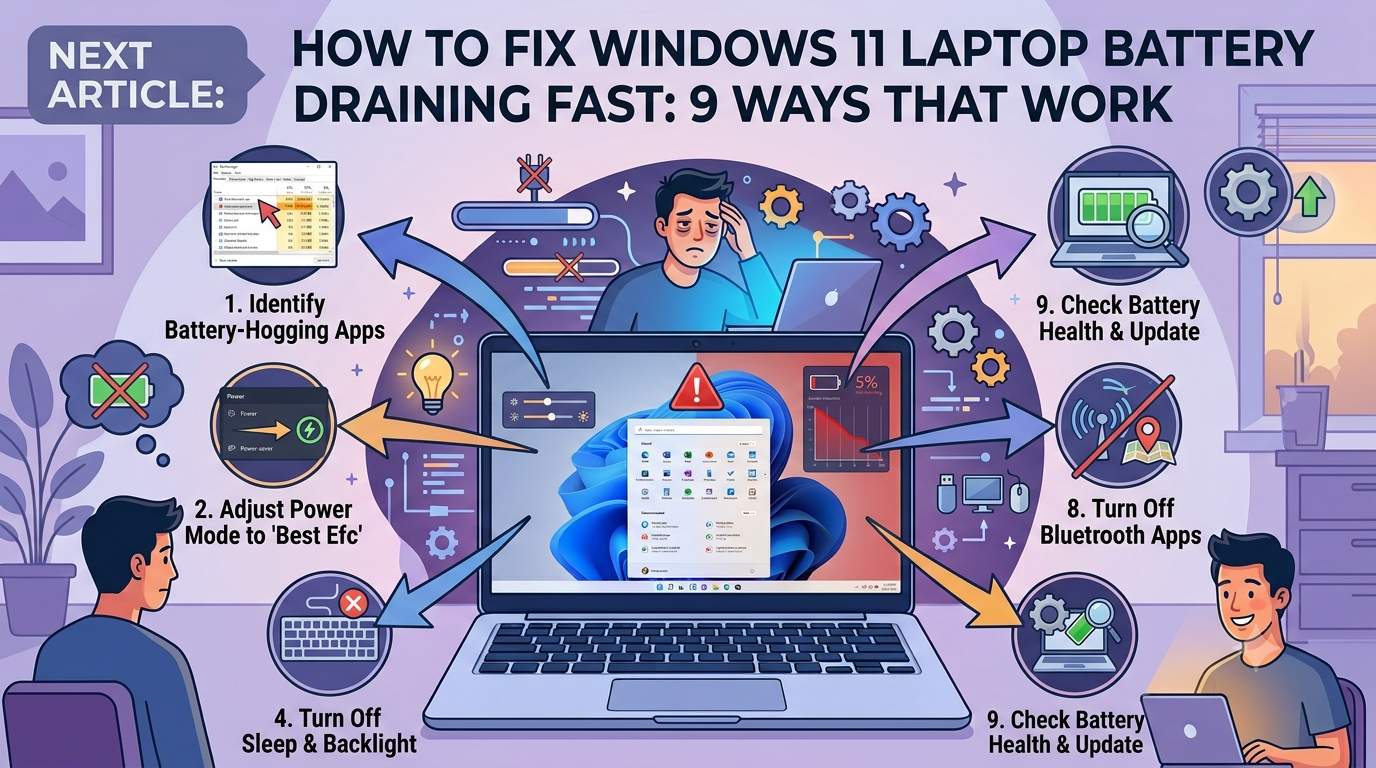
powercfg /batteryreport to check battery health.| Fix | What to do | Time | Impact |
|---|---|---|---|
| 1 | Switch Power Mode to Best Power Efficiency | 2 min | High |
| 2 | Turn On Energy Saver, Lower Brightness and Refresh Rate | 3 min | High |
| 3 | Find and Limit Background Apps and Startup Programs | 5 min | High |
| 4 | Fix Overnight Drain from Modern Standby | 10 min | High if you lose 10%+ overnight |
| 5 | Update Windows, Chipset, Wi-Fi and BIOS Drivers | 15 min | Medium-High |
| 6 | Tame Your Browser and Heavy Apps | 3 min | Medium |
| 7 | Handle Post-Update Drain: Wait, Disable Fast Startup, Reset Drivers | 10 min | Medium |
| 8 | Check Battery Health with the Battery Report | 5 min | Diagnostic |
| 9 | Change Charging Habits and Set an 80% Limit | 5 min | Long-term |
02. Diagnose First: Find What Is Actually Draining the Battery
Do not guess. Windows 11 has built-in reports that name the culprit, so spend two minutes here before changing settings. Go to Settings → System → Power & battery → Battery usage and view 7 days by app, then run these commands in Terminal (Admin).
powercfg /a to see your sleep type. "S0 Low Power Idle" means Modern Standby; "Standby (S3)" means traditional sleep, so skip the Sleep Study steps.01. Fix 1: Switch Power Mode to Best Power Efficiency
Time: 2 min | Impact: High
Windows 11 offers three power modes: Best power efficiency, Balanced, and Best performance. A laptop left on Best performance keeps the CPU boosting and background work running at full speed, which can cut battery life dramatically. Microsoft says Best power efficiency reduces consumption by limiting background activity, on battery and when plugged in.
Also check the mode separately for "On battery" and "Plugged in" in the same menu. Many OEM utilities (MyASUS, Lenovo Vantage, Armoury Crate) override this, so set the vendor profile to Quiet or Battery Saver too.
Steps
- Open Settings → System → Power & battery.
- Expand Power mode and choose Best power efficiency for battery.
- Open your OEM app and match its profile (Quiet/Eco).
02. Fix 2: Turn On Energy Saver, Lower Brightness and Refresh Rate
Time: 3 min | Impact: High
The display is usually the largest single power draw, so cutting brightness gives the quickest win. Energy saver (which replaced the old Battery saver) dims the screen, pauses non-critical background activity and Windows Update downloads, and turns off transparency effects while active.
If your panel runs at 120 Hz or higher, switch to 60 Hz on battery. Dark mode also helps, mainly on OLED panels. Set screen-off to 2-3 minutes and sleep to 5-10 minutes on battery.
Steps
- Settings → System → Power & battery → Energy saver: turn on automatically at 30-40% and enable Lower screen brightness.
- Settings → System → Display → Advanced display: choose 60 Hz (or Dynamic).
- Settings → Personalization → Colors: choose Dark.
03. Fix 3: Find and Limit Background Apps and Startup Programs
Time: 5 min | Impact: High
Windows shows exactly which apps used battery. Open Battery usage and sort by "Background" to find the offender; a cloud-sync client, game launcher, or chat app is common. For each one, set background activity to Power optimized, the setting Microsoft recommends because Windows decides when the app may run.
Then trim startup. Every app that launches at sign-in keeps waking the CPU and the network. Leave Microsoft Defender on; disable only what you do not need.
Steps
- Settings → System → Power & battery → Battery usage, set range to 7 days.
- Click the app → Background activity → Power optimized.
- Settings → Apps → Startup: switch off non-essential items.
04. Fix 4: Fix Overnight Drain from Modern Standby
Time: 10 min | Impact: High if you lose 10%+ overnight
Many laptops use Modern Standby (S0 Low Power Idle), where the PC stays partly awake and network-connected while the lid is closed. A misbehaving driver, app or Wi-Fi adapter can stop it from reaching the low-power state, so the battery drains in a bag. Check the sleep state first, then read the Sleep Study report, which lists what kept the system awake.
If one device or app dominates the report, update or remove it. If drain persists, set the lid-close action to Hibernate, which uses almost no power. If powercfg /a shows S3 instead, this section does not apply to you.
Steps
- Open Terminal (Admin):
powercfg /a(look for "S0 Low Power Idle"). - Run
powercfg /sleepstudy; open the HTML report and check the top offenders. - Control Panel → Power Options → Choose what closing the lid does → Hibernate.
05. Fix 5: Update Windows, Chipset, Wi-Fi and BIOS Drivers
Time: 15 min | Impact: Medium-High
After a major update, old chipset, graphics or Wi-Fi drivers often fight the new power management logic, and OEM BIOS or firmware updates change how the battery is charged and reported. Update in this order: Windows Update (including optional updates), the maker's support page (Dell, HP, Lenovo, ASUS, Acer), then the GPU vendor.
Version note: Windows 11 24H2 support for Home and Pro ends October 13, 2026, and 26H2 is rolling out as a small enablement package for 24H2/25H2 PCs. Staying current matters. Devices shipping with 26H1 (Snapdragon X2 class) are a separate branch.
Steps
- Settings → Windows Update → Advanced options → Optional updates.
- Install the latest BIOS, chipset and Wi-Fi driver from your laptop maker.
- Restart twice, then recheck Battery usage.
06. Fix 6: Tame Your Browser and Heavy Apps
Time: 3 min | Impact: Medium
Browser tabs are a common hidden drain: video, ads and web apps keep the CPU and GPU busy. In Microsoft Edge, turn on Efficiency mode and Sleeping tabs; in Chrome, enable Memory Saver and Energy Saver. Pause video calls, cloud sync and 4K playback when you need range.
Also close apps that use the discrete GPU. Set gaming and creative apps to "Power saving" GPU under Settings → System → Display → Graphics.
Steps
- Edge: Settings → System and performance → Efficiency mode.
- Chrome: Settings → Performance → Energy saver.
- Set non-gaming apps to Power saving GPU.
07. Fix 7: Handle Post-Update Drain: Wait, Disable Fast Startup, Reset Drivers
Time: 10 min | Impact: Medium
After a feature or cumulative update, battery life can dip for a day or two while Windows reindexes files and finishes background tasks. Reports of extra drain after recent updates (including 25H2) exist, so check Battery usage before assuming hardware failure.
If your laptop runs warm or loses charge while "shut down", turn off Fast Startup. You can also uninstall the "Microsoft ACPI-Compliant Control Method Battery" and "Microsoft AC Adapter" entries in Device Manager and restart; Windows reinstalls them and often corrects wrong percentage readings.
Steps
- Wait 24-48 hours on AC power after a big update.
- Control Panel → Power Options → Choose what the power buttons do → Change settings currently unavailable → untick Fast startup.
- Device Manager → Batteries → Uninstall both entries → Restart.
08. Fix 8: Check Battery Health with the Battery Report
Time: 5 min | Impact: Diagnostic
If you tried everything and the laptop still burns through a charge in half the time, stop suspecting software. Run the battery report and compare Design capacity with Full charge capacity. A large gap means the cells have worn out; no setting can fix that and replacement is the real answer.
Lithium-ion cells also lose a few percent of capacity per year even with light use. A rule of thumb: once full-charge capacity falls well below about 70-80% of design, battery life will feel poor.
Steps
- Run
powercfg /batteryreportin Terminal (Admin). - Open the saved
battery-report.htmland compare the two capacity numbers. - Run
powercfg /energyto catch driver and device issues.
09. Fix 9: Change Charging Habits and Set an 80% Limit
Time: 5 min | Impact: Long-term
Lithium-ion batteries age faster when held at 100% and when hot or run to 0%. Windows has no native charge-limit feature, so use your maker's tool: Lenovo Vantage, Dell Power Manager, MyASUS (Battery Health Charging) or HP Battery Health Manager/BIOS. A cap of about 80% cuts wear if the laptop lives on a desk.
Keep vents clear, avoid charging under a blanket, and use a certified charger. This will not add hours today, but it protects battery life for years.
Steps
- Install the OEM utility and choose Limit to 80% (or Maximum Lifespan).
- Unplug at 80% when working on the move.
- Store at about 50% if unused for weeks.
12. Fix by Symptom
| Symptom | Start with |
|---|---|
| Drains 10%+ overnight | Fix 4, Fix 5 |
| Dropped right after an update | Fix 7, Fix 5 |
| Fast drain while browsing | Fix 6, Fix 2 |
| Hot, loud fans on battery | Fix 1, Fix 3 |
| Percentage jumps suddenly | Fix 7, Fix 8 |
| Half the battery life vs. a year ago | Fix 8, Fix 9 |
🏆 Bottom Line
Fixes 1-3 solve most complaints in under ten minutes. If the laptop drains while asleep, work through Fixes 4-5. If every setting is clean and runtime is still half of what it was, the battery report will confirm whether you need a replacement. Check what your maker's official battery support page says for your exact model.