In This Guide
01. Quick Answer
SoftwareDistribution and catroot2 folders, and repair Windows files with DISM followed by sfc /scannow. Use Reset this PC with Keep my files only if everything else fails.| Method | What to do | Time | Best for |
|---|---|---|---|
| 1 | Check Your Connection and Free Space | 5 min | Any failed update |
| 2 | Pause Updates, Restart, Then Resume | 5 min | Stuck or silent failures |
| 3 | Restart the Windows Update Services | 5 min | Updates won't start or download |
| 4 | Reset the Update Cache | 10 min | Corrupted downloads, 0x80070002 |
| 5 | Repair Windows Files With DISM and SFC | 20-45 min | Corrupted system files, 0x80073712 |
| 6 | Use Reset This PC (Last Resort) | 45-90 min | Nothing else works |
02. Why Windows 11 Updates Fail
Windows downloads an update, checks it, stages the files, restarts and then swaps in the new files. A problem at any stage can stop it. Knowing the usual suspects tells you which method to try first.
03. Method 1: Check Your Connection and Free Space
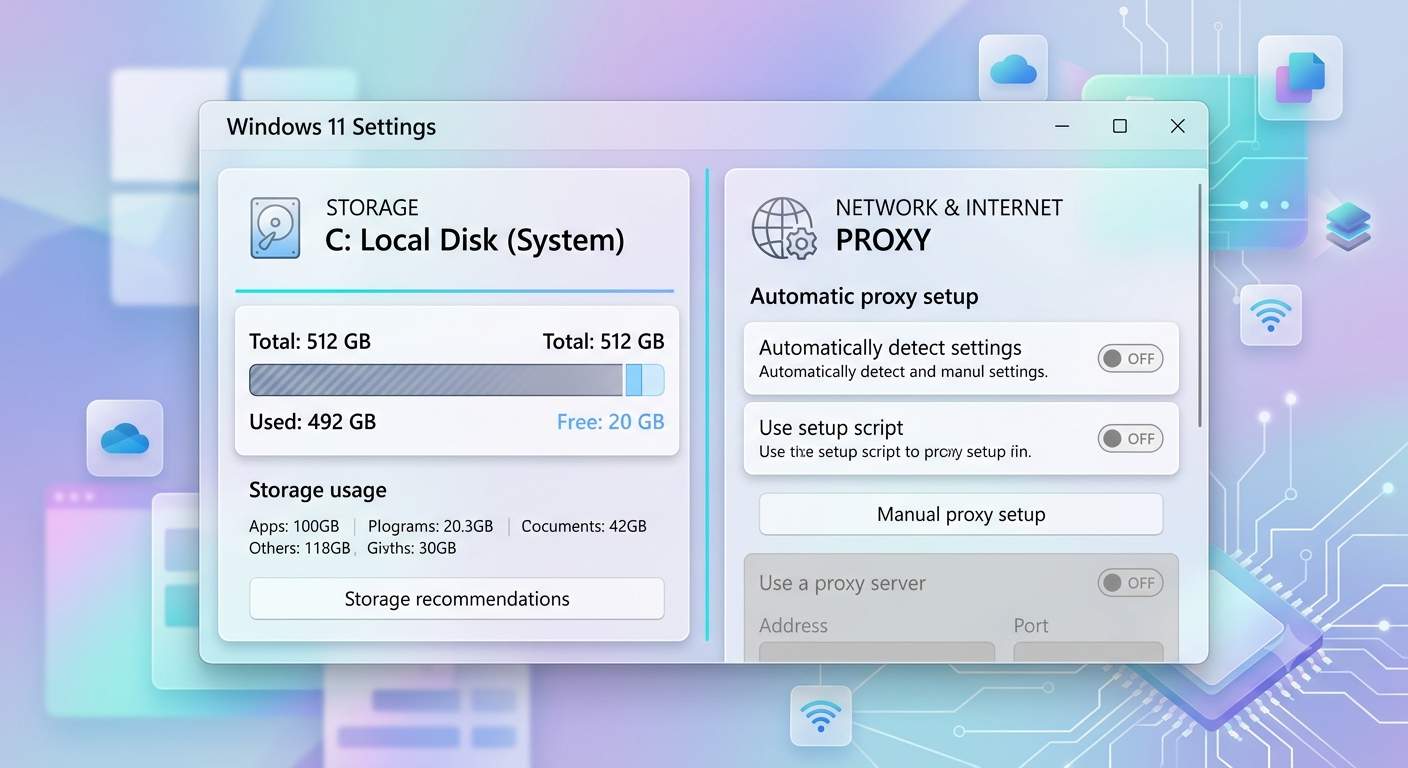
Time: 5 min | Best for: Any failed update
These two checks are quick and solve a surprising number of cases. Do them before touching any service or command.
Steps
- Test your connection. Open a few websites and run a speed test. If Wi-Fi is unreliable, plug in an Ethernet cable for the update. If you need help, see our guide: Laptop WiFi Not Working on Windows 11.
- Turn off VPN and proxy. Disconnect any VPN app and check Settings → Network & internet → Proxy.
- Check free space. Open Settings → System → Storage and make sure the C drive has at least 20 GB free. Use Temporary files to clear junk, empty the Recycle Bin and remove unused apps.
- Check the date and time. Open Settings → Time & language → Date & time and turn on automatic time. A wrong clock can break secure connections.
- Unplug extras. Remove USB drives, docks and other devices that you do not need during the update.
- Plug in the charger if you are on a laptop, and restart once.
04. Method 2: Pause Updates, Restart, Then Resume
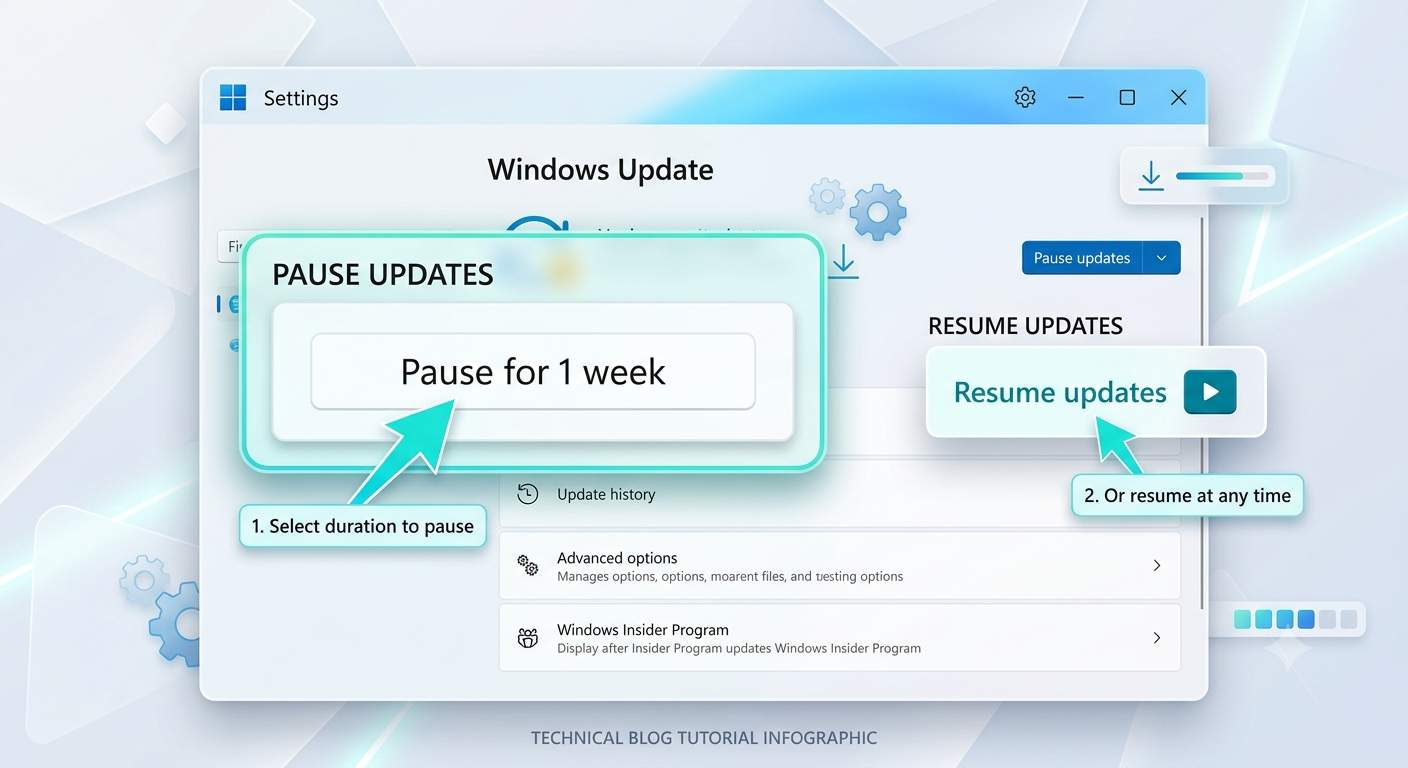
Time: 5 min | Best for: Stuck or silent failures
Pausing and resuming forces Windows Update to drop its current session and start a fresh check. It is a light reset that sometimes clears a stuck download without any commands.
Steps
- Press Windows + R, type
ms-settings:windowsupdateand press Enter. - Click Pause for 1 week (or the pause option shown on your build).
- Restart the PC.
- Open the same page again and click Resume updates, then Check for updates.
05. Method 3: Restart the Windows Update Services
Time: 5 min | Best for: Updates that will not start or download
Windows Update relies on background services. If one is stopped, disabled or hung, updates stall at "Checking" or "Downloading". Restarting the main service forces it to reload.
Steps
- Press Windows + R, type
services.mscand press Enter. - Scroll to Windows Update, right-click it and open Properties.
- Under Startup type, make sure it is not Disabled. Windows normally sets it to Manual (Trigger Start). If you or a tweak tool disabled it, set it back to Manual or Automatic and click Apply.
- Right-click Windows Update again and choose Restart (or Start if it was stopped).
- Check the same way that Background Intelligent Transfer Service and Cryptographic Services are running.
- Open Windows Update and click Check for updates.
06. Method 4: Reset the Update Cache
Time: 10 min | Best for: Corrupted downloads, error 0x80070002
Windows stores downloaded updates in a folder called SoftwareDistribution and keeps update signatures in catroot2. If either holds a damaged file, every retry fails the same way. Renaming the folders makes Windows build new ones. Renaming is safer than deleting because you can restore the old folder if needed.
Steps
- Open Terminal (Admin) or an administrator Command Prompt (search for cmd, right-click, Run as administrator).
- Stop the update services:
net stop wuauserv
net stop cryptSvc
net stop bits
net stop msiserver
- Rename the two cache folders:
ren C:\Windows\SoftwareDistribution SoftwareDistribution.old
ren C:\Windows\System32\catroot2 catroot2.old
- Start the services again:
net start wuauserv
net start cryptSvc
net start bits
net start msiserver
- Restart the PC, open Windows Update and click Check for updates.
After updates install successfully, you can delete the .old folders to free space.
07. Method 5: Repair Windows Files With DISM and SFC
Time: 20-45 min | Best for: Corrupted system files, error 0x80073712
If Windows files or the component store are damaged, updates cannot apply cleanly. DISM repairs the Windows image that updates depend on, and SFC then checks and repairs protected system files. Run DISM first.
Steps
- Open Terminal (Admin) or an administrator Command Prompt.
- Run DISM and wait for it to finish. It can look stuck at certain percentages for a few minutes, so do not close it:
DISM /Online /Cleanup-Image /RestoreHealth
- When it reaches 100%, run the System File Checker:
sfc /scannow
- Restart the PC and run Windows Update again.
If SFC says it found problems it could not fix, run DISM again, then SFC again.
08. Method 6: Use Reset This PC (Last Resort)
Time: 45-90 min | Best for: Nothing else works
Use this only after Methods 1 to 5 and the extra fixes below have failed. Reset this PC reinstalls Windows. With Keep my files, your personal files stay, but your apps and most settings are removed, so you will need to reinstall programs afterward.
Try this first: Reinstall now
- Open Settings → System → Recovery.
- Under Fix problems using Windows Update, click Reinstall now. This repairs Windows while keeping your files and apps.
Then, if needed: Reset this PC
- Back up your important files to an external drive or cloud storage first.
- Open Settings → System → Recovery → Reset this PC.
- Choose Keep my files.
- Choose Cloud download (fetches a fresh copy of Windows) or Local reinstall (uses files already on the PC). Cloud download is better if local files may be damaged.
- Review the summary and click Reset. It can take 45 to 90 minutes, and the PC will restart several times.
09. Extra Fixes When the Six Methods Are Not Enough
Run the Windows Update troubleshooter
Open Settings → System → Troubleshoot → Other troubleshooters and click Run next to Windows Update. Apply the suggested fix and restart.
Install one failing update manually
- Note the KB number of the failing update in Settings → Windows Update → Update history.
- Search the Microsoft Update Catalog for that KB number.
- Download the package that matches your Windows version (24H2, 25H2 or 26H2) and system type (x64 or ARM64), then open it to install.
Upgrade with the Installation Assistant
For a major version upgrade that will not install through Windows Update, you can use Microsoft's Windows 11 Installation Assistant or an ISO from Microsoft's download page.
Clean up the component store
DISM /Online /Cleanup-Image /StartComponentCleanup
This removes superseded files and can free space. Run it before retrying a stubborn update.
Remove a problem update
If a recent update broke something, open Settings → Windows Update → Update history → Uninstall updates, remove it, and pause updates for a week.
Related guides
If your PC will not start after an update, see: Windows 11 Not Booting After an Update and Windows 11 Stuck on Loading Screen.
10. Advanced: Error 0x800f0922 and a Full EFI Partition
Several 2026 Windows 11 updates failed with error 0x800f0922 when the hidden EFI System Partition (a small partition that stores boot files) had almost no free space. The installer could not stage the new boot files, so it rolled everything back and showed "Undoing changes". If your failures show 0x800f0922 and the earlier methods did not help, check this.
Check the partition
- Right-click Start → Disk Management.
- Look for a partition of about 100 to 650 MB labeled EFI System Partition or System Reserved. If it is very full, this is a likely cause.
Free space on the partition (advanced)
A widely used workaround is to mount the partition and remove old font files from its boot folder. Back up important data first and only do this if you are comfortable with the command line. If not, ask a technician.
mountvol S: /S
dir S:\EFI\Microsoft\Boot\Fonts
del S:\EFI\Microsoft\Boot\Fonts\*.ttf
mountvol S: /D
Then restart and retry the update. Only the font files in that folder should be removed; do not delete other boot files.
11. Common Update Error Codes
| Error | Usually means | Start with |
|---|---|---|
| 0x80070002 / 0x80070003 | Windows cannot find a required update file | Method 4, then manual install |
| 0x8024a105 | Update client or cache problem | Method 3, 4 |
| 0x800f0922 | Update could not be committed: full EFI partition, VPN or connection, or corrupt files | Method 1, 5, advanced EFI section |
| 0x80073712 | A needed system file or component is missing or corrupt | Method 5 |
| 0x800f0993 | The final commit step failed and the update rolled back | Method 5, advanced EFI section |
| 0x800f081f | DISM could not find source files | Method 5, then Reinstall now |
| 0x80070070 | Not enough disk space | Method 1 |
| 0x8024402c / 0x80072efd | Connection, proxy or DNS problem | Method 1 |
| 0x80070005 | Access denied, often permissions or security software | Method 3, turn off third-party antivirus for a test |
12. 2026 Updates That Failed to Install
Some 2026 updates failed on certain PCs. Check Windows release health for your build before you spend time on repairs. The first item below was acknowledged by Microsoft according to guides and press reports. The others are reports from repair sites and users, so verify them against Microsoft's pages.
| Update | What was reported | What helped |
|---|---|---|
| KB5089549 (May 12, 2026) | Install failures with 0x800f0922 on some Windows 11 24H2 and 25H2 PCs because the EFI System Partition had very little free space | Optional update KB5089573 (May 26, 2026) fixed it, and the fix was rolled into the June Patch Tuesday update |
| KB5094126 (June 2026), reports | Install failures with 0x800f0922, 0x80073712 and 0x800f0993 on some PCs, especially ones upgraded from Windows 10 | Free EFI partition space, DISM repair, reset update components |
| KB5101650 (July 2026), reports | Some users still saw 0x800f0922 | Check the EFI partition and reset update components |
13. If the Update Is Stuck at a Percentage
An update that sits at 0%, 30% or 100% may still be working. Large updates can take an hour or more on a slow drive. Use this simple plan.
Steps
- Wait. If the drive light or fan shows activity, give it at least an hour.
- Restart. If nothing changes, restart the PC, then run Check for updates again.
- Run the troubleshooter and Methods 3 to 5 if it stalls again.
- If the PC shows "Undoing changes" repeatedly or will not start normally, open the recovery environment and uninstall the latest update. See our guide: Windows 11 Not Booting After an Update.
14. How to Prevent Update Errors
🏆 Bottom Line
Most failed Windows 11 updates are fixed by the simple things: a stable connection, enough free space, a pause-and-resume, restarting the update services and resetting the cache. If you still see errors, repair Windows files with DISM and SFC, and match your error code to the guide above. Check whether your update is a known 2026 problem such as the EFI partition issue. Reset this PC with Keep my files is the final step, and a backup should come first.