- Check why files skip the bin (Part C).
- Bring the icon back (Fix D1).
- Recover the files (recovery methods).
The Recycle Bin is not a normal folder. Windows keeps a hidden, protected folder named $Recycle.Bin on each drive, and the Recycle Bin window is a special view of those folders for your user account. When that hidden folder is damaged, or the Explorer process that draws the view is stuck, the bin fails to open, freezes, or looks empty. This guide is about the Windows Recycle Bin, not a physical trash can.
How the Recycle Bin works, and what skips it
When you press Delete on a normal local file, Windows moves it into $Recycle.Bin on that drive and keeps a record of its original location. That is why Restore works. Several things skip the bin completely.
| Deleted how or where | Goes to Recycle Bin? |
|---|---|
| Delete key or right-click Delete on a local drive | Yes (if the bin is enabled and the file fits) |
| Shift + Delete | No, removed permanently |
| USB flash drives and many external drives | Often no, depending on the drive and file system |
| Network shares and mapped drives | Usually no |
Command Prompt del, PowerShell Remove-Item, some apps | No |
| Files larger than the bin's maximum size | No, Windows asks to delete permanently |
| OneDrive synced files | Local bin plus OneDrive's own online recycle bin |
| Another user's deleted files | Appears only in that user's view |
Recycle Bin not opening in Windows 11
A1. Restart Windows Explorer
Safe · 1 minute
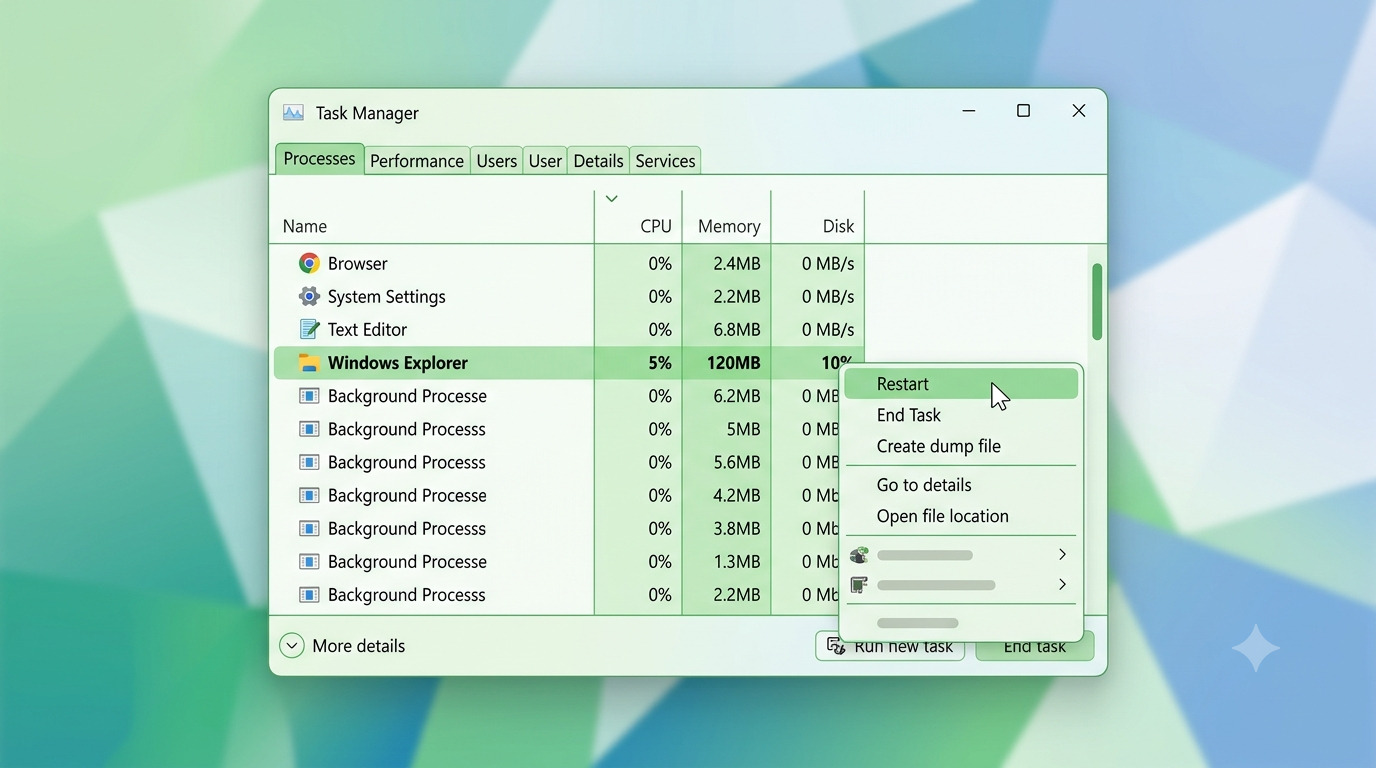
- Press Ctrl + Shift + Esc to open Task Manager.
- Find Windows Explorer under Processes, right-click it and choose Restart.
- Try the Recycle Bin again.
Or restart it from Command Prompt:
taskkill /f /im explorer.exe & start explorer.exeA2. Open the Recycle Bin another way
Safe · 1 minute
- Press Win + R, type
shell:RecycleBinFolder, and press Enter. - Or open File Explorer, click the address bar, type
Recycle Bin, and press Enter. - Or search Start for Recycle Bin.
If it opens this way but not from the desktop icon, the icon shortcut is the problem. See Fix D1.
A3. Reset a corrupted Recycle Bin (fixes “Recycle Bin on C: is corrupted”)
Removes items currently in the bin · 3 minutes
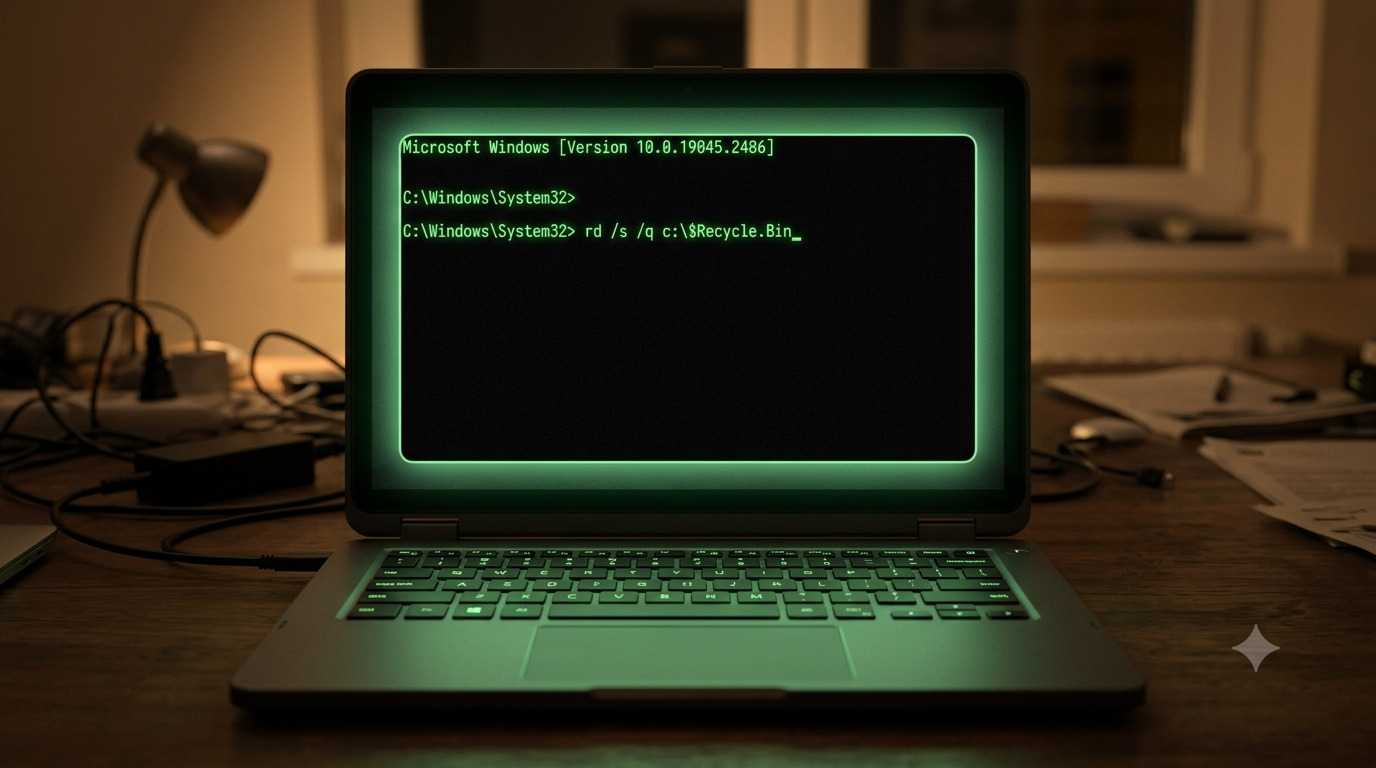
- Click Start, type cmd, right-click Command Prompt and choose Run as administrator.
- Run the command for each drive that shows the error.
rd /s /q C:\$Recycle.Bin- Replace
C:withD:,E:and so on for other drives. - Restart your PC. Windows recreates the folder the next time you delete a file.
$ sign differently.A4. Repair system files with SFC and DISM
Safe · 10 to 30 minutes
sfc /scannow
DISM /Online /Cleanup-Image /RestoreHealth
sfc /scannowRun these in an administrator terminal, one at a time, then restart.
A5. Check for a pending update, or a bad one
Safe · 10 minutes
Open Settings > Windows Update and install anything pending. If the Recycle Bin stopped opening right after an update, open Update history > Uninstall updates and remove that update, then pause updates for a week while Microsoft issues a fix. If updates fail to install, try these Windows 11 update error fixes.
A6. Test with a new user account
Safe · 5 minutes
Go to Settings > Accounts > Other users > Add account. If the Recycle Bin opens in the new account, your profile settings are damaged. Move your files to the new account or repair the old profile with the steps above. If the Settings app itself will not open, see how to fix Windows 11 Settings not working.
Recycle Bin not responding or not emptying
B1. Empty the bin with PowerShell
Permanently deletes everything in the bin
When the Empty Recycle Bin button does nothing, run this in Windows Terminal:
Clear-RecycleBin -Force
Clear-RecycleBin -DriveLetter C -ForceThe second line empties only one drive. If PowerShell reports an error, close apps that may hold a file open, then try again or use Fix A3.
B2. Find a faulty shell extension or startup app
Safe · 15 minutes
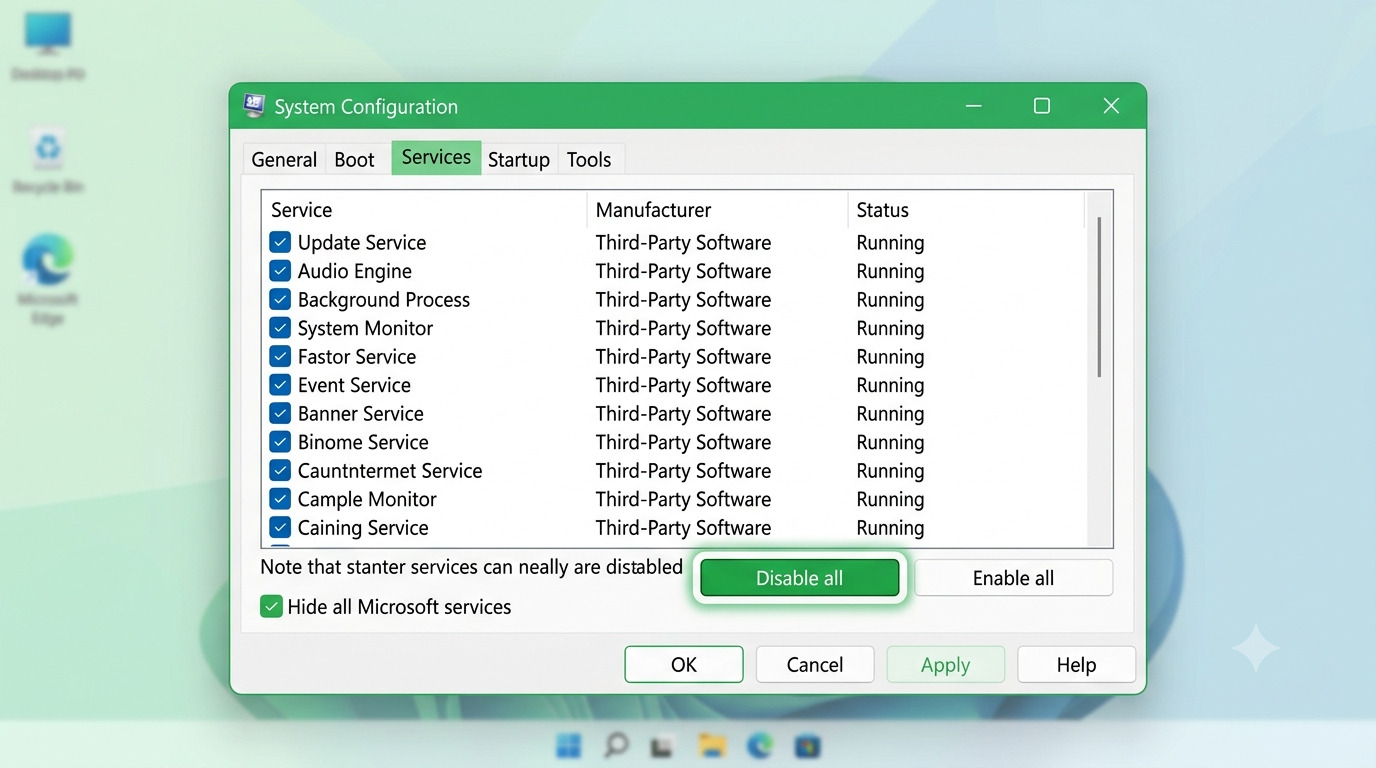
Third-party context-menu tools, cloud storage clients and antivirus shell add-ins can freeze Explorer windows. Slow menus are a related sign (see how to fix a slow right-click menu), and so is a desktop that freezes after sign-in (see desktop not responding after login).
- Press Win + R, type
msconfig, and open Services. - Tick Hide all Microsoft services, click Disable all, then go to Startup in Task Manager and disable all startup apps.
- Restart and test the Recycle Bin. If it works, re-enable items in small groups to find the cause.
- Reset the changes in msconfig when finished.
B3. Reset File Explorer folder view
Changes settings
In File Explorer, open the See more (…) menu, choose Options > View > Reset Folders, and click Apply. This clears odd view settings that can slow the Recycle Bin window.
B4. Check disk and drive health
Safe · varies
A failing drive makes the bin hang. Run chkdsk C: /scan in an administrator terminal. If the drive reports errors or bad sectors, back up your files soon.
B5. Clear the large bin gradually
Safe
A bin with hundreds of thousands of items can look frozen while it counts and deletes. Wait several minutes, or lower the bin's maximum size under Recycle Bin > Properties, then empty it.
Deleted files missing from the Recycle Bin
If a file is not in the bin, it either skipped the bin or was removed from it. Work through these reasons in order.
C1. The bin is set to delete files immediately
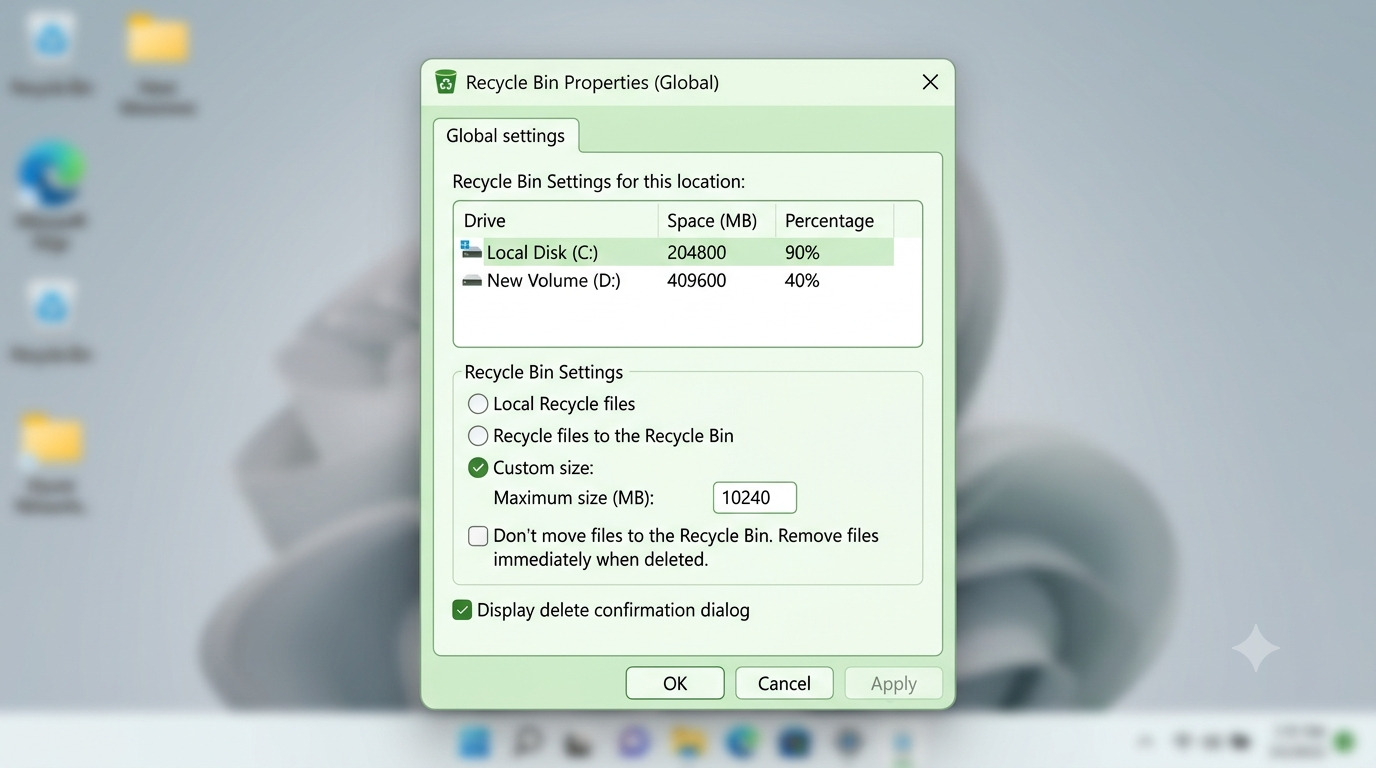
- Right-click the Recycle Bin and choose Properties.
- For each drive, select Custom size and set a maximum size, and do not select Don’t move files to the Recycle Bin. Remove files immediately when deleted.
- Click Apply. This setting is the most common reason deleted files never appear.
C2. Storage Sense deleted them
Open Settings > System > Storage > Storage Sense. Under Cleanup of temporary files, set Delete files in my recycle bin if they have been there for over to a longer period or Never.
C3. A policy is blocking the bin
On Windows 11 Pro, open gpedit.msc and go to User Configuration > Administrative Templates > Windows Components > File Explorer. Set Do not move deleted files to the Recycle Bin to Not Configured. On Home editions, check the registry value NoRecycleFiles under HKCU\Software\Microsoft\Windows\CurrentVersion\Policies\Explorer. If it is set to 1, delete it or set it to 0, then sign out and back in. Work devices may enforce this through Intune or Group Policy, so ask your IT team.
C4. The file was too large or on a drive without a bin
Files larger than the bin's maximum, and files on USB or network drives, are deleted outright. Check the drive's bin size in Properties. If an external drive is the problem, see external hard drive not detected in Windows 11.
C5. Another account or sync service removed it
Each user sees only their own deleted items. If you use OneDrive, also check onedrive.com > Recycle bin, where files stay for up to 30 days on personal accounts.
How to recover files that are not in the Recycle Bin
Try these methods in order, from highest to lowest odds. Stop saving new files to the drive while you recover, because new data can overwrite deleted files.
| Method | Best for | How |
|---|---|---|
| OneDrive recycle bin | Synced Desktop, Documents, Pictures | Sign in at onedrive.com, open Recycle bin, select files, click Restore. |
| Previous Versions | Files in a folder that still exists | Right-click the folder, Properties, Previous Versions, pick a version, Restore. |
| File History or backup | Any file you backed up | Search Start for Restore your files with File History, or open your backup app. |
| Windows File Recovery | Recently deleted files on NTFS | Install it from Microsoft Store and run winfr (below). |
| Third-party recovery tool | Formatted or older deletions | Install on a different drive and recover to a third location. |
| Professional recovery | Failing or physically damaged drives | Stop using the drive and contact a lab. |
Using Windows File Recovery
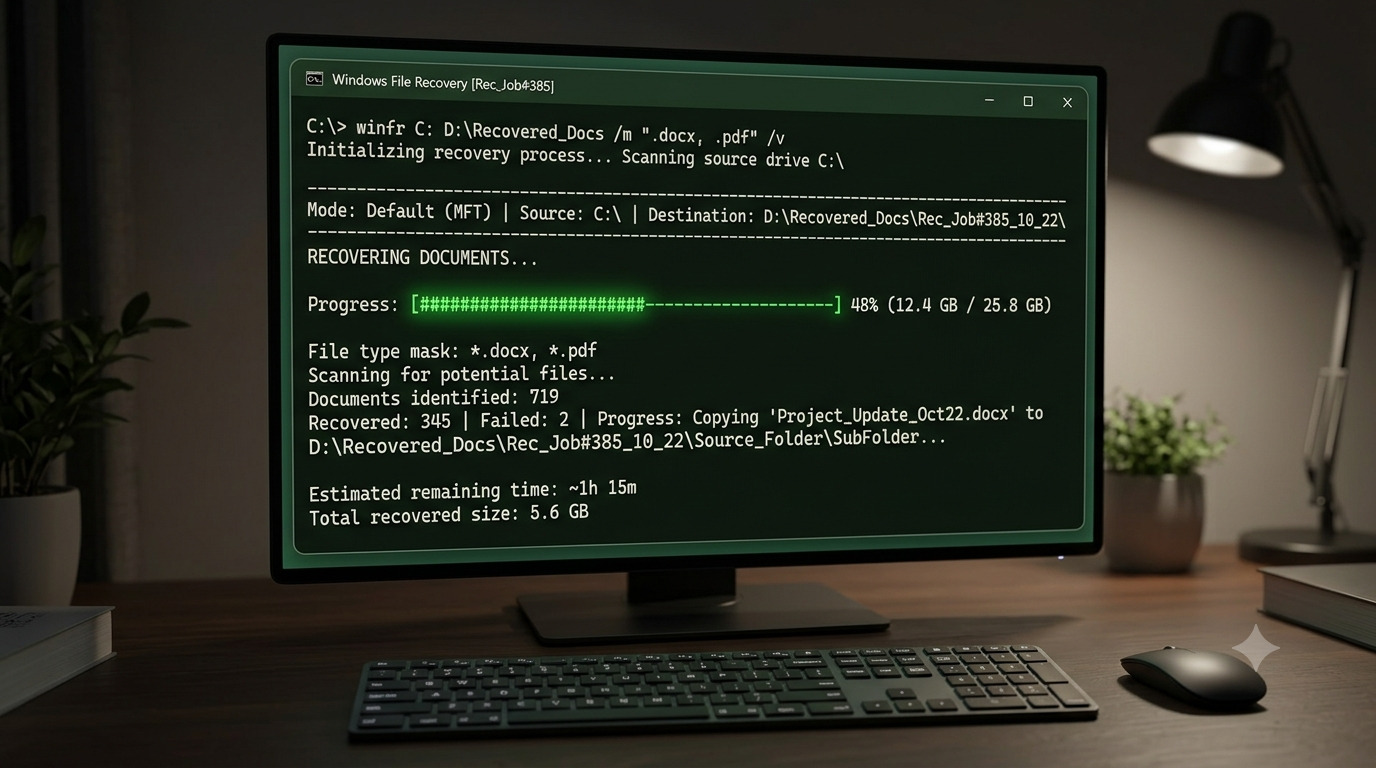
Install Windows File Recovery from Microsoft Store, open it as administrator, and recover to a different drive than the one you are scanning:
winfr C: D:\Recovered /regular /n \Users\YourName\Documents\
winfr C: D:\Recovered /extensive /n *.docxUse /regular first for recently deleted files on NTFS. Use /extensive for older deletions. Replace YourName and the file pattern with your own. Press Y when prompted to continue. If recovered photos will not open, see how to fix JPG files not opening in Windows 11.
Recycle Bin icon missing from the desktop
D1. Turn the icon back on
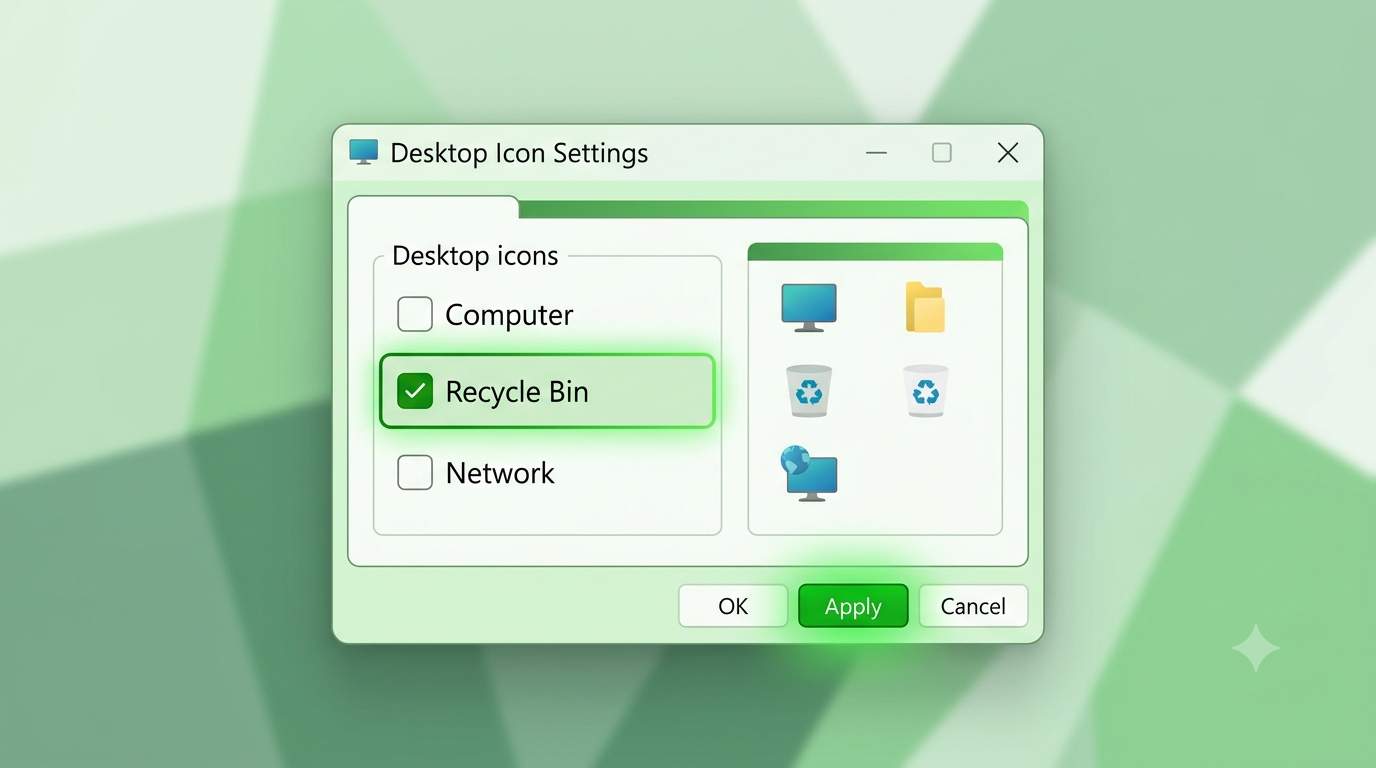
- Open Settings > Personalization > Themes.
- Click Desktop icon settings.
- Tick Recycle Bin, click Apply, then OK.
- Right-click an empty desktop area, choose View, and confirm Show desktop icons is checked.
If other icons are missing too, see desktop icons missing in Windows 11.
D2. Rebuild the icon cache
If the icon shows blank or wrong, restart Explorer (Fix A1), then restart the PC. If you recently changed themes, reselect your normal theme in Personalization > Themes.
For IT admins and shared PCs
- Check Do not move deleted files to the Recycle Bin and Maximum allowed Recycle Bin size policies in Group Policy or Intune.
- Remember that each user and each drive has its own bin. Redirected folders and network shares generally do not use one.
- Test with a standard user account and a clean boot to separate policy issues from corruption.
- Keep file server shadow copies or versioned backups, since they cover files that never touch a local bin.
How to prevent Recycle Bin problems
- Keep the bin at a sensible size and empty it from time to time instead of letting it grow for years.
- Use Shift + Delete only when you are sure.
- Turn on File History or a cloud backup so recovery does not depend on the bin.
- Install Windows updates and keep at least 10% of your drive free.
- Remove shell-extension utilities you do not use.
Common mistakes
- Resetting the bin (Fix A3) before restoring items you want to keep.
- Recovering files back to the same drive you scanned.
- Running recovery tools after installing large programs on the same drive.
- Assuming files deleted from a USB or network drive are in the Windows bin.
Frequently asked questions
Why won't the Recycle Bin open in Windows 11?
Usually a corrupted bin folder, a stuck Explorer process, damaged system files, or a bad shell extension. Start with A1, then A3.
How do I fix “The Recycle Bin on C: is corrupted”?
Run rd /s /q C:\$Recycle.Bin in an administrator Command Prompt and restart. Items in the bin are removed.
Why are my deleted files not in the Recycle Bin?
They may have been deleted with Shift + Delete, from a USB or network drive, by a command, or the bin is set to delete immediately or is too small.
How do I recover files after emptying the Recycle Bin?
Try OneDrive, Previous Versions, File History, then Windows File Recovery. Act quickly.
Why does Empty Recycle Bin do nothing?
The bin may be corrupted, a file may be locked, or Explorer is stuck. Use B1 or A3.
How do I get the Recycle Bin icon back?
Settings, Personalization, Themes, Desktop icon settings, tick Recycle Bin.
Is it safe to delete the $Recycle.Bin folder?
Yes, using the reset command, when the bin is corrupted. Windows recreates it. You lose only the items inside it.
Do these fixes work on Windows 10 and Windows 11 Home or Pro?
Yes. Menu names differ slightly, and Group Policy needs Pro or higher, but the registry alternative works on Home.
Can antivirus or malware affect the Recycle Bin?
Rarely, but a full scan with Windows Security is a quick check if the bin behaves oddly along with other symptoms.
🔗 Related Windows Troubleshooting Guides
Can't Fix Your PC Problem? Get Remote Support.
Get Help📚 References & Official Sources
For official documentation and further technical assistance, refer to Microsoft's official knowledge base:
💬 Did This Fix Work for You?
Tell us whether your Recycle Bin problem is solved. Your feedback helps other readers.
Still stuck? Get remote support.