In This Guide
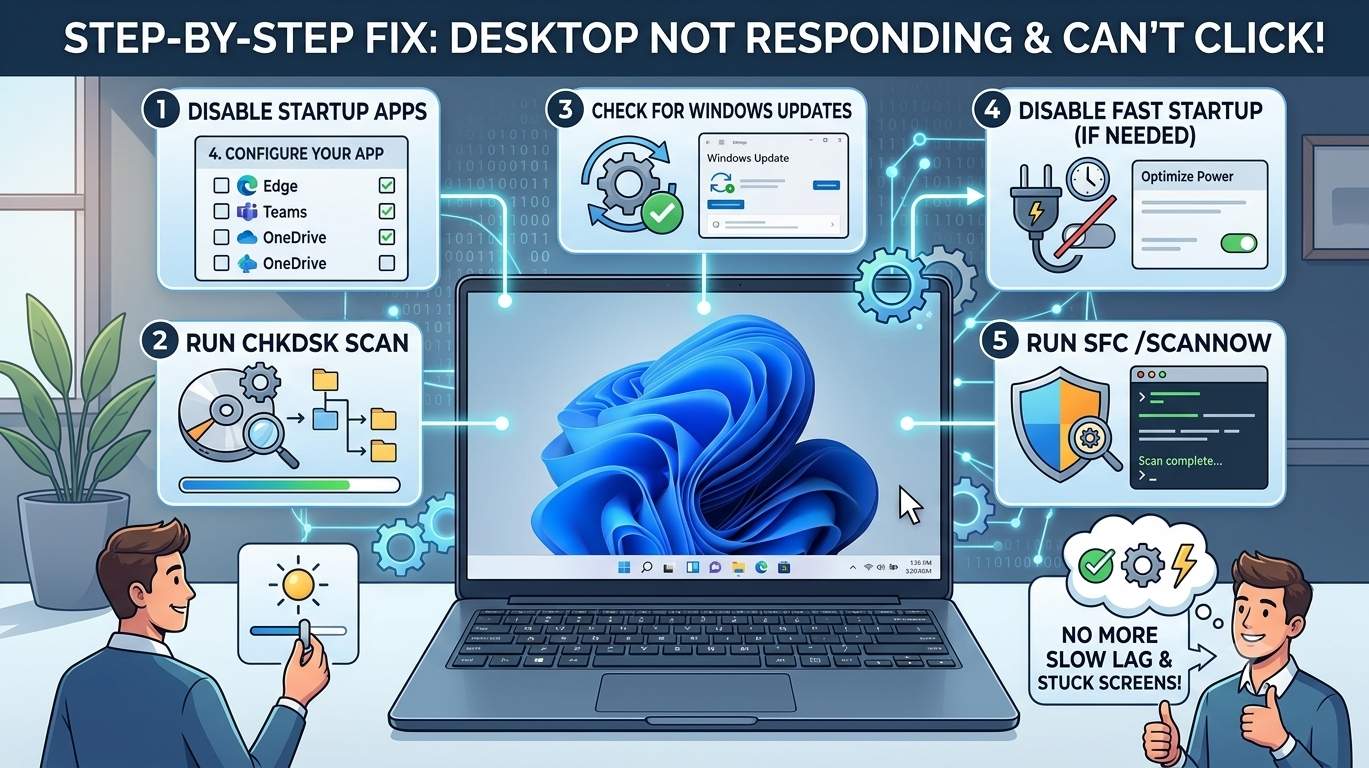
01. Quick Answer
| Fix | What to do | Time | Best for |
|---|---|---|---|
| 1 | Restart Windows Explorer | 1 min | Frozen taskbar, Start menu, desktop |
| 2 | Rule Out Mouse, Touchpad and Keyboard Problems | 5 min | Cursor moves but clicks fail |
| 3 | Reduce Startup Load | 10 min | Freezes for minutes after login |
| 4 | Do a True Restart (Skip Fast Startup) | 3 min | Problems that return after shutdown |
| 5 | Fix the Graphics Driver and Display | 10 min | Black or flickering desktop, multi-monitor freezes |
| 6 | Re-register Start Menu and Shell Apps | 5 min | Start menu or taskbar will not open |
| 7 | Repair System Files With DISM and SFC | 20-40 min | Persistent shell crashes |
| 8 | Use Safe Mode and Clean Boot | 15 min | Finding driver or app conflicts |
| 9 | Remove Conflicting Apps and Scan for Malware | 15 min | Started after installing software |
| 10 | Test a New User Profile | 10 min | Only one account is affected |
| 11 | Uninstall the Update or Use System Restore | 15 min | Started after an update |
| 12 | Repair Install or Reset | 45-90 min | Nothing else works |
02. Which Symptom Do You Have?
"Desktop not responding" covers several different problems. Matching your symptom first tells you which fix to try and stops you from running heavy repairs you do not need.
| What you see | What it usually means | Start with |
|---|---|---|
| Desktop and icons visible, taskbar frozen | Explorer shell hung | Fix 1, 6 |
| Start button does nothing, search will not open | Start menu or shell app problem | Fix 1, 6, 7 |
| Cursor moves, no click works anywhere | Input device problem or system overloaded | Fix 2, 3, 1 |
| Everything hangs for a few minutes, then works | Heavy startup load or background tasks | Fix 3, 4 |
| Black screen after sign-in (with or without cursor) | Explorer or graphics driver did not start | Fix 1, 5 |
| Works in Safe Mode but not normally | Driver or app conflict | Fix 8, 9 |
| Works on a new account only | Damaged user profile | Fix 10 |
| Started right after an update | Faulty update | Fix 11, 6 |
03. Step 0: The First 60 Seconds
Do these quick checks before changing anything. They often solve the problem or tell you which path to take.
Checklist
- Wait two to three minutes. After login, Windows loads startup apps, syncs OneDrive and may run security scans. On a slow drive, the desktop can look frozen while this happens.
- Try keyboard shortcuts. Press Ctrl + Shift + Esc for Task Manager, or Ctrl + Alt + Delete for the security screen. If these open, Windows itself is running and only the shell is stuck.
- Try Win + D (show desktop) and Alt + Tab. If they work but mouse clicks do not, suspect an input device (Fix 2).
- Reset the graphics driver with Windows + Ctrl + Shift + B. You may hear a beep and the screen may flicker.
- Check the sign-in screen. If the mouse and keyboard also fail before you sign in, test hardware first (see the hardware section).
04. Fix 1: Restart Windows Explorer
Time: 1 min | Best for: Frozen taskbar, Start menu or desktop
The taskbar, desktop icons and File Explorer windows are all drawn by one Windows process, explorer.exe. The Start menu uses a separate helper, but restarting Explorer often refreshes both. Restarting it is safe and does not close your open programs.
Steps
- Press Ctrl + Shift + Esc to open Task Manager. If it shows a simple view, click More details.
- On the Processes tab, find Windows Explorer, right-click it and choose Restart.
- The screen will flicker and the taskbar, icons and Start menu should reload within seconds.
If Windows Explorer is not in the list
- Click Run new task (or File → Run new task).
- Type
explorer.exe, tick Create this task with administrative privileges if available and press OK.
Using Command Prompt instead
Run a new task for cmd, then type:
taskkill /f /im explorer.exe
start explorer.exe
05. Fix 2: Rule Out Mouse, Touchpad and Keyboard Problems
Time: 5 min | Best for: Cursor moves but clicks fail
If the cursor moves but nothing responds to clicks, the cause is not always Windows. A stuck key, a failing mouse, a misbehaving touch screen or a remote-control app can all look like a frozen desktop. Run through these quick tests.
Steps
- Unplug USB devices (mice, wireless receivers, game controllers, drawing tablets, docks) and try a different mouse in a different USB port.
- Check for a stuck key. A held Ctrl, Shift or Alt key changes what clicks do. Press and release each modifier key.
- On a laptop, check the touchpad lock key (often an Fn combination) and test with an external mouse.
- If you have a touch screen, wipe it and test again. Dirt or a cracked screen can send ghost touches that block clicks.
- Close or disconnect remote-desktop, virtual machine or screen-sharing apps that may be capturing input.
- Press Windows + Ctrl + Shift + B once more after the changes.
06. Fix 3: Reduce Startup Load
Time: 10 min | Best for: Freezes for minutes after login
If the desktop is slow or frozen for the first few minutes after login but then works, Windows is probably overloaded by startup programs, background updates or a security scan. A hard drive with 100% usage makes this worse.
Check what is busy
- Open Task Manager and look at the Performance tab. If Disk, CPU or Memory sits at 90% to 100% for a long time, something is overloading the PC.
- On the Processes tab, sort by Disk, CPU and Memory to see the heaviest program.
Trim startup apps
- Open Task Manager → Startup apps (or Settings → Apps → Startup).
- Disable programs you do not need at login: launchers, chat apps, updaters, cloud sync tools you rarely use.
- Restart and see if the delay shrinks.
07. Fix 4: Do a True Restart (Skip Fast Startup)
Time: 3 min | Best for: Problems that come back after shutting down
With Fast Startup on, "Shut down" saves part of Windows to disk and reloads it next time, so a bad state can survive shutdown. Restart does a full reload. If your desktop only freezes after a shutdown and cold start, try a real restart and consider turning Fast Startup off.
Steps
- Press Ctrl + Alt + Delete, click the power icon, and choose Restart (not Shut down).
- To turn Fast Startup off, open Control Panel → Power Options → Choose what the power buttons do → Change settings that are currently unavailable.
- Clear Turn on fast startup (recommended) and click Save changes.
08. Fix 5: Fix the Graphics Driver and Display
Time: 10 min | Best for: Black or flickering desktop, multi-monitor freezes
A stalled or outdated graphics driver can freeze the desktop even though Windows is running. Multi-monitor setups can also trigger taskbar hangs.
Steps
- Press Windows + Ctrl + Shift + B to reset the display driver.
- Update the graphics driver from your PC maker or the chip maker (NVIDIA, AMD or Intel). If the problem began after a driver update, open Device Manager → Display adapters, double-click the adapter and choose Driver → Roll Back Driver.
- Disconnect extra monitors and test. If the taskbar stops freezing, turn off Settings → Personalization → Taskbar → Taskbar behaviors → Show my taskbar on all displays.
- Check Settings → System → Display and lower the refresh rate or resolution if the screen flickers.
09. Fix 6: Re-register Start Menu and Shell Apps
Time: 5 min | Best for: Start menu or taskbar will not open
The Start menu, search, Settings and taskbar depend on packaged components that can fail to register correctly, especially after updates. Microsoft's advisory KB5072911 describes this and lists commands that re-register three system packages. Microsoft says the related issue is mostly seen on enterprise or managed PCs and is unlikely on personal computers, but the commands are a safe, documented way to repair the registration on any PC with these symptoms.
Open an admin PowerShell
Press Ctrl + Shift + Esc, choose Run new task, type powershell, tick Create this task with administrative privileges and press OK.
Run these three commands, one at a time
Add-AppxPackage -Register -Path 'C:\Windows\SystemApps\MicrosoftWindows.Client.CBS_cw5n1h2txyewy\appxmanifest.xml' -DisableDevelopmentMode

Add-AppxPackage -Register -Path 'C:\Windows\SystemApps\Microsoft.UI.Xaml.CBS_8wekyb3d8bbwe\appxmanifest.xml' -DisableDevelopmentMode

Add-AppxPackage -Register -Path 'C:\Windows\SystemApps\MicrosoftWindows.Client.Core_cw5n1h2txyewy\appxmanifest.xml' -DisableDevelopmentMode
Then restart Explorer (Fix 1) or sign out and back in. If the Start menu still does not respond, restart the PC.
Optional wider repair
If the three commands do not help, you can re-register all apps for all users. It takes a few minutes and may show red error text for some packages, which is usually harmless:
Get-AppXPackage -AllUsers | Foreach {Add-AppxPackage -DisableDevelopmentMode -Register "$($_.InstallLocation)\AppXManifest.xml"}10. Fix 7: Repair System Files With DISM and SFC
Time: 20-40 min | Best for: Persistent shell crashes
Damaged system files, often after a failed update, can make Explorer and the Start menu crash. DISM repairs the Windows component store and SFC repairs protected files using it. Run them in this order from an administrator Terminal or Command Prompt, and wait for each to finish.
DISM /Online /Cleanup-Image /RestoreHealth
sfc /scannow
Steps
- Open an admin Command Prompt (Task Manager → Run new task →
cmdwith administrative privileges). - Run the DISM command first. It can pause at certain percentages, so do not close it.
- Run
sfc /scannow, restart the PC and test again.
11. Fix 8: Use Safe Mode and Clean Boot
Time: 15 min | Best for: Finding driver or app conflicts
If clicking works in Safe Mode or a clean boot but not in normal mode, a driver, startup program or service is interfering with the desktop. These two tests narrow it down.
Safe Mode
- Hold Shift and click Restart from the power icon on the sign-in screen (or open Windows RE by interrupting startup twice).
- Choose Troubleshoot → Advanced options → Startup Settings → Restart, then press 4 or 5.
- In Safe Mode, uninstall recent programs, roll back recent drivers and remove the latest update.
Clean boot
- Press Windows + R, type
msconfigand press Enter. - Open Services, tick Hide all Microsoft services and click Disable all.
- Open Task Manager's Startup apps tab and disable all startup items. Restart.
- If the desktop works, enable items in small groups, restarting each time, until the problem returns. The last group contains the culprit.
- When finished, set
msconfigback to Normal startup.
12. Fix 9: Remove Conflicting Apps and Scan for Malware
Time: 15 min | Best for: Started after installing software
Tools that hook into Explorer, such as taskbar or Start menu customizers, shell extensions, overlay apps and some antivirus add-ons, can freeze the desktop after a Windows update changes something they depend on. Malware can also cause hangs and popups.
Steps
- Uninstall any recently added taskbar, Start menu, Explorer or desktop-customization tool, then restart.
- Open Settings → Apps → Installed apps and sort by install date to find recent additions.
- Open Windows Security → Virus & threat protection → Scan options, choose Microsoft Defender Antivirus (offline scan) and click Scan now. The PC restarts and scans before Windows loads.
- Update or temporarily uninstall third-party security software to test whether it is the cause.
13. Fix 10: Test a New User Profile
Time: 10 min | Best for: Only one account is affected
If the desktop works normally in a second account, your original profile has a damaged setting, cache or app. Creating a new account is a quick way to test, and you can move your files across.
Create a test account from Settings
- Open Settings → Accounts → Other users → Add account.
- Create a local or Microsoft account, then sign out and sign in with it.
If Settings will not open (admin Command Prompt)
net user TestUser /add
net localgroup administrators TestUser /add
Sign out and choose TestUser on the sign-in screen. If the desktop works there, copy your files from C:\Users\YourName into the new account's folders and use the new account going forward.
14. Fix 11: Uninstall the Update or Use System Restore
Time: 15 min | Best for: Started after an update
If the problem began right after a Windows update, removing it or going back to a restore point is often the fastest fix. Microsoft has acknowledged shell and desktop loading problems after specific 2026 updates (see the section below).
Uninstall the update
- If you can reach Settings: Settings → Windows Update → Update history → Uninstall updates, then remove the latest one.
- If you cannot: boot to Safe Mode (Fix 8) or open Windows RE and choose Troubleshoot → Advanced options → Uninstall Updates → Uninstall latest quality update.
- After it works, pause updates for a week at Settings → Windows Update and check for a newer fix.
System Restore
- Press Windows + R, type
rstruiand press Enter (or use Windows RE → System Restore). - Choose a restore point from before the problem and click Scan for affected programs, then confirm.
For more recovery steps if Windows will not load at all, see our guides: Windows 11 Stuck on Loading Screen and Windows 11 Not Booting After an Update.
15. Fix 12: Repair Install or Reset
Time: 45-90 min | Best for: Nothing else works
If every step so far fails, reinstalling Windows over itself repairs system files while keeping your files and apps. This is much safer than a full reset.
Option A: Reinstall now (Windows Update)
- Open Settings → System → Recovery.
- Under Fix problems using Windows Update, click Reinstall now.
Option B: In-place repair with the ISO
- Download the Windows 11 ISO from Microsoft and mount it (right-click → Mount).
- Run
setup.exefrom the mounted drive and choose Keep personal files and apps.
Option C: Reset this PC
- Back up your files first.
- Open Settings → System → Recovery → Reset this PC → Keep my files.
16. 2026 Updates and Known Shell Issues
Microsoft has documented a few issues that can cause an unresponsive or blank desktop. Check Windows release health for your version. Details below come from Microsoft statements reported in the press; KB numbers can differ between reports, so verify the one that matches your build.
| Issue | What was reported | What helped |
|---|---|---|
| August 2026 preview update and later updates | Black screen after sign-in on some Windows 11 26H1, 25H2 and 24H2 devices; desktop does not load; Explorer crashes in event logs | Ctrl + Shift + Esc → Run new task → explorer.exe; Known Issue Rollback for IT admins |
| KB5072911 advisory (updates since July 2025, such as KB5062553 and KB5065789) | After provisioning, XAML-based shell apps such as the Start menu, Taskbar, Settings, Search and Explorer can have problems; Microsoft says it affects a limited number of enterprise or managed PCs and is unlikely on personal PCs | Re-register the three packages with Add-AppxPackage (Fix 6) |
17. Hardware Causes to Rule Out
Quick hardware checks
- Check the mouse and keyboard on the sign-in screen and in the BIOS. If they fail there, the problem is hardware.
- Run Windows Memory Diagnostic (search for it in Start) after you can reach Windows.
- Check drive health with the maker's tool, and keep a backup.
18. Symptom to Fix Table
| Symptom | Likely cause | Go to |
|---|---|---|
| Taskbar frozen, apps still run | Explorer hung | Fix 1, 6 |
| Start button and search do nothing | Shell package not registered or corrupted | Fix 6, 7 |
| Can't click, keyboard works | Input device or system overload | Fix 2, 3 |
| Frozen for minutes then normal | Startup load, background tasks | Fix 3, 4 |
| Black desktop, cursor only | Explorer did not start | Fix 1, 5 |
| Freezes only on external monitor setup | Multi-display or graphics driver | Fix 5 |
| Normal in Safe Mode | Driver, app or service conflict | Fix 8, 9 |
| Fine on a new account | Damaged profile | Fix 10 |
| Began after an update | Faulty update | Fix 11 |
19. How to Prevent It
🏆 Bottom Line
Most "can't click anything" cases after login come from the Windows shell hanging. Open Task Manager with Ctrl + Shift + Esc and restart Windows Explorer first. If that does not hold, check your mouse and keyboard, trim startup apps, re-register the Start menu and shell packages, run DISM and SFC, and test in Safe Mode and a new user account. If the problem began right after an update, uninstall it and watch Windows release health for a fix. Reinstall or reset only when everything else has failed, and back up your files first.