Laptop or PC Keeps Freezing? 10 Fixes for Hanging in Windows
Mouse stuck, apps “Not Responding”, or the whole screen frozen? Find out which kind of freeze you have, then follow the steps that match it, from a 10-second rescue to a deep check of your hardware.
By ConfirmFix Editorial Team · Updated November 2, 2026
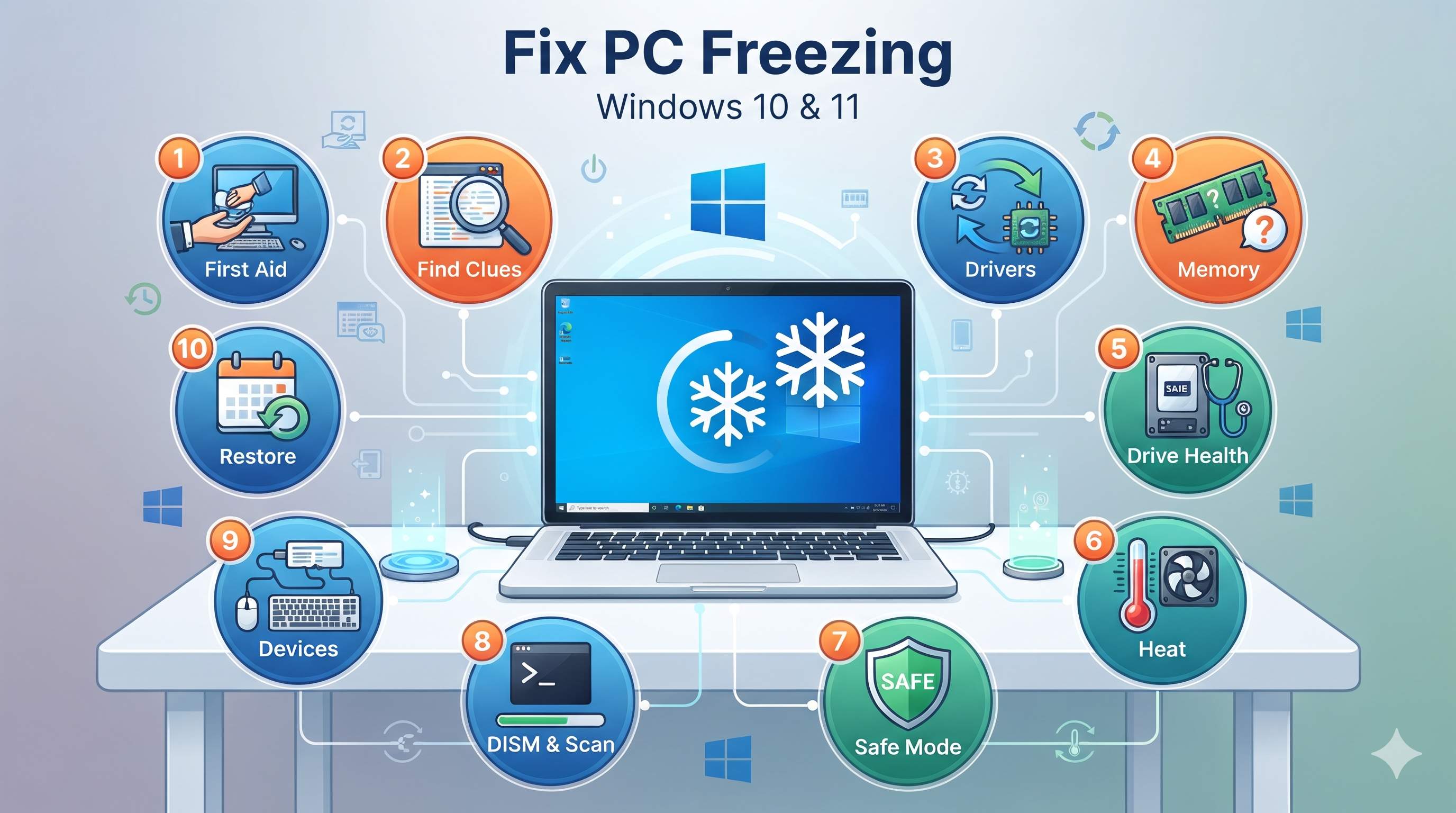
Quick answer
Most freezes come from four causes: overheating, not enough memory, a failing drive, or a bad driver or update. Find the clue first (Fix 2), then check heat (Fix 6), memory (Fix 4) and your drive (Fix 5). Update drivers (Fix 3) if the freeze started after an update.
A freeze is a symptom, not a single problem, so fixes that work for one PC fail on another. This guide starts with the clues Windows already recorded, then moves from cheap checks to deeper ones.
What kind of freeze is it?
| Freeze type | What it usually means |
|---|---|
| Hard freeze (nothing responds) | Heat, failing drive, bad RAM, or a driver crash |
| Soft freeze (mouse works) | One app or service is stuck, or memory is full |
| Screen-only freeze | Graphics driver problem |
| Freeze under load | Overheating or weak power |
The 10 fixes
1Emergency first aid
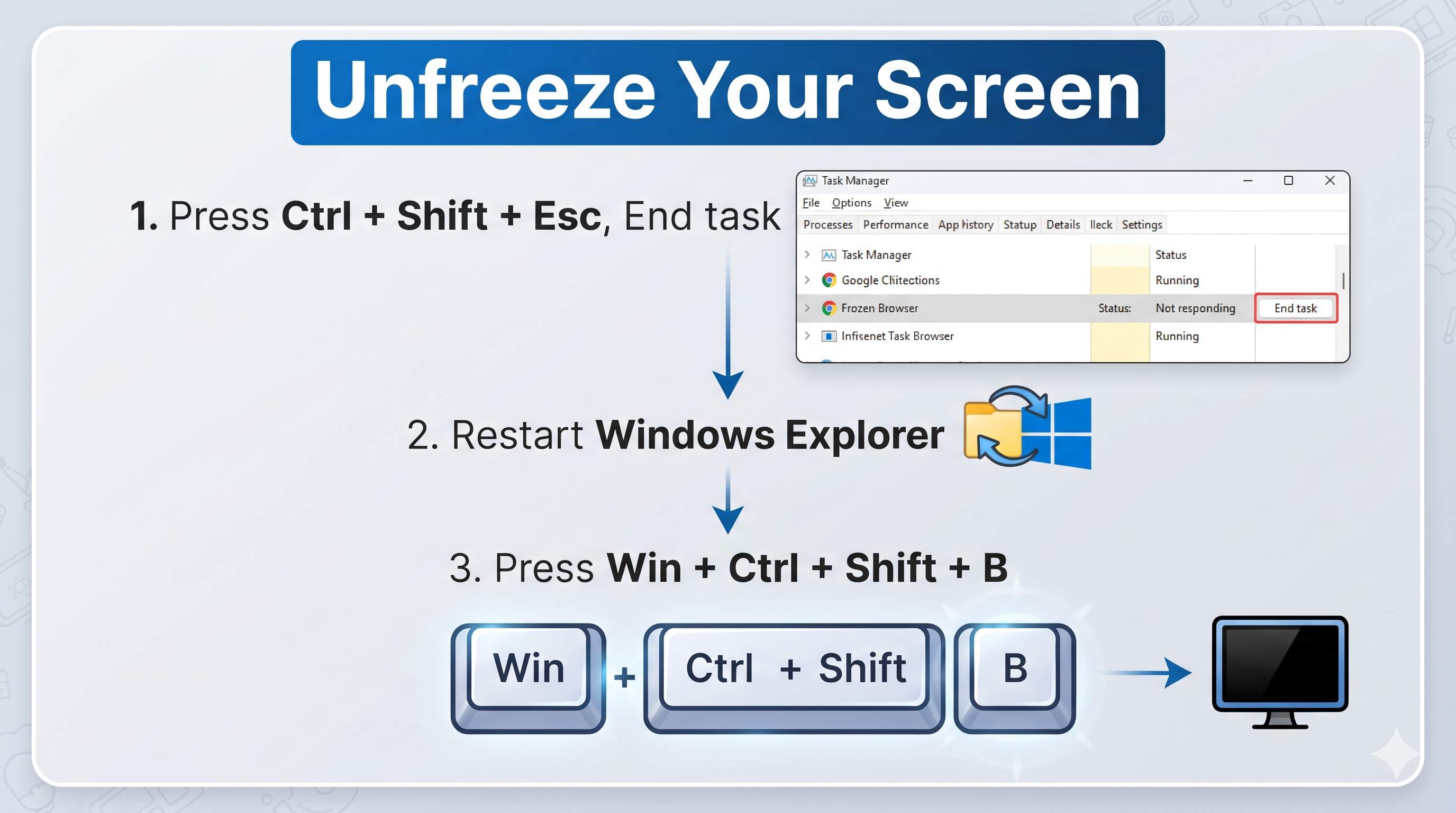
- Press Ctrl+Shift+Esc. If Task Manager opens, select the app marked Not responding and click End task.
- If the taskbar or desktop is stuck, find Windows Explorer in Task Manager, right-click it and choose Restart.
- If only the screen is frozen, press Win+Ctrl+Shift+B. The screen flickers, and you may hear a beep, while Windows restarts the graphics driver.
- If nothing responds for several minutes, hold the power button for 10 seconds.
A hard power-off can lose unsaved work and, if it happens while Windows is writing files, can damage them. Use it last.
2Find the clue Windows recorded
- Press Win+R, type
perfmon /reland press Enter. This opens Reliability Monitor. - Look for red X marks near the times of your freezes and click them for details.
- Open Event Viewer (
eventvwr.msc), go to Windows Logs → System, and look for Critical and Error events just before the freeze.
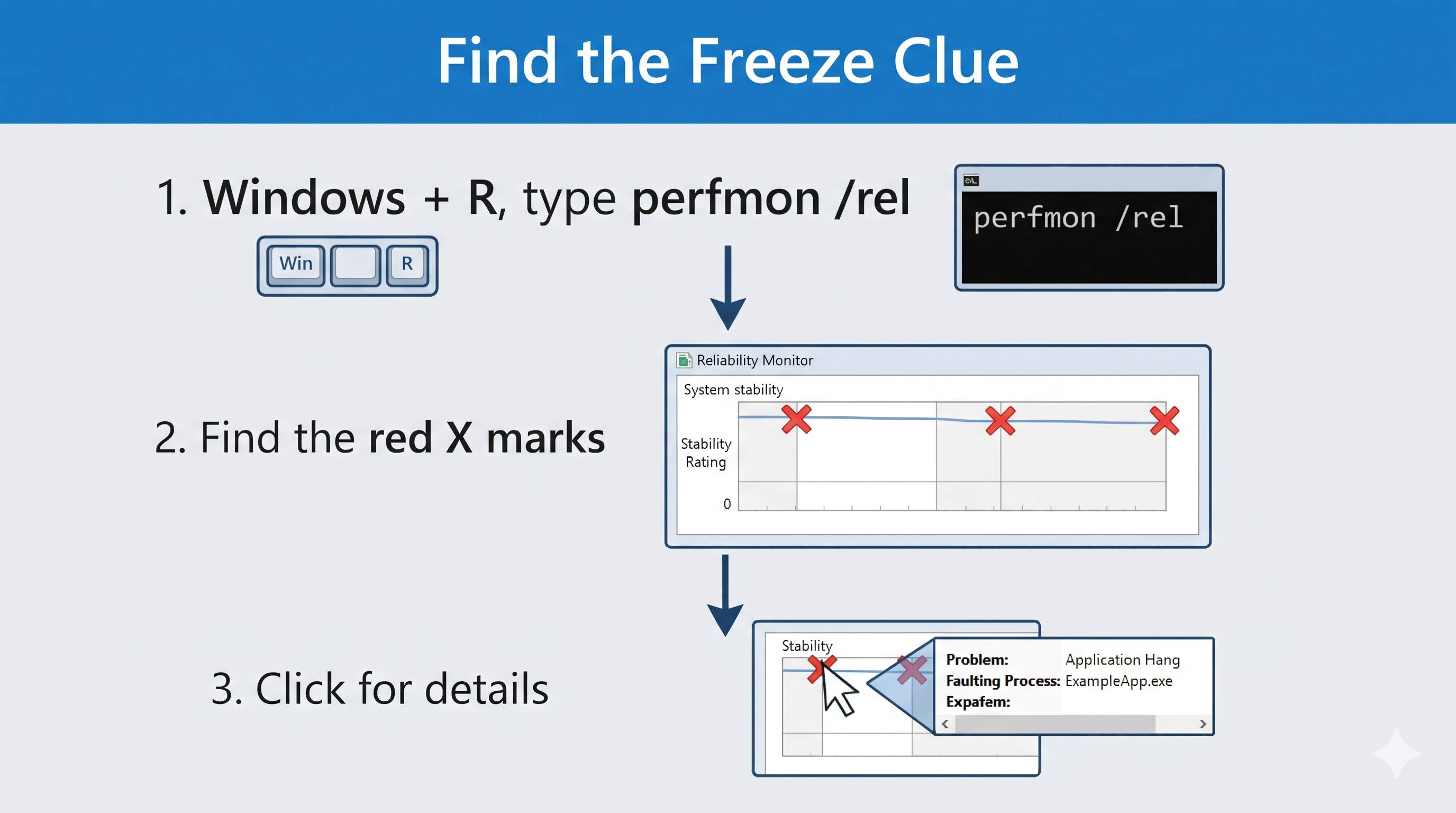
Disk-related errors from the disk source point to the drive (Fix 5). A Kernel-Power Event 41 only records that the PC was shut down without warning, so look at the errors just before it.
3Update Windows and drivers, or roll one back
- Open Settings → Windows Update and install everything, including Optional updates → Driver updates.
- Install the newest graphics and chipset drivers from your PC maker or the graphics maker.
- Freezes started right after a driver update? Open Device Manager → Display adapters, right-click your graphics card, choose Properties → Driver → Roll Back Driver.
- Freezes started after a Windows update? Open Settings → Windows Update → Update history → Uninstall updates (Windows 10: Update & Security → View update history).
4Check your memory (RAM)
- Open Task Manager → Performance → Memory. Memory above 90% for long periods causes freezing.
- Press Win+R, type
mdsched.exeand choose Restart now and check for problems.
Any error in the memory test means a RAM stick is faulty. If memory is simply full, read how to increase RAM and virtual memory.
5Check your drive health and free space
A failing or full drive makes Windows wait, and the whole PC looks frozen.
- Open PowerShell (Admin) and run the command below.
- Run
chkdsk C: /f, type Y, and restart. - Keep 15 to 20 percent of the drive free.
Get-PhysicalDisk | Select FriendlyName, MediaType, HealthStatusHealthStatus must say Healthy. If not, back up your files now. Also see how to fix 100% disk usage.
6Check for heat and dust
- Is the fan loud, or the laptop hot to touch? Heat makes the CPU and graphics chip slow down or crash.
- Use the laptop on a hard, flat surface. Power it off and clean the vents with compressed air.
- Use a cooling pad if you game or edit video, and keep the charger plugged in.
More detail: check cooling and power mode. If freezes happen only in games, see how to optimize Windows for gaming.
7Test in Safe Mode and with a clean boot
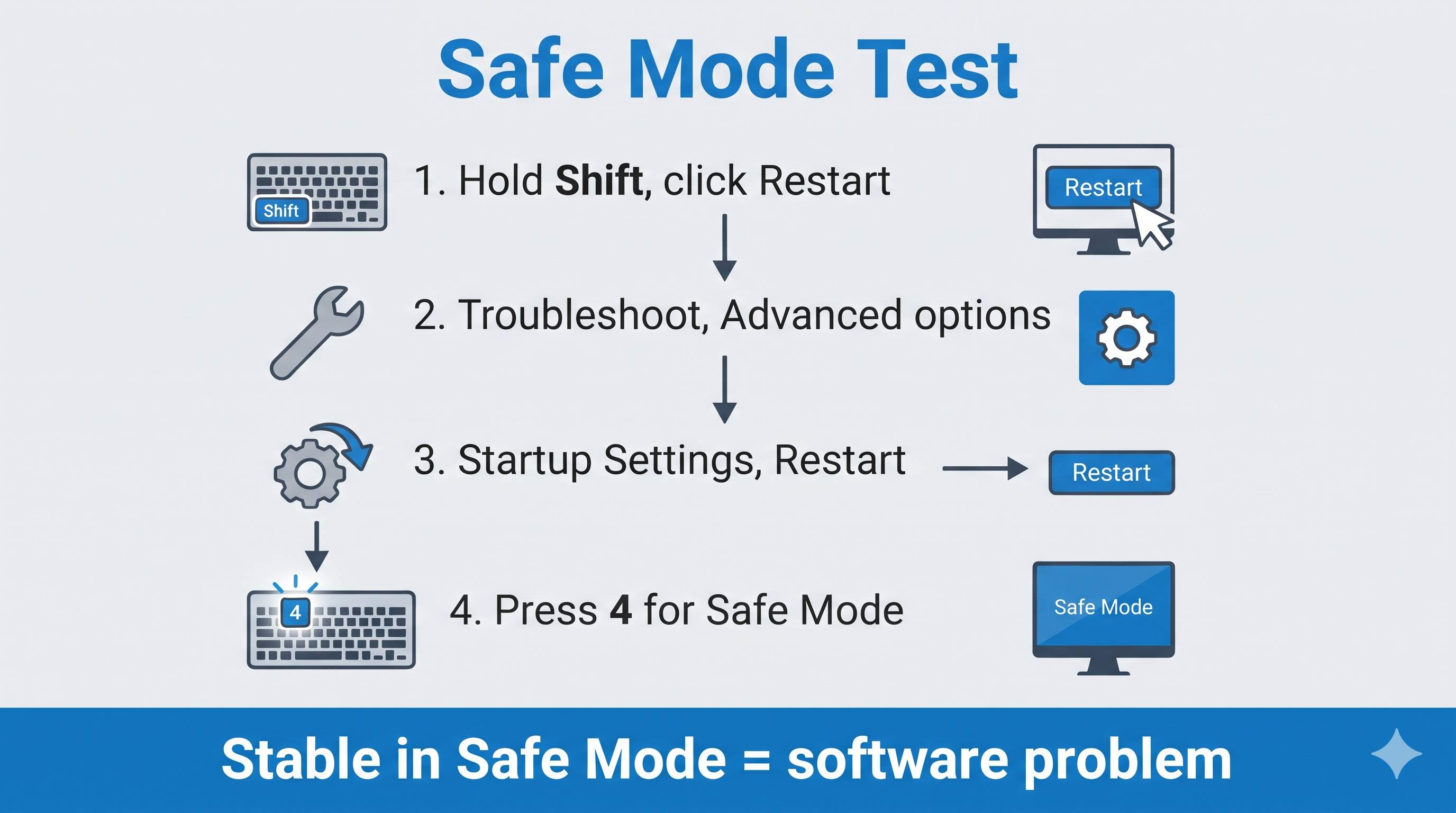
- Hold Shift while you click Restart. Choose Troubleshoot → Advanced options → Startup Settings → Restart, then press 4 for Safe Mode.
- Use the PC for 20 to 30 minutes. If it does not freeze, a driver, app or startup item is the cause.
- Then follow the clean boot steps in Fix 9 of our high CPU usage guide to find the guilty one.
Too many startup apps? See how to fix slow startup.
8Repair system files and scan for malware
Open Terminal (Admin) and run these commands, one after the other:
DISM /Online /Cleanup-Image /RestoreHealth
sfc /scannow
Then open Windows Security → Virus & threat protection → Scan options, choose Microsoft Defender Antivirus (offline scan), and click Scan now.
9Disconnect devices and adjust power settings
- Unplug USB drives, hubs, docks, printers and Bluetooth devices. Reconnect them one by one. A faulty device can freeze the whole PC.
- Open Control Panel → Power Options → Change plan settings → Change advanced power settings.
- Under USB settings, set USB selective suspend setting to Disabled.
- Under PCI Express → Link State Power Management, set it to Off.
Treat these power changes as a test. If they do not help, set them back. They use a little more battery.
10Restore, reset, or decide it is hardware
- Press Win+R, type
rstrui, and restore to a point from before the freezes began. - Still freezing? Back up your files and use Settings → System → Recovery → Reset this PC → Keep my files (Windows 10: Update & Security → Recovery).
- If it still freezes after a reset, the cause is almost certainly hardware.
If Windows will not start at all, see our Boot & Startup Errors guide.
Signs of failing hardware
| What you notice | Likely part |
|---|---|
| Clicking noises, very slow file access | Hard drive |
| Memory test shows errors | RAM stick |
| Freezes when hot or under load | Fan, dust, or old thermal paste |
| Freezes only on battery or only when charging | Battery or charger |
| Freezes even after a clean Windows reset | Drive, RAM, or motherboard |
We can check what Windows reports remotely, but we cannot repair hardware. If a part is failing, we will tell you what to replace.
Frequently asked questions
Why does my laptop freeze randomly?
The most common causes are overheating, full memory, a failing drive, or a bad driver or update. Reliability Monitor often shows which one.
Should I hold the power button when my PC freezes?
Only as a last resort, after waiting a few minutes and trying Ctrl + Shift + Esc. A forced shutdown can lose unsaved work and may damage files.
Can low RAM cause freezing?
Yes. When memory is full, Windows moves data to the drive, and everything slows to a crawl. Closing apps or adding RAM helps.
Can a virus make my PC freeze?
It can. Run an offline Microsoft Defender scan, especially if you also see pop-ups, unknown apps, or high CPU use.
Does freezing damage my laptop?
Freezing itself does not, but repeated forced shutdowns can corrupt files, and the cause (such as heat or a failing drive) can get worse.
When should I take it to a technician?
If the drive health is not Healthy, the memory test fails, or freezes continue after a Windows reset, the cause is hardware and needs repair.
More fixes: speed up Windows 11, speed up Windows 10 and the Slow PC & Performance guide.
Still Freezing? Get Remote Support.
Tell us what happens and we will check your system logs, drivers and settings in a secure remote session.
Get HelpOfficial source
About the Author
ConfirmFix Editorial Team creates practical Windows troubleshooting guides to help readers understand common PC problems and follow step-by-step solutions.
Updated November 2, 2026. Menu names vary by Windows build and PC brand. Back up important data before running repair commands or resetting Windows. ConfirmFix is an independent troubleshooting guide and is not affiliated with, endorsed by or sponsored by Microsoft. Windows is a trademark of Microsoft Corporation.