Fix High CPU Usage in Windows 10 & 11: 9 Fixes That Work
Fans screaming, apps freezing and Task Manager showing your CPU near 100%? Find the process behind it in two minutes, then fix it step by step.
By ConfirmFix Editorial Team · Updated November 1, 2026
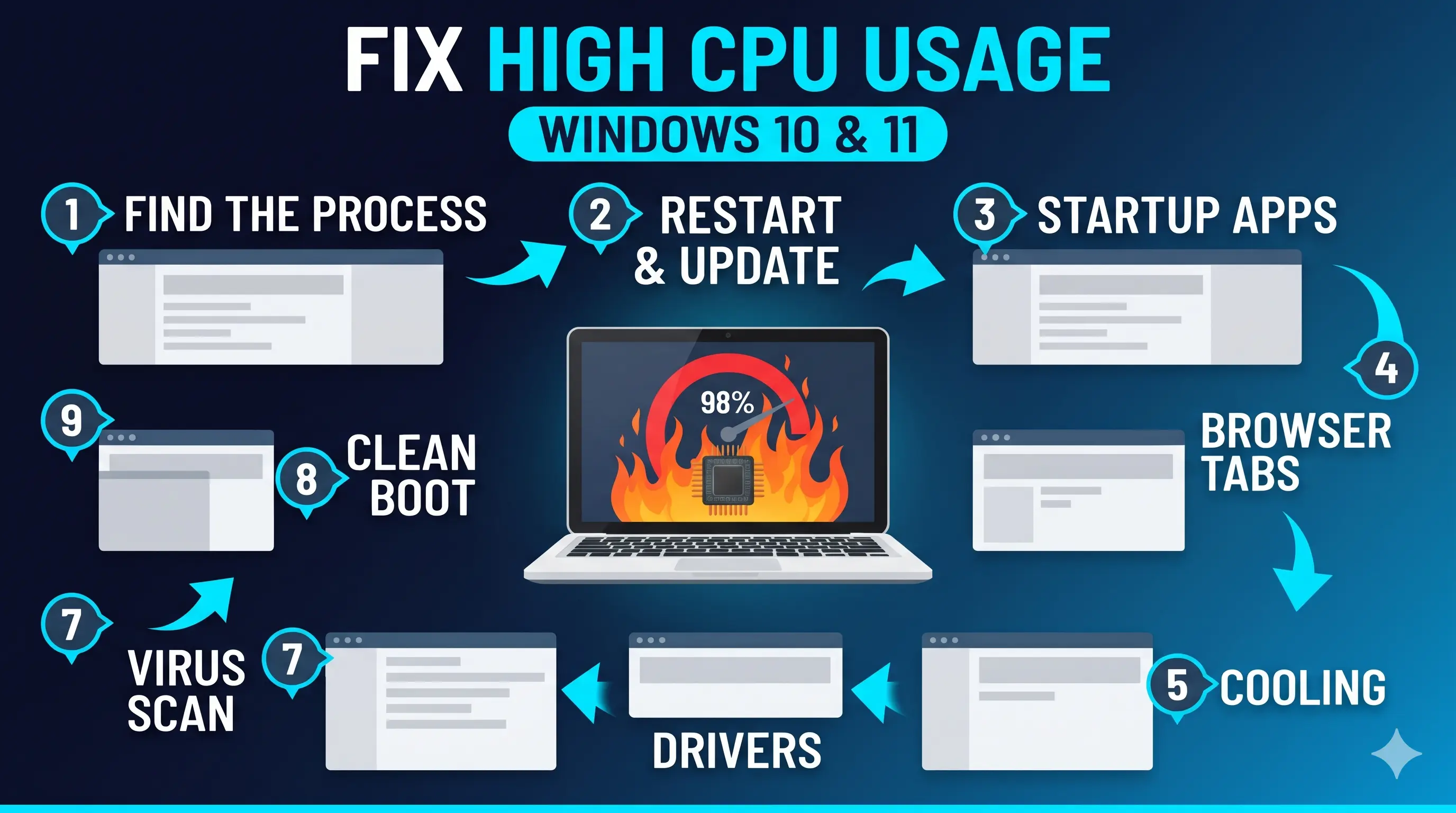
Quick answer
Do this first: press Ctrl + Shift + Esc, click the CPU column, and see which process is on top. Then restart the PC and let Windows Update finish. If the same process stays on top, jump to the fix that matches it below.
- Short spikes when opening apps
- 10 to 30 minutes of activity after an update
- High use during games or video editing
- Stays near 100% for minutes with nothing open
- Fans loud and the laptop feels hot
- Mouse and apps freeze
Myth check: if System Idle Process shows 90% or more, that is good. It means 90% of your CPU is free.
Which process is on top?
The 9 fixes, in order
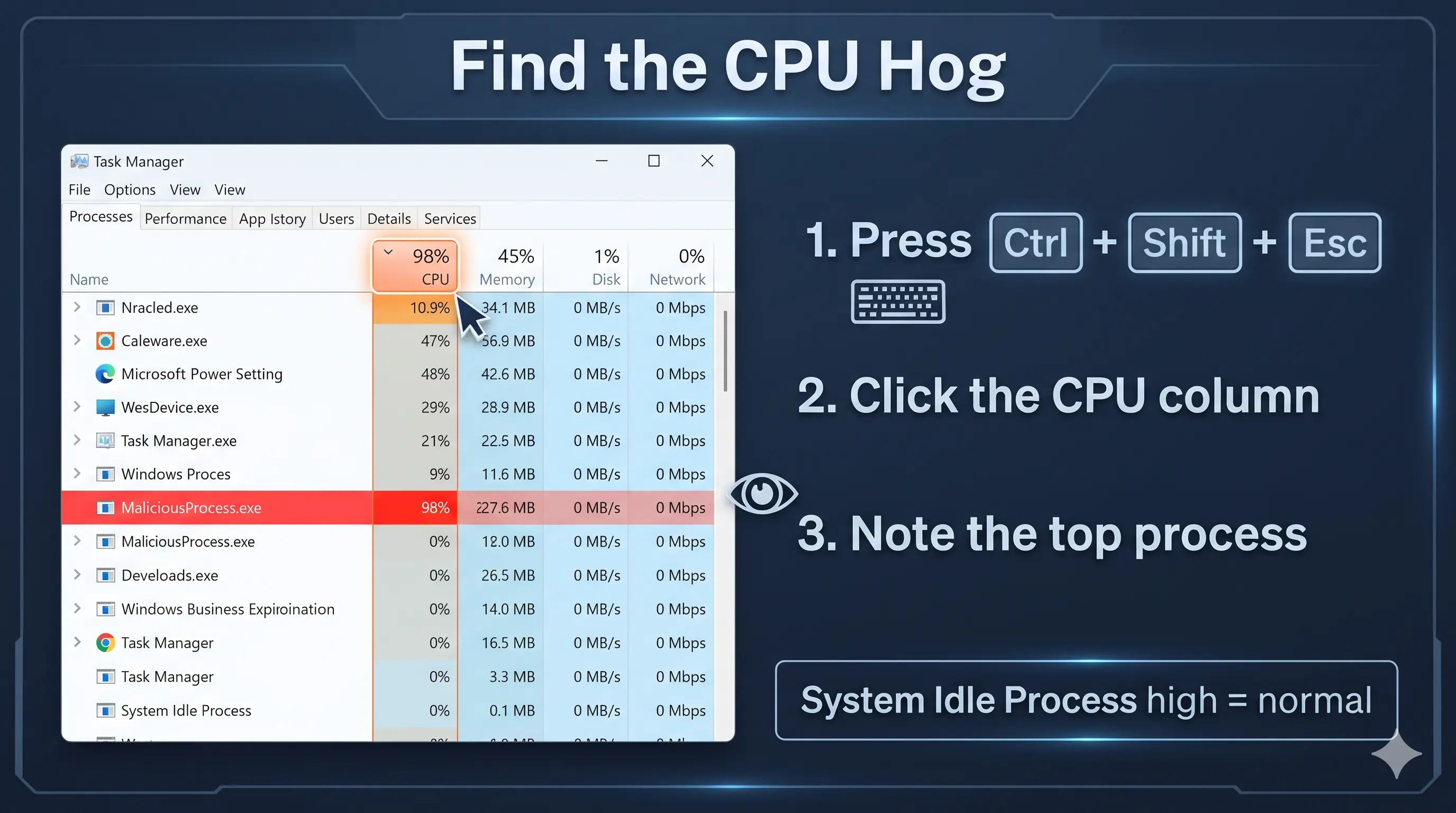
Find the process using the CPU
- Press Ctrl + Shift + Esc to open Task Manager.
- On the Processes tab, click the CPU header to sort from highest to lowest.
- Click the arrow next to Service Host entries to see the service inside.
Restart and let background work finish
- Open Settings → Windows Update (Windows 10: Update & Security) and install everything waiting.
- Restart the PC.
- Keep it plugged in and idle for 15 minutes. After big updates Windows does extra work in the background.
Turn off startup and background apps
- In Task Manager open Startup apps (Windows 10: Startup tab).
- Right-click apps you do not need at startup and choose Disable.
More speed tips: speed up Windows 11 and speed up Windows 10.
Calm your browser
- Close tabs you are not using.
- Press Shift + Esc inside Chrome or Edge to see which tab or extension uses the most CPU, and close it.
- Open your browser’s extensions page and remove extensions you do not need.
- Update the browser to the latest version.
Check cooling and power mode
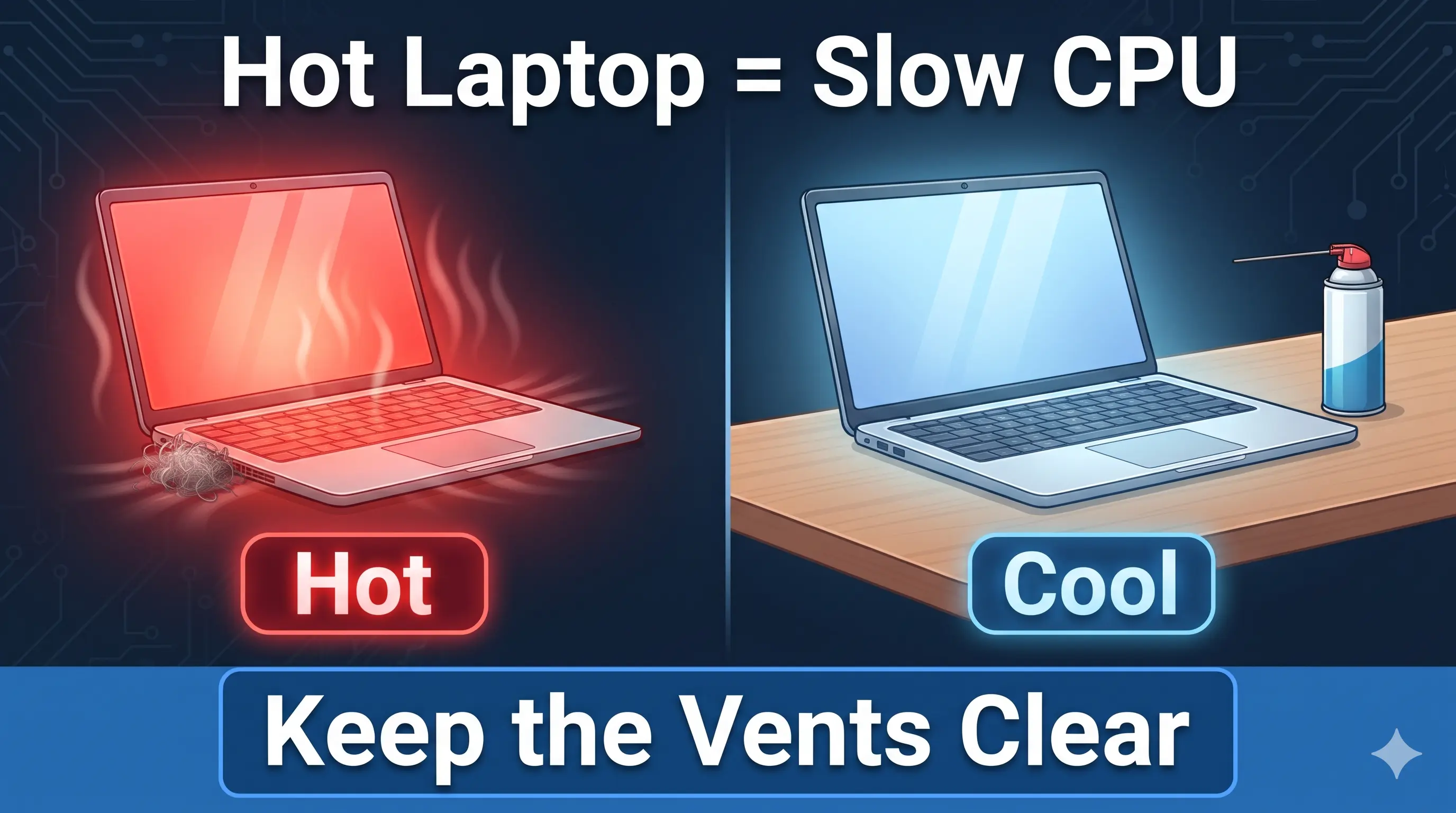
A hot CPU slows itself down to protect itself, so the PC feels slow and usage stays high.
- Use the laptop on a hard, flat surface so the vents are not blocked.
- Power the PC off and clean the vents with compressed air. Do not open the laptop if you are unsure.
- Set the power mode to Balanced (Windows 11: Settings → System → Power & battery).
Update your drivers
- Open Settings → Windows Update → Advanced options → Optional updates.
- Install any Driver updates listed.
- Also install the chipset and graphics drivers from your PC maker’s support site.
If System or System interrupts is high, unplug USB devices one by one. A faulty device or driver is often the cause.
Scan for malware
- Open Windows Security → Virus & threat protection → Scan options.
- Choose Microsoft Defender Antivirus (offline scan) and click Scan now.
Strange process names with high CPU and loud fans all day can mean mining malware. Run this scan first.
Repair system files
Open Terminal (Admin) or Command Prompt (Admin) and run these two commands, one after the other:
DISM /Online /Cleanup-Image /RestoreHealth
sfc /scannow
Restart when both finish.
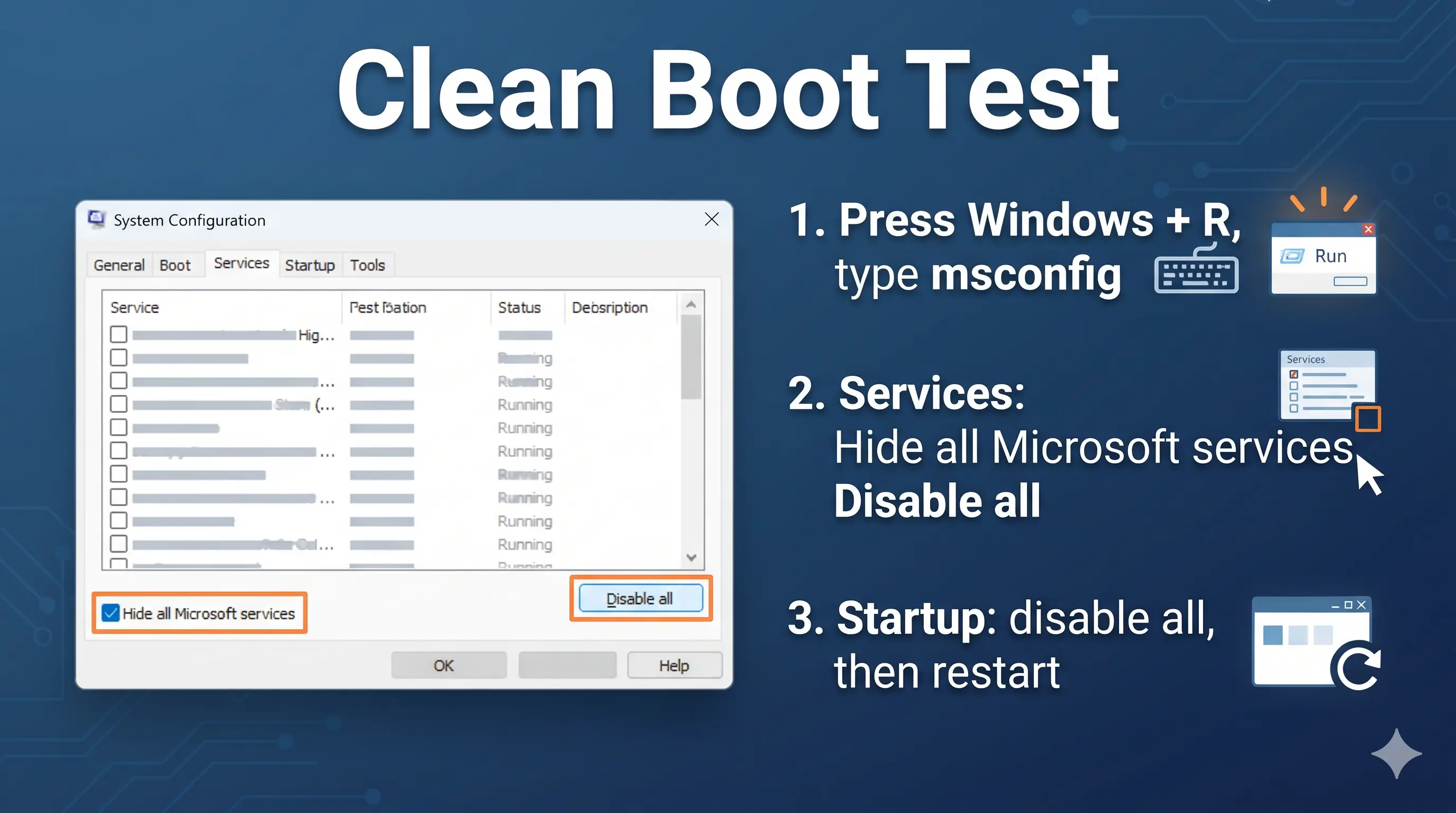
Do a clean boot test
- Press Windows + R, type
msconfigand press Enter. - On the Services tab, tick Hide all Microsoft services, then click Disable all.
- On the Startup tab, open Task Manager and disable all startup items.
- Click OK and restart.
If the CPU is calm now, turn items back on in small groups until the problem returns. The last group holds the culprit.
To go back to normal: open msconfig, choose Normal startup on the General tab, and re-enable your startup items in Task Manager.
Process cheat sheet
| Process | What it is | What to do |
|---|---|---|
| System Idle Process | Free CPU, not a program | High is good. Ignore it |
| System / System interrupts | Drivers and hardware | Fix 6, then Fix 9 |
| Service Host (svchost.exe) | Runs Windows services | Expand it, then Fix 2 and Fix 8 |
| Antimalware Service Executable | Defender scanning | Let it finish (Fix 2) |
| Windows Modules Installer Worker | Windows Update installing | Leave the PC idle (Fix 2) |
| Desktop Window Manager | Screen and visual effects | Update the graphics driver (Fix 6) |
| Chrome or Edge | Tabs and extensions | Fix 4 |
Disk also stuck at 100%? Read our guide to fixing 100% disk usage. Low on memory? Read how to increase RAM and virtual memory. Slow boot too? Read how to fix slow startup. More fixes are in the Slow PC & Performance guide.
Frequently asked questions
Is 100% CPU usage bad?
Short bursts are normal. If the CPU stays near 100% for minutes while you are doing nothing, something is wrong and the PC will feel slow.
Why is System Idle Process so high?
It is not a real program. It shows the share of CPU that is free, so a high number means your PC is mostly idle.
Why is my CPU high when nothing is open?
Common causes are Windows Update, a Defender scan, a runaway background app, a faulty driver, or malware. Sorting Task Manager by CPU shows which one.
Can high CPU usage damage my PC?
Modern CPUs slow themselves down when they get too hot, so damage is unlikely. But constant heat makes the PC slow and can wear fans, so fix the cause.
Will reinstalling Windows fix it?
Only if the cause is software. Try the fixes above first. If the problem is heat or hardware, a reinstall will not help.
Still Stuck? Get Remote Support.
Tell us what is happening and get guided help in a secure remote session.
Get HelpOfficial source
About the Author
ConfirmFix Editorial Team creates practical Windows troubleshooting guides to help readers understand common PC problems and follow step-by-step solutions.
Updated November 1, 2026. Menu names vary by Windows build and PC brand. Back up important data before running commands. ConfirmFix is an independent troubleshooting guide and is not affiliated with, endorsed by or sponsored by Microsoft. Windows is a trademark of Microsoft Corporation.
Pingback: Slow Internet on Windows 10 & 11: How to Test, Fix and Open Your Router (2026)