How to Speed Up Windows 11: 9 Fixes That Work
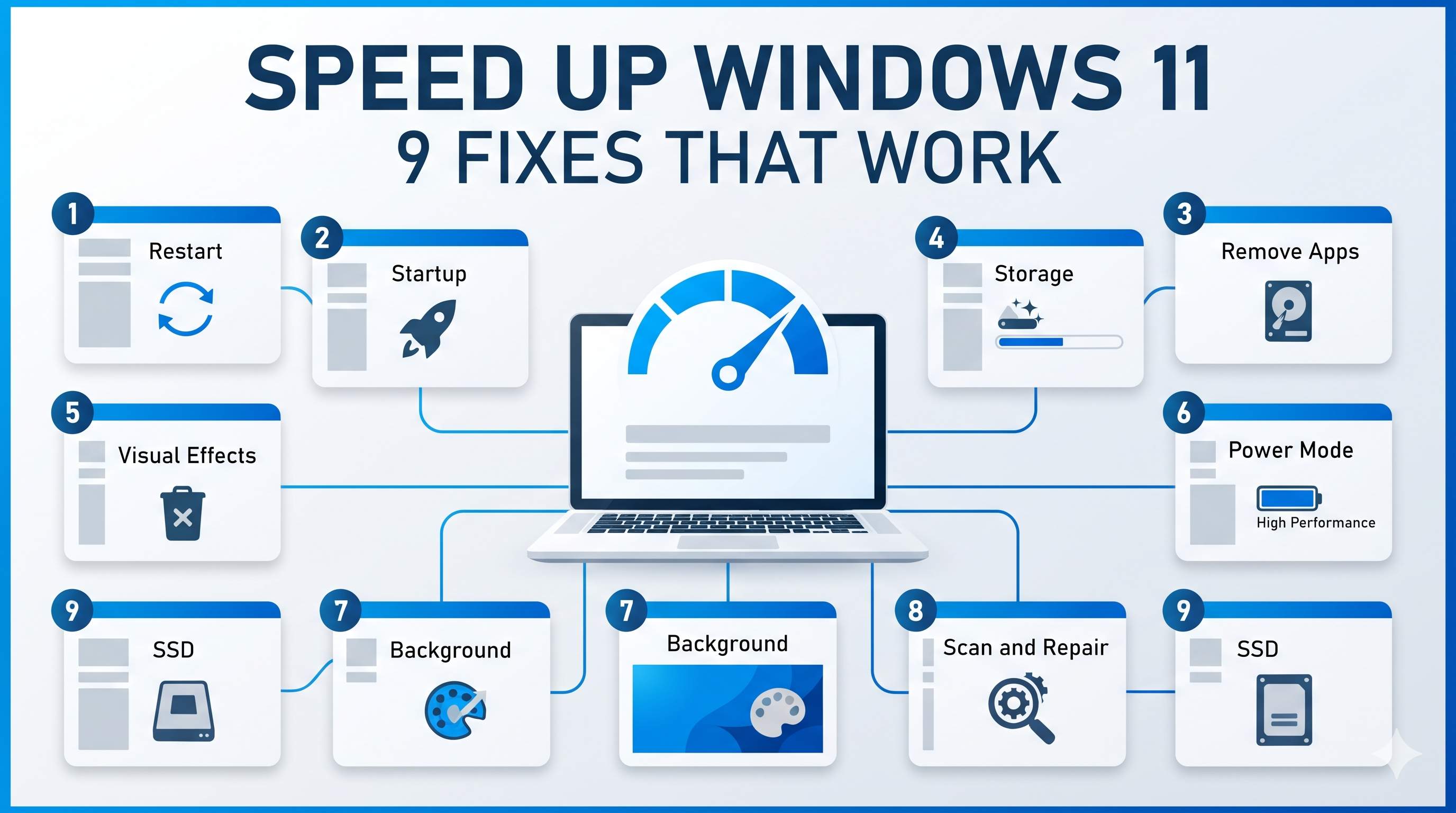
A slow Windows 11 PC is usually a few specific things: too many startup apps, a nearly full drive, visual effects, background work, or an old hard drive. Work through these fixes in order, from the free ones to the hardware upgrade, and check your speed after each step.
By ConfirmFix Editorial Team · Updated November 2, 2026 · About 30 minutes
Quick answer
Do these three first, they take about 10 minutes: restart the PC, turn off startup apps you do not need (Fix 2), and turn off visual effects (Fix 5). Then free up drive space (Fix 4) if your C: drive is above 80 percent full.
Which fix first?
Why Windows 11 gets slow
| Cause | What it does | Fix |
|---|---|---|
| Startup apps | Programs launch when you sign in and keep using memory and CPU all day. | 2 |
| Full drive | Windows needs free space for updates, temporary files and the paging file. Below about 10 percent free, everything slows down. | 4 |
| Visual effects | Transparency and animations cost little on new PCs but add up on older ones. | 5 |
| Power mode | Balanced or battery saver modes limit CPU speed to save power. | 6 |
| Background work | Updates, scans, indexing and sync run while you work. | 1, 3, 7 |
| Damaged files or malware | Corrupt system files or unwanted software can slow everything. | 8 |
| Hard drive (HDD) | An old hard drive is much slower than an SSD for Windows and apps. | 9 |
The 9 fixes in depth
1Restart and install updates
Why this works: a restart clears memory and stops stuck background processes. Updates also contain performance and driver fixes. Sleep does not clear these, so a full restart matters.
- Click Start, then the Power icon, and choose Restart.
- Open Settings (Windows + I) → Windows Update → Check for updates.
- Install everything, then restart when asked.
Open Advanced options → Optional updates and install any driver updates for graphics, chipset and storage.
2Turn off startup apps
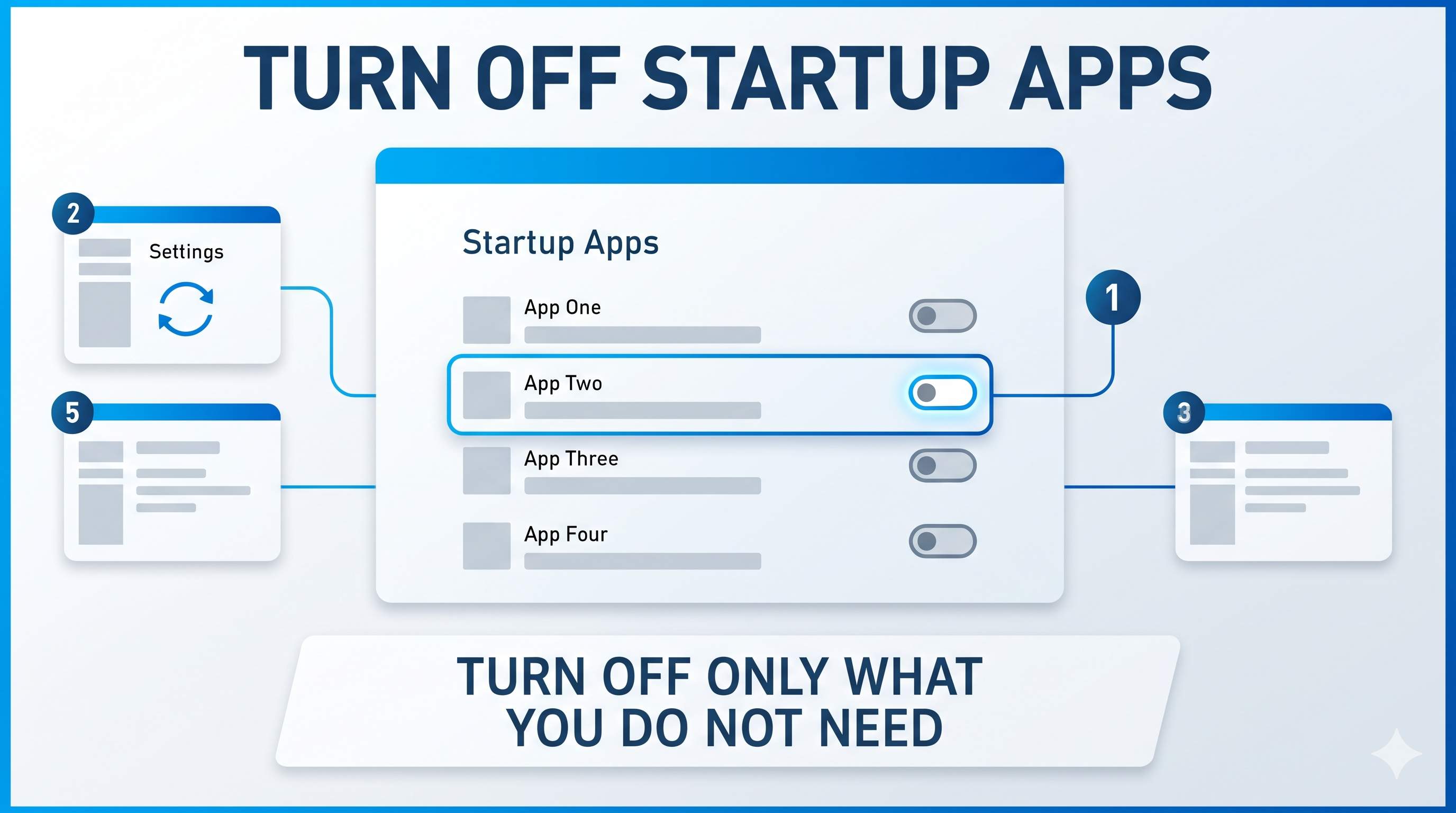
Why this works: every app in the startup list starts the moment you sign in. Many of them keep running all day, using memory and CPU you need for your work.
- Open Settings → Apps → Startup.
- Sort by Startup impact if the list shows it. Start with items marked High.
- Turn Off the switch for programs you do not need at sign-in. Good candidates are game launchers, chat apps, cloud sync tools and updaters.
- Do not turn off your antivirus, or the drivers for your touchpad, audio or graphics card.
3Remove apps you do not use
- Open Settings → Apps → Installed apps.
- Sort by Size or Last used, if available.
- Click the three dots next to an app you no longer need, choose Uninstall, and follow the steps.
Remove trial software, toolbars and PC maker extras you never use. Keep your antivirus and drivers.
4Free up drive space with Storage Sense
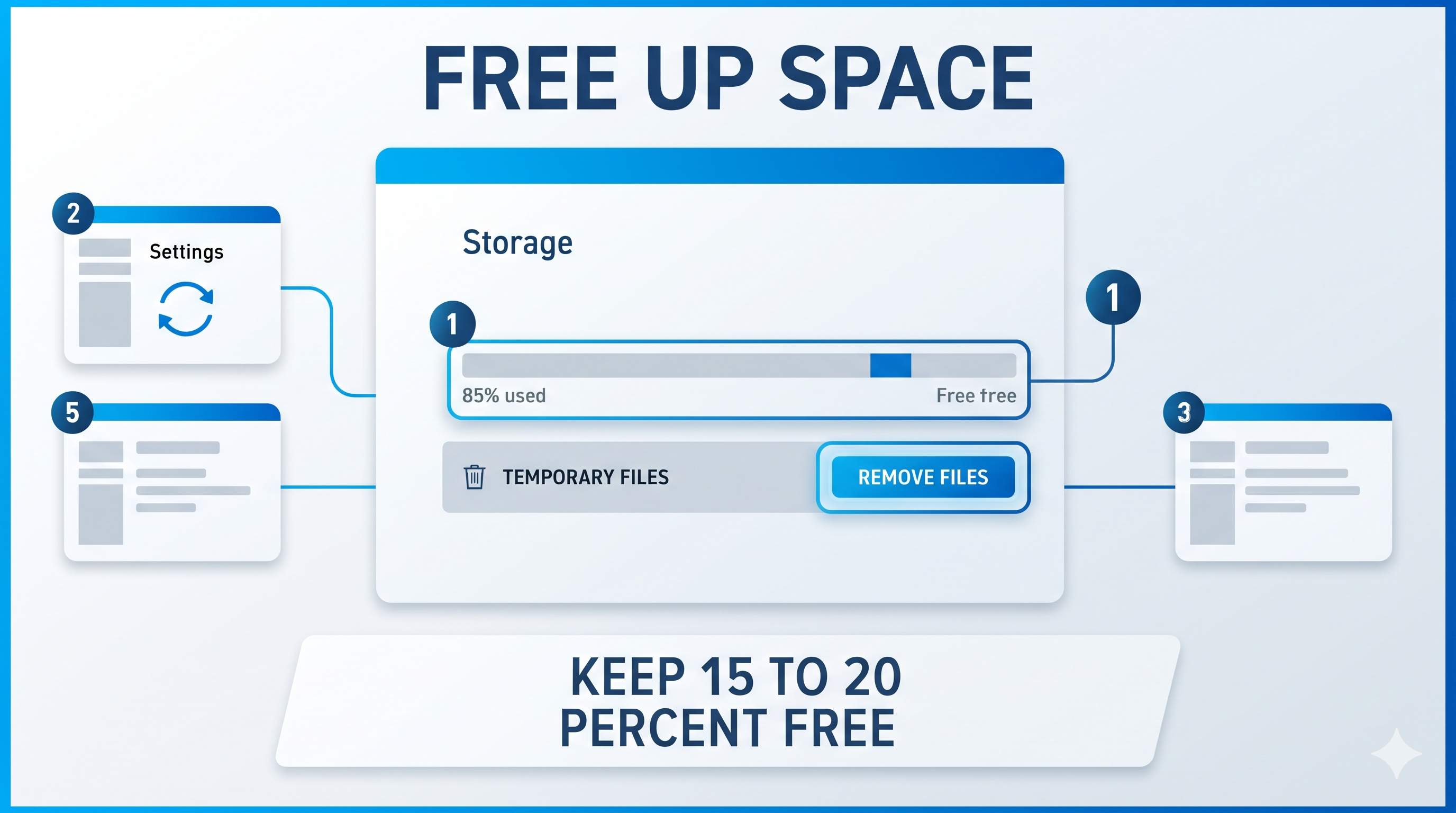
Why this works: Windows needs free space to work well. Keep at least 15 to 20 percent of the C: drive free. Temporary files and old update files take up a lot of space and you can remove them safely.
- Open Settings → System → Storage.
- Turn on Storage Sense so Windows cleans up automatically.
- Click Temporary files, tick the files you want to remove (the Recycle Bin and temporary files are safe), and click Remove files.
- Review Large or unused files and move big videos or old downloads to another drive.
5Reduce visual effects
Why this works: transparency and animations look nice, but they use the graphics chip and CPU. On a low-end PC, turning them off can make menus and windows feel faster.
- Open Settings → Accessibility → Visual effects.
- Turn Off Transparency effects and Animation effects.
- For more control, press Windows + R, type
sysdm.cpl, open Advanced → Performance Settings, and choose Adjust for best performance if you do not mind a plainer look.
6Set the power mode to the right level
Why this works: the power mode decides how much CPU speed Windows allows. On battery, a power saving mode slows things down on purpose.
- Open Settings → System → Power & battery.
- Next to Power mode, choose Best performance when plugged in.
- Switch back to Balanced on battery, to keep the battery going.
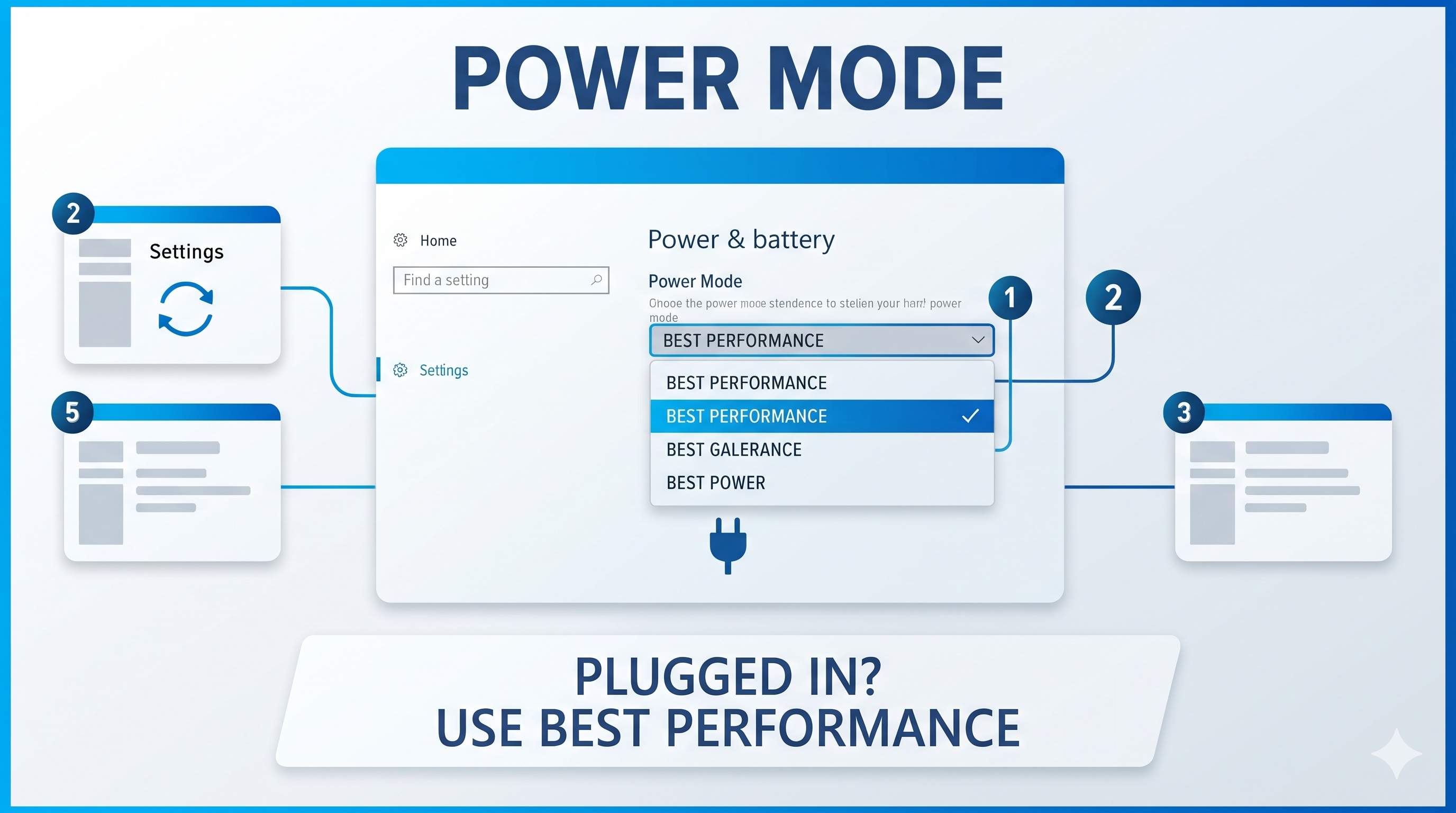
Desktop PCs can stay on Best performance. Laptops on battery should stay on Balanced.
7Limit background apps and notifications
- Open Settings → Apps → Installed apps, click the three dots next to an app, and choose Advanced options.
- Set Background apps permissions to Never for apps you do not need running all day.
- Turn off tips and suggestions in Settings → System → Notifications if you see many popups during work.
8Scan for malware and repair system files
Open Windows Security → Virus & threat protection → Scan options, choose Full scan, and click Scan now. Then repair damaged files in Terminal (Admin):
sfc /scannowWait until it reaches 100 percent, then restart. For a stronger repair, run DISM /Online /Cleanup-Image /RestoreHealth first, then sfc /scannow.
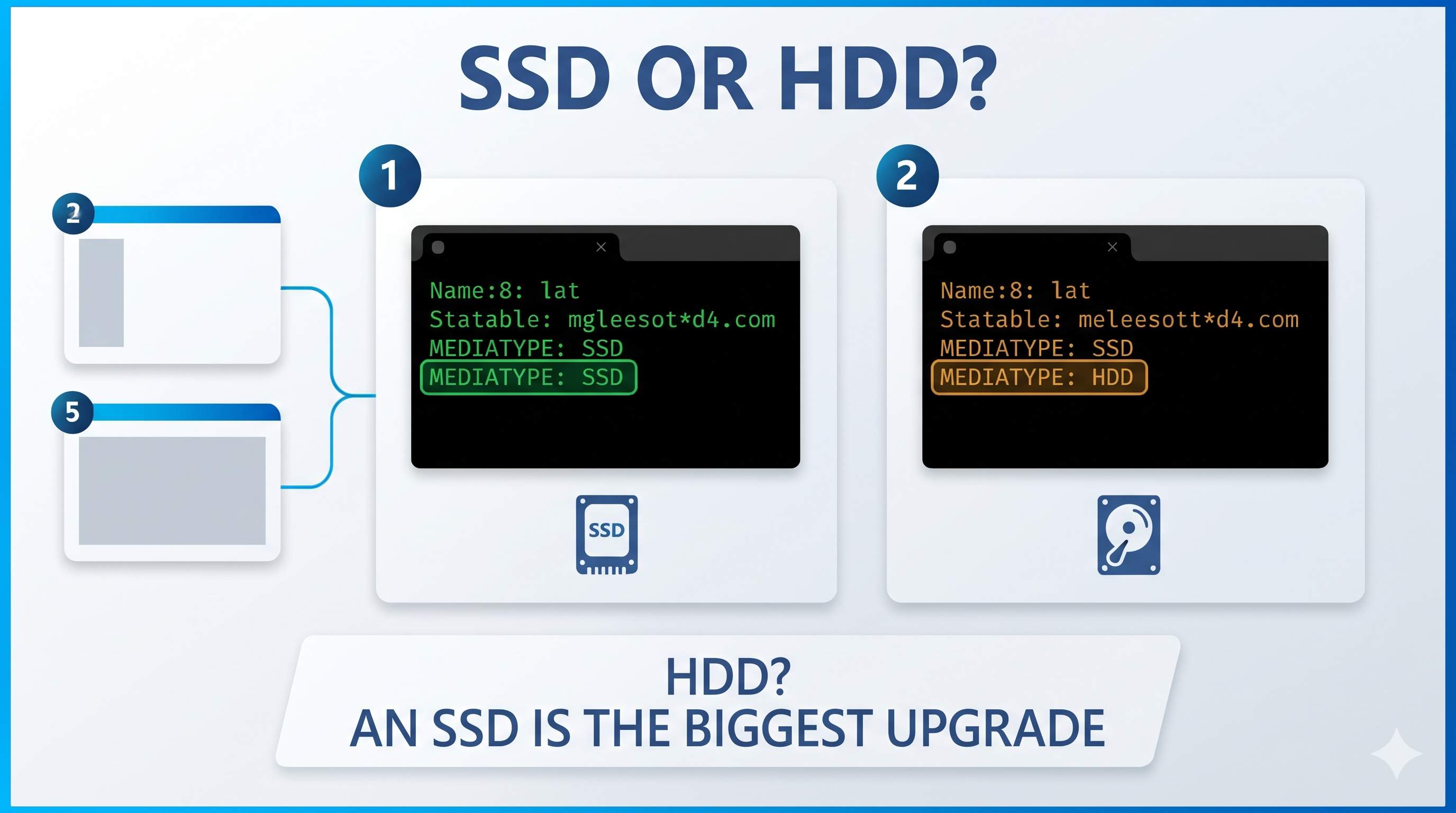
9Check your drive type, then consider an SSD
Why this works: an SSD is far faster than a hard drive (HDD) for Windows startup and app loading. This is often the single biggest speed gain on an older PC.
- Open Terminal (Admin) and run:
Get-PhysicalDisk | Select FriendlyName, MediaType - SSD means you already have a fast drive. HDD means an SSD upgrade is worth it.
- Check your RAM in Task Manager → Performance → Memory. Windows 11 runs best with at least 8 GB.
Still slow? Hardware limits
If Windows 11 is still slow after all nine fixes, check these limits:
- HDD instead of SSD: an SSD upgrade is the biggest improvement.
- 4 GB of RAM: with 4 GB, expect slowdowns when many apps are open. See how to increase RAM and virtual memory.
- Old processor or graphics: some older PCs cannot run Windows 11 well, even after every setting is tuned.
Related guides: speed up Windows 10, fix 100% disk usage, fix high CPU usage, fix slow startup, and the Slow PC & Performance guide.
Frequently asked questions
Will these fixes delete my files?
No. These fixes change settings, remove apps you choose, and clean temporary files. Back up anything important before you uninstall or reset.
Does Windows 11 need 8 GB of RAM?
8 GB is the comfortable minimum for everyday work. With 4 GB, you will see slowdowns when many apps are open.
Should I turn off Windows Defender to speed up Windows?
No. It rarely changes speed much, and it protects your PC. Keep it on.
Is Best performance power mode safe?
Yes. It uses more battery and runs warmer. On a laptop, use it when plugged in.
Why is my PC still slow after an update?
The first boot after a big update is slower. Restart again, let background work finish, then judge the speed.
Can I speed up Windows 11 without buying anything?
Often yes. Fixes 1 to 8 are free and fix most slowdowns. Only very old PCs need hardware upgrades.
Still Slow? Get Remote Support.
We can check what is slowing your PC in a secure remote session, with your approval.
Get HelpUpdated November 2, 2026. Menu names vary by Windows 11 version. Back up important data before changing system settings. ConfirmFix is an independent troubleshooting guide and is not affiliated with, endorsed by or sponsored by Microsoft. Windows is a trademark of Microsoft Corporation.
Pingback: Desktop Icons Missing in Windows 11? 8 Fixes That Work