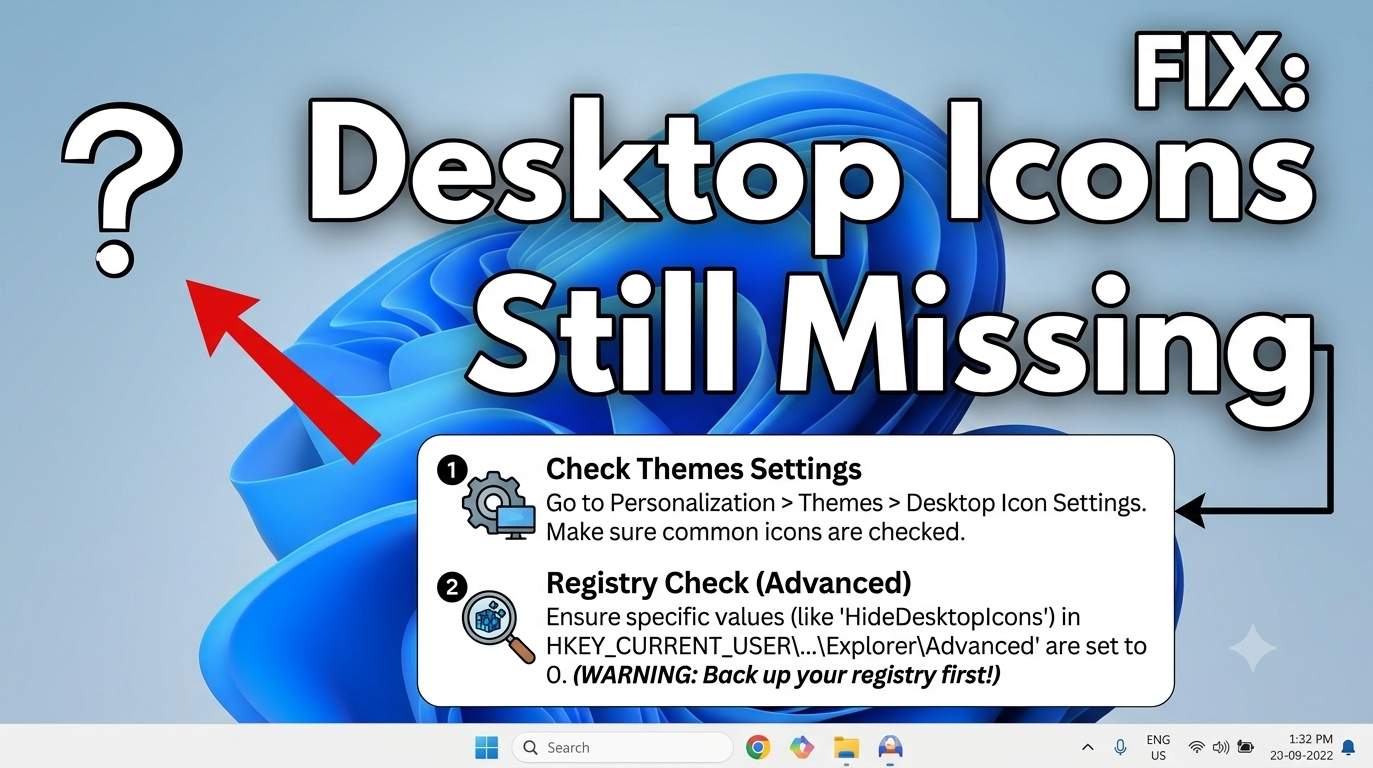
Quick answer
Try this first: right-click an empty spot on the desktop, choose View and make sure Show desktop icons is ticked. If This PC or Recycle Bin is missing, go to Settings → Personalization → Themes → Desktop icon settings. If nothing appears, press Ctrl + Shift + Esc, right-click Windows Explorer and choose Restart.
Before you worry, open File Explorer and look in C:\Users\YourName\Desktop. If your files are listed there, nothing was lost. The fixes below show them on the desktop again.
Pick your symptom
Why desktop icons disappear in Windows 11
Missing desktop icons rarely mean data loss. They come from a small set of causes, and each points to one fix. After an update, Microsoft support answers most often name three culprits: the view setting flipping, the Desktop folder being redirected to OneDrive, and system icons being reset.
| Cause | What you notice | Fix |
|---|---|---|
| Show desktop icons turned off | Wallpaper only, right-click works | Way 1 |
| System icons reset or hidden | This PC, Recycle Bin, Network gone | Way 2 |
| Explorer crashed or hung | No icons, taskbar may be blank too | Way 3 |
| Desktop folder moved or OneDrive backup | Different files appear, or none | Way 4 |
| Resolution, scaling or monitor change | Icons off-screen or overlapping | Way 5 |
| Corrupt icon cache | Blank, white or wrong icons | Way 6 |
| Group Policy or registry value | Work PC, nothing helps | Way 7 |
| Damaged system files, bad update, malware | Problem returns after restart | Way 8 |
1Turn on Show desktop icons
This is the most common cause. The setting can be switched off by accident, by a desktop tool, or reset by an update.
- Click an empty area of the desktop. Press Windows + D if apps cover it.
- Right-click and choose View (or Show more options → View on older builds).
- Tick Show desktop icons.
Keyboard only
Press Windows + D, then Shift + F10 to open the context menu, then use the arrow keys to reach View → Show desktop icons. Pressing the letter V jumps to View on most builds.
2Restore This PC, Recycle Bin and other system icons
- Open Settings → Personalization → Themes → Desktop icon settings.
- Tick Computer (This PC), Recycle Bin, User's Files, Network and Control Panel as needed.
- Untick Allow themes to change desktop icons so a theme or update cannot reset them, then click Apply.
Shortcut: press Windows + R and run this to open the same window directly.
rundll32.exe shell32.dll,Control_RunDLL desk.cpl,,0
3Restart Windows Explorer
The desktop is drawn by explorer.exe. If it hangs or crashes, icons disappear even though nothing was deleted.
- Press Ctrl + Shift + Esc to open Task Manager.
- Find Windows Explorer, right-click it and choose Restart.
- If it is not listed, choose Run new task, type
explorer.exeand press Enter.
If the screen stays black, press Windows + Ctrl + Shift + B to reset the graphics driver, then repeat step 3.
4Check the real Desktop folder and OneDrive backup
If OneDrive backs up your Desktop, Windows physically moves it to OneDrive\Desktop. An update, a sign-out or a second account can switch which folder is shown, so your icons seem to vanish.
Find where your files are
- Open File Explorer and check
C:\Users\YourName\DesktopandOneDrive\Desktop(also any work or school OneDrive). - Right-click Desktop in the left pane, choose Properties and open the Location tab to see the active path.
Point the desktop back to the right folder
- On the Location tab click Restore Default (local desktop) or Move and select the folder that holds your shortcuts.
- Click Apply and accept the prompt to move files.
Stop OneDrive switching it again
Open the OneDrive tray icon → Settings → Sync and backup → Manage backup and turn Desktop on or off deliberately. After turning it off, copy any files from OneDrive\Desktop back to the local Desktop folder.
5Fix icon layout, scaling and monitors
- Right-click the desktop → View and untick Auto arrange icons and Align icons to grid, then tick them again. This pulls stray icons back.
- Right-click → Sort by → Name to bring off-screen icons into order.
- Press F5 on the desktop to refresh.
- Open Settings → System → Display and set the resolution to Recommended. A wrong resolution can push icons off the visible area.
- With several monitors press Windows + P and choose Extend or Duplicate. Icons live on the main display, so check Make this my main display.
Windows 11 has no Tablet Mode that hides icons, but a convertible with a touch layout or a remote session can show a different desktop size.
6Rebuild the icon cache for blank or white icons
Windows stores icon pictures in a cache. If it is damaged, icons turn blank or generic. Save your work first, because the taskbar disappears for a moment.
Open Command Prompt (not PowerShell) and run:
taskkill /f /im explorer.exe
cd /d %localappdata%\Microsoft\Windows\Explorer
del /a /q iconcache_*.db
del /a /q thumbcache_*.db
del /a /q %localappdata%\IconCache.db
start explorer.exe
If icons are still blank, update the graphics driver from your PC maker and restart.
7Check Group Policy and registry (work or school PCs)
A policy named Hide and disable all items on the desktop removes every icon and also disables the right-click menu. On a managed PC ask IT, because the policy returns at each sign-in.
Windows Pro, Enterprise, Education
Press Windows + R, run gpedit.msc, go to User Configuration → Administrative Templates → Desktop and set the policy to Not Configured.
Windows Home or if the policy is not available
Open an administrator Terminal and check the value:
reg query "HKCU\Software\Microsoft\Windows\CurrentVersion\Policies\Explorer" /v NoDesktop
reg delete "HKCU\Software\Microsoft\Windows\CurrentVersion\Policies\Explorer" /v NoDesktop /f
gpupdate /force
Restart Explorer afterward. Assigned Access (kiosk mode) also hides the desktop by design, so it needs to be turned off from Settings → Accounts → Other users.
8Repair Windows if icons keep vanishing
- Repair system files. In an administrator Terminal run the two commands below and restart.
DISM /Online /Cleanup-Image /RestoreHealth
sfc /scannow
- Scan for malware. Open Windows Security → Virus & threat protection → Scan options → Microsoft Defender Antivirus (offline scan).
- Test a new profile. Create a new local user in Settings → Accounts → Other users. If icons show there, your old profile is damaged: copy your files across and use the new one.
- Uninstall the latest update. Settings → Windows Update → Update history → Uninstall updates, pick the newest one and restart.
- Use System Restore. Search Create a restore point → System Restore and pick a date before the problem.
Reset this PC with Keep my files is the final option. Copy your Desktop folder to a USB drive first.
Special cases people search for
| Problem | Fix |
|---|---|
| Desktop icons not showing in File Explorer | Right-click Desktop in File Explorer → Properties → Location. See Way 4. |
| App shortcut missing (WhatsApp, Store apps) | Open Start → All apps, drag the app to the desktop. Or run shell:AppsFolder and drag from there. |
| Shortcut arrows gone or overlay icons odd | OneDrive Desktop backup draws its own status icons. Check Way 4 and Way 6. |
| Icons missing in a virtual machine or Remote Desktop | Use View → Show desktop icons inside the VM. Restart Explorer there. Check the resolution scaling. |
| Icons disappear after sign-in on a work PC | A policy or logon script. See Way 7 and ask IT. |
| Windows 10 desktop icons missing | Same steps. Menu names vary slightly. |
| Icons missing and screen black with cursor | Run explorer.exe from Task Manager. See Way 3. |
Recover shortcuts you deleted by mistake
- Open the Recycle Bin and use Restore. If it is missing from the desktop, see Way 2.
- Right-click the Desktop folder in File Explorer → Properties → Previous Versions and restore an older copy if one exists.
- Check OneDrive.com → Recycle bin if Desktop backup was on.
- Rebuild app shortcuts from Start → All apps by dragging them to the desktop.
Reported update issues in 2026
Update problems vary by build, so verify your KB number on Microsoft's Windows release health page.
| Report | Effect | What helped |
|---|---|---|
| August 2026 preview update and later (including KB5124010) | Black screen after sign-in, desktop not loading | Run explorer.exe from Task Manager. IT can use Known Issue Rollback. |
| June 2026 KB5094126 (user and press reports) | OneDrive and SharePoint entries in File Explorer not opening | Create manual shortcuts, or uninstall the update (this removes its security fixes). |
| Microsoft Q&A threads, 2026 | Shortcuts seem to vanish or extra icons appear after updates | Re-tick Show desktop icons, check OneDrive Desktop sync, clear Allow themes to change desktop icons. |
How to stop desktop icons disappearing again
- Untick Allow themes to change desktop icons in Desktop icon settings.
- Decide on OneDrive Desktop backup once and keep it that way on every device.
- Back up your desktop shortcuts with a copy of
C:\Users\YourName\Desktop. - Avoid registry cleaners and desktop-organizer tools that rewrite icon layouts.
- Keep at least 20 GB free and install updates while plugged in.
- Update graphics drivers from your PC maker.
Before running commands: use only the commands shown here, and back up important files before editing the registry or changing Group Policy.
Frequently asked questions
Why did all my desktop icons disappear in Windows 11?
Most often Show desktop icons was switched off, Explorer crashed, or an update reset a setting. Other causes are a Desktop folder moved to OneDrive, a corrupt icon cache, a Group Policy that hides the desktop, or a display or monitor change. Your files are usually still in the Desktop folder.
How do I get my desktop icons back in Windows 11?
Right-click an empty area of the desktop, choose View and tick Show desktop icons. If This PC or Recycle Bin is missing, open Settings, Personalization, Themes, Desktop icon settings and tick them. If that fails, restart Windows Explorer from Task Manager.
Are my files deleted if desktop icons are missing?
Usually not. Open File Explorer and check C:\Users\YourName\Desktop and OneDrive\Desktop. If the files are there, the desktop is only failing to display them.
Why are only some desktop icons missing in Windows 11?
Missing system icons point to Desktop icon settings or a theme change. Missing shortcuts point to a moved Desktop folder, OneDrive sync, hidden items or an icon off-screen after a resolution or monitor change. Try right-click, View, Auto arrange icons, then check OneDrive.
Why are desktop icons blank or white in Windows 11?
A corrupt icon or thumbnail cache is the usual cause, sometimes helped along by a graphics driver problem or an app that was uninstalled. Delete the icon cache files and restart Explorer, then update the graphics driver if icons stay blank.
Why is my Desktop folder empty in File Explorer?
The Desktop folder may be redirected to OneDrive or to another path. Right-click Desktop in File Explorer, open Properties, then Location, and check the path. Your files are probably in OneDrive\Desktop or the local Desktop folder.
Can a Windows 11 update remove desktop icons?
An update does not normally delete icons, but it can reset the Show desktop icons setting, the Desktop icon settings or a OneDrive folder backup so a different Desktop folder is displayed. Check those three first.
Why do my desktop icons keep disappearing?
Common causes are OneDrive Desktop backup switching folders, themes changing desktop icons, Explorer crashing, a third-party desktop tool, or a policy reapplying at sign-in. Clear Allow themes to change desktop icons, review OneDrive backup and run SFC and DISM.
Can I recover shortcuts I deleted from the desktop?
Check the Recycle Bin first, then right-click the Desktop folder, choose Properties and Previous Versions. For app shortcuts, drag the app from Start, All apps to the desktop.
Do these steps work on Windows 10?
Yes. Show desktop icons, Desktop icon settings, restarting Explorer, the icon cache rebuild and SFC and DISM work the same way. Menu names differ slightly.