Touchpad Not Working in Windows 10 & 11: Complete Fix Guide
Cursor frozen, clicks ignored, or the touchpad dead after a restart? This guide starts with a 5-minute diagnosis so you know whether the problem is a setting, a driver, the BIOS or the hardware. Then it walks through 9 fixes with the exact menus and what each option does.
By ConfirmFix Editorial Team · Updated November 2, 2026 · About 15 minutes
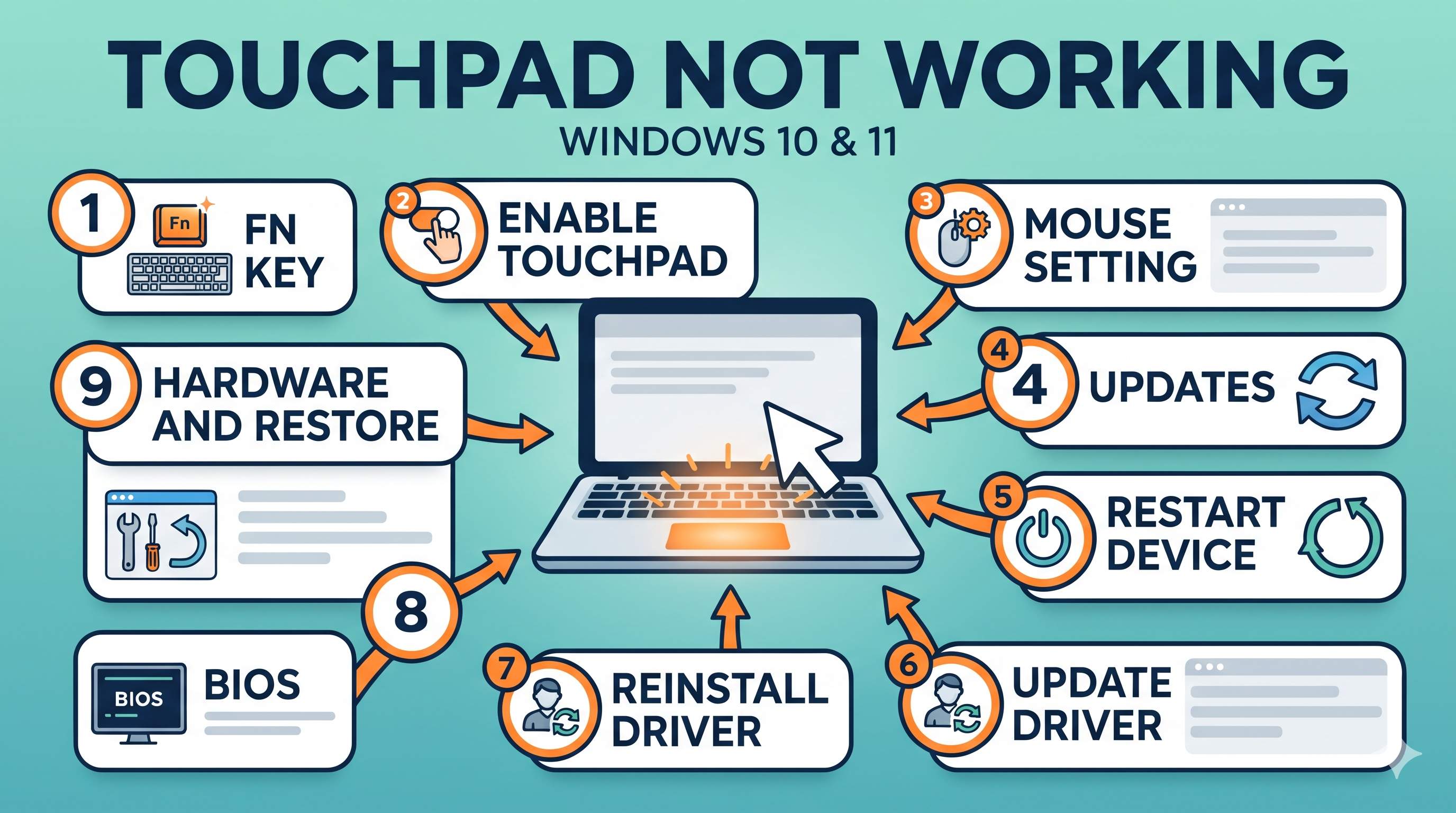
Quick answer
Do these two first: check the touchpad key (Fix 1) and the Touchpad switch in Windows (Fix 2). Those solve most cases in under five minutes. If the touchpad works only sometimes, or comes back after a restart, the problem is usually the driver or power management (Fix 5 to 7).
Before anything else, plug in a USB mouse. You need a working pointer to follow the steps, and the mouse also tells you whether the problem is the touchpad or the whole system.
Step 0: 5-minute diagnosis
Answer these questions in order. Your answers tell you which fix group to start with.
| Test | What you do | What it means |
|---|---|---|
| A. Does the touchpad light change? | Press the touchpad key (Fix 1). Watch the small light. | Light changes: it is a key or a switch issue, go to Fix 2. No light: check Fix 1 and the BIOS (Fix 8). |
| B. Does the touchpad work in Safe Mode? | Restart, hold Shift and choose Restart, then Troubleshoot, Advanced options, Startup Settings, press 4. | Works in Safe Mode: a driver, service or startup app is the cause (Fix 5 to 7). Dead in Safe Mode: check the BIOS (Fix 8) and hardware (Fix 9). |
| C. Is there a warning in Device Manager? | Open Device Manager, expand Mice and other pointing devices (or Human Interface Devices). | Yellow triangle with ! : driver problem (Fix 6, 7). Arrow pointing down: device is disabled (Fix 5). No warning: the software side is probably fine. |
| D. Does an external mouse work? | Plug in a USB mouse and test it. | Mouse works, touchpad does not: a touchpad problem. Mouse also fails: a USB or whole-system problem, check Fix 4 and the restart step. |
| E. When did it start? | Think about the last update, driver install, or a fall or spill. | After an update: Fix 4 and driver rollback (Fix 6). After a spill or fall: go to Fix 9. |
Which symptom do you have?
Windows touchpad settings explained
Most people change one option and stop. Knowing what each option does helps you pick the right one.
| Setting | What it does | When to change it |
|---|---|---|
| Touchpad (on/off switch) | Turns the whole touchpad on or off. | Always check this first (Fix 2). |
| Leave touchpad on when a mouse is connected | Keeps the touchpad active when a USB or Bluetooth mouse is plugged in. | Turn on if you use both. Turn off if the touchpad keeps interfering (Fix 3). |
| Taps | A light tap counts as a click. | Turn off if your cursor clicks by accident while typing or resting your palm. |
| Tap-tap-drag | Tap twice and drag to move items. | Turn off if drag selects things by accident. |
| Scroll and zoom | Two-finger drag scrolls, pinch zooms. | Must be on for two-finger scroll. |
| Touchpad sensitivity | How much a finger move changes the cursor. | Lower it if the cursor jumps. Raise it if it feels slow. |
| Gestures (3 and 4 fingers) | Swipes and taps for desktops, apps and volume. | Turn off if random swipes change windows or volume. |
The 9 fixes in depth
1Check the touchpad key (Fn) and the lock
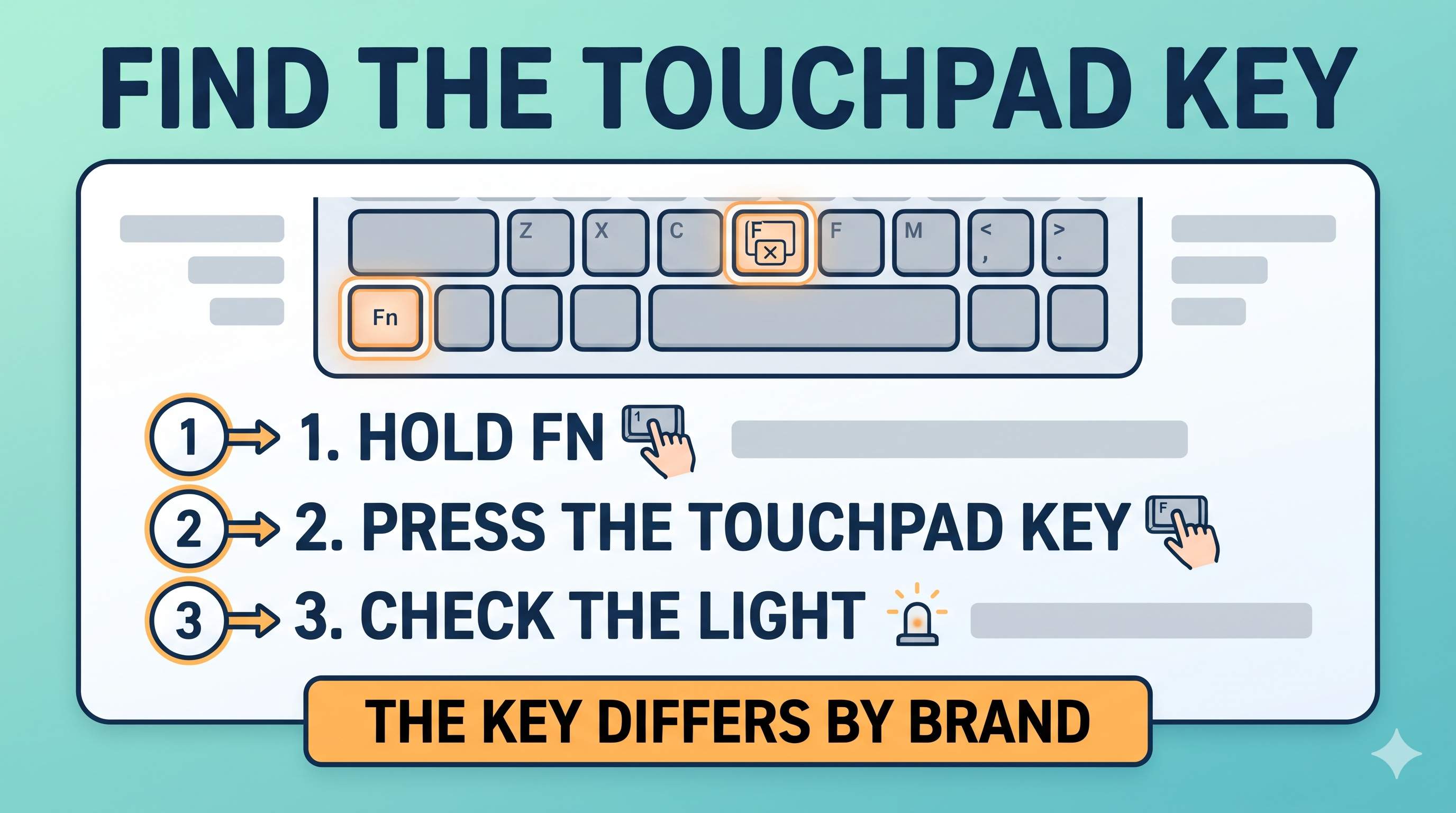
Many laptops turn the touchpad off with a key that has a touchpad icon. The key is often Fn with one of F5, F6, F7 or F9, depending on the brand.
- Find the key with a touchpad symbol in the top row of F keys.
- Hold Fn and press it. Watch the touchpad light (often amber when disabled).
- If your laptop has an Fn Lock key or a setting in the BIOS that swaps F keys, the touchpad key may do something else. Press Fn + Esc to test the lock, then try again.
- Some HP laptops: double-tap the top-left corner of the touchpad to toggle it. Dell and Lenovo often use the key above instead.
2Turn the Touchpad switch on, and check its options
- Press Windows + I.
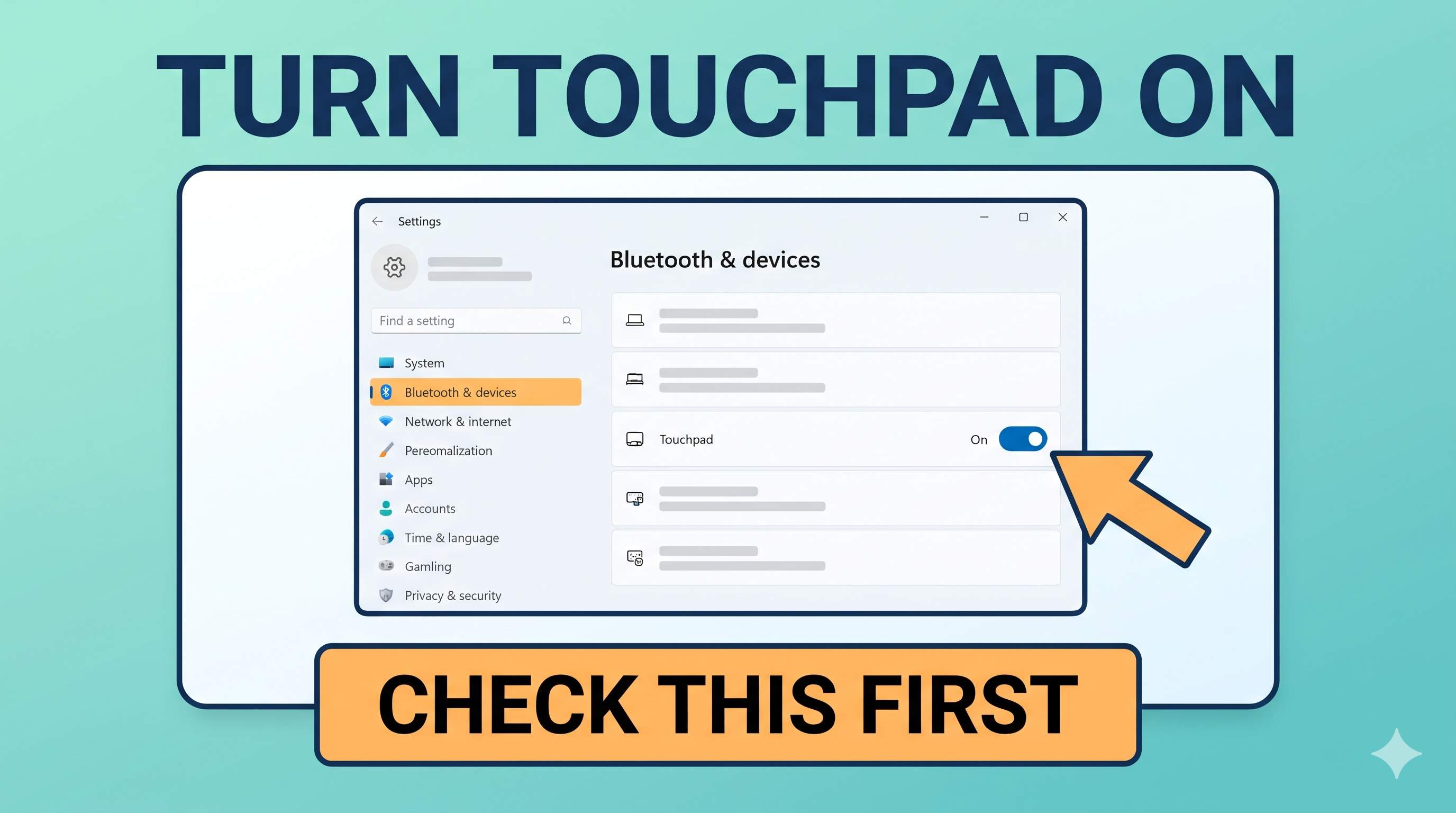
- Windows 11: Bluetooth & devices → Touchpad. Windows 10: Devices → Touchpad.
- Turn on the Touchpad switch.
- Expand the page and check Taps, Scroll and zoom and Touchpad sensitivity (see the table above).
- Restart the PC and test the cursor, a click and a two-finger scroll.
If the Touchpad page is missing completely, Windows has no touchpad driver installed. Go to Fix 6 or 7, then come back here.
3Set the “mouse connected” rule
When an external mouse is connected, Windows can switch the touchpad off to avoid conflicts. The option is on the same Touchpad page.
- Find Leave touchpad on when a mouse is connected.
- Turn it on if you want both. Turn it off if you only want the mouse.
- Unplug the mouse and test the touchpad. If it works only with the mouse plugged in, this setting is the cause.
A wireless mouse with a weak battery can make this look like a touchpad problem. Test with a wired mouse if you have one.
4Install updates, and check your update history
- Open Settings → Windows Update and install everything. Windows 10: Update & Security.
- Open Advanced options → Optional updates and install any Driver updates for the touchpad, mouse, chipset or input devices.
- Check the problem date: go to Windows Update → Update history. If the touchpad stopped right after an update, note its name. You can remove it from Update history → Uninstall updates if needed.
- Restart fully. Use Restart, not Shut down or sleep. Fast Startup can keep the old driver state.
5Stop Windows from turning the touchpad off to save power
Windows can switch off the input device to save battery. That is why some touchpads stop after sleep or on battery.
- Press Windows + X and open Device Manager.
- Expand Mice and other pointing devices (or Human Interface Devices) and double-click the touchpad, often named HID-compliant touch pad, ELAN or Synaptics.
- Open the Power Management tab (if present) and untick Allow the computer to turn off this device to save power. Click OK.
- Do the same for any USB Input Device or HID-compliant mouse entries that also appear.
If the Power Management tab is missing, skip this step. Some drivers do not show it.
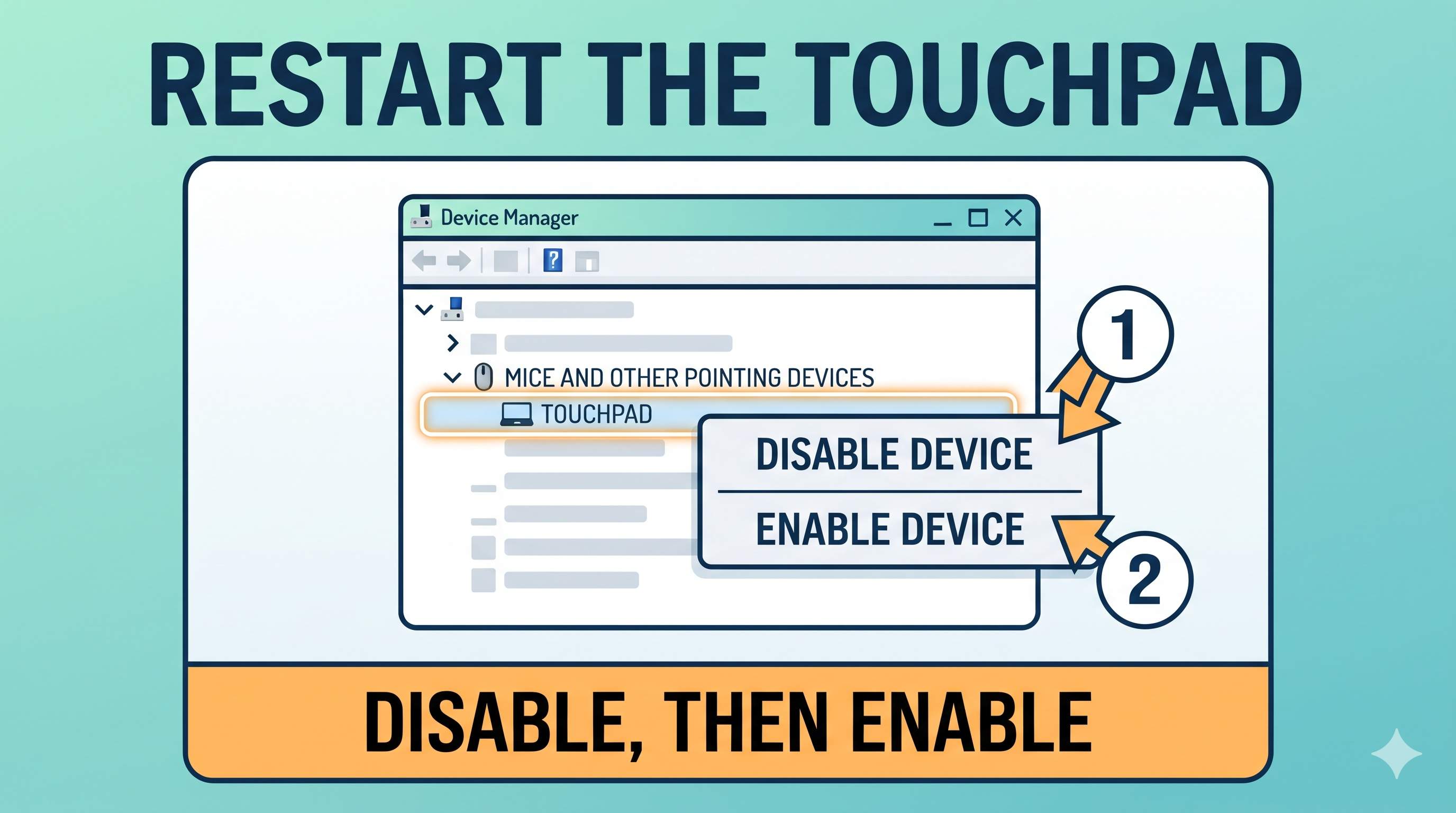
Next, disable and enable the device to refresh it: right-click the touchpad, choose Disable device, then Enable device.
6Check and update the touchpad driver
- In Device Manager, double-click the touchpad and open the Driver tab.
- Note Driver Date and Driver Version. A driver more than a few years old, or one that changed recently, is suspect.
- If the Roll Back Driver button is active, click it. It restores the previous version. This is the best choice after an update broke the touchpad.
- Otherwise, right-click the touchpad and choose Update driver → Search automatically for drivers.
- Best option: go to your laptop maker’s support site, enter your model, and download the touchpad driver (ELAN, Synaptics or Precision Touchpad). Install it, then restart.
Avoid “driver updater” apps. They often install the wrong driver. Use Windows Update or your laptop maker’s site only.
7Remove the driver and let Windows reinstall it
- Write down the touchpad name from Device Manager. You will need it if you install the maker’s driver later.
- Right-click the touchpad and choose Uninstall device.
- If the box appears, tick Delete the driver software for this device, then click Uninstall.
- Restart. Windows installs a basic driver automatically. Check the Touchpad settings page. If it is back, install the maker’s driver from Fix 6 for full gestures.
Removing a driver is safe, but the touchpad may use basic features until you install the proper driver. Do not remove drivers for the keyboard or USB ports.
8Check the BIOS for the internal pointing device
Some laptops let you disable the internal pointing device in the BIOS. It stays off even in Safe Mode.
- Restart and open the BIOS (usually F2, Del or Esc).
- Look for Internal Pointing Device, Touchpad or Pointing Device under Advanced, Device Configuration or Internal Devices.
- Set it to Enabled. Save and exit with F10.
- If the option is not there, skip it. Not every laptop has one.
Do not change other BIOS options while you are there. Change one setting, save, and test.
9Repair system files, test in a clean boot, or restore
If Safe Mode works and nothing else helps, the input driver files may be damaged.
- Open Terminal (Admin) and run
DISM /Online /Cleanup-Image /RestoreHealth, thensfc /scannow. Restart when done. - For a clean boot test: press Windows + R, type
msconfig, go to Services, tick Hide all Microsoft services, click Disable all. Restart. If the touchpad works, re-enable services in small groups to find the one that conflicts. - Restore: search Create a restore point and use System Restore to go back to a date before the problem.
After a spill, drop or repair, the touchpad cable may be loose or damaged. Software cannot fix that. Stop here and go to the next section.
Brand-specific notes
| Brand | What to check |
|---|---|
| HP | Double-tap the top-left corner of the touchpad. Driver is often Synaptics or HP Precision Touchpad from HP Support Assistant. |
| Dell | Usually Fn + F5 or the touchpad key on the F row. Driver from dell.com under Touchpad (ELAN or Synaptics). |
| Lenovo | ThinkPads often have a TrackPoint too, and the TrackPoint can work while the touchpad does not. Check the TrackPoint and the touchpad switch in Settings. |
| ASUS | Look for the touchpad key with Fn (often F9). ASUS offers a touchpad driver through its support site. |
| Acer | Usually Fn + F7. Driver from acer.com (ELAN or Synaptics). |
On all brands, if the Windows Touchpad page exists and the switch is on, the software side is usually fine. Focus on the driver and the BIOS.
Quick tips for common symptoms
| Symptom | Try |
|---|---|
| Cursor jumps while typing | Turn off Taps, lower Touchpad sensitivity, and check the “mouse connected” rule. Some drivers also have a “disable while typing” option in the Mouse settings. |
| Two-finger scroll does not work | Turn on Scroll and zoom in the Touchpad settings. Then update the driver (Fix 6). |
| Right click does nothing | Click in the bottom-right corner of the touchpad, or press Shift + F10 to open a context menu from the keyboard. |
| Random swipes change windows or volume | Turn off the 3-finger and 4-finger gestures in the Touchpad page. |
| Touchpad stops after sleep | Fix 5 (power management), then restart instead of using sleep. |
When to stop and get help
- The touchpad does not work in Safe Mode and the BIOS option is missing or does not help.
- The touchpad is physically damaged, has a crack, or is hot and swollen. Stop using it, because a swollen battery under the touchpad is a safety risk.
- Clicking or cursor problems started after a spill or a drop.
- A technician or your laptop maker has to open the device to check the cable.
Remote support can check settings, drivers and logs over a secure session. We cannot repair a physically broken touchpad or cable.
Frequently asked questions
Why did my touchpad stop working suddenly?
Usually a key press turned it off, a Windows update changed the driver, or the Touchpad switch was set to off. Check Fix 1 and Fix 2 first, then Fix 6 with Roll Back Driver if it started after an update.
Can I use a Windows 10 guide on Windows 11?
Most steps are the same. Menu names change, so this guide lists both: Windows 11 under Bluetooth and devices, and Windows 10 under Devices.
Will the touchpad work with a mouse plugged in?
Often yes. The ‘Leave touchpad on when a mouse is connected’ option controls this (see Fix 3 and the settings table).
What is the difference between a driver and the Touchpad setting?
The driver is the software that talks to the touchpad hardware. The Touchpad setting turns it on or off, and sets how it behaves. Both must be working.
Is a dead touchpad a hardware failure?
Not always. Most cases are software: a key, a setting, or a driver. It is hardware only when Safe Mode and a clean driver both fail and the touchpad does not respond.
Does a BIOS update fix the touchpad?
Only if your laptop maker says the update fixes a touchpad issue. Otherwise install the driver from Fix 6.
Other keyboard and mouse fixes are coming soon. For speed and drivers, read fix high CPU usage and fix slow startup.
Touchpad Still Dead?
Tell us what you tried and we will check the settings, drivers and logs in a secure remote session.
Get HelpAbout the Author
ConfirmFix Editorial Team creates practical Windows troubleshooting guides to help readers understand common PC problems and follow step-by-step solutions.
Updated November 2, 2026. Menu names and touchpad keys vary by laptop brand and Windows version. Back up important data before changing system settings. ConfirmFix is an independent troubleshooting guide and is not affiliated with, endorsed by or sponsored by Microsoft, HP, Dell, Lenovo, ASUS, Acer, Synaptics or ELAN. All product names are trademarks of their owners.
Pingback: Fn Keys Not Working in Windows 10 & 11: Volume, Brightness and More (2026)