Fix “Your PC Needs to Be Repaired” and Error 0xc00000e9
A blue Recovery screen says “It looks like Windows didn’t load correctly” or shows an error code, and Windows will not start. Find your code, then follow the right fix. Most of the time your files are safe.
By ConfirmFix Editorial Team · Updated November 2, 2026
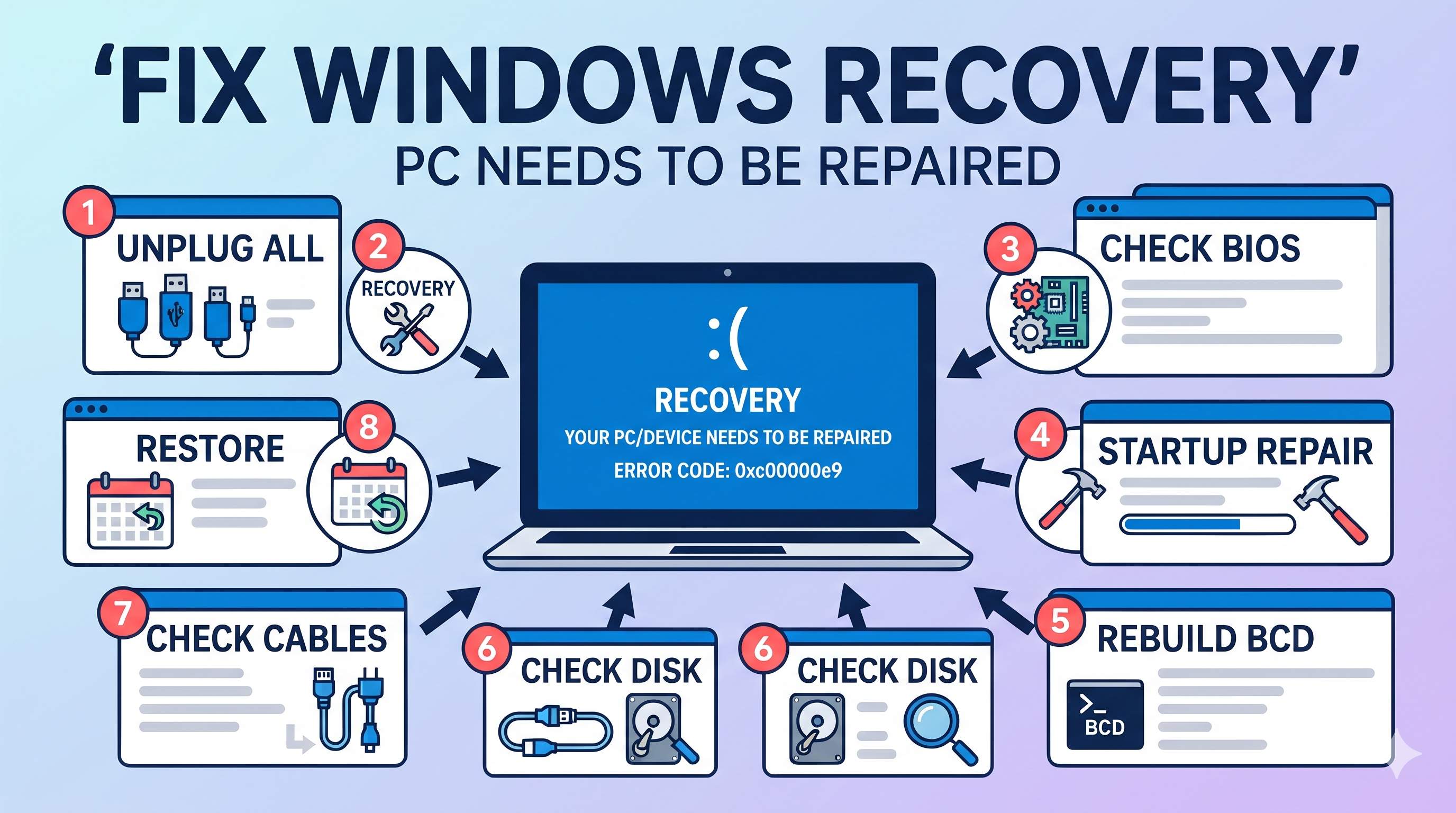
Your PC/Device needs to be repaired
A required device isn’t connected or can’t be accessed.
Error code: 0xc00000e9
You’ll need to use recovery tools. If you don’t have any installation media, contact your PC administrator or PC/Device manufacturer.
Quick answer
This blue Recovery screen means Windows cannot read its boot data or reach the drive. Unplug every USB device and restart (Fix 1). If that does not help, open the recovery tools (Fix 2) and rebuild the boot data (Fix 5). Error 0xc00000e9 is different: it usually points to a connection or drive problem (Fix 7).
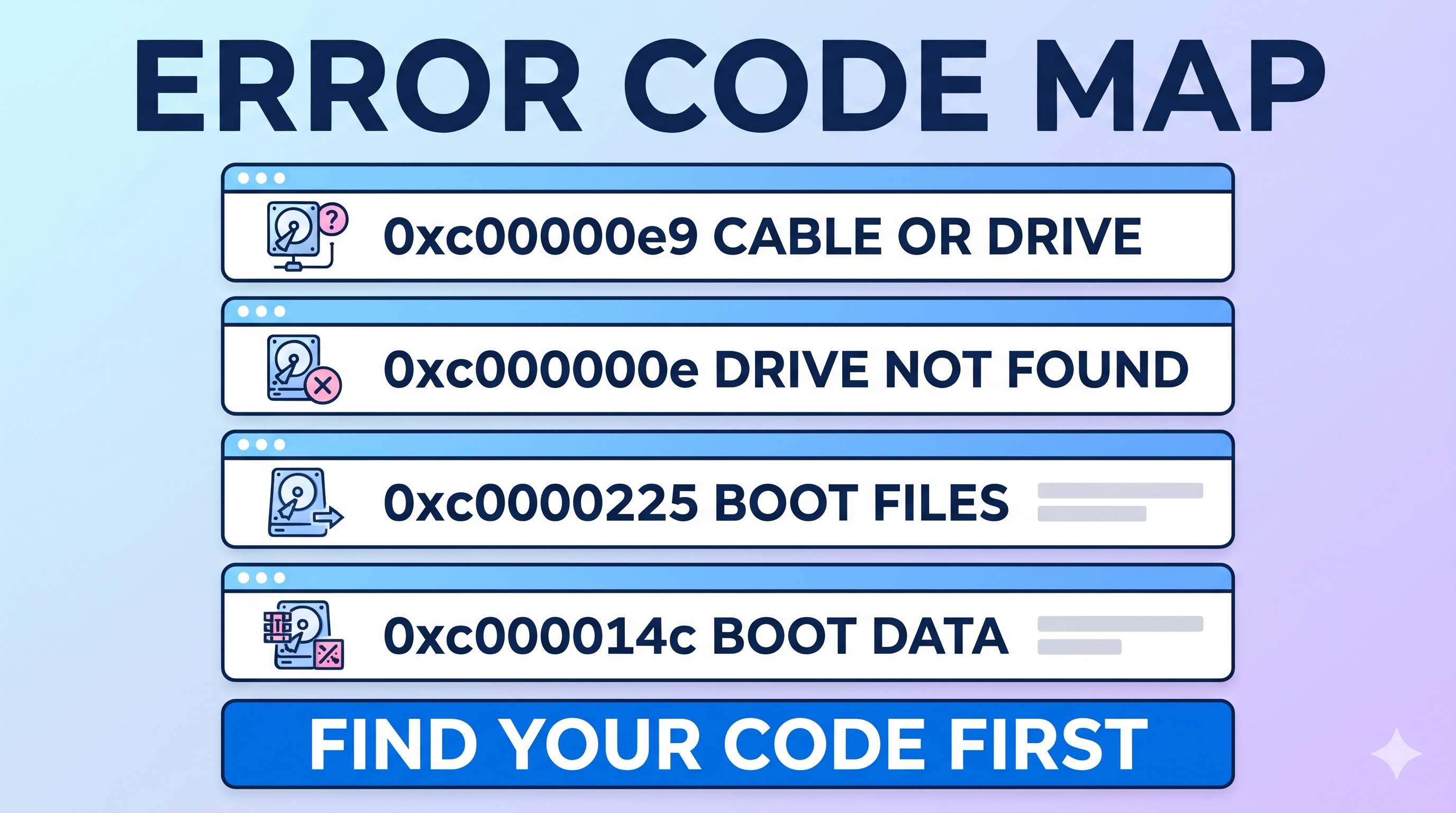
Pick your error code
| Code | What it means | Usual cause | Try |
|---|---|---|---|
| 0xc00000e9 | Unexpected I/O error | Often a loose cable or USB device, or a failing drive | Fix 1, 7 |
| 0xc000000e | A required device is not connected or cannot be accessed | The drive is not seen, or the boot data points to the wrong drive | Fix 3, 5, 7 |
| 0xc000000f | The boot configuration data cannot be read | Damaged boot data (BCD) | Fix 5 |
| 0xc0000034 | The boot configuration data is missing required information | Damaged or missing BCD | Fix 5 |
| 0xc0000098 | The boot data has no valid Windows entry | BCD does not list your Windows | Fix 5 |
| 0xc0000185 | The boot selection failed because a required device is inaccessible | Drive not reachable, or damaged boot data | Fix 3, 5, 7 |
| 0xc0000225 | An unexpected error with the boot manager or winload.efi | Damaged boot files, boot mode or Secure Boot mismatch | Fix 4, 5, 6 |
| 0xc000014c | The boot configuration data is missing or has errors | Damaged BCD or system registry file | Fix 5, 6 |
The 8 fixes
1Unplug everything and restart
- Turn the PC off and unplug the charger.
- Remove USB drives, SD cards, printers, docks and external hard drives.
- Hold the power button for 15 seconds, then start the PC with only the charger connected.
A device that Windows tries to read can trigger this screen, especially error 0xc00000e9.
2Use the recovery tools on the screen
- On the blue screen, press the key it shows, usually Enter to try again, or F8 for Startup Settings, or Esc for the firmware settings.
- If Advanced options or See advanced repair options appears, choose it, then Troubleshoot → Advanced options.
- No menu? Force the PC off during the Windows logo 2 to 3 times, and Windows opens the recovery menu on its own.
Steps with screenshots: how to open Advanced options.
3Check that the BIOS sees your drive
Restart and open the BIOS (usually F2, Del or Esc). Check that your SSD or hard drive is listed and that the boot order puts Windows Boot Manager or your drive first.
Do not change storage settings such as AHCI or RAID unless you changed them recently. Switching them can stop Windows from starting.
4Run Startup Repair
- Open Troubleshoot → Advanced options → Startup Repair.
- Choose your account, enter the password if asked, and wait.
Run it a second time if it fails the first time. If it keeps failing, continue with Fix 5.
5Rebuild the boot data (BCD)
Open Advanced options → Command Prompt and run:
bootrec /fixmbr
bootrec /fixboot
bootrec /scanos
bootrec /rebuildbcd
If /fixboot says “Access is denied”, rebuild the EFI boot files. Run diskpart, list vol, and find the small FAT32 volume (about 100 to 500 MB). Then:
sel vol 3
assign letter=S
exit
bcdboot C:\Windows /s S: /f UEFI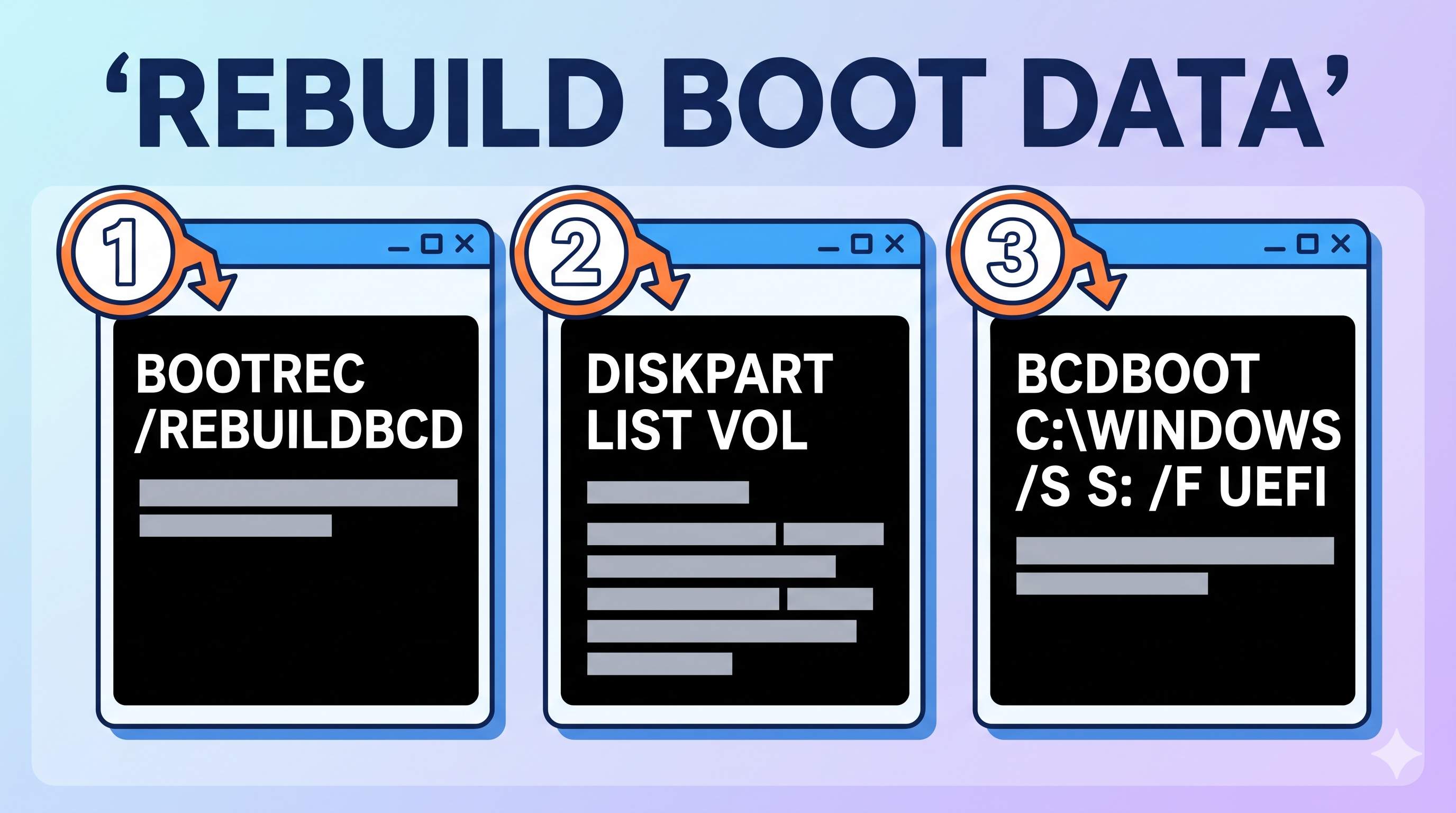
In recovery, Windows may be on D: or E:. Use dir C:\ to check for a Windows folder. The bcdboot line is for UEFI (GPT) PCs. Older Legacy (MBR) PCs usually only need the first four commands.
6Check the disk and repair system files
In the same Command Prompt, run:
chkdsk C: /f /r
sfc /scannow /offbootdir=C:\ /offwindir=C:\Windows
Type exit and restart. On a hard drive the disk check can take an hour or more.
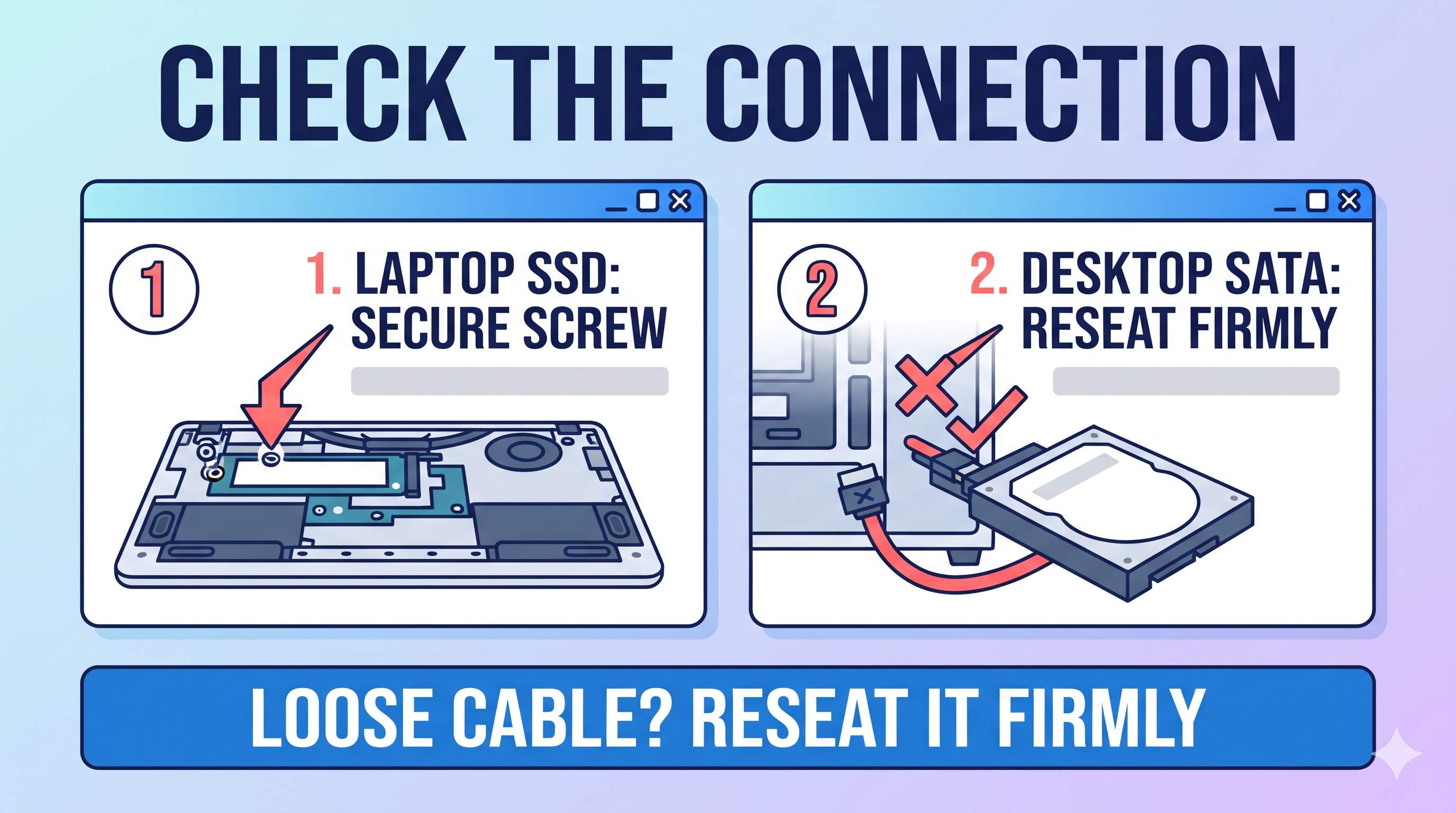
7Check connections and test the drive (0xc00000e9)
An unexpected I/O error means Windows could not read from the drive reliably.
- Power off and unplug the charger. Remove the battery if you can.
- Laptop: open the bottom cover and reseat the SSD or hard drive. Desktop: reseat the SATA data and power cables, or try another SATA port or cable.
- Start the PC and check the BIOS for the drive again.
- Test the drive on another PC (with a USB drive enclosure) and run
Get-PhysicalDisk | Select FriendlyName, HealthStatusin PowerShell. It should say Healthy.
If the drive is not Healthy, or the BIOS does not list it, copy your files off it now and replace it. See our disk guide. If you are not comfortable opening your PC, ask a technician.
8Undo recent changes, restore or reset
- Started after an update? Use Troubleshoot → Advanced options → Uninstall Updates.
- Try System Restore to a date before the problem.
- Then Troubleshoot → Reset this PC → Keep my files.
- A clean install from a Windows USB erases the drive, so back up first.
More boot guides: Automatic Repair loop, HP 3F0 error, Dell no bootable device and the Boot & Startup Errors guide.
Frequently asked questions
What does “It looks like Windows didn’t load correctly” mean?
Windows could not start and is offering recovery tools. The usual causes are damaged boot data, a failed update, or a drive it cannot read.
What is error 0xc00000e9?
It is an unexpected I/O error. Windows could not read from a device, often because of a loose cable, a connected USB device, or a failing drive.
Will I lose my files?
Usually not. Fixes 1 to 7 do not erase files. Only a clean install erases the drive, so back up before you try it.
Can a USB drive cause this error?
Yes. A connected USB device can confuse the boot process. Remove all of them first (Fix 1).
Do I need a Windows USB drive?
Not always. If the recovery menu opens (Fix 2), you can run most repairs without one. A USB helps when the menu does not appear.
Is my hard drive dead?
Not necessarily. Damaged boot data causes most of these codes. A dead drive is more likely with 0xc00000e9 and a drive the BIOS cannot see.
Still Seeing the Recovery Screen?
If your PC cannot start Windows, remote support cannot connect to it. Contact us and we will tell you honestly what is needed.
Contact UsAbout the Author
ConfirmFix Editorial Team creates practical Windows troubleshooting guides to help readers understand common PC problems and follow step-by-step solutions.
Updated November 2, 2026. Screen wording and menus vary by Windows build and PC brand. Drive letters can differ in the recovery environment. Back up important data before running repair commands. ConfirmFix is an independent troubleshooting guide and is not affiliated with, endorsed by or sponsored by Microsoft. Windows is a trademark of Microsoft Corporation.