In This Guide
01. Quick Answer
| Fix | What to do | Time | Best for |
|---|---|---|---|
| 1 | Toggle Fn Lock | 1 min | Keys need or ignore Fn |
| 2 | Change Function Key Mode in BIOS | 5 min | Making the change permanent |
| 3 | Install the Manufacturer Hotkey Software | 10 min | Keys do nothing at all |
| 4 | Turn Off Filter Keys and Key Remappers | 3 min | Odd or delayed key behavior |
| 5 | Update or Reinstall Keyboard Drivers | 5 min | Keys stopped after an update |
| 6 | Fix Brightness Keys and the Missing Slider | 10 min | Brightness only |
| 7 | Fix Volume Keys and Audio | 10 min | Volume only |
| 8 | Run the Troubleshooters | 3 min | Quick automatic checks |
| 9 | Check Updates and Roll Back | 10 min | Started after an update |
| 10 | Update the BIOS | 15 min | Firmware-level hotkey bugs |
| 11 | Test the Hardware | 5 min | Keys never work anywhere |
| 12 | System Restore or Reset | 20-60 min | Last resort |
02. Which Fn Key Problem Do You Have?
"Fn keys not working" can mean very different things. Match your symptom first so you go straight to the right fix.
| What happens | What it usually means | Start with |
|---|---|---|
| Volume or brightness works only when holding Fn | Keyboard is in standard F1-F12 mode | Fix 1, 2 |
| F1-F12 change volume or brightness instead of working as F keys | Keyboard is in multimedia mode | Fix 1, 2 |
| Fn plus a key does nothing at all | Missing hotkey software or driver | Fix 3, 5 |
| Brightness keys do nothing, slider also missing or stuck | Display driver or monitor driver problem | Fix 6 |
| Volume keys show the bar but you hear no change | Wrong output device, audio driver or service | Fix 7 |
| Stopped working after an update | Hotkey or display driver replaced, BIOS setting reset | Fix 3, 9, 2 |
| Only some Fn keys work | Partial driver or software issue | Fix 3, 4, 5 |
| Fn keys never work, even in BIOS | Possible hardware fault | Fix 11 |
03. Step 0: A 60-Second Test
These quick checks show whether it is a software problem or a hardware problem.
Checklist
- Test the Windows controls. Press Windows + A to open Quick settings and drag the volume and brightness sliders. If the sliders work but the keys do not, the keys or hotkey software are the issue. If the brightness slider is also missing or stuck, jump to Fix 6.
- Try each key with and without Fn. Press the volume key alone, then hold Fn and press it. Note which combination works.
- Try Fn + Esc. Many laptops toggle Fn Lock this way. Look for a small padlock icon on Esc or another key and an Fn Lock light.
- Test in the BIOS. Restart, open the BIOS/UEFI (usually F2, F10, Del or Esc) and see if the keys respond there. If they do, the keyboard hardware is fine and it is a Windows software problem.
- Test an external USB keyboard. If its media keys work, your laptop's built-in keyboard setup is the difference.
04. Fix 1: Toggle Fn Lock
Time: 1 min | Best for: Keys that need or ignore Fn
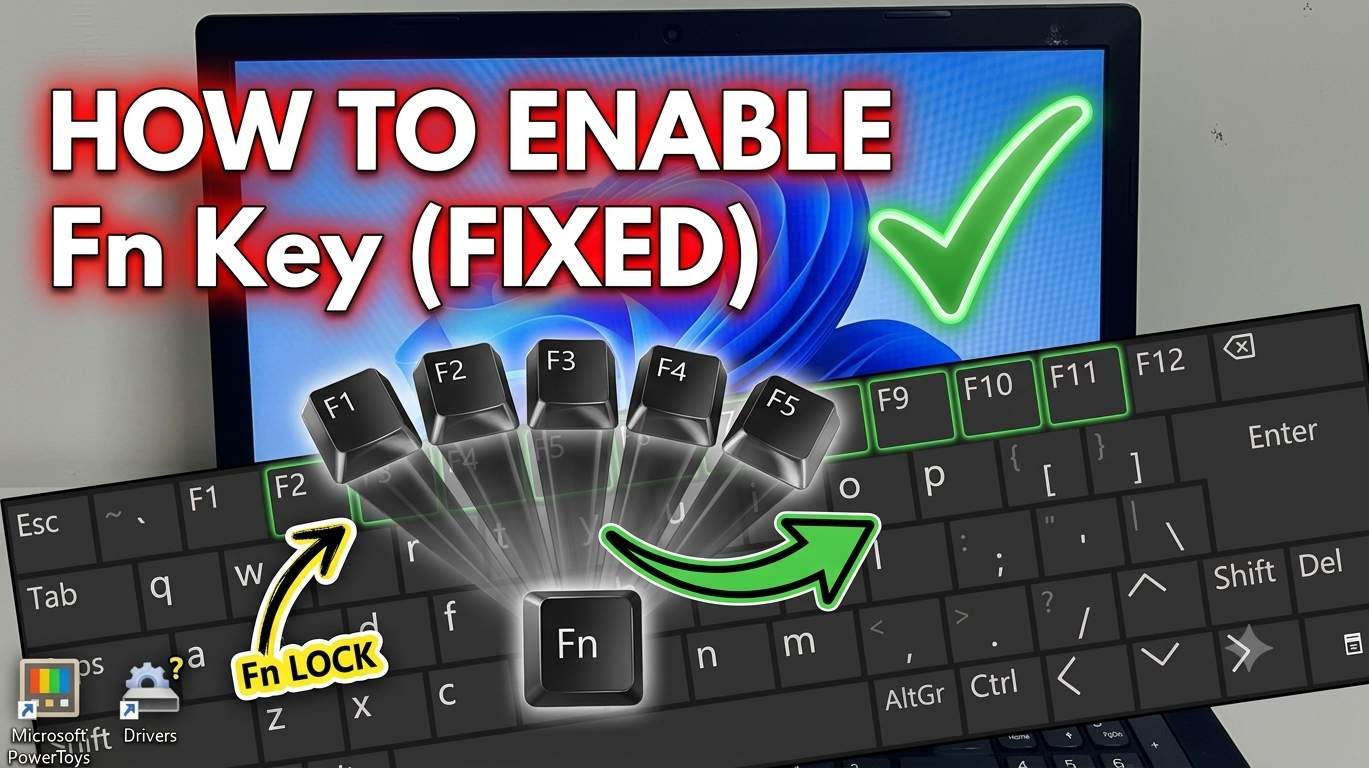
Fn Lock decides whether the top row acts as media keys (volume, brightness, mute) or as standard F1 to F12. It is easy to toggle by accident, and many "broken keys" are simply in the other mode. This is the fastest and safest fix.
Steps
- Press Fn + Esc. On many laptops this toggles Fn Lock.
- If nothing changes, look at your keyboard for a key with a padlock icon (often Esc, Shift, Caps Lock or an F key) and press it together with Fn, or press the dedicated Fn Lock key.
- Test a volume or brightness key. If it now works without Fn, or F-keys work without Fn, the lock has switched.
05. Fix 2: Change Function Key Mode in BIOS
Time: 5 min | Best for: Making the setting permanent
On many laptops, the default Fn behavior is stored in the firmware, not in Windows. A BIOS update or factory reset can change it. Open the BIOS or UEFI and look for a setting with one of these names.
- Function Key Behavior (Dell, some ASUS): choose Function Key First or Multimedia Key First.
- Action Keys Mode (HP): enable it to make volume and brightness work without Fn, or disable it to use F1-F12 normally.
- Hotkey Mode (Lenovo): toggle it to switch between media and function keys.
- Other names: Fn Key Switch, Multimedia Key First, F1-F12 as Primary Function.
Steps
- Restart and press the BIOS key repeatedly at power-on (often F2, F10, Del or Esc).
- Open the Configuration, System Configuration, Advanced or Keyboard section.
- Change the function key setting, then save and exit (usually F10).
06. Fix 3: Install the Manufacturer Hotkey Software
Time: 10 min | Best for: Keys that do nothing at all
Windows handles some media keys by itself, but many Fn functions, especially brightness, airplane mode, keyboard backlight and touchpad lock, depend on your laptop maker's hotkey software or driver. If you removed pre-installed apps, or an update replaced the driver with a generic one, the keys can stop working.
Steps
- Open your laptop maker's support site and enter your exact model or service tag.
- Download the hotkey, system interface or utility package for Windows 11 (see the brand table below).
- Install it, restart and test the keys again.
07. Fix 4: Turn Off Filter Keys and Key Remappers
Time: 3 min | Best for: Odd, delayed or partial key behavior
Accessibility settings and key-remapping tools can change how keys behave. Filter Keys ignores brief or repeated key presses, which can make Fn combinations fail. Remapping tools can reassign the exact keys you are testing.
Steps
- Open Settings → Accessibility → Keyboard and turn off Filter keys (and test with Sticky keys off).
- Close or uninstall key-remapping tools such as PowerToys Keyboard Manager, AutoHotkey scripts, SharpKeys or gaming keyboard software, then restart and test.
- If you use a gaming or custom keyboard app, check its Fn key and media key settings.
08. Fix 5: Update or Reinstall Keyboard Drivers
Time: 5 min | Best for: Keys that stopped after an update
A corrupt or mismatched keyboard driver can break special keys. Windows reinstalls the standard keyboard driver automatically, so this is safe when done correctly.
Steps
- Right-click Start → Device Manager.
- Expand Keyboards, right-click your keyboard (for example Standard PS/2 Keyboard or HID Keyboard Device) and choose Update driver → Search automatically.
- If that does not help, choose Uninstall device and restart. Windows will reinstall it on startup.
- Also expand Human Interface Devices and System devices and look for any item with a yellow warning icon. Reinstall the package from your PC maker (Fix 3) for those.
09. Fix 6: Fix Brightness Keys and the Missing Slider
Time: 10 min | Best for: Brightness only
Brightness keys need three things: a working key signal (Fix 1 to 5), a proper display driver and a monitor driver that exposes brightness control. If the brightness slider in Settings is also missing, greyed out or does nothing, the display driver is almost always the problem.
Check the display driver
- Open Device Manager → Display adapters.
- If it says Microsoft Basic Display Adapter, Windows is running a fallback driver and brightness control will usually not work. Install the correct Intel, AMD or NVIDIA graphics driver from your PC maker's support page (or the chip maker's site), then restart.
Re-enable the monitor driver
- In Device Manager, expand Monitors.
- Right-click Generic PnP Monitor and choose Enable device if it is disabled. If it looks wrong, choose Uninstall device and restart so Windows reinstalls it.
Turn off adaptive brightness (test)
- Open Control Panel → Power Options → Change plan settings → Change advanced power settings.
- Expand Display → Enable adaptive brightness and set it to Off for both battery and plugged in.
Check optional driver updates
Open Settings → Windows Update → Advanced options → Optional updates → Driver updates and install any display or firmware updates listed.
10. Fix 7: Fix Volume Keys and Audio
Time: 10 min | Best for: Volume only
Volume and mute keys often work even without manufacturer software, but they can still fail when the audio service or driver has a problem, the wrong output device is selected, or another app captures media keys.
Steps
- Open Settings → System → Sound and check that the correct Output device is selected and the volume is up.
- Open the Volume mixer and make sure the app's own volume is not turned down.
- Press Windows + R, type
services.msc, find Windows Audio and Windows Audio Endpoint Builder, right-click each and choose Restart. - Update the audio driver (for example Realtek) from your PC maker's support page. In Device Manager, expand Sound, video and game controllers and check for warning icons.
- Close apps that use media keys (music players, browser tabs with video) and test again, since they can capture the keys.
- Restart Windows Explorer from Task Manager if the volume pop-up does not appear on screen.
11. Fix 8: Run the Troubleshooters
Time: 3 min | Best for: Quick automatic checks
The built-in troubleshooters will not fix every Fn key problem, but they quickly catch simple audio and keyboard issues.
Steps
- Open Settings → System → Troubleshoot → Other troubleshooters.
- Run Keyboard (if listed) and Playing Audio.
- Restart and test the keys.
12. Fix 9: Check Updates and Roll Back
Time: 10 min | Best for: Problems that started after an update
A common trigger is a Windows update that replaces your manufacturer's hotkey or display driver with a generic one, or a BIOS update that resets the function key setting. Check updates first, and roll back if the problem started right after one.
Steps
- Install pending updates at Settings → Windows Update, including optional updates, then restart.
- If the keys broke right after a driver update, open Device Manager, double-click the device (display adapter, keyboard or audio) and choose Driver → Roll Back Driver.
- If the problem began after a Windows update, open Settings → Windows Update → Update history → Uninstall updates and remove the latest one as a test.
- Reinstall your maker's hotkey software and display driver afterward (Fix 3 and Fix 6).
13. Fix 10: Update the BIOS
Time: 15 min | Best for: Firmware-level hotkey bugs
Fn Lock and function key behavior often live in firmware rather than Windows. A BIOS update can fix hotkey bugs that no Windows setting touches. It can also reset your function key setting, so check Fix 2 afterward.
Steps
- Check your current version: press Windows + R, type
msinfo32and read BIOS Version/Date. - Download the newest BIOS for your exact model from your PC maker's support page and follow its instructions.
- Keep the laptop plugged in during the update and do not turn it off.
- Suspend BitLocker first if your PC uses it, or you may be asked for the recovery key afterward.
14. Fix 11: Test the Hardware
Time: 5 min | Best for: Keys that never work anywhere
If the keys do not respond in Windows, in the BIOS or with another operating system, the problem may be physical. Liquid spills, a loose keyboard connector or worn contacts can cause this.
Steps
- Check the keys in the BIOS/UEFI screens. If Fn combinations never work there, suspect hardware.
- Run your PC maker's built-in diagnostics (many Dell, HP and Lenovo PCs have a keyboard test at startup).
- Test with an external USB keyboard to keep working while you arrange a repair.
- If the laptop is under warranty or the keyboard was exposed to liquid, contact the maker rather than opening it yourself.
15. Fix 12: System Restore or Reset
Time: 20-60 min | Best for: Last resort
Only use these after Fn Lock, the BIOS setting, the hotkey software and drivers have all been checked, because those fix the large majority of cases.
System Restore
- Press Windows + R, type
rstruiand press Enter. - Choose a restore point from before the keys stopped working and confirm.
Reset this PC
- Back up your files first.
- Open Settings → System → Recovery → Reset this PC → Keep my files.
- After the reset, install your maker's hotkey software, graphics and audio drivers before anything else.
16. Control Volume and Brightness Without Fn
17. Brand-by-Brand Cheat Sheet
Names and shortcuts vary by model and BIOS version, so use this as a starting point and confirm on your model's support page.
| Brand | Fn Lock shortcut (common) | BIOS setting name | Software or driver to install |
|---|---|---|---|
| Lenovo | Fn + Esc | Hotkey Mode | Lenovo Vantage, Hotkey Features Integration or System Interface Foundation |
| HP | Fn Lock key, Fn + Left Shift or Fn + Esc on some models | Action Keys Mode | HP Hotkey Support or HP System Event Utility |
| Dell | Fn + Esc | Function Key Behavior | Dell drivers via Dell Command | Update; Dell Power Manager or QuickSet on some models |
| ASUS | Fn + Esc | Function key or Action Key mode (varies) | ASUS System Control Interface, ATK package or MyASUS |
| Acer | Fn + Esc on some models | Function key behavior | Acer Quick Access or Acer Care Center and the model's hotkey driver |
| MSI | Varies by model | Function key setting | MSI Center (System Control Manager) |
| Microsoft Surface | Fn + Caps Lock | Not applicable | Surface drivers and firmware via Windows Update |
18. What Changes After Windows Updates
As of October 10, 2026, I did not find a Microsoft-confirmed Windows 11 bug that specifically breaks Fn keys. In practice, hotkey problems after an update usually come from one of three ordinary changes:
- Windows Update replaces your manufacturer's hotkey or display driver with a generic one.
- A BIOS update resets Function Key Behavior, Action Keys Mode or Hotkey Mode.
- You removed pre-installed apps, including the hotkey utility, during a cleanup.
If you suspect an update, check Windows release health for your version and your PC maker's support page for known issues.
19. Symptom to Fix Table
| Symptom | Likely cause | Go to |
|---|---|---|
| Media keys work only with Fn | Fn Lock or BIOS mode | Fix 1, 2 |
| F-keys act as media keys | Fn Lock or BIOS mode | Fix 1, 2 |
| No Fn key works | Missing hotkey software or keyboard driver | Fix 3, 5 |
| Brightness keys and slider both fail | Display or monitor driver | Fix 6 |
| Volume OSD shows but no sound change | Audio device, service or driver | Fix 7 |
| Keys stopped after an update | Driver replaced or BIOS reset | Fix 9, 3, 2 |
| Works in BIOS, not in Windows | Software or driver problem | Fix 3, 4, 5 |
| Never works anywhere | Possible hardware fault | Fix 11 |
🏆 Bottom Line
Fn keys fail for ordinary reasons. Start with Fn Lock (Fn + Esc), then check the BIOS function key mode, install your laptop maker's hotkey software, and make sure you have the real display and audio drivers rather than generic ones. For brightness, also check the Basic Display Adapter and Generic PnP Monitor. Keep Windows Quick settings in mind as a temporary workaround. Only test hardware, restore or reset after those steps.