In This Guide
01. Quick Answer
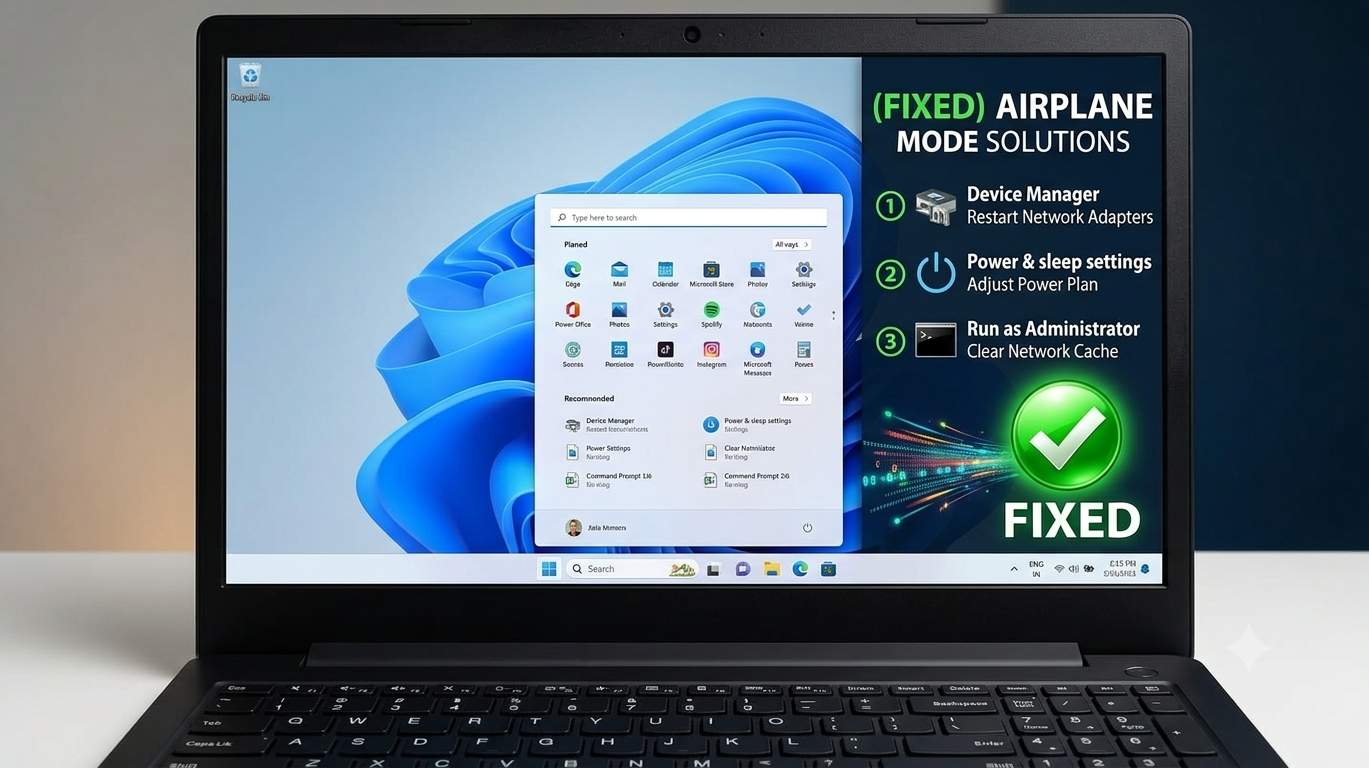
services.msc and restart Radio Management Service. Next check the Wi-Fi adapter driver in Device Manager, turn off adapter power saving, and run Network reset as a last software step.| Fix | What to do | Time | Best for |
|---|---|---|---|
| 1 | Turn It Off Every Possible Way | 2 min | Toggle ignores one control but not another |
| 2 | Do a True Restart (Skip Fast Startup) | 3 min | Temporary glitches after sleep or an update |
| 3 | Restart the Radio Management Service | 3 min | Toggle greyed out or does nothing |
| 4 | Reinstall the Airplane Mode Switch Driver | 5 min | Greyed out toggle that survives a restart |
| 5 | Fix the Wi-Fi Adapter and Its Driver | 10 min | Wi-Fi and Bluetooth missing, Wi-Fi driver errors |
| 6 | Run the Network Troubleshooter | 3 min | Quick automatic check |
| 7 | Turn Off Power Saving for the Wireless Adapter | 3 min | Airplane mode returns after sleep |
| 8 | Reset the Network Stack | 10 min | Everything else is fine but it stays stuck |
| 9 | Check the Radio State in the Registry (Advanced) | 5 min | Advanced users when other fixes fail |
| 10 | Remove Conflicting VPNs, Hotkey Utilities and Security Tools | 10 min | Started after installing software |
| 11 | Repair Windows, Update, and Check the BIOS | 20 min | Persistent or system-wide cases |
| 12 | Reset This PC (Last Resort) | 45-90 min | Nothing else works |
02. Which Symptom Do You Have?
"Airplane mode stuck" covers several different problems. Matching your symptom first tells you which fix to try and avoids needless resets.
| What you see | What it usually means | Start with |
|---|---|---|
| Airplane mode toggle greyed out | Radio service, driver or hotkey | Fix 3, 4, 5 |
| Toggle turns off, then comes back on | Hotkey, switch or power setting | Fix 1, 7 |
| Wi-Fi and Bluetooth missing too | Wireless adapter driver problem | Fix 5 |
| Stuck after sleep or hibernate | Power saving or Fast Startup | Fix 2, 7 |
| Fn airplane key does nothing | Hotkey driver or keyboard | Fix 1, 10 |
| Started after installing a VPN or utility | Software conflict | Fix 10 |
| Started right after an update | Faulty update or driver | Fix 5, 11 |
03. Step 0: The First 60 Seconds
Do these quick checks before changing anything.
Checklist
- Check for a physical switch or key. Look for a slider on the side of the laptop and press the airplane key (often Fn + a radio-tower icon).
- Open Quick Settings with Windows key + A and see whether Airplane mode, Wi-Fi and Bluetooth tiles respond.
- Search Start for "Airplane mode" and open the setting page. If the toggle is greyed out, note it.
- Check Device Manager (right-click Start) for a Wi-Fi adapter under Network adapters, and any yellow warning icon.
- Restart once. If it still fails, follow the table above.
04. Fix 1: Turn It Off Every Possible Way
Time: 2 min | Best for: Toggle ignores one control but not another
Windows has several airplane mode controls, and sometimes only one is stuck. Try all of them before changing anything.
Steps
- Press Windows key + A and click Airplane mode in Quick Settings.
- Open Settings → Network & internet → Airplane mode and turn it off.
- Press the airplane key on your keyboard (often Fn + the radio-tower key).
- Check the sides of your laptop for a physical wireless switch and slide it to On.
- Turn Wi-Fi and Bluetooth back on individually in Quick Settings.
05. Fix 2: Do a True Restart (Skip Fast Startup)
Time: 3 min | Best for: Temporary glitches after sleep or an update
A stuck airplane mode is often a communication problem between Windows and the wireless hardware. A full restart reloads drivers and services. Shut down may use Fast Startup, which keeps part of the old state, so choose Restart.
Steps
- Use Start → Power → Restart.
- To turn Fast Startup off: Control Panel → Power Options → Choose what the power buttons do → Change settings that are currently unavailable, and untick Turn on fast startup.
- After sign-in, try the toggle again.
06. Fix 3: Restart the Radio Management Service
Time: 3 min | Best for: Toggle greyed out or does nothing
The Radio Management Service is the Windows service that controls airplane mode and the wireless radios. If it is stopped or stuck, the toggle may be greyed out.
Steps
- Press Windows key + R, type
services.mscand press Enter. - Find Radio Management Service, right-click it and choose Restart (or Start if it is stopped).
- Open its Properties and check that the Startup type is Manual, the default.
Or from an admin Terminal
net stop RmSvc
net start RmSvc
07. Fix 4: Reinstall the Airplane Mode Switch Driver
Time: 5 min | Best for: Greyed out toggle that survives a restart
Some laptops expose airplane mode as a device in Device Manager. A damaged driver can freeze it.
Steps
- Right-click Start → Device Manager.
- Click View → Show hidden devices.
- Look under Human Interface Devices and System devices for Airplane Mode Switch, right-click it and choose Uninstall device.
- Restart the PC so Windows reinstalls it.
08. Fix 5: Fix the Wi-Fi Adapter and Its Driver
Time: 10 min | Best for: Wi-Fi and Bluetooth missing, Wi-Fi driver errors
A greyed-out toggle often points to a Wi-Fi driver that is not installed correctly. In one Microsoft Q&A case, the screenshot showed the Wi-Fi driver was not installed correctly.
Steps
- Open Device Manager → Network adapters. Look for a yellow warning icon or a missing Wi-Fi adapter.
- Right-click the adapter → Disable device, wait a few seconds, then Enable device.
- Right-click → Update driver, or Properties → Driver → Roll Back Driver if it started after an update.
- If that fails, choose Uninstall device, restart, and install the driver from your laptop maker.
09. Fix 6: Run the Network Troubleshooter
Time: 3 min | Best for: Quick automatic check
The built-in troubleshooter resets some settings and can restart wireless services.
Steps
- Open Settings → System → Troubleshoot → Other troubleshooters.
- Run Network and Internet, then Network Adapter.
- Restart the PC and test.
10. Fix 7: Turn Off Power Saving for the Wireless Adapter
Time: 3 min | Best for: Airplane mode returns after sleep
Power management can switch off the wireless card to save battery and leave airplane mode stuck on resume.
Steps
- Open Device Manager → Network adapters → your Wi-Fi adapter → Properties → Power Management.
- Untick Allow the computer to turn off this device to save power.
- Also check Control Panel → Power Options → Change plan settings → Change advanced power settings → Wireless Adapter Settings and set it to Maximum Performance while testing.
11. Fix 8: Reset the Network Stack
Time: 10 min | Best for: Everything else is fine but it stays stuck
Corrupt network settings can break the airplane mode toggle. Run these commands in an administrator Terminal, then restart:
ipconfig /release
ipconfig /renew
ipconfig /flushdns
netsh winsock reset
Network reset
If it is still stuck, use Settings → Network & internet → Advanced network settings → Network reset. This removes and reinstalls network adapters and resets networking settings, so you will need to reconnect to saved Wi-Fi networks and reconfigure VPNs. Back up anything important first.
12. Fix 9: Check the Radio State in the Registry (Advanced)
Time: 5 min | Best for: Advanced users when other fixes fail
Windows stores the airplane mode state in the registry. Reading it is safe; editing it is risky, so create a restore point first.
reg query HKLM\SYSTEM\CurrentControlSet\Control\RadioManagement /v SystemRadioState
A value of 1 means airplane mode is on and 0 means off. If it is stuck at 1, you can change it in Registry Editor at HKEY_LOCAL_MACHINE\SYSTEM\CurrentControlSet\Control\RadioManagement, then restart.
13. Fix 10: Remove Conflicting VPNs, Hotkey Utilities and Security Tools
Time: 10 min | Best for: Started after installing software
VPN clients, OEM hotkey utilities (such as wireless button drivers), and some security tools can interfere with radios. A Microsoft support reply to one user suggested temporarily uninstalling a VPN until the network problem was resolved.
Steps
- Uninstall VPN and network-filter software temporarily.
- Reinstall your laptop maker's hotkey or wireless button driver from its support page.
- Do a clean boot: run
msconfig, tick Hide all Microsoft services, click Disable all, disable startup apps, restart, and test.
14. Fix 11: Repair Windows, Update, and Check the BIOS
Time: 20 min | Best for: Persistent or system-wide cases
Install Windows updates, including optional driver updates, and your maker's BIOS or firmware update. Then repair system files:
DISM /Online /Cleanup-Image /RestoreHealth
sfc /scannow
If the problem began right after an update, uninstall it from Settings → Windows Update → Update history → Uninstall updates, and pause updates briefly.
15. Fix 12: Reset This PC (Last Resort)
Time: 45-90 min | Best for: Nothing else works
Option A: Reinstall now
Go to Settings → System → Recovery → Fix problems using Windows Update → Reinstall now. This repairs Windows while keeping your files and apps.
Option B: Reset this PC
Go to Settings → System → Recovery → Reset this PC → Keep my files. Apps and settings are removed.
16. 2026 Updates and Known Issues
I did not find an official Microsoft-confirmed airplane mode bug for 2026. The items below are user reports on Microsoft support forums, so treat them as patterns to check, not confirmed bugs. Check Windows release health and your laptop maker's support page for your model.
| Issue | What was reported | What helped |
|---|---|---|
| Greyed-out toggle with Wi-Fi driver problem | A July 2024 Microsoft Q&A case with an Asus laptop: the toggle was greyed out and a reply said the Intel Wi-Fi driver was not installed correctly; a VPN was also installed | Reinstall the Wi-Fi driver, temporarily uninstall the VPN (Fix 5, 10) |
| Disabling Radio Management Service | The same user said disabling the service only left the toggle greyed out in the on position | Set the service back to Manual and start it (Fix 3) |
| Wi-Fi and LAN fail to return after sleep | January 2026 user reports on Microsoft Q&A with Realtek adapters after updates | Reinstall the maker's or Update Catalog driver, turn off power saving (Fix 5, 7) |
17. Hardware Causes to Rule Out
Quick hardware checks
- Test the physical switch and Fn key combos.
- Check whether the Wi-Fi adapter appears in Device Manager and in the BIOS or UEFI setup.
- Boot a Windows or Linux live USB; if Wi-Fi also fails there, suspect the card.
18. Symptom to Fix Table
| Symptom | Likely cause | Go to |
|---|---|---|
| Airplane mode toggle greyed out | Radio service, driver or hotkey | Fix 3, 4, 5 |
| Toggle turns off, then comes back on | Hotkey, switch or power setting | Fix 1, 7 |
| Wi-Fi and Bluetooth missing too | Wireless adapter driver problem | Fix 5 |
| Stuck after sleep or hibernate | Power saving or Fast Startup | Fix 2, 7 |
| Fn airplane key does nothing | Hotkey driver or keyboard | Fix 1, 10 |
| Started after installing a VPN or utility | Software conflict | Fix 10 |
| Started right after an update | Faulty update or driver | Fix 5, 11 |
19. How to Prevent It
🏆 Bottom Line
Most stuck airplane mode cases come from a hotkey or switch, a stopped Radio Management Service, or a broken Wi-Fi driver. Try every toggle and the Fn key first, restart, then restart Radio Management Service and check the Wi-Fi adapter in Device Manager. Turn off adapter power saving, reset the network stack, and leave the registry, DISM, SFC, update removal and reset for last. If Wi-Fi is missing even after that, the card may be faulty. Back up your files first.