In This Guide
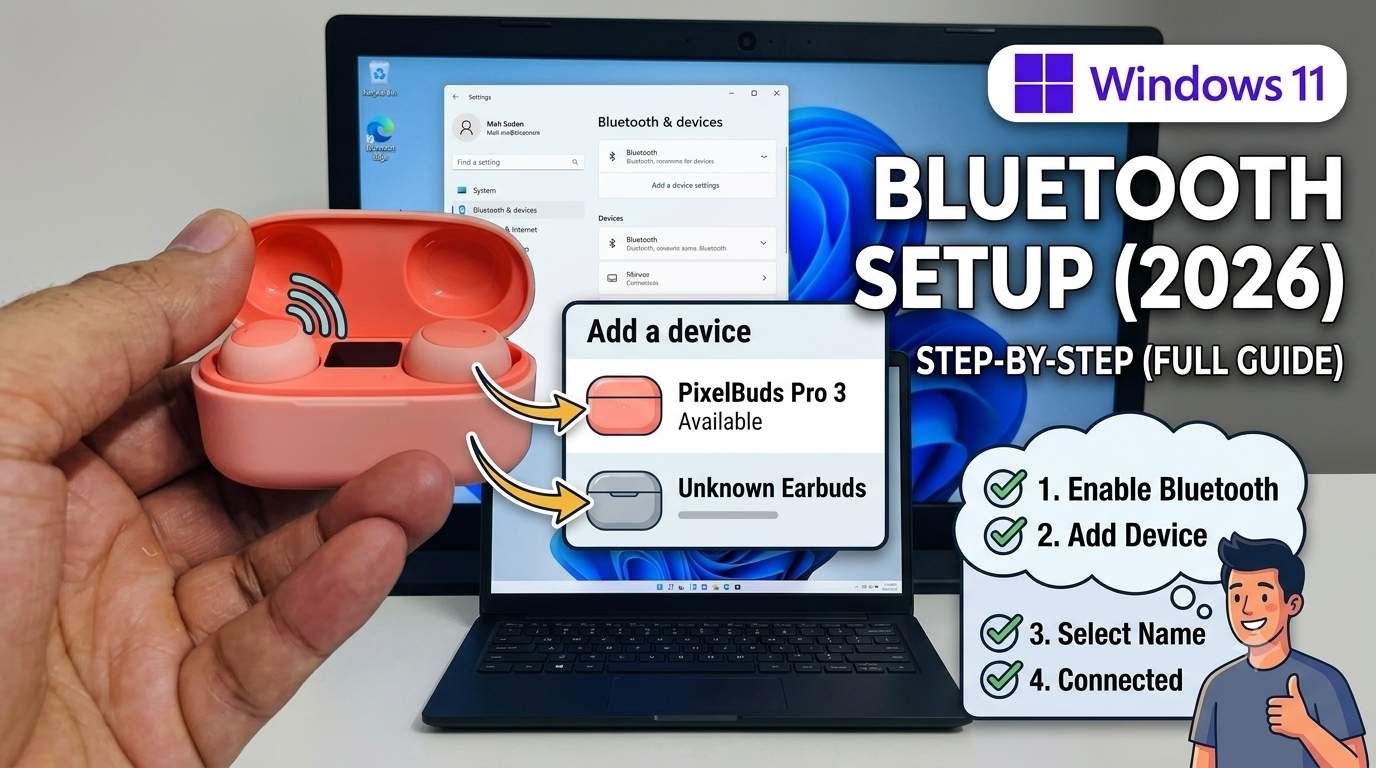
01. Quick Answer
| Step | What to do | Time | Best for |
|---|---|---|---|
| 1 | Check That Your Laptop Has Bluetooth and It Is On | 2 min | First-time setup |
| 2 | Charge and Prepare Your Earbuds or Headphones | 3 min | Avoiding pairing failures |
| 3 | Put Them in Pairing Mode | 1 min | Headphones not found by the laptop |
| 4 | Pair With Swift Pair (Quickest) | 1 min | Supported earbuds and headphones |
| 5 | Pair Manually From Settings | 2 min | No Swift Pair pop-up |
| 6 | Select the Headphones as Your Sound Output | 2 min | Connected but sound still from speakers |
| 7 | Set Up the Microphone and Avoid Low-Quality Call Mode | 5 min | Calls sound muffled or music turns tinny |
| 8 | Reconnect and Switch Between Devices | 2 min | Daily use |
| 9 | Fix Headphones Not Showing Up or Pairing | 10 min | Not in the Bluetooth list, or pairing fails |
| 10 | Fix "Connected but No Sound" or Wrong Audio Output | 10 min | Shows Connected but silent |
| 11 | Fix Stutter, Lag and Random Disconnects | 15 min | Choppy audio, drops, delay |
| 12 | Remove, Reset and Re-Pair From Scratch | 15 min | Nothing else works |
02. Which Symptom Do You Have?
Bluetooth headphone problems look alike but have different causes. Match your symptom first, then jump to the right step.
| What you see | What it usually means | Start with |
|---|---|---|
| Earbuds not in the Bluetooth list | Not in pairing mode, range, or driver | Step 3, 9 |
| Asks for a PIN and fails | Half-finished pairing | Step 9, 12 |
| Connected but no sound | Wrong output or audio service | Step 6, 10 |
| Sound tinny after mic starts | Hands-Free call mode | Step 7 |
| Stutter or random drops | Interference or power saving | Step 11 |
| Mic not working in calls | Wrong input or driver issue | Step 7, 9 |
| Bluetooth toggle missing | No adapter, driver or Airplane mode | Step 1, 9 |
| Worked until an update | Driver or update problem | Step 9, 12 |
03. Step 0: The First 60 Seconds
Do these quick checks before you start.
Checklist
- Charge the earbuds and take them out of the case.
- Turn Bluetooth on in Quick Settings (Windows key + A) and turn Airplane mode off.
- Disconnect the earbuds from your phone so they do not reconnect there.
- Move close, within about a meter of the laptop.
- Open Settings → Bluetooth & devices and keep it open while you pair.
04. Step 1: Check That Your Laptop Has Bluetooth and It Is On
Time: 2 min | Best for: First-time setup
Most Windows 11 laptops have built-in Bluetooth, but it must be switched on. Press Windows key + A and look for the Bluetooth tile; click it so it turns on. Also make sure Airplane mode is off, because it turns Bluetooth off too.
Steps
- Open Settings → Bluetooth & devices and switch Bluetooth on.
- If there is no Bluetooth toggle, open Device Manager and look for a Bluetooth category. No category means no Bluetooth adapter or a missing driver.
- Desktop PC or old laptop without Bluetooth? Plug in a USB Bluetooth adapter and install its driver.
Check from Terminal
Get-PnpDevice -Class Bluetooth | Format-Table Status,FriendlyName
05. Step 2: Charge and Prepare Your Earbuds or Headphones
Time: 3 min | Best for: Avoiding pairing failures
Low battery is a common reason pairing fails. Charge the earbuds or headphones first. If they were last connected to a phone, tablet or TV, turn Bluetooth off on that device or disconnect them, or they may reconnect there instead of your laptop.
Steps
- Charge the earbuds and case, or the headphones, for a few minutes.
- Disconnect them from your phone (or turn the phone's Bluetooth off).
- Keep the laptop and earbuds within about a meter (3 feet) during pairing.
06. Step 3: Put Them in Pairing Mode
Time: 1 min | Best for: Headphones not found by the laptop
Pairing mode makes the device visible to the laptop. It is different from just turning it on. The usual method is to hold the power or Bluetooth button (often 5 to 7 seconds) until an LED flashes, usually blue or blue and red. Some earbuds enter pairing mode automatically when first taken out of the case, and some need the case lid open and a button on the case held down.
Steps
- Take the earbuds out of the case, or switch the headphones on.
- Hold the Bluetooth or power button until the light flashes in pairing pattern.
- Pair within a few minutes, because pairing mode usually times out after about 5 minutes.
07. Step 4: Pair With Swift Pair (Quickest)
Time: 1 min | Best for: Supported earbuds and headphones
Swift Pair shows a pop-up on the laptop when a supported device in pairing mode is nearby, so you only click Connect. Turn it on first.
Steps
- Open Settings → Bluetooth & devices → Devices and tick Show notifications to connect using Swift Pair.
- Put the earbuds in pairing mode (Step 3).
- When the pop-up appears, click Connect and wait for "Your device is ready to go".
08. Step 5: Pair Manually From Settings
Time: 2 min | Best for: No Swift Pair pop-up
Steps
- Open Settings → Bluetooth & devices → Devices and click Add device.
- Choose Bluetooth.
- Select your earbuds or headphones from the list (keep them in pairing mode).
- If a PIN or passkey prompt appears, confirm it matches or enter the default, often
0000. - Wait until the status says Connected or Paired.
You can also use the Windows key + K shortcut to open the audio device connect panel, then choose your device.
09. Step 6: Select the Headphones as Your Sound Output
Time: 2 min | Best for: Connected but sound still from speakers
Windows may keep playing sound through the laptop speakers after you connect. Pick the earbuds as the output device.
Steps
- Click the speaker icon in the taskbar and the arrow next to the volume slider (or open Settings → System → Sound).
- Under Output, select your earbuds or headphones.
- Open Volume mixer and check each app is using the same output, and not muted.
- Raise the volume on both the laptop and the earbuds.
10. Step 7: Set Up the Microphone and Avoid Low-Quality Call Mode
Time: 5 min | Best for: Calls sound muffled or music turns tinny
Bluetooth headsets use two modes. Stereo (music) sounds good, but once the microphone is used, Windows may switch to Hands-Free call mode, which sounds thinner. This switch is normal for many Bluetooth Classic headsets.
Steps
- Open Settings → System → Sound and scroll to Input.
- Select your headset microphone for calls, or keep the laptop microphone if you want to stay in stereo mode.
- In Teams, Zoom or Meet, choose the headset as both speaker and microphone.
- If call quality is poor, test the laptop microphone with the headset only for audio.
11. Step 8: Reconnect and Switch Between Devices
Time: 2 min | Best for: Daily use
Once paired, you do not need to pair again. Turn the earbuds on and they should connect automatically; if not, connect manually.
Steps
- Open Settings → Bluetooth & devices → Devices, find the earbuds and click Connect.
- Or use Windows key + K to connect from the audio panel.
- To use them with a phone again, disconnect them from the laptop first.
12. Step 9: Fix Headphones Not Showing Up or Pairing
Time: 10 min | Best for: Not in the Bluetooth list, or pairing fails
If the device never appears, work from the simplest check to the driver.
Steps
- Turn Bluetooth off and on in Quick Settings and restart the laptop.
- Put the earbuds back in the case, wait, and enter pairing mode again.
- Remove the old entry: Settings → Bluetooth & devices → Devices → ⋯ → Remove device, then pair again.
- Run Settings → System → Troubleshoot → Other troubleshooters → Bluetooth.
- Check Bluetooth Support Service in
services.mscand restart it.
net stop bthserv
net start bthserv
Check the driver
- Open Device Manager → Bluetooth, right-click your adapter and choose Update driver.
- Install the latest Bluetooth driver from your laptop maker or from Intel, Realtek or MediaTek.
- If it started after an update, use Properties → Driver → Roll Back Driver.
13. Step 10: Fix "Connected but No Sound" or Wrong Audio Output
Time: 10 min | Best for: Shows Connected but silent
When earbuds show Connected but nothing plays, the output device or audio service is usually the problem.
Steps
- Choose the earbuds as output in Settings → System → Sound.
- Open Volume mixer and make sure the app is not muted.
- Run Settings → System → Troubleshoot → Other troubleshooters → Audio.
- Right-click the earbuds in Sound → Output and test or disable other output devices.
- Restart Windows Audio in
services.msc. - Remove the earbuds and pair them again.
14. Step 11: Fix Stutter, Lag and Random Disconnects
Time: 15 min | Best for: Choppy audio, drops, delay
Bluetooth shares the 2.4 GHz band with Wi-Fi and many other devices, so stutter often comes from interference or distance.
Steps
- Stay within range and avoid walls, metal and a body between the laptop and the earbuds.
- Switch your Wi-Fi router to 5 GHz if possible.
- Move USB 3.0 devices and hubs away from the Bluetooth antenna.
- Update the Bluetooth driver and the Wi-Fi driver.
- Charge the earbuds; low battery can cause drops.
- Turn off Bluetooth power saving: Device Manager → Bluetooth → your adapter → Properties → Power Management and untick Allow the computer to turn off this device to save power.
15. Step 12: Remove, Reset and Re-Pair From Scratch
Time: 15 min | Best for: Nothing else works
Steps
- On the laptop: Settings → Bluetooth & devices → Devices → ⋯ → Remove device.
- On the earbuds: factory reset them (see the manual; often a long press in the case or holding buttons for 10 to 15 seconds).
- Restart the laptop.
- Pair again from Step 3.
- If it still fails on this laptop only, try a USB Bluetooth adapter, or install the latest Windows updates and Bluetooth driver.
16. 2026 Updates and Known Issues
Microsoft has been working on Bluetooth reliability in Windows 11. The items below mix user reports and press coverage of preview builds, and release timing may differ for your PC. Check Windows release health and your laptop maker's support page.
| Issue | What was reported | What helped |
|---|---|---|
| Headset mic failing after late-2025 updates | Microsoft Q&A users reported that headphones or microphone worked, but not both, after 25H2 and the October 2025 update (KB5066835 suspected). A later report in March 2026 said it persisted with Sony WH-1000XM5 on 24H2 with an Intel Bluetooth driver | Update the Intel Bluetooth driver (version 23.170.0 was reported to help), or roll back to an earlier version; some users said the November 11, 2025 update (KB5068861) fixed it |
| Bluetooth fixes in Release Preview (reported September 2026) | Builds 26100.9539 / 26200.9539 list fixes for a Bluetooth toggle that showed On while disabled, Bluetooth & devices page stability, Bluetooth audio stability, mic compatibility with some Classic accessories, and a 0x139 crash when streaming audio. Release timing for all PCs was unclear | Install the latest Windows updates when they reach you; check Update history |
| Bluetooth feature update (reported August 2026) | One report says Microsoft improved connection speed, syncing of mic mute state, LE Audio latency with the mic on, and AirPods support | Update Windows; verify your build and your earbuds' firmware |
17. Hardware Causes to Rule Out
Quick hardware checks
- Test the earbuds with your phone.
- Test another Bluetooth device with the laptop.
- Try a USB Bluetooth adapter to rule out the laptop's built-in card.
18. Symptom to Fix Table
| Symptom | Likely cause | Go to |
|---|---|---|
| Earbuds not in the Bluetooth list | Not in pairing mode, range, or driver | Step 3, 9 |
| Asks for a PIN and fails | Half-finished pairing | Step 9, 12 |
| Connected but no sound | Wrong output or audio service | Step 6, 10 |
| Sound tinny after mic starts | Hands-Free call mode | Step 7 |
| Stutter or random drops | Interference or power saving | Step 11 |
| Mic not working in calls | Wrong input or driver issue | Step 7, 9 |
| Bluetooth toggle missing | No adapter, driver or Airplane mode | Step 1, 9 |
| Worked until an update | Driver or update problem | Step 9, 12 |
19. How to Prevent It
🏆 Bottom Line
Connecting Bluetooth earbuds takes about two minutes: Bluetooth on, pairing mode on, Add device, then choose them as the output. If they do not show up, remove old pairings, re-enter pairing mode and update the Bluetooth driver. For no sound, check the output device, Volume mixer and the audio troubleshooter. If mic or audio problems began after an update, check the Bluetooth driver and Windows release health, and reset the earbuds only as a last step.