WiFi Connected but No Internet? 10 Fixes That Work
The WiFi icon shows full bars, but websites will not open and apps say “No internet”? The connection to your router works, but the path from the router to the internet, or your PC’s network settings, is broken. This guide finds which one, then fixes it step by step, with the reason behind each step.
By ConfirmFix Editorial Team · Updated November 2, 2026 · About 30 minutes
Quick answer
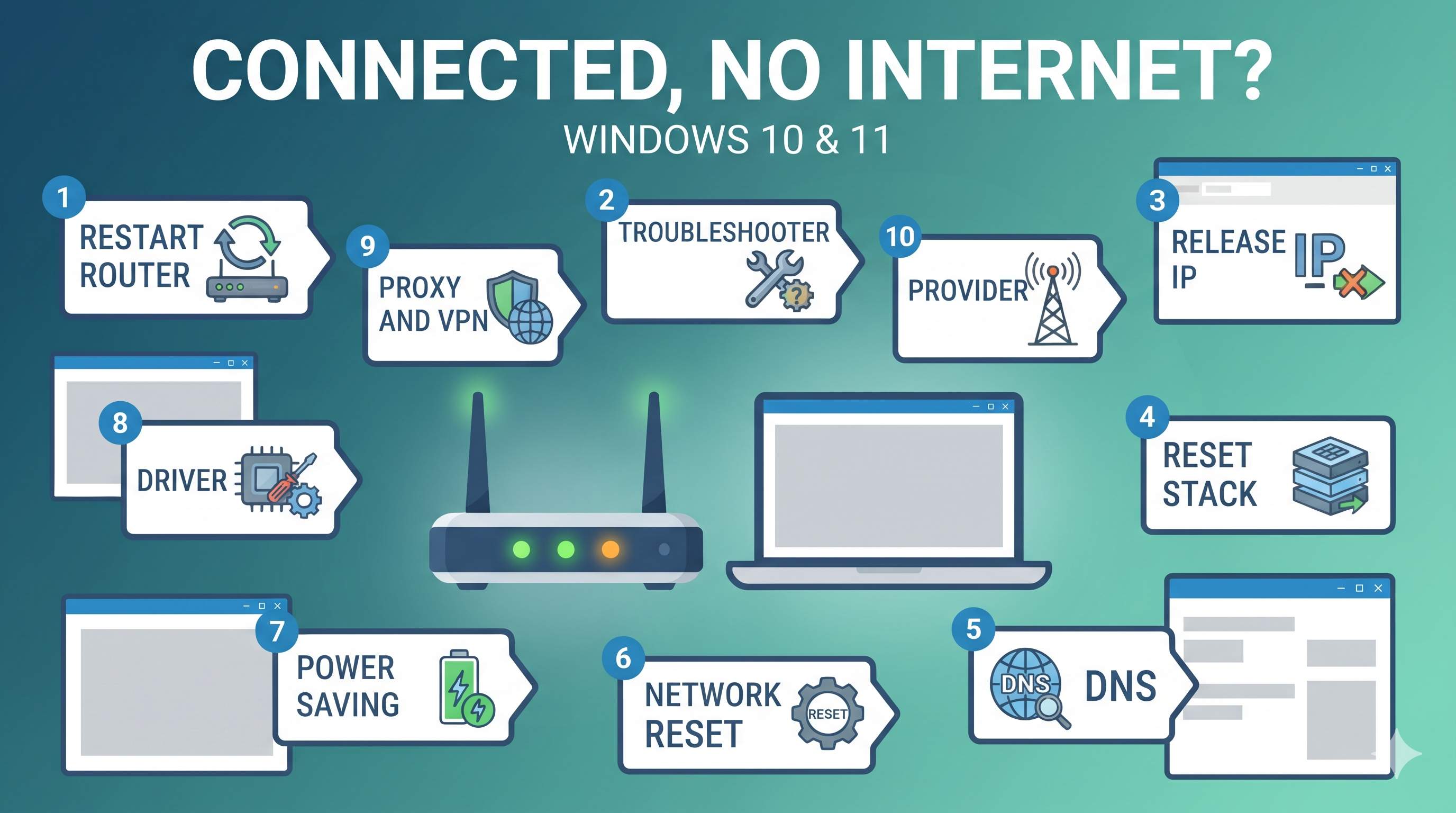
Do these three first: restart the router (unplug it for 30 seconds), check whether a phone on the same WiFi can open a website, and restart the PC. If the phone works and the laptop does not, the problem is on your PC (Fix 3 to 9). If the phone also fails, the problem is the router or your internet service (Fix 1 and 10).
What “connected” really means
When the WiFi icon shows bars, your PC has joined the network. That is only the first step. For a website to open, four things must work in order:
- Connection: your PC talks to the router over WiFi (this is the part the icon shows).
- IP address: the router gives your PC a unique address, so data can come back to it.
- DNS: your PC can turn a name like confirmfix.com into an address.
- Internet: the router reaches your internet provider, and the provider reaches the internet.
“Connected, no internet” means step 1 works but one of steps 2 to 4 does not. Each fix below targets one of them, so you can find the broken step instead of guessing.
The 5-minute test
Do these tests in order. Write down the result after each one.
| Test | What you do | What it means |
|---|---|---|
| 1. Phone on the same WiFi | Connect a phone to the same network and open a website. | Phone fails too: router or provider problem (Fix 1, 10). Phone works: the problem is on the PC (Fix 2 onward). |
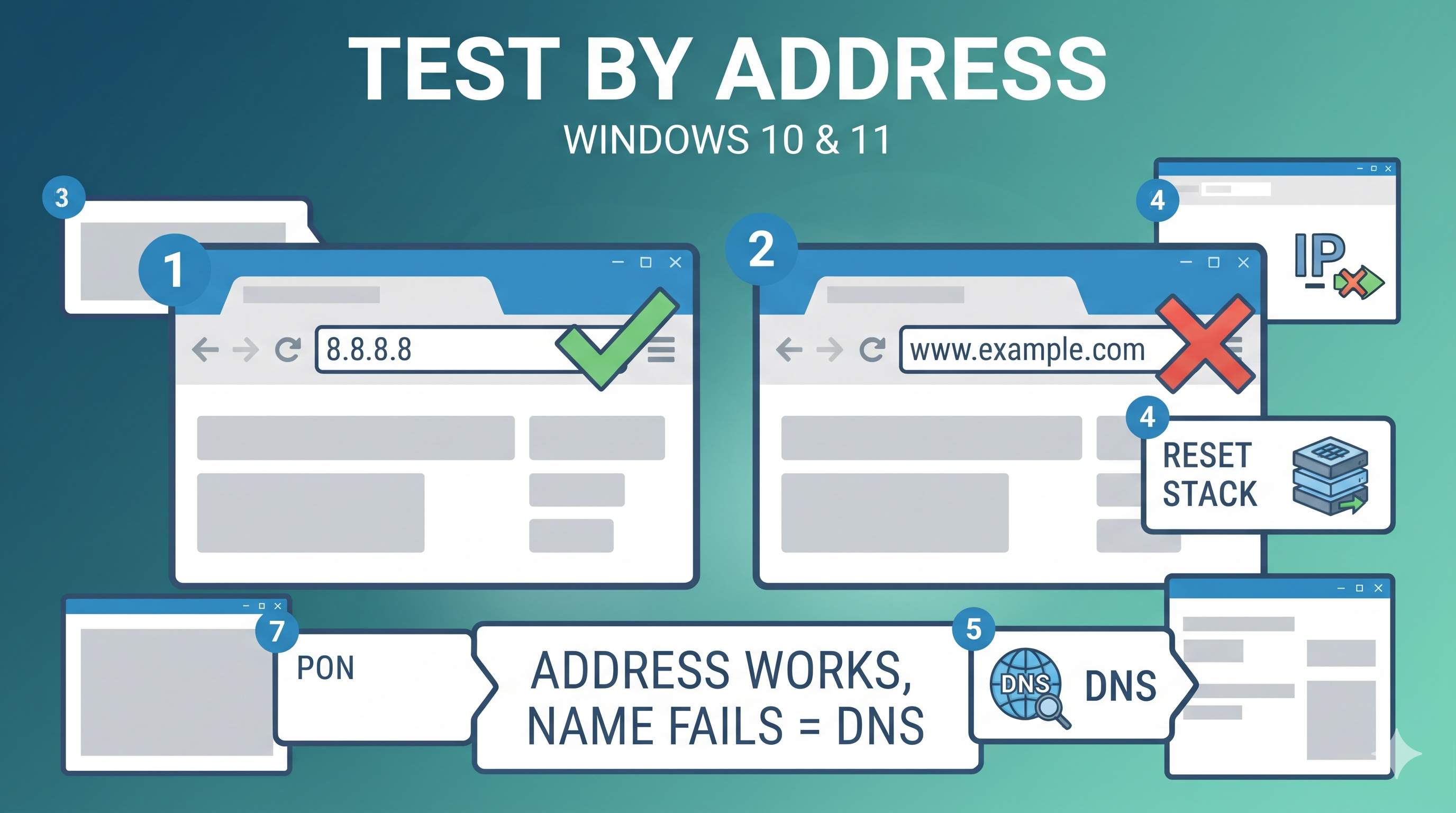
| 2. Website by address | Open a browser and type an address such as 8.8.8.8 in the address bar, then a site name. | Address works, name does not: DNS problem (Fix 5). Neither works: IP or connection problem (Fix 3, 4). |
| 3. Airplane mode and proxy | Make sure airplane mode is off. Check the proxy (Fix 8). | A proxy or VPN setting blocks all sites in some browsers only. Check before going deeper. |
| 4. Other networks | Try a phone hotspot or another WiFi network, if you have one. | Works on another network: your home router or provider. Fails everywhere: the PC (Fix 6 and 7). |
Which symptom do you see?
Diagnosis table
| Symptom | Most likely cause | Go to |
|---|---|---|
| “No internet” on every device | Router or provider outage | Fix 1, 10 |
| Only this PC fails | IP address conflict, DNS, or a broken network stack | Fix 2 to 6 |
| Address works, names do not | DNS server problem | Fix 5 |
| Works, then stops after sleep | WiFi adapter turned off to save power | Fix 7 |
| Started after an update | Driver or network stack changed | Fix 4, 8 |
| Some sites blocked, others fine | Proxy, VPN, or security software | Fix 9 |
The 10 fixes in depth
1Restart the router and modem properly
Why this works: routers hold old connections and IP leases in memory. A full power cycle clears them and lets the provider give the connection a fresh start. A simple restart in the app is not always enough.
- Unplug the power from the router and, if separate, the modem. Wait 30 seconds.
- Plug in the modem first. Wait until its lights are steady (often 2 to 3 minutes).
- Plug in the router. Wait another 2 minutes until the internet light is on.
- Restart the PC and test with the phone again.
If the internet light on the modem is off or blinking red for a long time, the problem is the provider line. Call them or check their outage page (use your phone’s mobile data to check).
2Run the built-in network troubleshooter
Why this works: the troubleshooter checks the adapter, the IP settings and the connection, and resets a few common things automatically. It does not fix everything, but it tells you what it found.
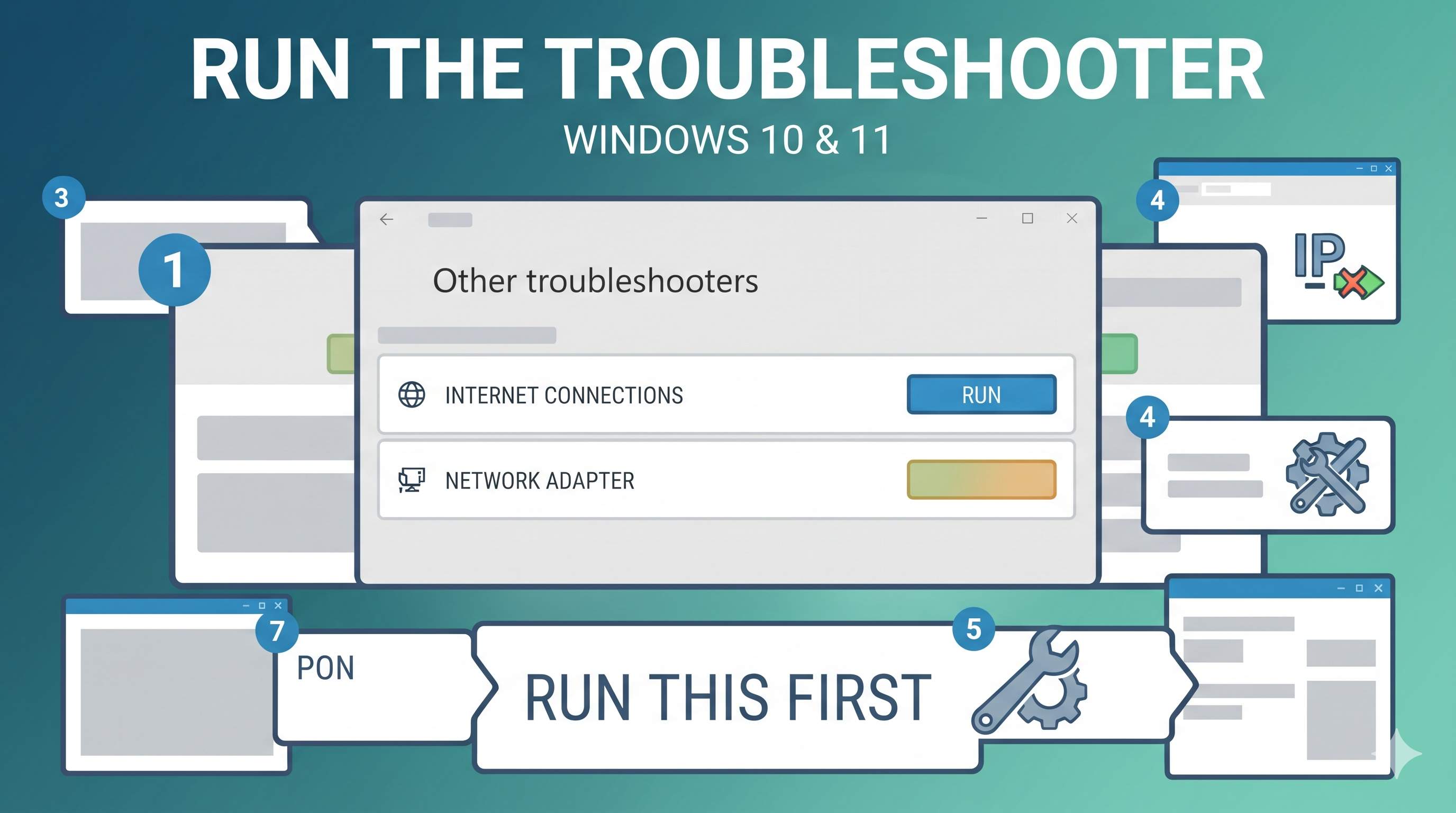
- Open Settings → System → Troubleshoot → Other troubleshooters (Windows 10: Update & Security → Troubleshoot → Additional troubleshooters).
- Click Internet Connections and run it, then run Network Adapter too.
- Read the result. Click Apply this fix if it suggests one, then test.
3Release and renew the IP address, and flush DNS
Why this works: two devices can get the same IP address, or your PC can keep an old address the router no longer uses. Releasing and renewing asks the router for a fresh address. Flushing DNS clears old name lookups that point to the wrong place.
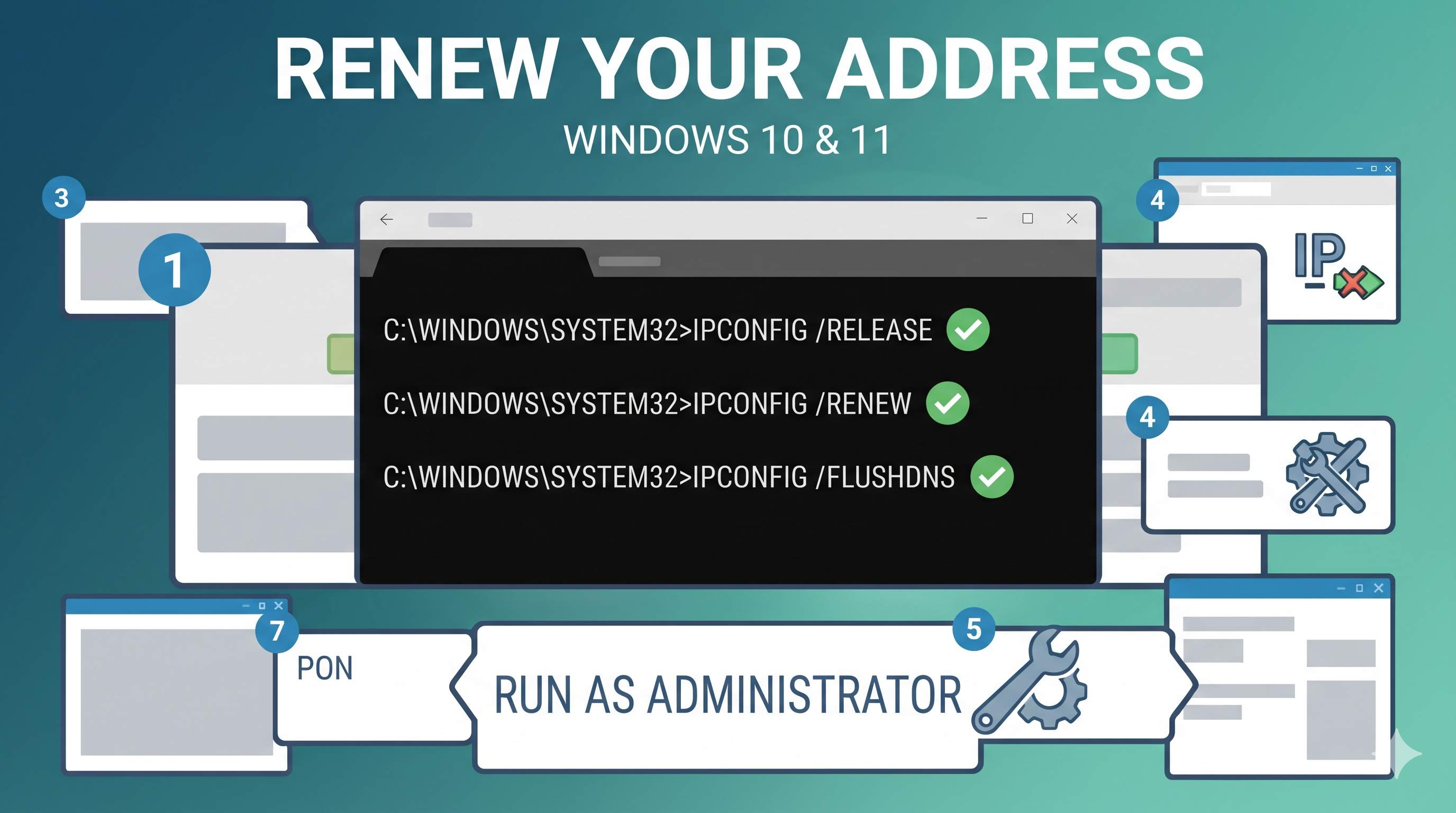
- Press Windows, type cmd, right-click Command Prompt, and choose Run as administrator.
- Type these commands one after another, pressing Enter after each:
ipconfig /release
ipconfig /renew
ipconfig /flushdns
Wait for each command to finish. The renew step can take 10 to 20 seconds. Then open a website. If the result shows 169.254.x.x as the IPv4 address (run ipconfig to see it), the PC did not get an address from the router. Go to Fix 4 and Fix 7.
4Reset the network stack (Winsock and TCP/IP)
Why this works: Winsock and the TCP/IP stack are the Windows parts that handle network traffic. Damage from a bad program, a VPN or an update can break them. Resetting rebuilds them with default settings.
- Open Command Prompt as administrator (see Fix 3).
- Run these two commands, one after the other:
netsh winsock reset
netsh int ip reset
The second command may print “Resetting… OK” with a restart message. Restart the PC. This step is required before the reset takes effect.
Side effect: a VPN or security tool that adds its own network filter may need to be installed again after the reset. Note which VPN or security software you use before you run it.
5Set reliable DNS servers
Why this works: DNS turns site names into addresses. If your provider’s DNS server is slow or broken, websites appear to be offline even though the internet works. Public DNS servers such as Cloudflare (1.1.1.1) or Google (8.8.8.8) are a reliable alternative.
- Press Windows + R, type
ncpa.cpl, and press Enter. This opens Network Connections. - Right-click your WiFi adapter (or Ethernet) and choose Properties.
- Double-click Internet Protocol Version 4 (TCP/IPv4).
- Select Use the following DNS server addresses. Enter 1.1.1.1 as preferred and 1.0.0.1 as alternate (or 8.8.8.8 and 8.8.4.4 for Google).
- Click OK, then test a website.
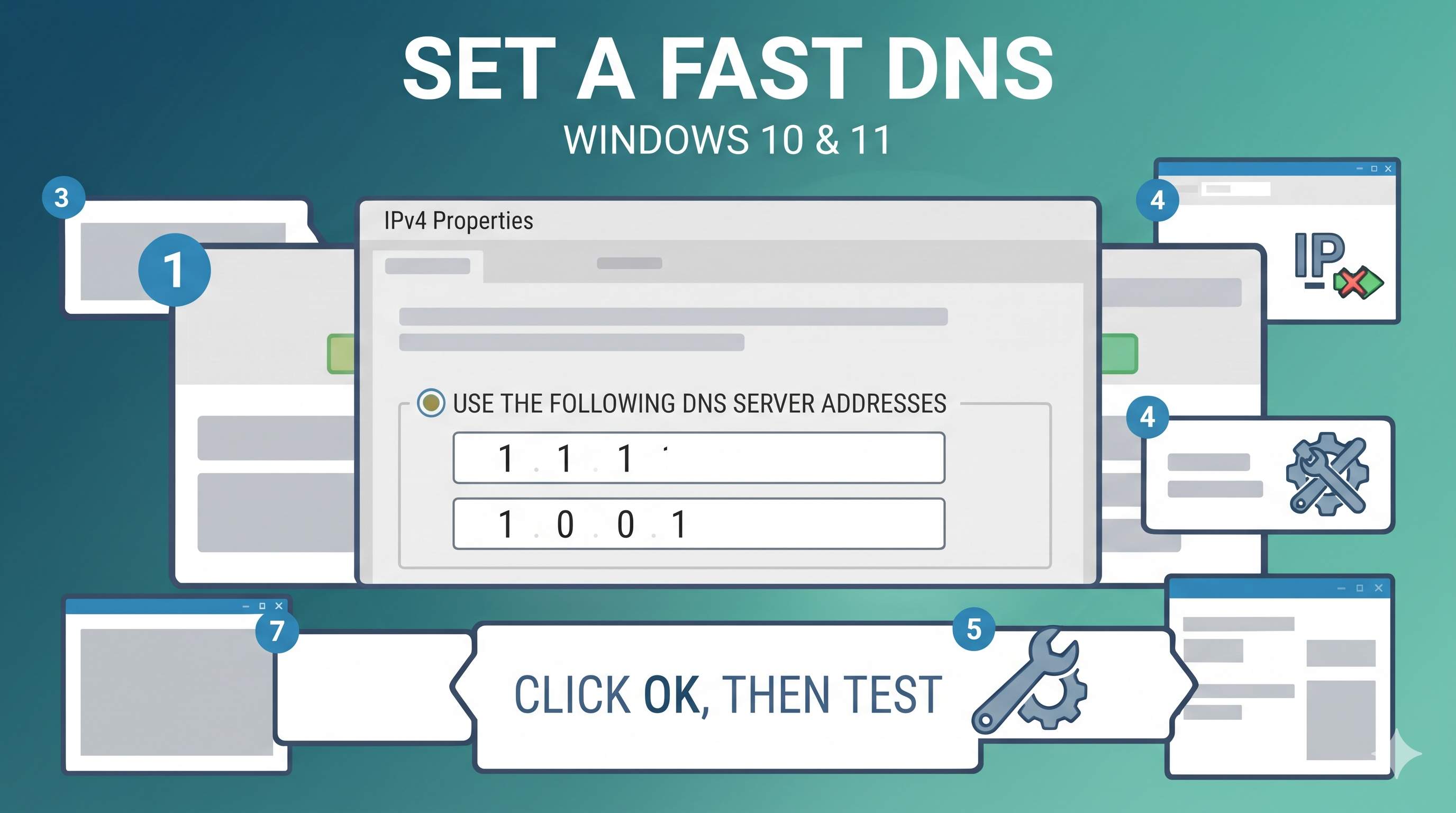
To go back, select Obtain DNS server address automatically in the same window.
6Run a network reset (last software step)
Why this works: the network reset removes all network adapters and their settings, and reinstalls them. It fixes damaged adapter settings that earlier fixes cannot reach.
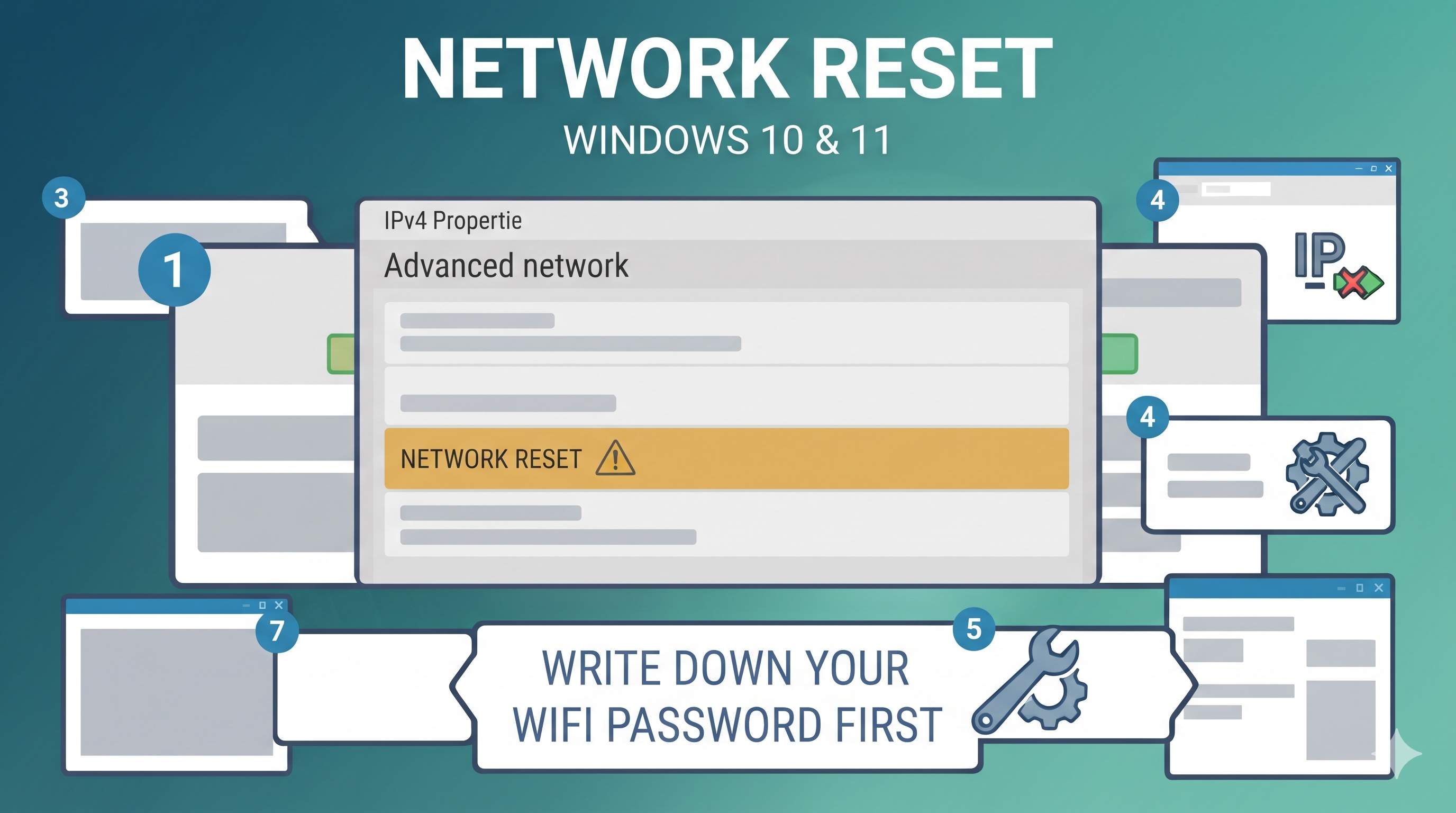
- Open Settings → Network & internet → Advanced network settings → Network reset (Windows 10: Network & Internet → Status → Network reset).
- Click Reset now, confirm, and wait for the restart.
- After restart, reconnect to WiFi with the password and test.
Before you start: write down your WiFi password, and the name and password of any VPN you use. You will need to install VPN software again, and re-pair any Bluetooth devices.
7Stop Windows from turning off the WiFi adapter
Why this works: to save battery, Windows can turn off the WiFi adapter when it thinks it is not needed. The adapter may not wake up correctly, so the connection shows as connected but has no internet.
- Press Windows + X and open Device Manager.
- Expand Network adapters. Double-click your WiFi adapter (the name usually includes Wireless or Wi-Fi).
- Open the Power Management tab and untick Allow the computer to turn off this device to save power.
- Click OK, then restart the PC.
On laptops, also check Settings → System → Power & battery and set Power mode to Balanced when on battery.
8Update or roll back the WiFi driver
- In Device Manager, open Network adapters, double-click your WiFi adapter, and open the Driver tab.
- If Roll Back Driver is active and the problem started after a Windows update, click it, then restart.
- Otherwise, go to your laptop or adapter maker’s support site and install the newest WiFi driver for your exact model.
Avoid third-party driver updater tools. Use the maker’s site or Windows Update only.
9Check proxy, VPN and security software
- Open Settings → Network & internet → Proxy. Under Manual proxy setup, make sure Use a proxy server is Off. Under Automatic proxy setup, turn off Use setup script unless your work or school network needs it.
- Turn off any VPN for a test. If the internet works, the VPN is the cause. Update or reconfigure it.
- Temporarily disable third-party security “web protection” or firewall features and test. Turn them back on if the test works, and contact the vendor.
10Check the router, cable and provider
If every device fails, the router or provider is the cause. Check these:
- Router internet light: off, or red or blinking, means the router is not reaching the provider. Restart first (Fix 1), then call the provider.
- Modem cables: check the coax or DSL cable is tight and not damaged.
- Router firmware: log in to the router (its address is often
192.168.1.1or192.168.0.1, shown on its label) and check for a firmware update. - Date and time: a wrong date on the PC can make secure sites fail. Turn on Set time automatically in Settings → Time & language.
- Outage check: use mobile data to check the provider’s outage page or call them.
If you rent the router, call the provider before changing settings. Changing router settings can break their service.
Ethernet connected but no internet
A cable connection has fewer parts to check, so work through these in order:
- Cable and port: unplug and plug the cable at both ends. Try another cable and another port on the router.
- Port light: the light on the PC’s Ethernet port should be on when the cable is connected. No light means the cable, port or adapter is the problem.
- Adapter: check Device Manager → Network adapters for a yellow ! on the Ethernet adapter, and update or roll back its driver (Fix 8).
- Steps 3, 4, 5 and 6 above apply to Ethernet too. Start with Fix 3 (IP and DNS).
If Ethernet works on a different PC, the problem is in your PC’s settings. If it fails on every PC, the router, switch or cable is the cause.
Frequently asked questions
Why does my WiFi show connected but say no internet?
Your PC has joined the network, but it cannot reach the internet through it. Common causes are a router or provider problem, an old IP address, a DNS problem, or a broken network stack. Use the 5-minute test to find which.
Will the network reset delete my files?
No. It removes network adapters and their settings, not your files. You will need to enter your WiFi password again, and reinstall any VPN software.
Should I use 8.8.8.8 or 1.1.1.1 for DNS?
Either is reliable. 1.1.1.1 (Cloudflare) and 8.8.8.8 (Google) are both public DNS servers. Choose one and test it.
Does resetting Winsock harm the PC?
No, it resets network settings to default. Restart after it, and reinstall any VPN or network filter software that depends on the old settings.
Why does it work on my phone but not my laptop?
The problem is on the laptop. Start with Fix 3 (IP and DNS) and Fix 7 (power management on the WiFi adapter).
Can a VPN cause no internet?
Yes. A VPN can change routes and DNS, so disconnect it to test. If the internet works without the VPN, reconfigure or update the VPN.
When should I call my internet provider?
If the modem or router internet light stays off or red after a full restart, or if your phone on mobile data also shows the problem in the provider’s area.
Related guides: laptop WiFi not working, WiFi keeps disconnecting, and mobile hotspot not working. For slow connections, see slow internet and router access.
Still No Internet?
If every fix fails and your phone works on the same network, we can check your PC’s network settings in a secure remote session, with your approval.
Get HelpAbout the Author
ConfirmFix Editorial Team creates practical Windows troubleshooting guides to help readers understand common PC problems and follow step-by-step solutions.
Updated November 2, 2026. Menu names and router screens vary by Windows version, router brand and provider. Back up important data and note your WiFi password before running a network reset. ConfirmFix is an independent troubleshooting guide and is not affiliated with, endorsed by or sponsored by Microsoft, any router maker or any internet provider. All product names are trademarks of their owners.
Pingback: WiFi Keeps Disconnecting on Windows 10 & 11: 10 Fixes That Stop the Drops (2026)