In This Guide
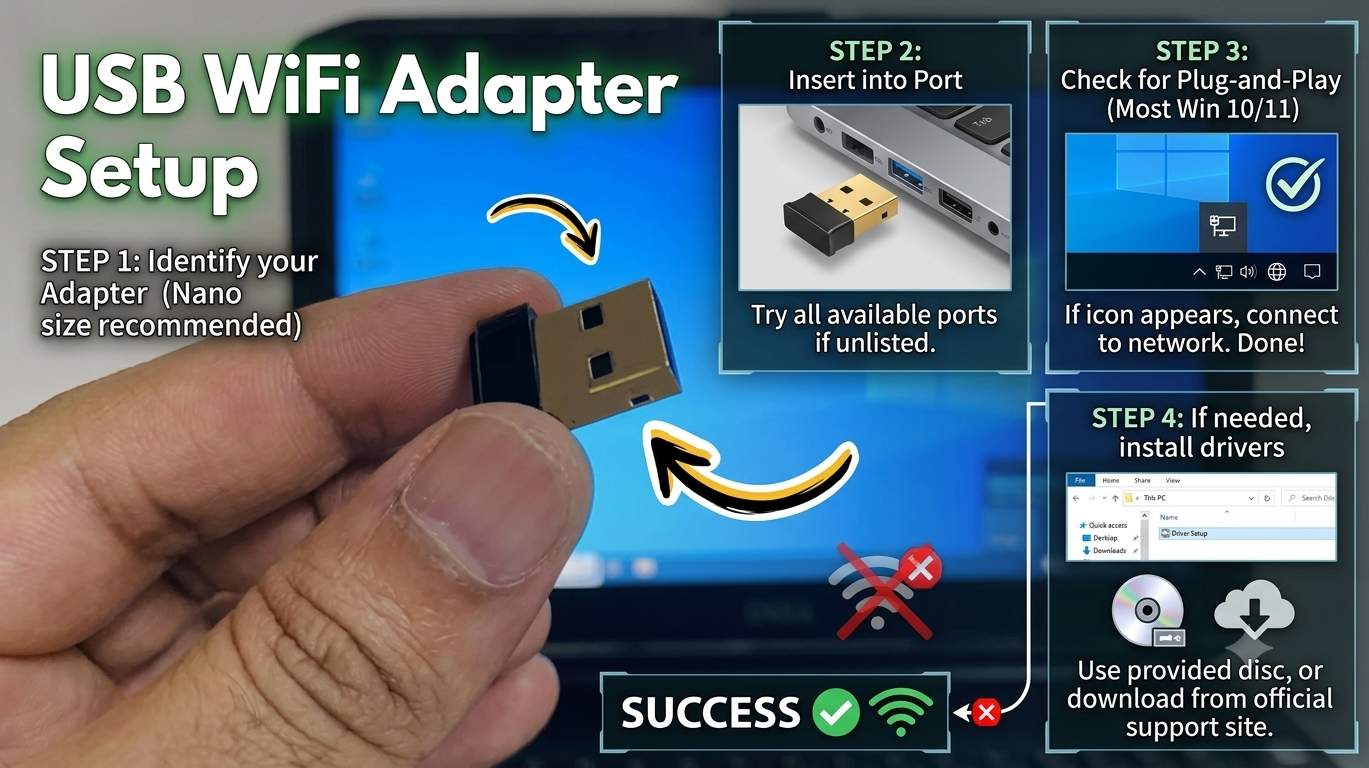
01. Quick Answer
| Step | What to do | Time | Best for |
|---|---|---|---|
| 1 | Check What You Need Before You Buy or Plug In | 3 min | Before buying or plugging in |
| 2 | Choose the Right USB Port | 2 min | Speed and stability |
| 3 | Plug It In and Wait for Windows to Detect It | 1 min | First connection |
| 4 | Install the Driver if Windows Does Not Do It | 5-10 min | No networks shown |
| 5 | Connect to Your Wi-Fi Network | 2 min | Joining a network |
| 6 | Verify That Windows Is Using the USB Adapter | 3 min | Wrong adapter in use |
| 7 | Tune Band, Placement and Settings for Speed | 10 min | Slow speed, weak signal |
| 8 | Stop Windows From Turning the Adapter Off | 3 min | Random disconnects |
| 9 | Fix Adapter Not Detected or "Unknown USB Device" | 10 min | Adapter not showing at all |
| 10 | Fix Missing Networks and Driver Problems | 15 min | Adapter detected but no Wi-Fi list |
| 11 | Fix Connected but Slow or "No Internet" | 10 min | Connected, but pages do not load |
| 12 | Optional: Share Your Connection as a Hotspot | 5 min | Sharing internet |
02. Which Symptom Do You Have?
"USB WiFi adapter not working" covers several different problems. Matching your symptom first tells you which step to use and avoids needless reinstalls.
| What you see | What it usually means | Start with |
|---|---|---|
| No Wi-Fi networks shown | Driver or WLAN service problem | Step 4, 10 |
| Adapter not detected / Unknown USB Device | Port, cable or adapter fault | Step 2, 9 |
| Slow speed | USB 2.0 port, band or distance | Step 2, 7 |
| Keeps disconnecting | Power saving or weak USB power | Step 8 |
| Wrong adapter in use | Built-in Wi-Fi still active | Step 6 |
| Connected, no internet | DNS or network stack | Step 11 |
| Worked until a Windows update | Driver replaced by update | Step 10 |
03. Step 0: The First 60 Seconds
Do these quick checks before installing anything.
Checklist
- Wait 30 seconds after plugging in. Windows may still be installing the driver.
- Check the adapter light (if it has one) and that it is firmly seated.
- Try a different USB port, preferably a blue USB 3.0 port directly on the PC.
- Check Device Manager. Right-click Start → Device Manager and look under Network adapters for the adapter or a yellow warning icon.
- Check Airplane mode and the Wi-Fi toggle in Quick Settings (Windows key + A).
04. Step 1: Check What You Need Before You Buy or Plug In
Time: 3 min | Best for: Before buying or plugging in
Match the adapter to your router. A Wi-Fi 6 or Wi-Fi 7 adapter only reaches its top speed with a router that supports the same standard; on an older router it still works, but at the router's speed. Check the box for the band (2.4 GHz, 5 GHz, 6 GHz) and the operating system, since newer Wi-Fi 7 adapters are listed for 64-bit Windows 11.
Also confirm you have a free USB port and, for a desktop, enough room behind the PC to place the antenna in open air.
Do this
- Look up your router model and note its Wi-Fi standard and bands.
- Check the adapter's listed Windows version and driver support.
- Keep the adapter's box or hardware version label (printed on the device) for driver downloads.
How to read adapter names
05. Step 2: Choose the Right USB Port
Time: 2 min | Best for: Speed and stability
Most adapter makers recommend a USB 3.0 port (often blue, or marked SS). USB 2.0 has a 480 Mbps ceiling in theory and far less in practice, so a fast adapter on a USB 2.0 port can be limited, especially on modern Wi-Fi 6 or 7 connections.
On a desktop, a rear motherboard port is usually better than a front-panel port, which may give less stable power. If the adapter has an external antenna or a large body, use the included USB extension cable or a cradle so it sits in open air instead of behind the case.
Do this
- Choose a blue or SS-marked USB 3.0 port, directly on the PC.
- Avoid unpowered hubs and long, cheap extension cables.
- On a desktop, use a rear port or an extension cable.
Interference with USB 3.0 ports
06. Step 3: Plug It In and Wait for Windows to Detect It
Time: 1 min | Best for: First connection
Most modern adapters are plug and play: Windows installs a driver automatically through Windows Update. Wait about 30 seconds and look for a notification that the device is ready. Do not unplug it during this time. If you have not updated Windows recently, install pending updates first so the driver catalog is current.
Do this
- Plug the adapter into the chosen port.
- Wait 30 seconds, then click the network icon in the taskbar.
- Look for new available networks in the list.
07. Step 4: Install the Driver if Windows Does Not Do It
Time: 5-10 min | Best for: No networks shown
If no Wi-Fi networks appear, install the maker's driver. Adapters with a mini CD or built-in driver storage appear as a drive in This PC; open it and run the setup file (for example SetupInstall.exe on many TP-Link models), then click Yes if an unknown-publisher prompt or User Account Control asks. Without a CD, download the driver from the maker's support page.
Match your hardware version (usually "Ver: 1.0" or "V2" on the label) with the download, because different versions use different chips and different drivers.
Do this
- Open the CD or drive in This PC and run the setup program.
- If there is none, download the driver for your exact model and hardware version from the maker's official site.
- Restart the PC after installation.
Driver safety
08. Step 5: Connect to Your Wi-Fi Network
Time: 2 min | Best for: Joining a network
Click the network icon on the taskbar, open the Wi-Fi list, choose your network, tick Connect automatically if you want, click Connect, and enter the password. You can also go to Settings → Network & internet → Wi-Fi.
If you see two networks with similar names, such as one with "5G", the 5 GHz band is faster at short range, while 2.4 GHz travels farther through walls.
Do this
- Click the network icon → expand the Wi-Fi list.
- Select the network → Connect → enter the password.
- Open a website to confirm you are online.
09. Step 6: Verify That Windows Is Using the USB Adapter
Time: 3 min | Best for: Wrong adapter in use
A laptop may have both a built-in Wi-Fi card and your new USB adapter, and Windows can use either. Open Terminal and run netsh wlan show interfaces. The output lists the active adapter name, the radio type (for example 802.11ac or 802.11ax), channel, signal and transmit and receive rates. To see the standards the adapter supports, run netsh wlan show drivers.
If the active interface is the built-in card, disable it in Device Manager → Network adapters (right-click → Disable device), or from Settings → Network & internet → Advanced network settings, then connect again.
Do this
- Run
netsh wlan show interfacesin Terminal. - Check the name, radio type and signal.
- Disable the built-in adapter if it is the one connected.
netsh wlan show interfaces
netsh wlan show drivers
When to leave the built-in card enabled
10. Step 7: Tune Band, Placement and Settings for Speed
Time: 10 min | Best for: Slow speed, weak signal
Small changes often double real speed. Place the adapter where it has a clear line to the router, ideally on a short extension cable at desk height, and rotate high-gain antennas so they are not pointing at the router. Prefer 5 GHz at short range. In Device Manager → Network adapters → your adapter → Properties → Advanced, look for options such as preferred band or wireless mode, and set them to the highest standard your router supports. Names vary by chip.
Run a speed test near the router first, then at your usual spot. A large drop only at the usual spot means distance or walls; a low speed everywhere means port, driver or router limits.
Do this
- Move the adapter to open air using an extension cable.
- Choose 5 GHz where signal allows, or 2.4 GHz at long range.
- Set the adapter's wireless mode to the newest standard in Advanced properties.
11. Step 8: Stop Windows From Turning the Adapter Off
Time: 3 min | Best for: Random disconnects
Power saving can disconnect a USB adapter. Open Device Manager → Network adapters → your adapter → Properties → Power Management and untick Allow the computer to turn off this device to save power. For USB-wide power saving, open Control Panel → Power Options → Change plan settings → Change advanced power settings → USB settings and set USB selective suspend to Disabled. On laptops, this will use slightly more battery.
Do this
- Open the adapter's Power Management tab and untick the power-off option.
- Disable USB selective suspend in advanced power settings.
- Restart and test over a longer session.
12. Step 9: Fix Adapter Not Detected or "Unknown USB Device"
Time: 10 min | Best for: Adapter not showing at all
First prove whether the port or the adapter is at fault. Plug in a flash drive to test the port, try other USB ports (front and rear), and try the adapter on another computer. "Unknown USB Device (Device Descriptor Request Failed)" means Windows could not read the device.
Steps
- Shut down, unplug the adapter and other USB devices, wait 30 seconds, and start again.
- Use a short cable or direct port; avoid unpowered hubs.
- Open Device Manager → Universal Serial Bus controllers, right-click each USB Root Hub → Uninstall device, then restart so Windows reinstalls them.
- Look for a device with a yellow warning icon and update that driver.
13. Step 10: Fix Missing Networks and Driver Problems
Time: 15 min | Best for: Adapter detected but no Wi-Fi list
If the adapter shows but no networks appear, the driver or Wi-Fi service is usually at fault. Turn off Airplane mode, make sure the WLAN AutoConfig service is running in services.msc, and compare what the adapter supports.
netsh wlan show drivers
Reinstall or roll back the driver
- Open Device Manager → Network adapters, right-click the adapter → Properties → Driver → Roll Back Driver if it is available.
- Otherwise right-click → Uninstall device, tick Attempt to remove the driver for this device, restart, and install the maker's driver for your hardware version.
- For combo Wi-Fi and Bluetooth adapters, also check the Bluetooth device in Device Manager; some users report restoring Wi-Fi after updating that driver.
14. Step 11: Fix Connected but Slow or "No Internet"
Time: 10 min | Best for: Connected, but pages do not load
Restart the router, then flush the network stack from an administrator Terminal:
ipconfig /release
ipconfig /renew
ipconfig /flushdns
If that fails, use Settings → Network & internet → Advanced network settings → Network reset. This removes and reinstalls network adapters and resets networking settings, so you will need to reconnect to saved networks. Back up anything important first. For slow speed, recheck the port (Step 2), the band (Step 7) and the router's Wi-Fi standard.
15. Step 12: Optional: Share Your Connection as a Hotspot
Time: 5 min | Best for: Sharing internet
A USB adapter can also be used to share internet: if your PC is on Ethernet, go to Settings → Network & internet → Mobile hotspot, choose to share from Ethernet, and turn it on. Hotspot support depends on your adapter and driver, and many cheaper models do not support it.
Do this
- Open Mobile hotspot in Settings.
- Pick the connection to share from (for example Ethernet).
- Turn it on and connect another device.
16. Which USB WiFi Adapter Should You Buy?
| Need | Look for | Notes |
|---|---|---|
| Basic browsing, older router | Wi-Fi 5 (AC), dual band | Cheapest and most compatible |
| Streaming, calls, mid-range router | Wi-Fi 6 (AX), USB 3.0 | Best value for most people |
| New router, fast home network | Wi-Fi 6E / Wi-Fi 7 | Needs a matching router and USB 3 |
| Weak signal in the room | External high-gain antennas | Use an extension cable |
| Travel and laptops | Nano adapter | Small, but shorter range |
Check the chip maker (Realtek, MediaTek, Intel) and read recent reviews for Windows 11 driver support before buying. Cheap unbranded adapters often have no driver updates. Do not trust speed claims on the box; prefer a seller with a return policy.
17. 2026 Updates and Known Issues
The items below come from user reports on Microsoft support forums, not from official Microsoft release notes, so treat them as patterns to check rather than confirmed bugs. Adapter chips and driver versions differ, so verify against your own model.
| Issue | What was reported | What helped |
|---|---|---|
| Wi-Fi adapter disappears after a Windows update | Users report MediaTek Wi-Fi adapters showing "Code 10" or vanishing after updates, including after 24H2 | Roll back the driver, uninstall it with "Attempt to remove the driver", reinstall the maker's driver, or remove the latest update |
| Wi-Fi lost on a Wi-Fi + Bluetooth USB adapter | One AC1300 user reports Wi-Fi failing while Bluetooth still worked after an update | Update the Bluetooth device driver via Browse → Let me pick (user-reported) |
| "Unknown USB Device (Device Descriptor Request Failed)" | Reported with Realtek-based USB Wi-Fi adapters, including on Insider builds | Test other ports and PCs, reinstall USB Root Hubs, avoid unstable Insider builds |
| Network does not return after sleep | January 2026 reports of Wi-Fi and LAN failing to wake on some Realtek devices | Reinstall the driver, turn off adapter power saving (Step 8) |
18. Hardware Causes to Rule Out
Quick hardware checks
- Test the adapter on another PC.
- Test the USB port with a flash drive.
- Test your Wi-Fi with a phone near the router.
19. Symptom to Fix Table
| Symptom | Likely cause | Go to |
|---|---|---|
| No Wi-Fi networks shown | Driver or WLAN service problem | Step 4, 10 |
| Adapter not detected / Unknown USB Device | Port, cable or adapter fault | Step 2, 9 |
| Slow speed | USB 2.0 port, band or distance | Step 2, 7 |
| Keeps disconnecting | Power saving or weak USB power | Step 8 |
| Wrong adapter in use | Built-in Wi-Fi still active | Step 6 |
| Connected, no internet | DNS or network stack | Step 11 |
| Worked until a Windows update | Driver replaced by update | Step 10 |
20. How to Prevent It
🏆 Bottom Line
Most USB WiFi adapters work in minutes: right port, driver, connect. For speed, use a USB 3.0 port, place the adapter in open air and pick 5 GHz at close range. If it is not detected, test the port and another PC first, then reinstall the driver; if an update broke it, roll back the driver. If it fails on a second PC, the adapter is the problem. Back up files before any network reset.