How to Use a USB WiFi Adapter on Your Laptop or PC
Your built-in WiFi is weak, broken, or missing, or your desktop has no WiFi at all? A USB WiFi adapter is a small, low-cost fix. This guide helps you pick the right one, set it up step by step, and solve the common problems: the adapter is not detected, the driver will not install, the speed is slow, or the connection drops.
By ConfirmFix Editorial Team · Updated November 2, 2026 · About 30 minutes
Quick answer
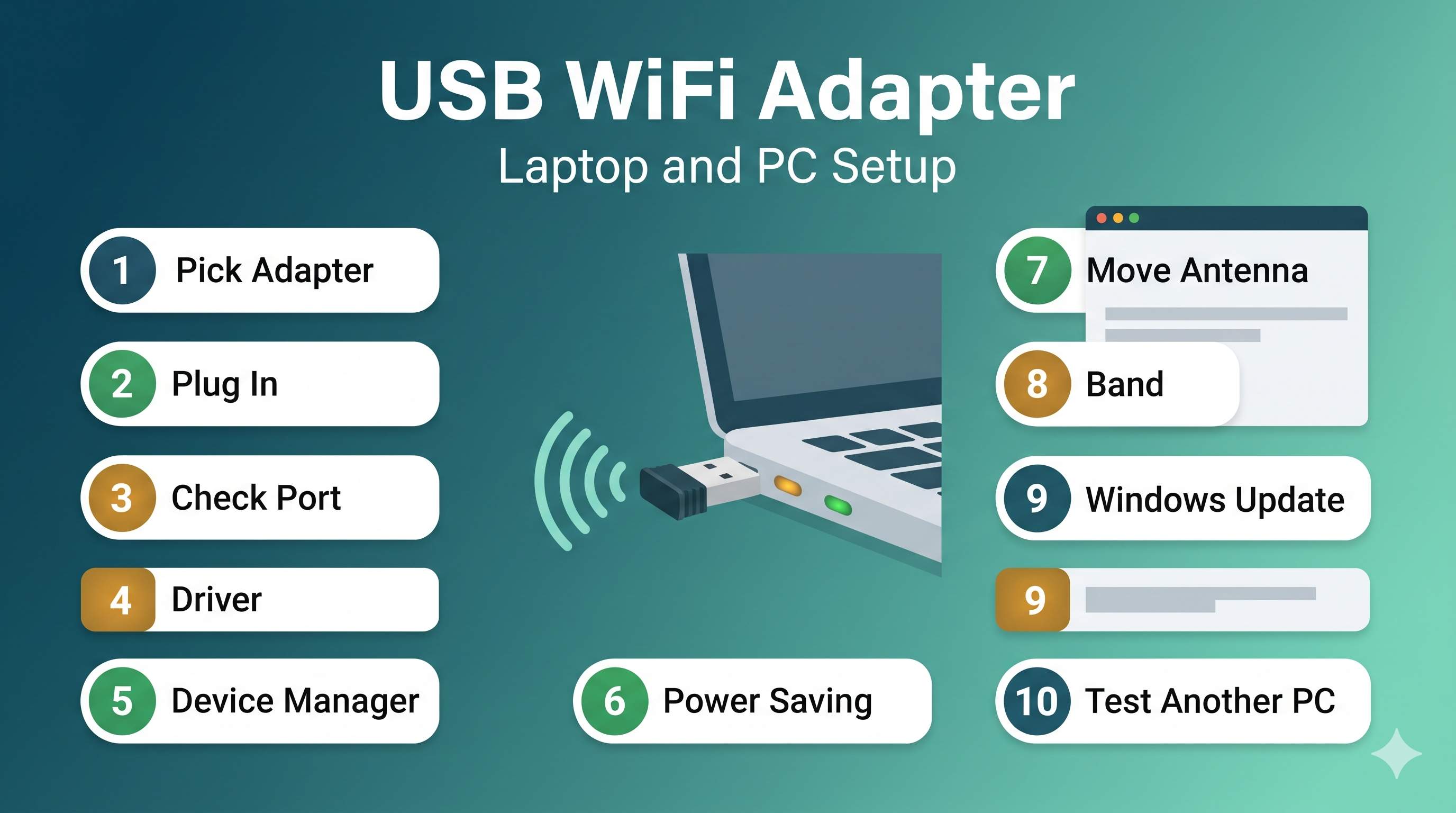
In short: plug the adapter into a USB port, let Windows detect it, install the driver if Windows asks, then choose the network as usual. Use a USB 3.0 port for a faster adapter, and keep it away from the metal case and USB hubs for a steady signal. If it is not detected, check the port, the driver, and the adapter’s chip (Fix 3 to 6).
Choose the right adapter first
Most problems start with the wrong adapter. Before you buy one, check these points against your router and your Windows version.
| Feature | What to look for | Why it matters |
|---|---|---|
| Standard | Wi-Fi 5 (802.11ac) or Wi-Fi 6 (802.11ax) | Newer standards give faster speeds, and Wi-Fi 6 works better in crowded areas. |
| Bands | Dual band (2.4 GHz and 5 GHz) | 5 GHz is faster near the router, 2.4 GHz reaches farther. |
| USB type | USB 3.0 or newer (blue port) | USB 2.0 limits speed, especially on fast Wi-Fi 5 and Wi-Fi 6 adapters. |
| Antenna | External antenna if you can | A removable antenna lets you place the adapter for a better signal. |
| Windows support | Drivers for Windows 10 and 11 (64-bit) | Old adapters may have no driver for your Windows version. |
| Chipset | Known chipsets such as Realtek, MediaTek or Intel | Common chipsets have better driver support. Check the chip name before buying. |
Your router sets the limit. If your router only has 2.4 GHz, a dual band adapter will still work, but the 5 GHz benefit will not show. Check your router’s band setting first.
Setup steps: laptop or PC
Follow these steps in order. Most adapters work in 5 minutes, but a few need a driver first.
- Plug the adapter into a USB port. Use a USB 3.0 (blue) port if you have one. Do not use a hub for the first test.
- Wait 30 to 60 seconds. Windows may show a message that a new device is ready, or install a driver automatically.
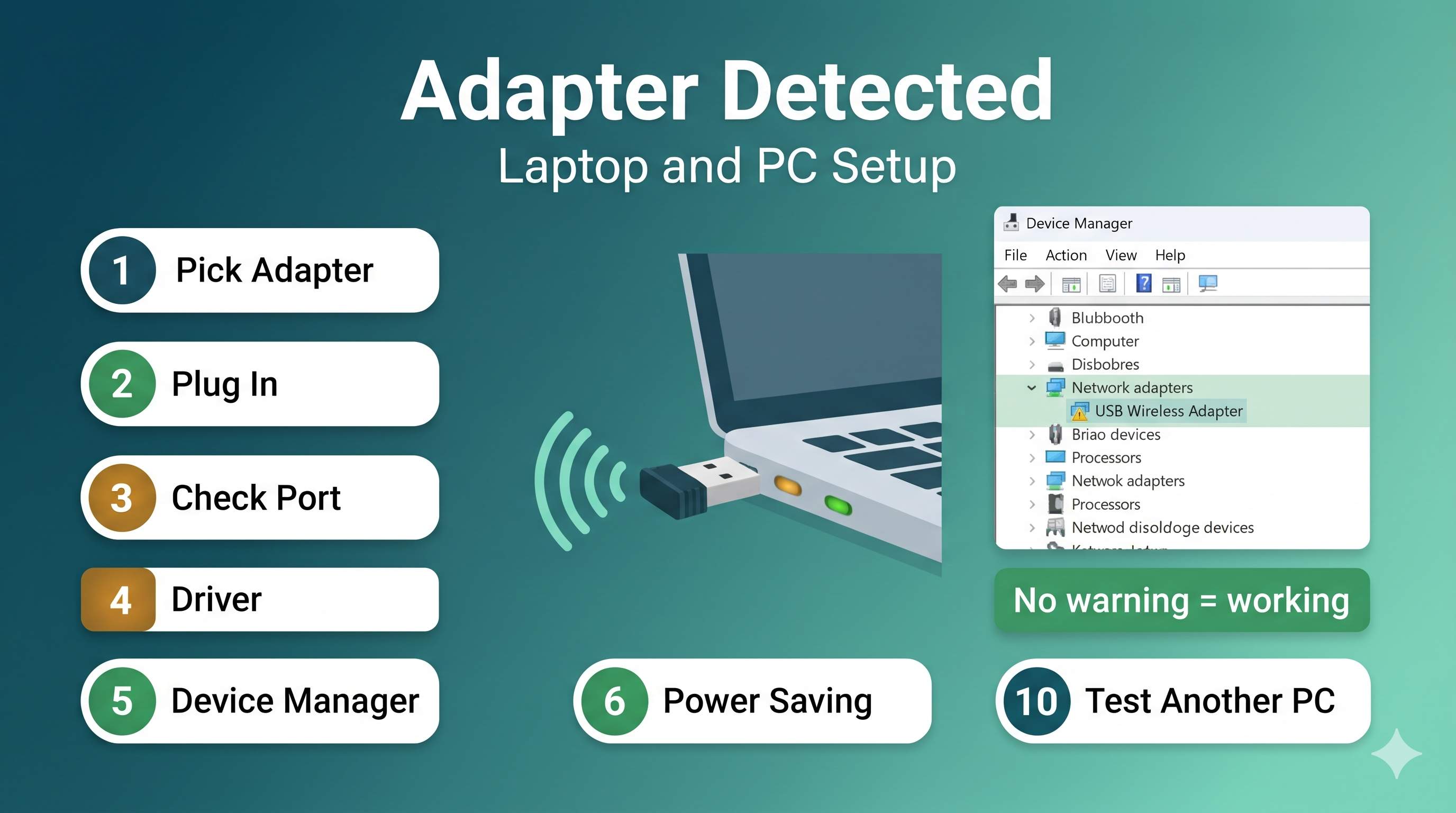
- Open Device Manager (press Windows + X), expand Network adapters, and look for the new adapter name. It usually includes Wireless, Wi-Fi, 802.11, or the chip name.
- If the adapter is listed without a warning, click the WiFi icon in the taskbar, choose your network, and enter the password.
- If the adapter has a yellow warning, install the driver from the adapter maker’s support page, or from your PC maker for a built-in chip. Use the Windows 10 or 11, 64-bit version.
- Restart the PC, then test the connection with a website.
Avoid third-party driver updater apps and random driver websites. Use the adapter maker’s official site, or Windows Update.
Which problem do you have?
The 10 fixes in depth
1Test the port and the cable first
Why this works: a loose connection, a damaged port, or a power-hungry hub is a common reason for “not detected”. Testing the basics first saves time.
- Unplug the adapter and plug it straight into a different port on the laptop or PC, with no hub.
- If it has a USB extension cable, remove it for the test.
- Try a USB 2.0 port if the blue port fails. Some adapters need less power.
- Success looks like: a light on the adapter turns on, and Windows plays the device-connected sound.
2Check the adapter in Device Manager, including hidden devices
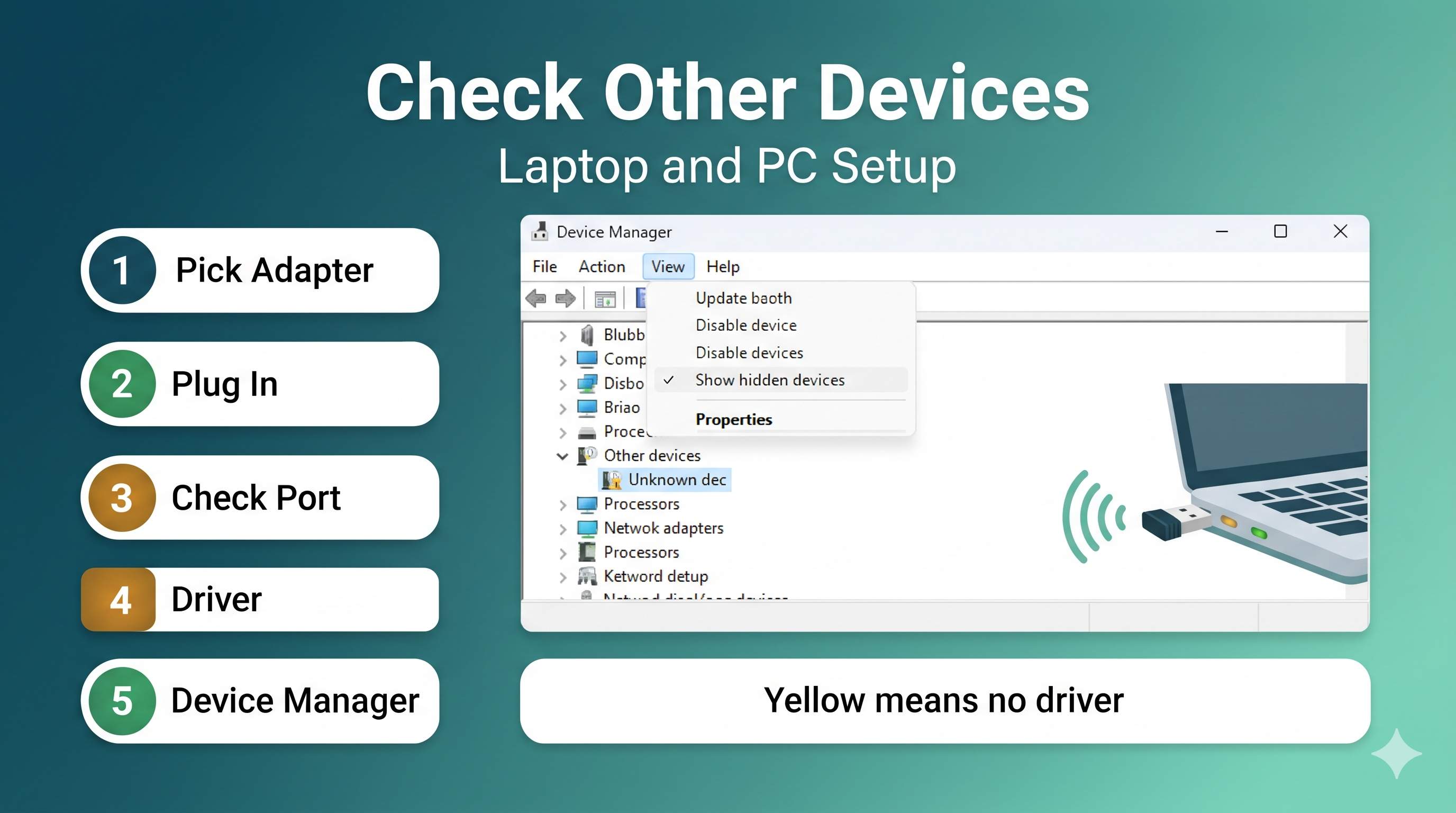
- Open Device Manager and click View → Show hidden devices.
- Expand Network adapters. Look for any unknown device or one with a warning, including under Other devices.
- If it is under Other devices, it has no driver yet. Go to Fix 3.
- If it is missing completely, unplug it, plug it into another port, and check again. A missing device usually means a power or port problem.
3Install the correct driver
Why this works: the adapter cannot work until Windows has a driver for its chip. Generic adapters often need the driver from the maker, because Windows does not include every chip.
- Find the adapter model on the box or the adapter label, or in Device Manager → Properties → Details → Hardware Ids. The VID and PID values identify the chip.
- Go to the maker’s support page, enter the model, and download the Wi-Fi driver for Windows 10/11 (64-bit).
- Run the installer, or in Device Manager, right-click the device, choose Update driver → Browse my computer, and point to the unzipped folder.
- Restart the PC, then check that the adapter is under Network adapters.
4Try Windows Update and a different driver
- Open Settings → Windows Update, click Check for updates, and install optional driver updates under Advanced options → Optional updates.
- If the device still has a warning, right-click it and choose Update driver → Search automatically.
- If a newer driver was installed and the adapter now fails, use Properties → Driver → Roll Back Driver.
If the chip is a common one (for example, Realtek or MediaTek), check the chip maker’s driver page for a Windows 10/11 package.
5Check the Windows network setting for the adapter
Why this works: when the laptop has both a built-in WiFi and a USB adapter, Windows may choose the wrong one for internet. You can check which adapter is active and set the priority.
- Press Windows + R, type
ncpa.cpl, and press Enter. - Check which adapter shows Connected. The USB adapter should show a connected status when you use it.
- To test, disable the built-in WiFi (right-click it, choose Disable). If the USB adapter then works, the built-in one was the conflict. Enable it again later if you need it.
6Turn off power saving on the adapter
- Open Device Manager → Network adapters, and double-click the USB adapter.
- Open the Power Management tab and untick Allow the computer to turn off this device to save power.
- Click OK and restart.
On a USB hub or a laptop, also check the USB selective suspend setting under Power Options → Change plan settings → Change advanced power settings → USB settings. Set it to Disabled for the test.
7Move the adapter for a better signal
- Use a USB extension cable: it moves the adapter away from the laptop’s metal case, which can block the signal.
- Point the antenna: if the adapter has an antenna, move it to vertical for one side and horizontal for the other, and test which gives the best result.
- Avoid USB 3.0 interference: a USB 3.0 hard drive or hub close to the adapter can add radio noise. Move the adapter away from them.
- Place it near the router: test the speed near the router first, then move it to the usual spot.
8Change the band and check the router settings
Why this works: many routers combine 2.4 GHz and 5 GHz under one name, and move the device between them. A USB adapter may not handle that well.
- Log in to the router and split the bands into separate names (see the WiFi keeps disconnecting article for the steps).
- Connect the adapter to the 5 GHz name if you are near the router, or 2.4 GHz if you are far away.
- Test the speed on both bands and keep the faster stable one.
9Update the adapter driver after a Windows update
Why this works: a Windows feature update can replace the driver with a generic one, or change how the driver loads. The adapter may then show up but stop connecting.
- Check the date the problem started. Open Settings → Windows Update → Update history and note the update.
- In Device Manager, use Roll Back Driver if it is available (Fix 4).
- If there is no rollback option, reinstall the maker’s driver (Fix 3).
10Check the adapter on a second PC, or replace it
Why this works: if the adapter does not work on any PC, the adapter itself may be faulty. Testing on a second device tells you whether the problem is the adapter or your laptop.
- Second PC test: plug the adapter into another PC or laptop. If it is detected and connects there, your laptop’s USB port or Windows setup is the problem.
- Fails everywhere: the adapter is faulty. Contact the seller or maker under warranty, or buy a tested model.
- Desktop with no WiFi: a PCIe WiFi card gives a more stable connection than USB, if your motherboard has a free slot.
Frequently asked questions
Do I need to install a driver for a USB WiFi adapter?
Often not. Many adapters install automatically on Windows 10 and 11. If the adapter shows a warning or does not connect, install the maker’s driver (Fix 3).
Is a USB 3.0 adapter faster than USB 2.0?
Usually yes, for Wi-Fi 5 and Wi-Fi 6 adapters, because USB 2.0 limits the speed. For basic browsing, USB 2.0 is often enough.
Can I use a USB WiFi adapter and built-in WiFi together?
Windows can use one connection at a time for internet in most cases. Disable the one you do not need (Fix 5).
Why does my USB adapter work on one PC but not another?
The other PC may lack a driver for its chip, or its USB port may give less power. Install the driver on that PC and test with a direct port.
Will a USB WiFi adapter slow my internet?
It can, if it is an old USB 2.0 model or has a weak chip. A modern dual band adapter on USB 3.0 gives good speeds.
Is it safe to buy a cheap USB WiFi adapter?
Cheap adapters can work well, but check the chip name and Windows driver support first. Buy from a seller with a clear return policy.
Related guides: laptop WiFi not working or missing, WiFi keeps disconnecting, and WiFi connected but no internet.
Adapter Still Not Working?
If the adapter is not detected on any PC, we can check the driver and settings in a secure remote session, with your approval.
Get HelpAbout the Author
ConfirmFix Editorial Team creates practical Windows troubleshooting guides to help readers understand common PC problems and follow step-by-step solutions.
Updated November 2, 2026. Adapter models and driver pages change over time. Check the maker’s site for your exact model. ConfirmFix is an independent troubleshooting guide and is not affiliated with, endorsed by or sponsored by Microsoft or any adapter, chip or laptop maker. All product names are trademarks of their owners.