Mouse Problems in Windows: Scroll, Lag, Jumping and Dead Clicks
The wheel scrolls wrong, the pointer lags or jumps, double-clicks fail, or the cursor vanishes? Most mouse problems are a setting, a power-saving option or a driver. This guide starts with a 3-minute test that separates the mouse from Windows, then fixes each symptom in depth.
By ConfirmFix Editorial Team · Updated November 2, 2026 · About 25 minutes
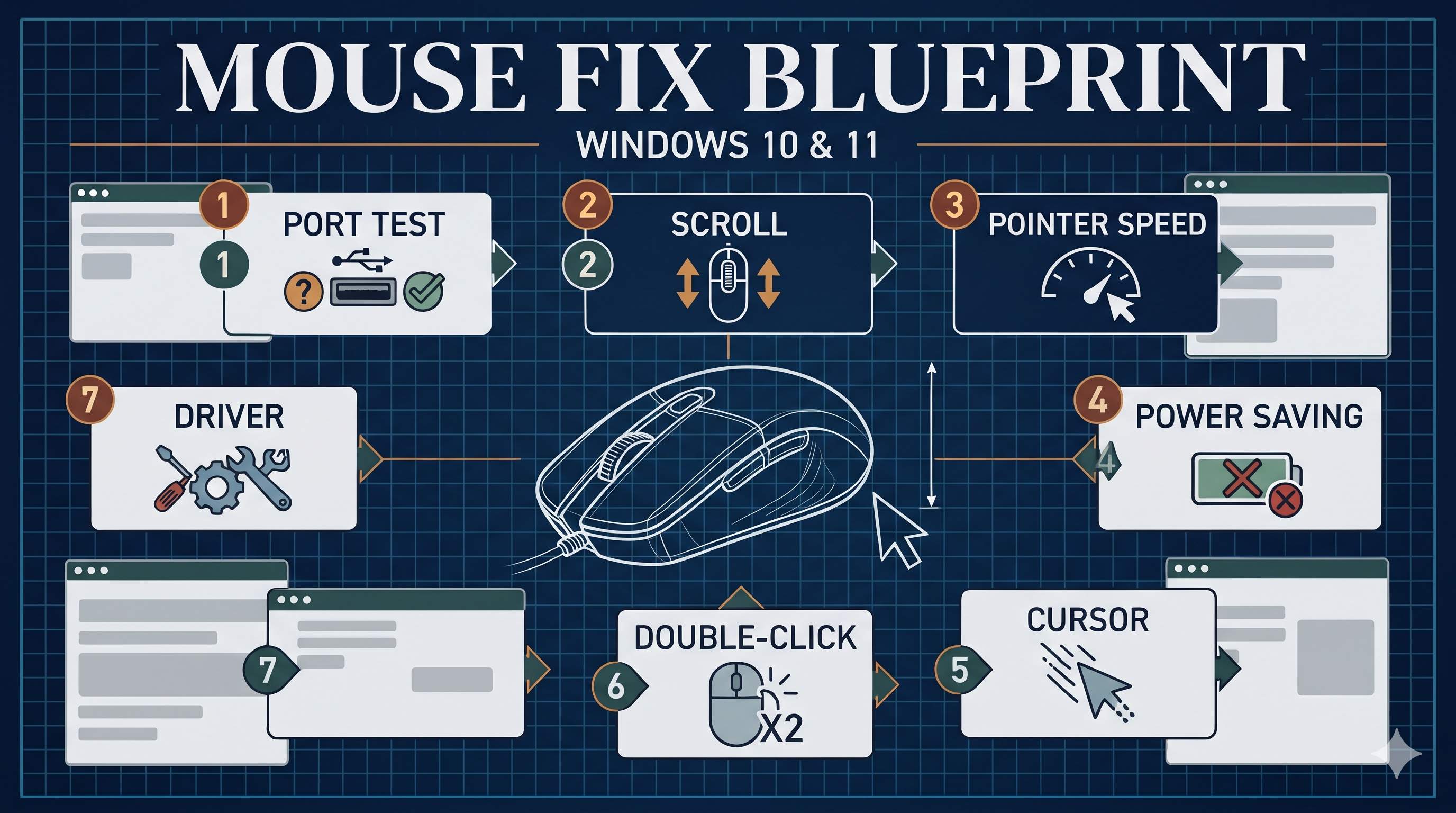
Quick answer
Do the 3-minute test first. If the mouse fails on another USB port and another PC, the mouse is faulty (Fix 7). If it works on another PC, the problem is in your Windows settings or power management (Fix 2 to 6).
The 3-minute test
| Test | Exact steps | What the result means |
|---|---|---|
| 1. Another USB port | Unplug the mouse and plug it into a different port. Use a rear port on a desktop. | Works now: the old port or a hub was the problem. Use the new port and avoid the hub. |
| 2. Another PC | Plug the same mouse into another computer, or a TV or tablet if it supports USB mice. | Fails there too: the mouse is faulty (Fix 7). Works there: Windows or your PC is the cause. |
| 3. Safe Mode | Hold Shift and choose Restart, then Troubleshoot, Advanced options, Startup Settings, and press 4. | Works in Safe Mode: a driver, utility or startup app is the cause (Fix 4, 6). Fails in Safe Mode: hardware or USB (Fix 6, 7). |
Which symptom do you have?
Cause map: what is going on
| Symptom | What is happening | Fix |
|---|---|---|
| Scroll wrong or too slow | The wheel lines setting, or mouse software, changes how far a notch scrolls. | 2 |
| Pointer feels inconsistent | Enhance pointer precision (acceleration) changes speed based on how fast you move. | 3 |
| Lag or stutter | Windows is turning the USB port or the mouse off to save power, or a wireless signal is disturbed. | 4 |
| Cursor vanishes while typing | The “Hide pointer while typing” option is on, or the pointer is hidden by an app. | 5 |
| Double-click fails | The double-click speed is too fast, or the switch inside the mouse is worn and sends false clicks. | 6, 7 |
| Mouse disconnects | Power saving, a weak wireless battery, or a bad driver. | 4, 7 |
The 7 fixes in depth
Fix 01Use a different USB port and a direct connection
Why this works: USB hubs and front-panel ports can supply too little power, and a weak connection drops signals. A direct port avoids both.
- Unplug the mouse, and remove any hub or extension cable.
- Plug the mouse into a port on the back of a desktop, or directly into a laptop port.
- For a wireless mouse, plug the receiver into a port close to the mouse, and not behind a metal case.
- Restart the PC after changing ports, then test.
Fix 02Fix scroll wheel direction, speed and lines
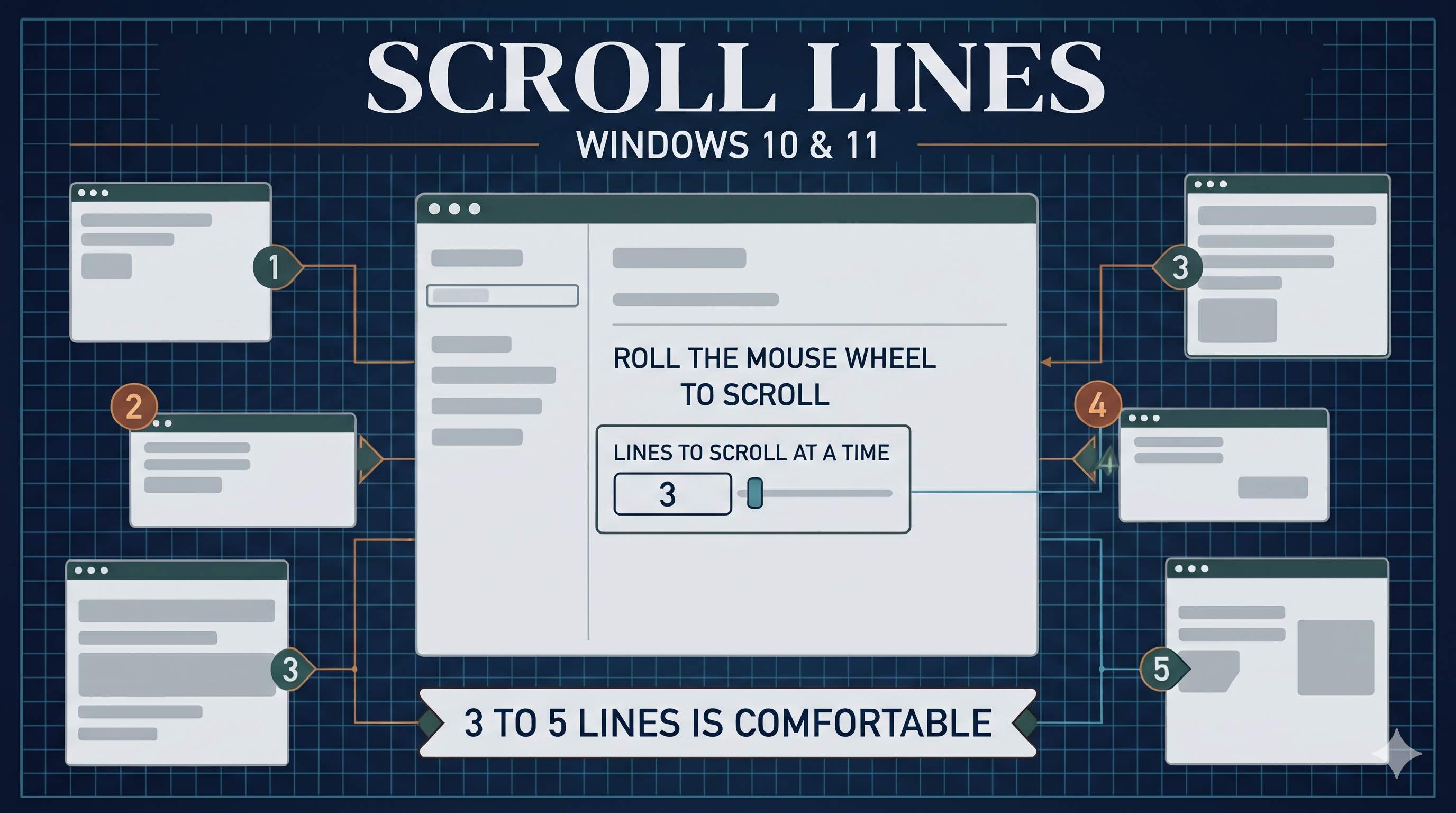
Why this works: the scroll speed is a number of lines per notch. Setting it too high makes scrolling jump, and too low makes it feel dead. Some mice also get the direction from their own software.
- Open Settings → Bluetooth & devices → Mouse (Windows 10: Devices → Mouse).
- Under Roll the mouse wheel to scroll, choose Multiple lines at a time and set a number between 3 and 5.
- Turn on Scroll inactive windows when I hover over them if you want to scroll a background window without clicking.
- For the classic options, press Windows + R, type
control main.cpl, and open the Wheel tab. Set vertical scrolling to 3 lines. - If the direction is reversed or scrolling is erratic, check the mouse software from the maker, such as Logitech Options or Razer Synapse, and reset its scroll settings.
Fix 03Turn off Enhance pointer precision
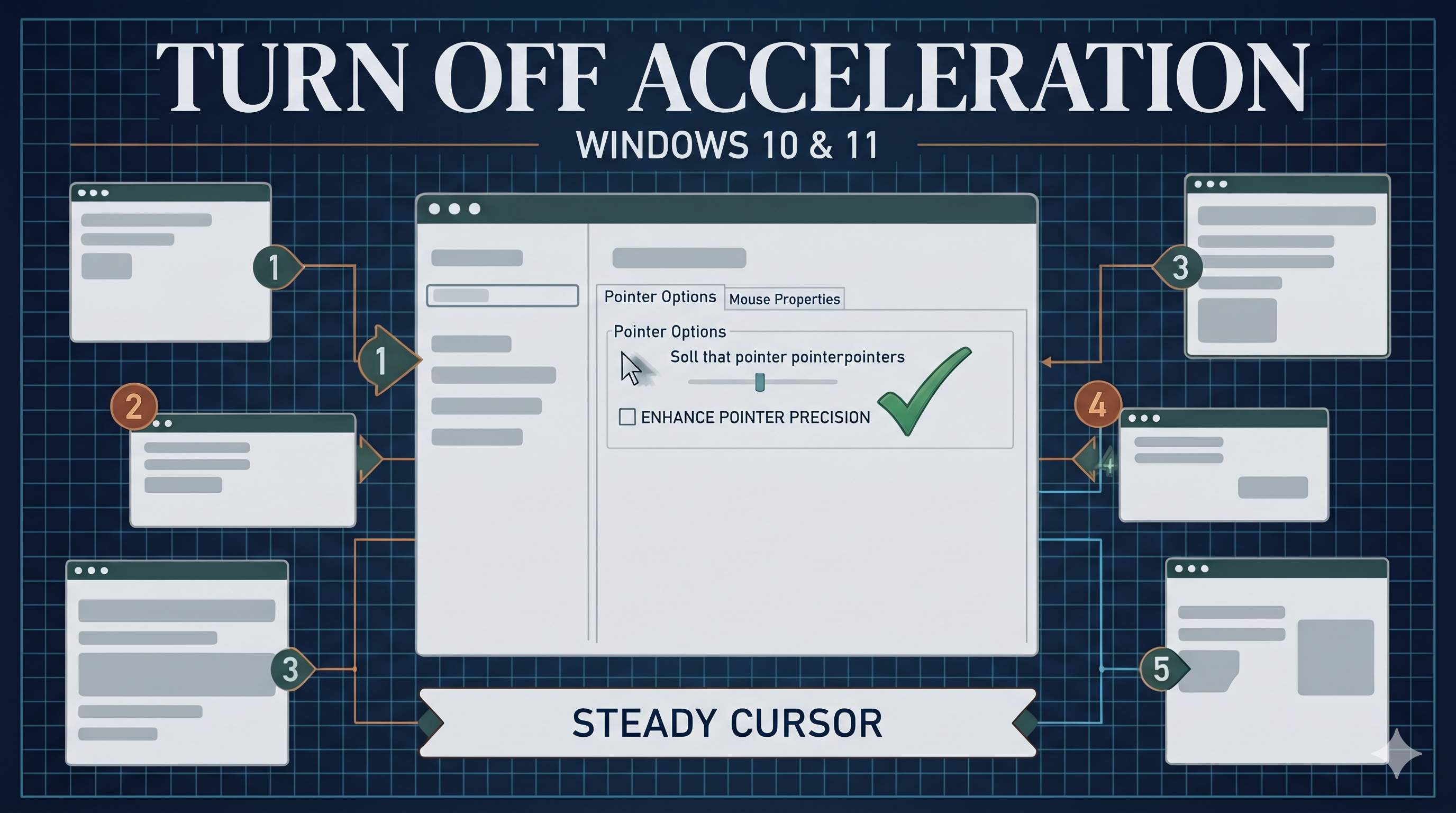
Why this works: pointer acceleration makes the cursor move farther when you move the mouse quickly. This is useful for some tasks, but it breaks muscle memory in games and drawing, and makes the cursor feel inconsistent.
- Open Settings → Bluetooth & devices → Mouse → Additional mouse settings. Windows 10: Devices → Mouse → Additional mouse options.
- Open the Pointer Options tab.
- Untick Enhance pointer precision, then click Apply.
- Adjust the Select a pointer speed slider to the middle, then test.
Fix 04Stop power saving from causing lag and drops
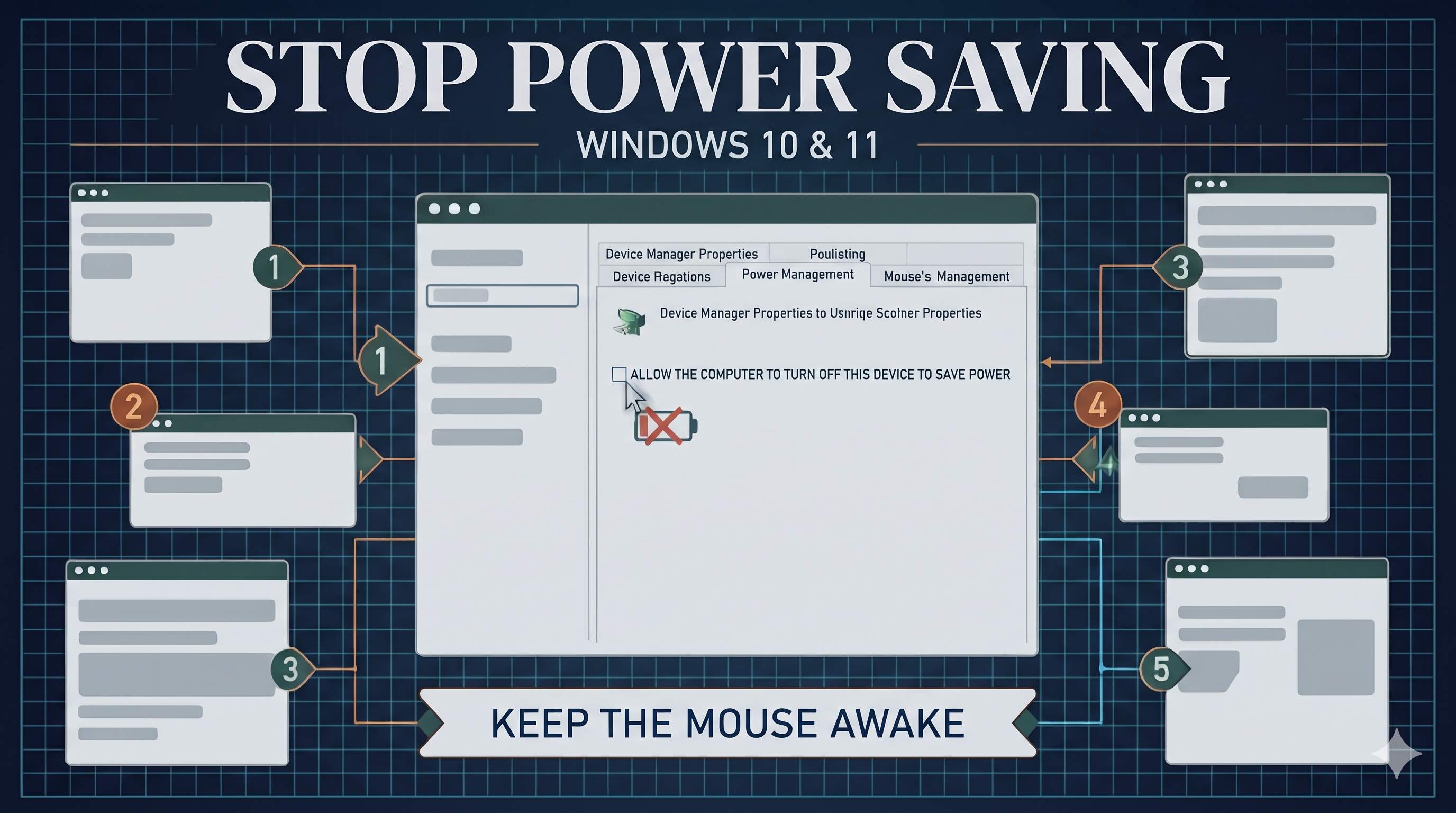
Why this works: to save battery, Windows can put USB devices to sleep. A mouse that is slow to wake up feels laggy, and a wireless mouse can drop out completely.
- Press Windows + X and open Device Manager.
- Expand Mice and other pointing devices. Double-click the mouse entry (for example HID-compliant mouse).
- Open Power Management and untick Allow the computer to turn off this device to save power. Click OK.
- Expand Universal Serial Bus controllers. For each USB Root Hub, untick the same option if the tab is shown.
- For laptops, also disable USB selective suspend in Control Panel → Power Options → Change plan settings → Change advanced power settings → USB settings.
Wireless mouse? Replace the battery first. Low battery causes lag and drops. Keep the receiver away from USB 3.0 ports and metal cases, because USB 3.0 can disturb the 2.4 GHz wireless signal.
Fix 05Stop the cursor from hiding, and check pointer size
Why this works: Windows hides the pointer while you type by default on some setups. If the pointer is also very small or the wrong color, it looks like it vanished.
- Open Mouse Properties (see Fix 3), then the Pointer Options tab.
- Untick Hide pointer while typing.
- Open Settings → Accessibility → Mouse pointer and touch and increase the pointer size if it is too small.
- If the cursor freezes but the mouse light still works, restart Windows Explorer: press Ctrl + Shift + Esc, find Windows Explorer, and click Restart.
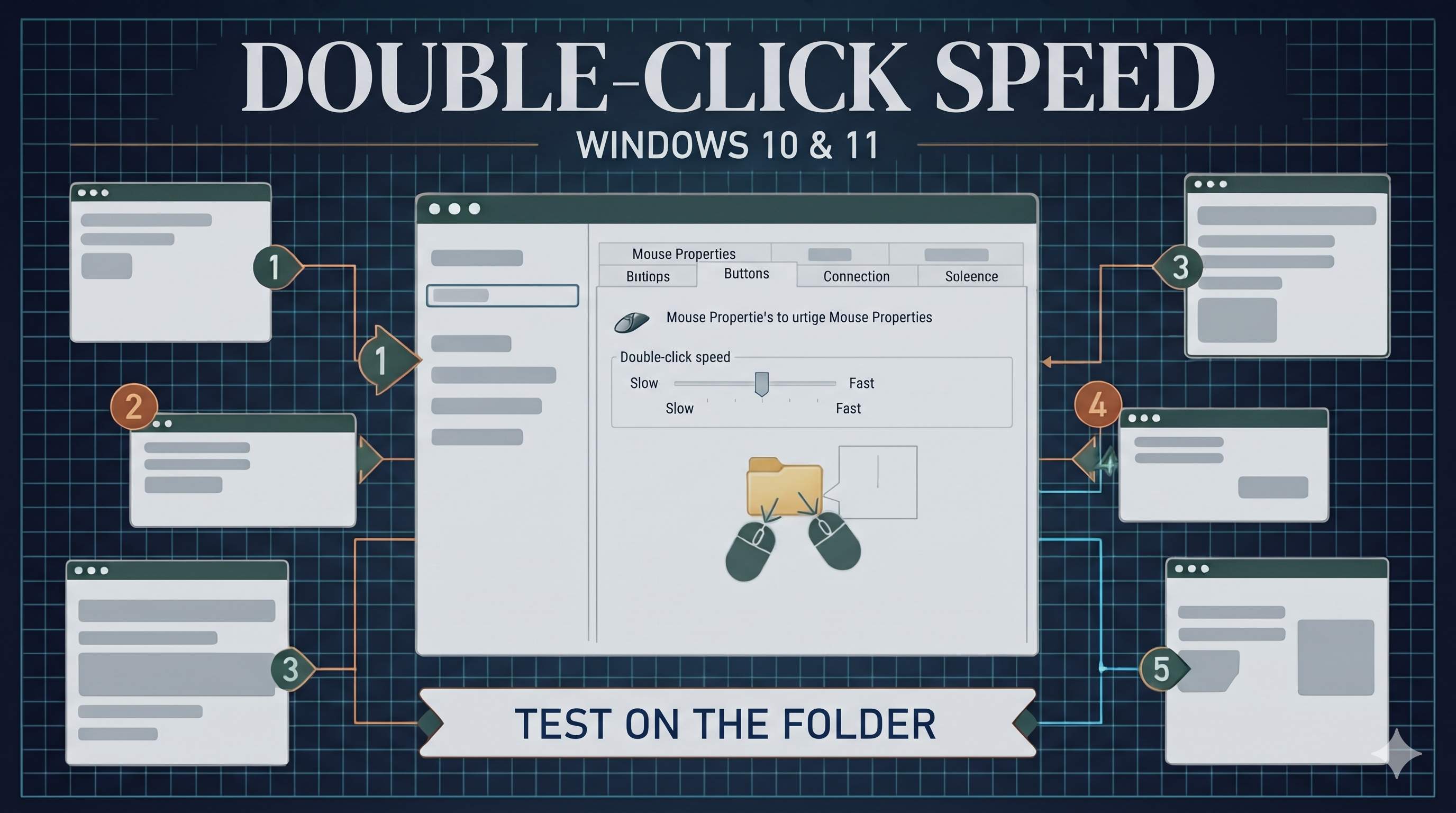
Fix 06Fix double-clicks and button speed
Why this works: a double-click is two clicks within a time window. If the window is too short, your two clicks become two single clicks. Some mice also send a click twice when the switch is worn, which is called double clicking or chatter.
- Open Control Panel (search for it), then Hardware and Sound → Mouse (Windows 10: Mouse in Control Panel).
- On the Buttons tab, move the Double-click speed slider to the middle. Double-click the folder icon to test it. It should open when you double-click.
- Untick Switch primary and secondary buttons unless you are left-handed.
- Side buttons do not work? They need the maker’s software, such as Logitech Options or Razer Synapse, to map their action.
If clicks register twice without you clicking, the switch is worn. Use the mouse on another PC to confirm. Then replace the mouse (Fix 7).
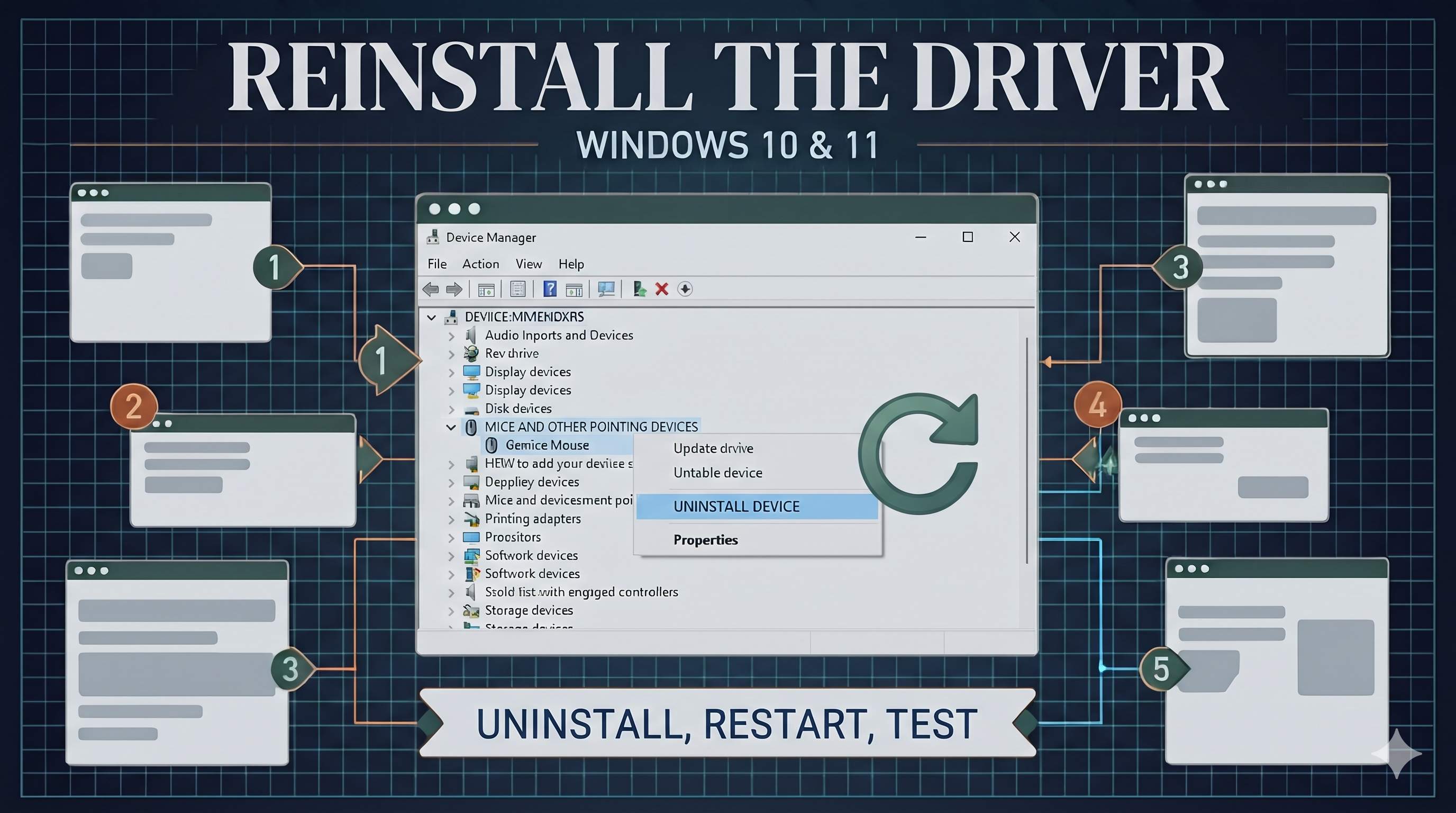
Fix 07Reinstall the driver, then check the hardware
- Open Device Manager → Mice and other pointing devices. If there is a yellow ! on the mouse, it has a driver problem.
- Right-click the mouse, choose Uninstall device, tick Delete the driver software for this device if it appears, then click Uninstall.
- Restart. Windows reinstalls the mouse driver. Test it.
Still failing on another PC too? The mouse is faulty. A worn switch, a broken cable, or a failed receiver cannot be repaired by software. Replace the mouse. For a laptop touchpad instead, see our touchpad guide.
A wired mouse rarely breaks suddenly. If it dies after a drop or spill, dry it fully before testing again.
Mouse settings explained
| Setting | What it does | Recommended for most people |
|---|---|---|
| Roll the mouse wheel to scroll | How many lines one notch scrolls. | 3 to 5 lines |
| Scroll inactive windows | Scrolls a window under the pointer without clicking it first. | On, if you have two windows open |
| Enhance pointer precision | Acceleration: faster movement moves the cursor farther. | Off, for steady movement |
| Double-click speed | Maximum time between two clicks to count as a double-click. | Middle of the slider |
| Hide pointer while typing | Hides the cursor when you type. | Off, if the cursor disappears |
| Allow the computer to turn off this device | Power saving for the mouse and USB hubs. | Off, if lag or drops happen |
Frequently asked questions
Why does my mouse lag only on battery?
Windows saves power on battery by lowering USB power and sleep timings. Untick the power saving option for the mouse and USB hubs (Fix 4), and set power mode to Balanced while on battery.
Why does the cursor jump around?
Often a worn or dirty mousepad surface, a weak wireless battery, or interference from a USB 3.0 port. Try a clean, plain surface and move the receiver to a different port.
Does a gaming mouse need extra software?
Only for its extra features: DPI, button mapping and lighting. Basic movement and clicks work without it. Install the maker’s official software if you need those features.
Why does a double-click open two things?
The double-click speed is too fast or the switch is worn. Set the speed to the middle first (Fix 6). A worn switch needs a new mouse.
Is it my mouse or my PC?
Test the mouse on another PC. If it works there, the problem is the PC. If it fails there too, the mouse is faulty.
Can I use a wireless mouse on a TV or tablet?
Some can. Check the mouse’s manual for compatibility. Most Bluetooth mice work with tablets and TVs that support them.
Keyboard problems? See the keyboard typing guide. Touchpad problems? See the touchpad guide. Keys like volume not working? See the Fn keys guide.
Mouse Still Not Working?
Tell us what you tried, and we will check the settings, drivers and logs in a secure remote session.
Get HelpAbout the Author
ConfirmFix Editorial Team creates practical Windows troubleshooting guides to help readers understand common PC problems and follow step-by-step solutions.
Updated November 2, 2026. Menu names and mouse software vary by brand and Windows version. Back up important data before changing system settings. ConfirmFix is an independent troubleshooting guide and is not affiliated with, endorsed by or sponsored by Microsoft or any mouse maker. All product names are trademarks of their owners.