Fix 100% Disk Usage in Windows 10 & 11: 10 Easy Fixes
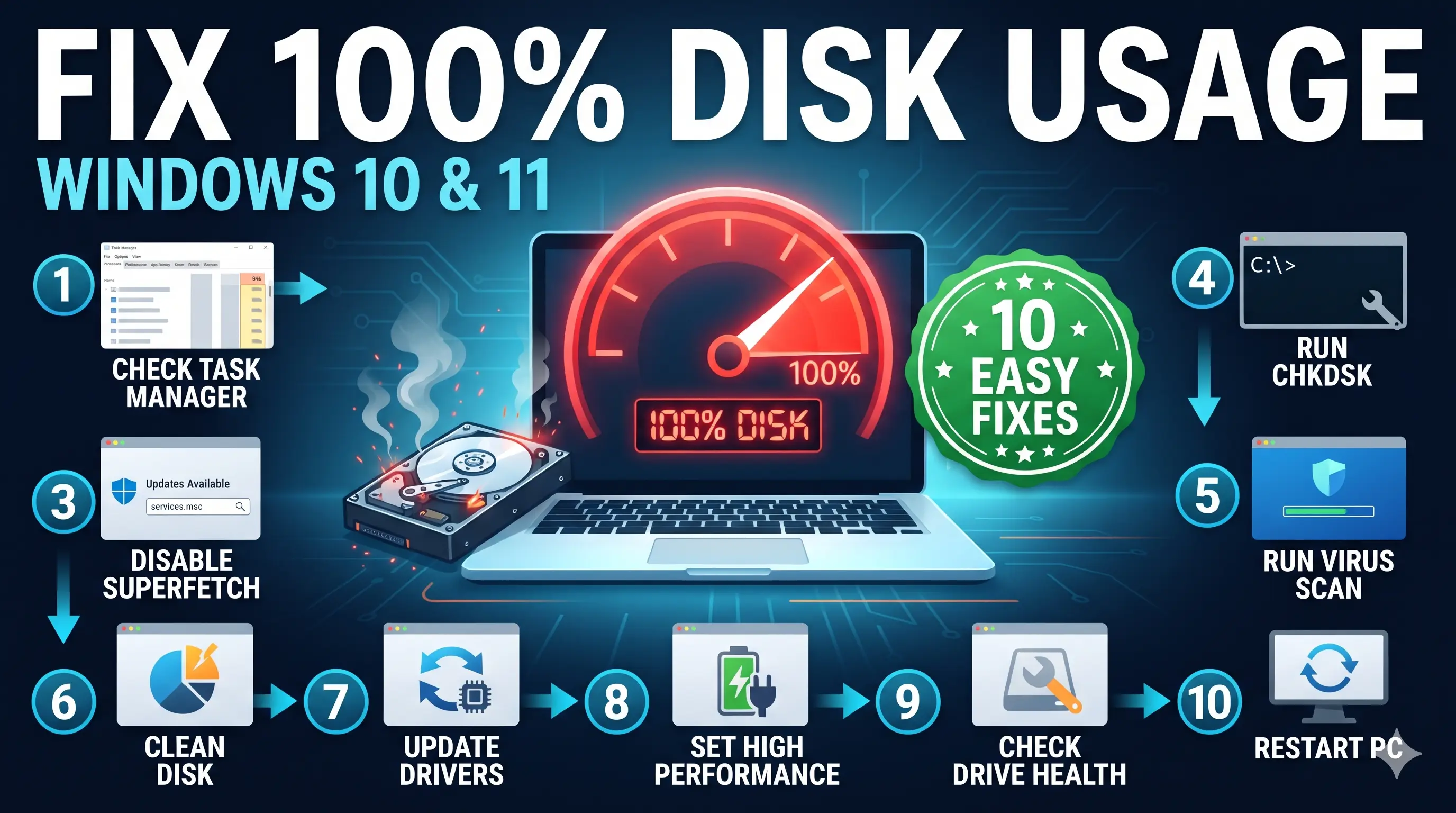
Task Manager shows your disk pinned at 100%, apps take forever to open and the whole PC crawls. Find what is hammering the drive, then fix it in order, easiest first.
Disk maxed out while CPU and memory are calm: the drive is the bottleneck.
Quick answer
Try this first: press Ctrl + Shift + Esc, click the Disk column to see which app is using the drive, then restart your PC and let Windows Update finish. If the disk is still at 100%, stop SysMain (Fix 4) and check your drive health (Fix 9).
A short burst of 100% after startup is normal. It becomes a problem when it stays there for minutes and the PC lags. The fixes below start with the safest and quickest.
Pick your symptom
Why disk usage hits 100%
| Cause | What you notice | Fix |
|---|---|---|
| Updates or Defender scan running | Spikes for 10 to 30 minutes, then calm | Fix 2 |
| Too many startup apps | 100% right after sign-in | Fix 3 |
| SysMain or Search indexing | Constant activity on an old HDD | Fix 4, 5 |
| Low space or low RAM | Slow when many apps are open | Fix 6 |
| Malware or damaged system files | Unknown process, problem returns | Fix 7, 8 |
| Failing drive or storage driver bug | Freezes, clicking noise, nothing else helps | Fix 9, 10 |
1Find what is using the disk
- Press Ctrl + Shift + Esc to open Task Manager.
- On the Processes tab, click the Disk column header to sort from highest to lowest.
- Note the top app. Browsers,
Antimalware Service ExecutableandWindows Modules Installer Workerare common.

For more detail, press Windows + R, type resmon, open the Disk tab and sort by Total (B/sec).
2Let updates and Defender finish, then restart
- Open Settings → Windows Update (on Windows 10: Update & Security → Windows Update) and install everything waiting.
- Leave the PC plugged in and idle for 20 to 30 minutes so scans and updates can finish.
- Restart the PC and check Task Manager again.
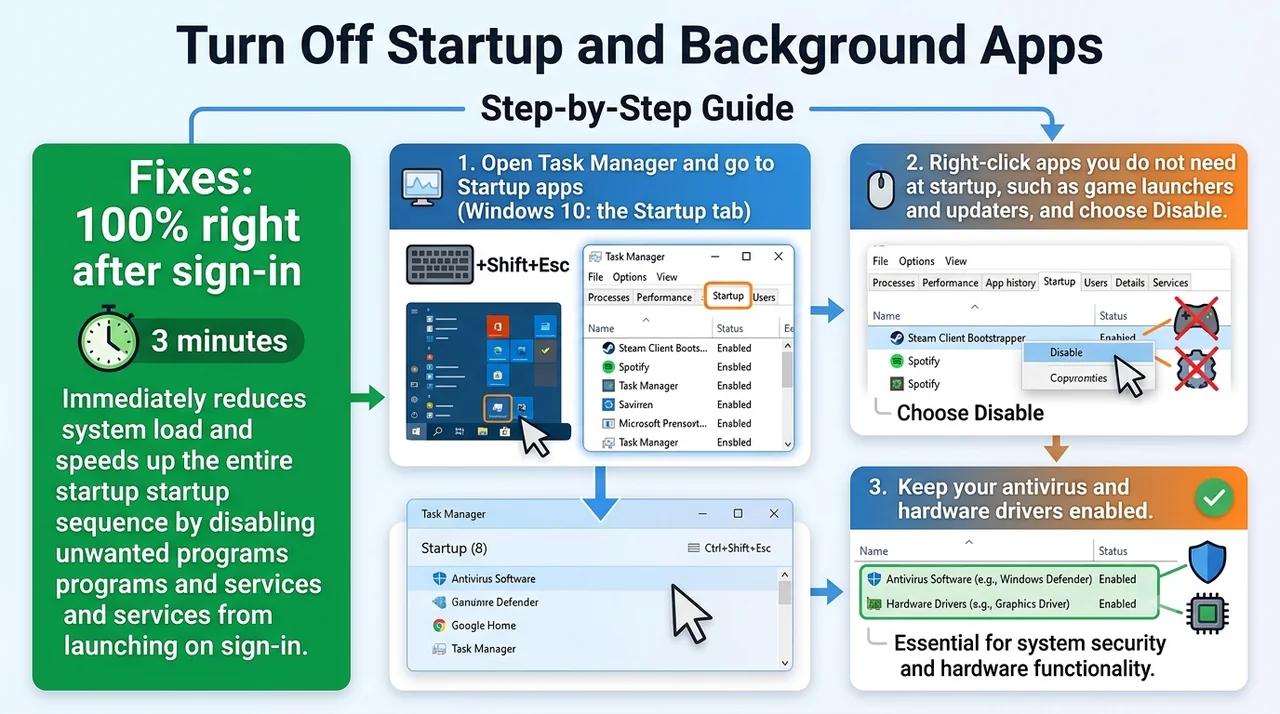
3Turn off startup and background apps
- Open Task Manager and go to Startup apps (Windows 10: the Startup tab).
- Right-click apps you do not need at startup, such as game launchers and updaters, and choose Disable.
- Keep your antivirus and hardware drivers enabled.
For more speed tips, see our guides to speeding up Windows 11 and speeding up Windows 10.
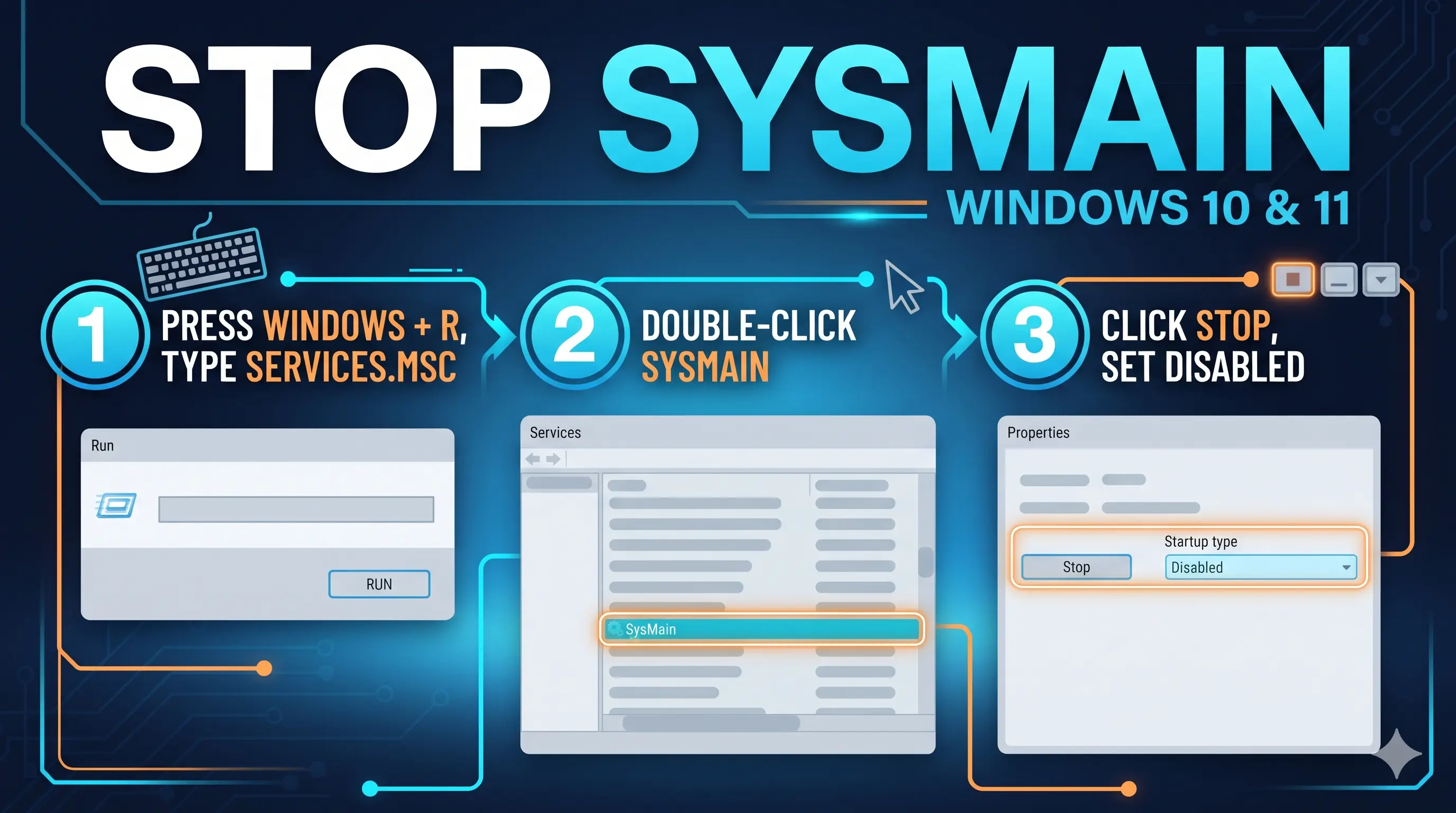
4Stop the SysMain service
SysMain (formerly Superfetch) preloads apps into memory. On a hard drive it can keep the disk busy for a long time.
- Press Windows + R, type
services.mscand press Enter. - Double-click SysMain.
- Click Stop, set Startup type to Disabled, then click Apply.
This is safe. To undo it later, set the startup type back to Automatic.
5Tame Windows Search indexing
- Click Start, type Indexing Options and open it.
- Click Modify and untick large folders you rarely search.
- Click Advanced → Rebuild and leave the PC idle while it finishes.
Still at 100%? As a test, open services.msc, double-click Windows Search, click Stop and set it to Disabled. Search will be slower, so turn it back to Automatic if it makes no difference.
6Free up space and check virtual memory
- Open Settings → System → Storage, click Temporary files and remove what you do not need. Keep 15 to 20 percent of the drive free.
- Press Windows + R, type
sysdm.cpland press Enter. - Go to Advanced → Performance Settings → Advanced → Change.
- Tick Automatically manage paging file size for all drives and click OK.
With only 4 GB of RAM, Windows swaps data to the disk all day. Upgrading to 8 GB often cuts disk usage sharply.
7Scan for malware
- Open Windows Security → Virus & threat protection → Scan options.
- Choose Microsoft Defender Antivirus (offline scan) and click Scan now.
- Your PC restarts and scans before Windows loads.
8Repair system files with DISM and SFC
- Right-click Start and choose Terminal (Admin) or Command Prompt (Admin).
- Run these two commands, one after the other:
DISM /Online /Cleanup-Image /RestoreHealth
sfc /scannow
Restart when both finish.
9Check drive health and disk errors
- Open PowerShell (Admin) and run:
Get-PhysicalDisk | Select FriendlyName, MediaType, HealthStatus
HealthStatus should say Healthy. Then scan for errors:
chkdsk C: /f /r
Type Y to schedule it and restart. On a hard drive this can take an hour.
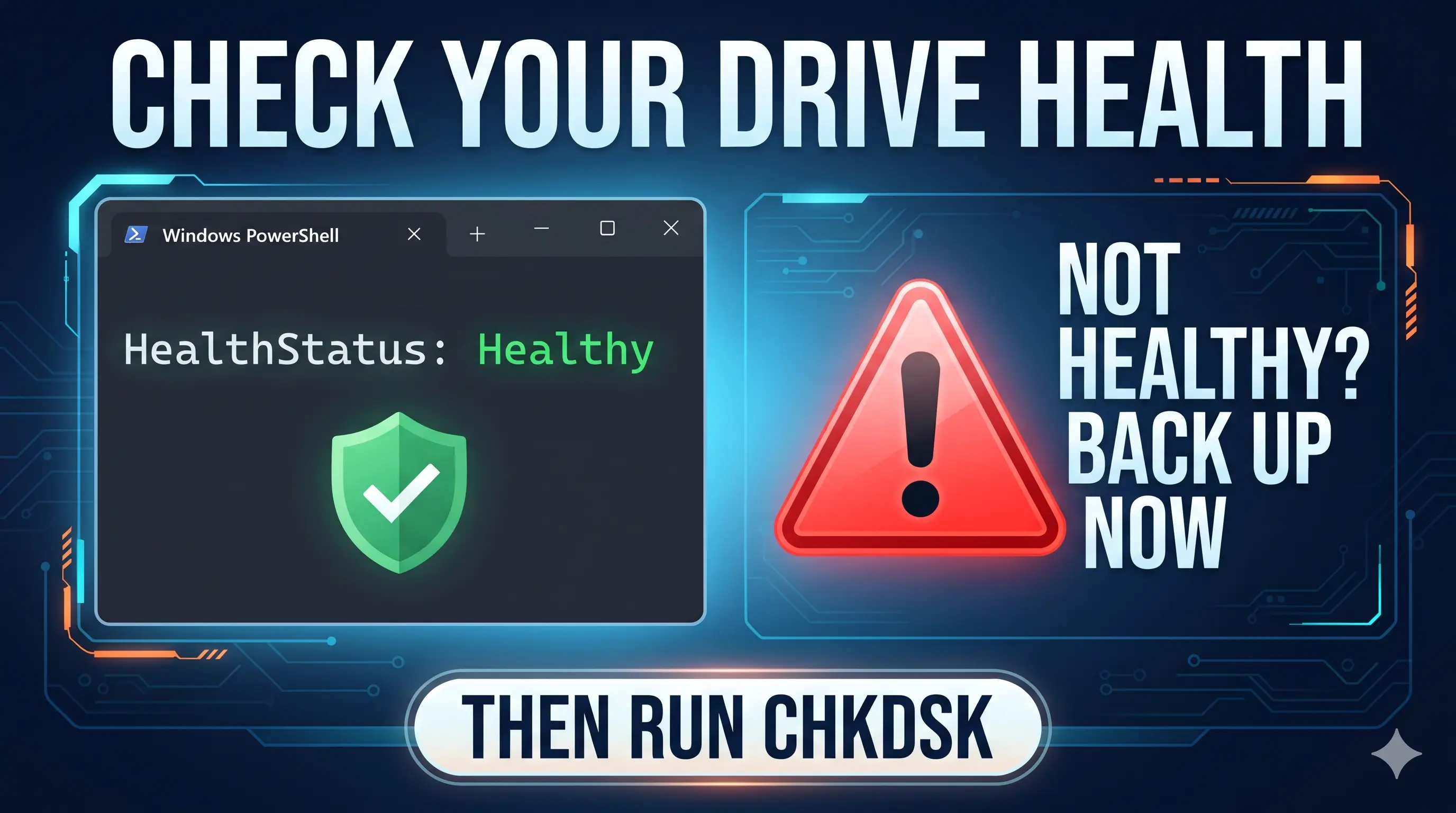
Warning: if the status is not Healthy, or you hear clicking, back up your files now. Do not wait.
10Update the storage driver (advanced)
- Open Device Manager → IDE ATA/ATAPI controllers, double-click the SATA AHCI Controller and open the Driver tab.
- Click Update Driver, or install the chipset or storage driver from your PC maker’s website.
If Driver Details lists storahci.sys, some Windows 10 systems also need a registry change that switches off MSI mode for that controller. This is an advanced step, so ask for help if you are not comfortable with it.
Before editing the registry: back up important files and create a restore point. A wrong change can stop Windows from starting.
Special cases
| Process | What it is | What to do |
|---|---|---|
| Antimalware Service Executable | Defender scanning | Wait for the scan to finish (Fix 2) |
| Windows Modules Installer Worker | Windows Update installing | Let it finish, then restart |
| Chrome or Edge | Too many tabs or extensions | Close tabs, remove extensions, clear the cache |
| System | Drivers and the Windows core | Fix 8, 9 and 10 |
- Back up files before disk repairs
- Change one setting at a time
- Restart after each major fix
- Turn off Windows Defender
- Run random “disk booster” apps
- Ignore clicking or freezing
The real fix on an old PC: upgrade to an SSD
Windows 10 and 11 run a lot of background work. A hard drive handles it slowly, so disk usage stays near 100% even when your settings are perfect. An SSD does the same work many times faster and is usually the biggest upgrade you can make.

Related guides: fix high CPU usage and fix slow startup.
Frequently asked questions
Is 100% disk usage bad?
Short spikes after startup or during updates are normal. Disk usage stuck at 100% while the PC lags is a problem. Task Manager shows how busy the disk is, not how fast it is.
Why is my disk at 100% when nothing is running?
Background work is the usual cause: Windows Update, Windows Search indexing, SysMain, a Defender scan, or an old hard drive that cannot keep up. A failing drive can also cause it.
Is it safe to disable SysMain?
Yes. SysMain only preloads apps to speed them up. Windows runs normally without it, and you can turn it back on at any time by setting it to Automatic.
Will an SSD fix 100% disk usage?
On a PC with a hard drive (HDD), an SSD is usually the biggest fix because it handles Windows background work far faster.
Can a failing drive cause 100% disk usage?
Yes. Freezes, clicking noises, or a drive health status other than Healthy are warning signs. Back up your files first, then replace the drive.
Can’t Fix Your PC Problem? Get Remote Support.
Tell us what is happening and get guided help in a secure remote session.
Get HelpReferences and official sources
Official Microsoft documentation for the tools used in this guide:
Last updated and reviewed: . ConfirmFix is an independent troubleshooting guide and is not affiliated with Microsoft.
Updated October 31, 2026. Menu names vary by Windows build and PC brand. Back up important data before running commands or editing the registry. ConfirmFix is an independent troubleshooting guide and is not affiliated with, endorsed by or sponsored by Microsoft. Windows is a trademark of Microsoft Corporation.
Pingback: Night Light Not Working in Windows 11: 10 Fixes That Work
Pingback: Fix "Default Boot Device Missing or Boot Failed" on Lenovo: 9 Fixes (2026)