Fix “Boot Device Not Found” (3F0) on HP Laptop: 9 Proven Fixes
Black screen, “Hard Disk – (3F0)” and no Windows? Do not panic. In most cases your files are safe and the fix takes minutes. Follow the steps in order, from a simple power reset to repairing the boot files.
By ConfirmFix Editorial Team · Updated November 2, 2026
Please install an operating system on your hard disk.
Hard Disk – (3F0)
Press any key to continue
Quick answer
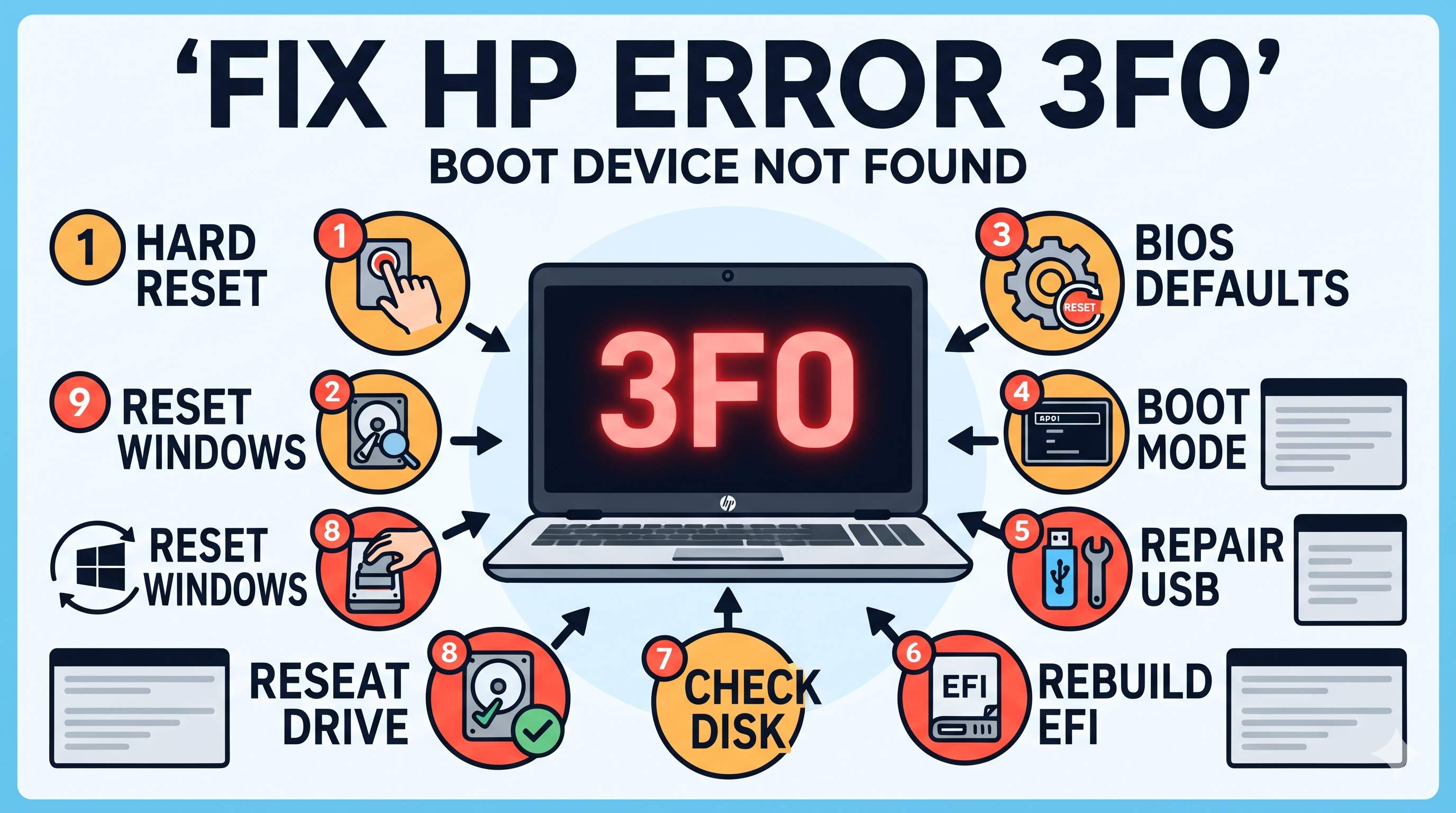
3F0 means the laptop cannot find a bootable drive. Do this first: turn the laptop off, unplug the charger, hold the power button for 15 seconds (Fix 1). Then check whether the BIOS can see your drive (Fix 2). If it can, the problem is settings or boot files (Fixes 3 to 7). If it cannot, the drive is loose or failing (Fix 8).
| Cause | How common | Fix |
|---|---|---|
| Temporary power or hardware glitch | Very common | Fix 1 |
| Boot order or boot mode changed | Common | Fix 3, 4 |
| Damaged Windows boot files | Common after power loss or failed update | Fix 5, 6, 7 |
| Loose or failing drive | Less common, most serious | Fix 2, 8 |
Does your BIOS see the drive?
This one check tells you which fixes to try. Press Esc repeatedly as the laptop starts, then F10 to open the BIOS Setup, and look for your drive on the main or system information page.
The 9 fixes
Do a hard reset (power drain)
This clears temporary hardware errors and fixes the 3F0 error more often than you would expect.
- Turn the laptop off and unplug the charger.
- Remove USB drives, SD cards, printers and other devices.
- If the battery is removable, take it out.
- Press and hold the power button for 15 to 20 seconds.
- Reconnect the charger (and the battery), then turn the laptop on.
- If a startup menu appears, choose Start Windows Normally.
Run the HP hard drive test
- Turn the laptop on and press F2 repeatedly to open HP PC Hardware Diagnostics UEFI.
- Open Component Tests, choose Hard Drive, and run the Quick Test. Test names can differ slightly by model.
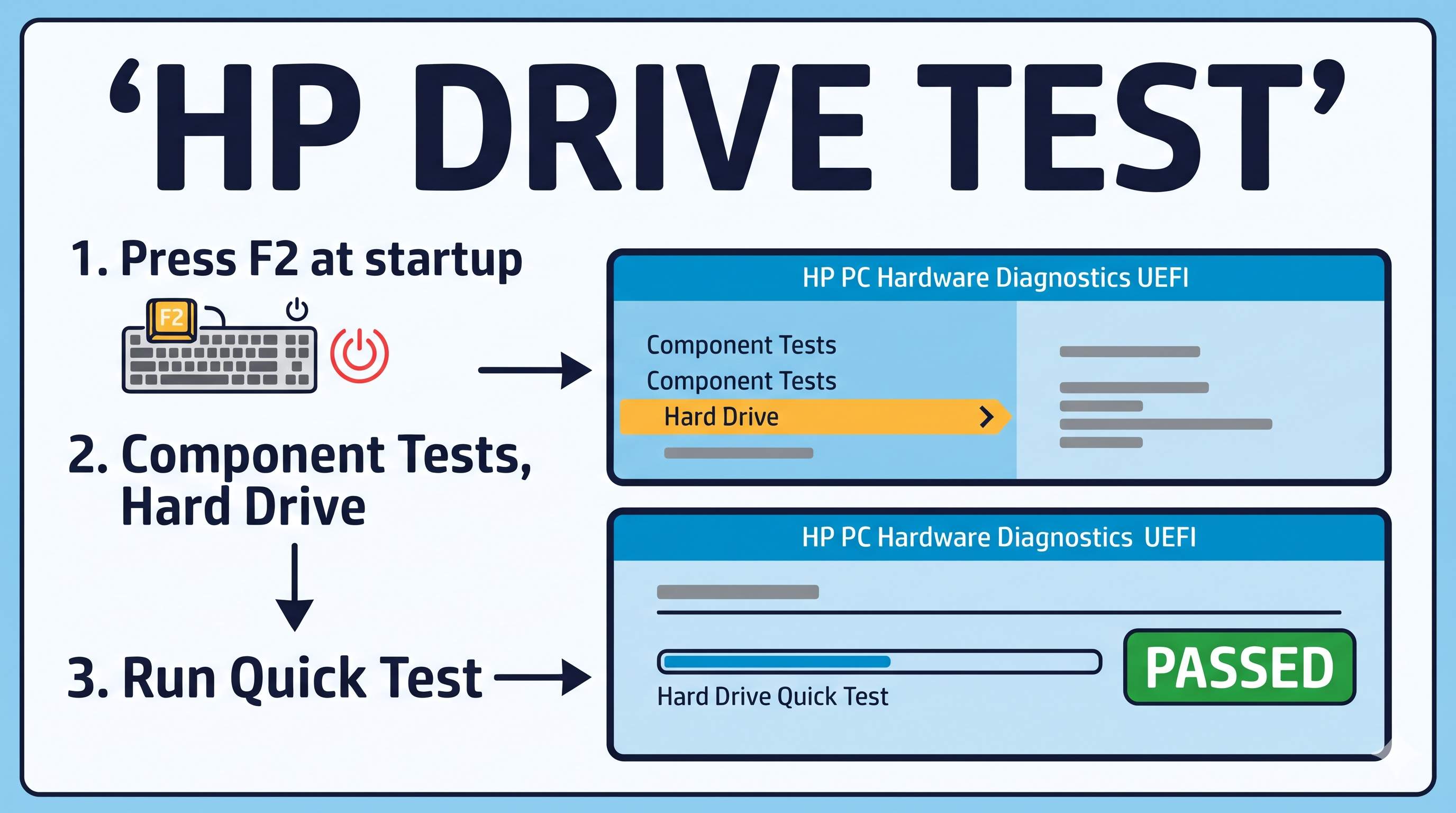
If the drive fails the test or the test says no drive is found, go to Fix 8. If the drive passes, continue with Fix 3. Write down any failure ID shown. HP support can use it.
Load BIOS defaults and fix the boot order
- Press Esc repeatedly at startup, then F10 to open the BIOS Setup.
- Press F9 to load Setup Defaults and confirm with Yes.
- Open Boot Options (look under System Configuration or Advanced) and make sure Windows Boot Manager or your drive is first in the boot order.
- Press F10 to save and exit.
A dead CMOS battery or a BIOS update can reset these settings, which is why 3F0 sometimes appears out of nowhere.
Check boot mode: UEFI, Legacy and Secure Boot
If Windows was installed in UEFI mode and the laptop is switched to Legacy (or the other way round), the drive is not recognized as bootable.
- Open the BIOS Setup as in Fix 3.
- Find Boot Options and look at UEFI/Legacy settings and Secure Boot.
- Switch to the other mode, save and test. If your BIOS shows a code to type for confirmation, enter it.
- If it still fails, set it back to the original mode so you do not make things worse.
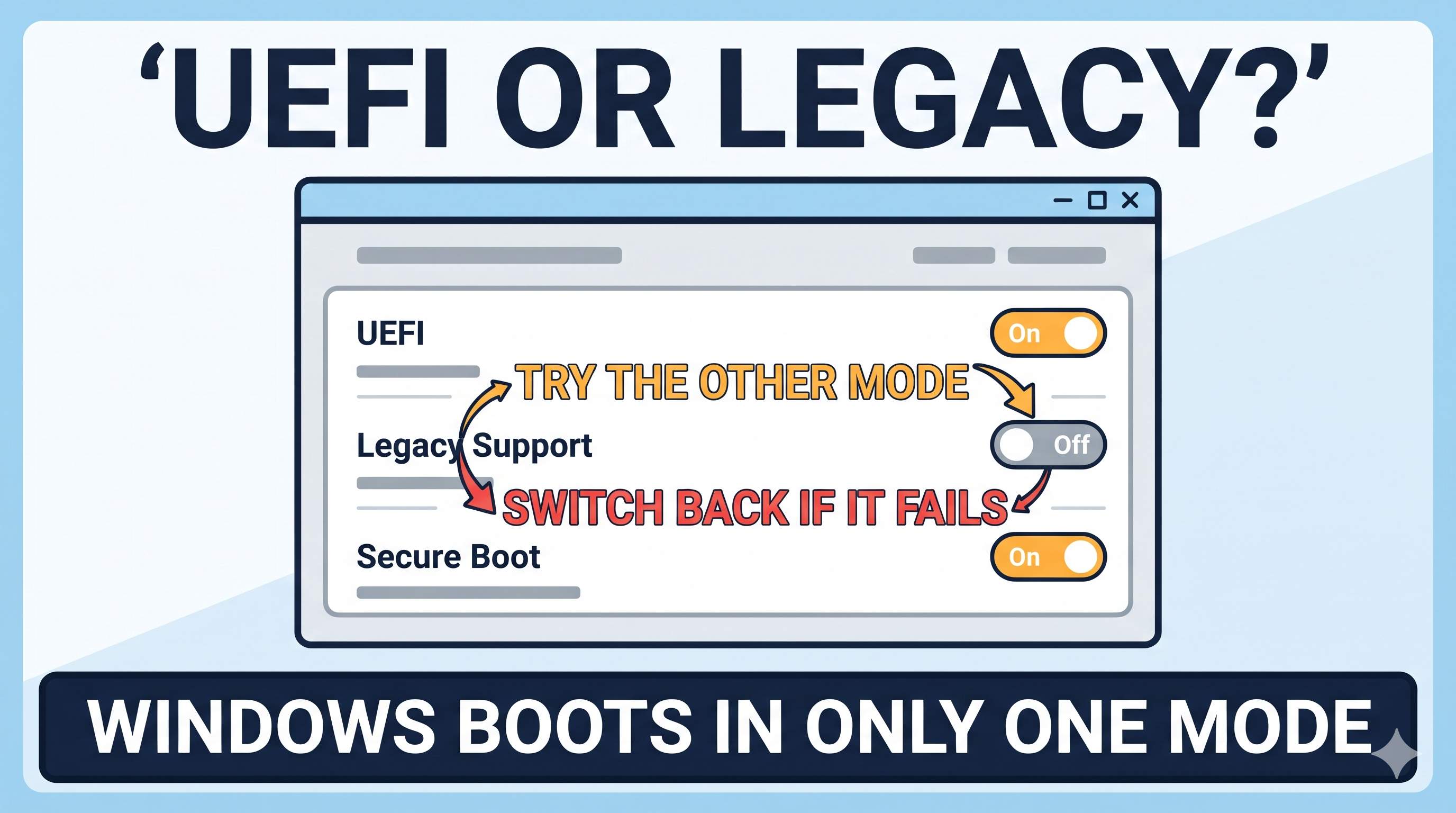
“No Legacy boot option”? On many HP models the Legacy option appears only after you turn off Secure Boot. Newer laptops may not offer Legacy mode at all. That is normal.
Repair the boot files with a Windows USB
You need a working PC to make a Windows installation USB with Microsoft’s Windows 11 or Windows 10 download tool.
- Plug the USB into the HP laptop and press Esc then F9 at startup. Pick the USB drive.
- Choose your language, click Next, then Repair your computer.
- Go to Troubleshoot → Advanced options. Try Startup Repair first.
- If it fails, open Command Prompt and run these commands one by one:
bootrec /fixmbr
bootrec /fixboot
bootrec /scanos
bootrec /rebuildbcd
Type exit, remove the USB, and restart.
If “Access is denied” appears: rebuild the EFI boot files
On modern laptops bootrec /fixboot often fails with “Access is denied”. Rebuild the boot files like this, in the same Command Prompt:
diskpart
list disk
sel disk 0
list vol- Find the small FAT32 volume (about 100 to 500 MB). Note its number, for example 3.
- Run the next commands. Use your own volume number.
sel vol 3
assign letter=S
exit
dir C:\
bcdboot C:\Windows /s S: /f UEFI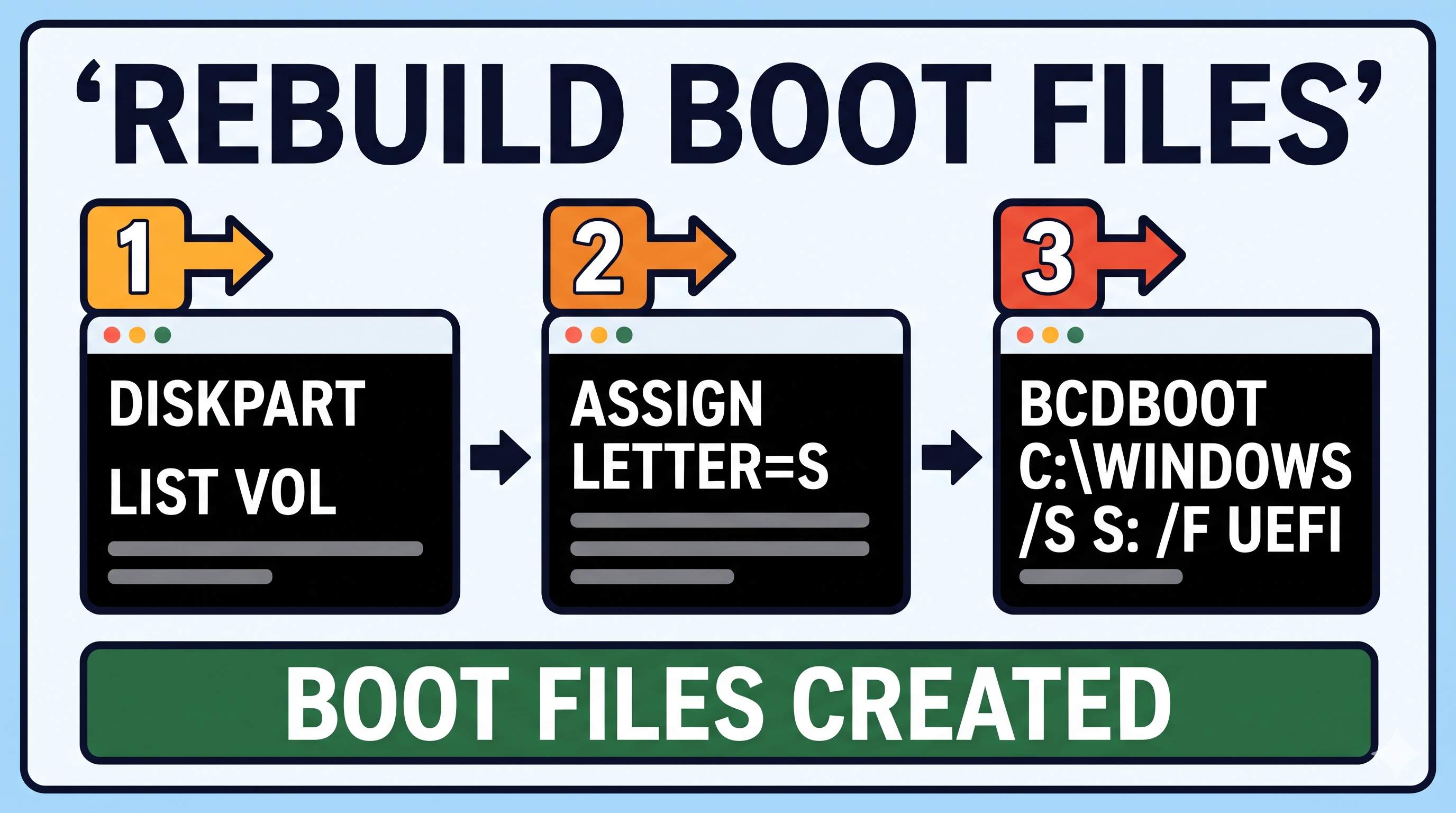
If dir C:\ does not show a Windows folder, try D: or E: and use that letter in the bcdboot command. You should see “Boot files successfully created”. Then restart.
Check the drive for errors
In the same Command Prompt, run this (use the letter where Windows lives):
chkdsk C: /f /rIt can take an hour on a hard drive. If Windows now starts but loops into repair screens, see our guide to the Automatic Repair loop.
Reseat or replace the drive
If the BIOS never lists your drive, and the hard drive test failed or found nothing, the drive may be loose or dead.
- Power off, unplug the charger, and remove the battery if you can.
- Open the bottom cover. Take out the drive and plug it back in firmly. An M.2 SSD is held by one small screw.
- Start the laptop and check the BIOS again.
If the BIOS still shows no drive, the drive has failed and needs replacing. If you are not comfortable opening the laptop, ask a technician. Opening some laptops may affect your warranty. To save your files, connect the old drive to another PC with a USB drive enclosure.
Last resort: reset or reinstall Windows
- Boot from the USB (Fix 5) and open Troubleshoot → Reset this PC → Keep my files.
- If that is not possible, do a clean install from the USB. This erases the drive, so back up first.
A reset only helps if the drive is healthy. If Fix 2 showed a failing drive, replace the drive first.
Related boot errors
| Your error | Read this |
|---|---|
| Dell: “No bootable device found” | Fix the Dell error |
| Stuck in “Preparing Automatic Repair” | Fix the Automatic Repair loop |
| Any other boot problem | Boot & Startup Errors guide |
Frequently asked questions
What does Hard Disk (3F0) mean?
It is HP’s code for the laptop’s first boot device, the hard drive or SSD. The message means the BIOS cannot find a bootable operating system on it.
Will I lose my files?
Usually not. Fixes 1 to 7 do not erase anything. Only a clean install (Fix 9) erases the drive, so back up before you try it.
Can a hard reset really fix 3F0?
Yes, because it clears temporary power and hardware states. It costs nothing and takes a few minutes, so always try it first.
Is my SSD dead if I see 3F0?
Not necessarily. Boot settings and damaged boot files cause 3F0 more often than a dead drive. The BIOS drive check in Fix 2 tells you which.
Can I fix it without a USB drive?
Fixes 1 to 4 need no USB. Repairing boot files (Fixes 5 to 7) needs a Windows USB made on another PC.
When should I see a technician?
If the BIOS does not list the drive, or the HP hard drive test fails, the drive needs to be reseated or replaced.
Need Help With 3F0?
If your laptop cannot start Windows, remote support cannot connect to it. Contact us and we will tell you honestly what is needed.
Contact UsAbout the Author
ConfirmFix Editorial Team creates practical Windows troubleshooting guides to help readers understand common PC problems and follow step-by-step solutions.
Updated November 2, 2026. BIOS menus differ by HP model and BIOS version. Back up important data before running repair commands. ConfirmFix is an independent troubleshooting guide and is not affiliated with, endorsed by or sponsored by HP or Microsoft. HP and Windows are trademarks of their owners.
Pingback: Fix "Your PC Needs to Be Repaired" and Error 0xc00000e9 in Windows (2026)