What's In This Guide
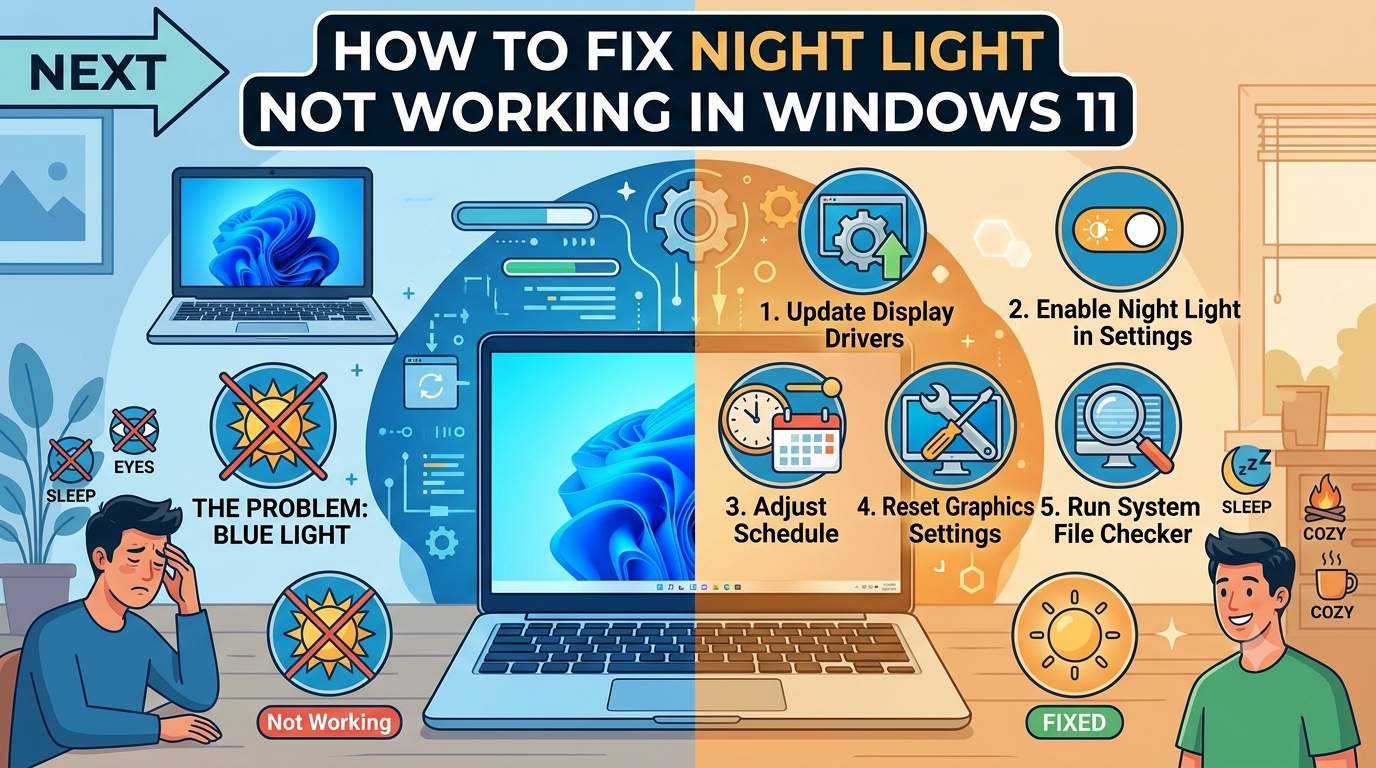
01. Quick Overview: Night Light Problems at a Glance
| Item | Details |
|---|---|
| What it does | Shifts screen color warmer to reduce blue light, manually or on a schedule |
| Where to find it | Settings > System > Display > Night light, or Win + A quick settings |
| Common causes | Display driver problems, location or time settings, HDR, a corrupted settings cache, monitor or dock limits |
| Driver limits | Some DisplayLink and Basic Display drivers don't support Night Light |
| Most reliable last fix | Export, then delete the two Night Light registry subkeys and restart |
| Skills needed | Opening Settings and Device Manager; Registry Editor for step 7 |
02. Symptom and Cause Finder
| What You See | Likely Cause | First Fix |
|---|---|---|
| Night light switch greyed out | Display driver or corrupted settings cache | Sections 5 and 7 |
| Schedule option greyed out | Location services off or wrong time zone | Section 4 |
| Turns on but no color change | Strength at 0, HDR, or monitor color override | Sections 3 and 6 |
| Won't turn off, or turns on by itself | Stuck state in saved settings, or a schedule | Sections 8 and 7 |
| Works on laptop screen, not external monitor | Dock, adapter or driver doesn't pass color changes | Section 6 |
| Broke after a Windows update | Driver mismatch or cache issue | Sections 5 and 9 |
| Red tint only in HDR content | Night Light combined with HDR | Section 6 |
03. Basic Settings Check
- Open Night light settings. Go to Settings > System > Display > Night light.
- Turn it on manually. Use Turn on now, or press
Win + Aand click the Night light tile. - Raise the Strength slider. At a low value the change is barely visible, so drag it toward the middle.
- Turn the schedule off and on again. Disable the schedule, enable Night light manually, then re-enable the schedule.
- Restart Windows. A full restart, not just sleep, clears many temporary display glitches.
04. Location, Date and Time Settings
05. Display Driver Fix
- Check the adapter name. Right-click Start > Device Manager > Display adapters. "Microsoft Basic Display Adapter" means no proper driver is installed.
- Update the driver. Right-click the adapter > Update driver. Better, install the latest driver from Intel, AMD, NVIDIA or your laptop maker.
- Reinstall if needed. Right-click the adapter > Uninstall device, restart, and let Windows reinstall a compatible driver, or install the maker's package.
- Test without a dock. Some DisplayLink and docking drivers don't support Night Light. Connect the display directly to compare.
06. HDR, Color Settings and External Monitors
- Test with HDR off. Go to Settings > System > Display > HDR and turn it off for the screen, then try Night light again.
- Check vendor color tools. NVIDIA Control Panel, AMD Software or Intel Graphics Command Center may override color settings. Reset their color adjustments to default.
- Remove custom color profiles. In Settings > System > Display > Advanced display, check for a calibrated or custom profile that overrides Windows.
- Check the monitor. Reset the monitor's own color or "blue light" mode to default, since it can conflict with Windows.
07. Registry Reset for a Greyed-Out Night Light
Microsoft documents this fix for a greyed-out Night Light after a driver update didn't help. Back up first: in Registry Editor choose File > Export.
- Open Registry Editor. Press
Win + R, typeregedit, press Enter. - Go to this key. Paste the path below into the address bar.
- Export, then delete both subkeys. Right-click each, choose Export, save it, then Delete.
- Restart Windows and check whether Night light is available again.
Names may vary slightly between Windows builds (some show a "default$" prefix). Delete only keys containing bluelightreduction.
08. Night Light Stuck On or Won't Turn Off
- Disable the schedule. In Night light settings, turn off the schedule so it can't switch on by itself.
- Toggle it manually. Use Turn off now, then check the quick settings tile matches.
- Update the display driver (section 5). A corrupt driver is a known cause.
- Reset the saved state. A reported cause of Night Light turning on after startup is a stuck saved state; the registry reset in section 7 clears it.
09. Windows Updates and System Repair
Install pending updates in Settings > Windows Update, restart, then run these from Terminal (Admin).
Also try Settings > System > Troubleshoot > Other troubleshooters if a display troubleshooter is listed.
10. Fix Methods Compared
| Method | Data Loss Risk | Typical Time | Best For |
|---|---|---|---|
| Toggle, strength, restart | None | 1–3 min | No visible change |
| Location and time fix | None | 2–5 min | Schedule greyed out |
| Update display driver | None | 10–20 min | Switch greyed out |
| HDR / color tool reset | None | 5–10 min | On but no effect |
| Registry reset | Low (export first) | 5–10 min | Greyed out or stuck |
| DISM + SFC | None | 15–40 min | After updates |
| Reset this PC (keep files) | Apps removed | 45–90 min | Last resort |
11. Effort vs. Risk Meter
12. Do's and Don'ts
- ✔️Try the simple settings first
- ✔️Get drivers from Intel, AMD, NVIDIA or your maker
- ✔️Export registry keys before deleting
- ✔️Test without a dock or adapter
- ✔️Restart after each change
- ✖️Delete registry keys you don't recognize
- ✖️Use registry cleaners or "fixer" tools
- ✖️Install drivers from random sites
- ✖️Run Night Light and a monitor blue-light mode together
- ✖️Reset Windows as a first step
13. Which Fix For Your Situation
| Your Situation | Start With | Then Try |
|---|---|---|
| Night light switch greyed out | Update display driver | Registry reset |
| Only the schedule is greyed out | Location + time zone | Use set hours |
| On, but screen looks unchanged | Raise strength, HDR off | Reset vendor color tools |
| Stuck on or won't turn off | Disable schedule | Registry reset, driver update |
| External monitor ignores it | Direct connection test | Different cable or adapter |
| Nothing works | DISM + SFC | Ask for help, then Reset (keep files) |
14. Prevent It Returning
15. Final Summary
The Order That Works Best
Check the toggle, strength and schedule, then confirm location and time. Update or reinstall the display driver, test HDR and color tools, and only then export and delete the two Night Light registry subkeys.
If an external display or dock is involved, test with a direct connection. If you're still stuck, send us the details below and we'll look at it with you.