Quick answer
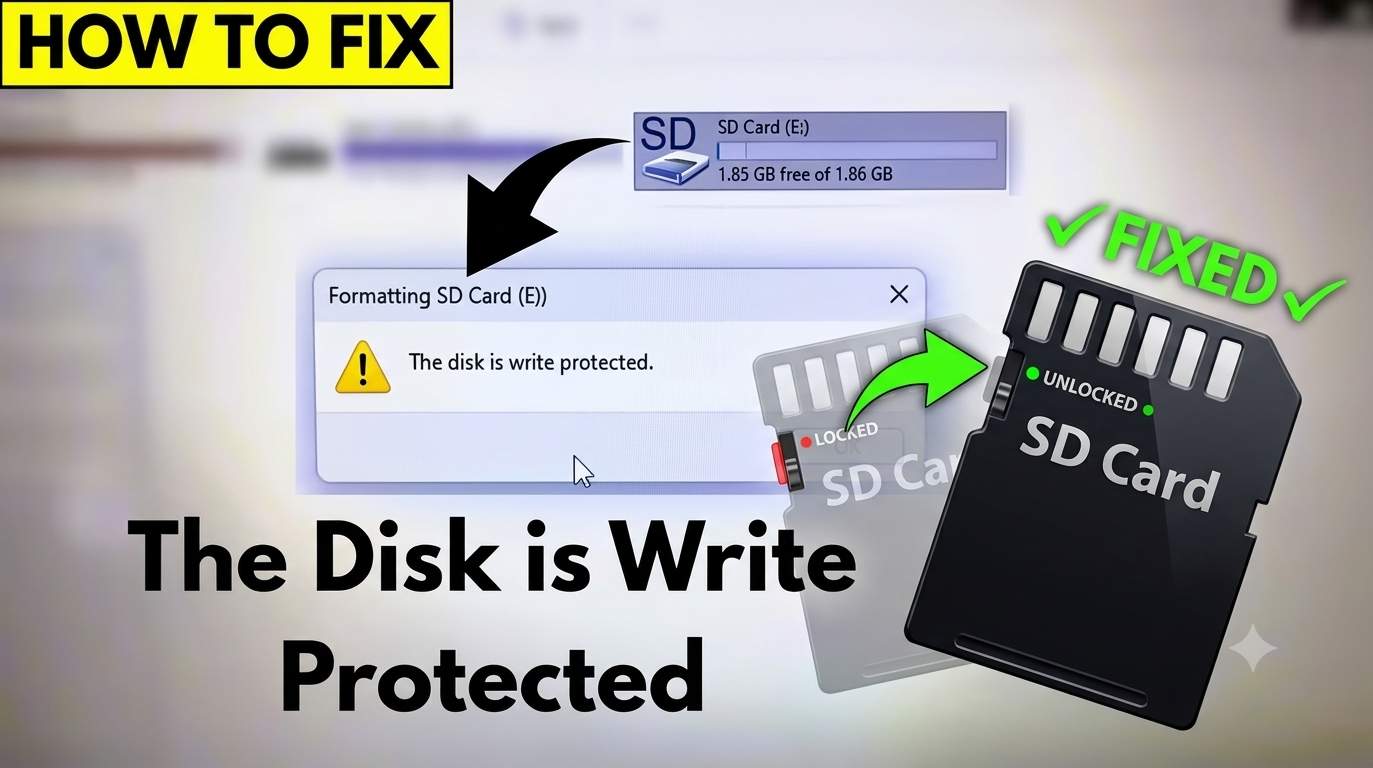
Do this first: slide the lock switch on the SD card (or its adapter) toward the contacts, which is the unlocked position. If the card is still protected on Windows, open Command Prompt as administrator and run diskpart, list disk, select disk X, then attributes disk clear readonly. Still stuck? Work through the registry, BitLocker, policy and error-check fixes below.
Save your files first. A write-protected card can almost always still be read. Copy everything to your computer before formatting, because formatting erases the card.
What write protection means (and the error you see)
Write protection makes a card read-only. You can open and copy files, but you cannot save, delete, rename or format. It can be enforced by a physical switch, by the disk's read-only attribute, by Windows policy, by encryption, or by the card's own controller.
| Device | Message |
|---|---|
| Windows | "The disk is write protected," "Windows was unable to complete the format," "Remove write protection or use another disk" |
| Mac | "The disk can't be modified," "read-only," "operation can't be completed" |
| Camera | "Card locked," "Memory card is write protected," "Card error" |
| Android | "SD card is read-only," "Can't write to SD card," "Blank SD card" |
| Nintendo 3DS | "SD card is write protected" or save errors |
| Linux | "Read-only file system," "Operation not permitted" |
Find your fix in 2 questions
Why an SD card becomes write protected
| Cause | Clue | Fix |
|---|---|---|
| Lock switch on card or adapter | Full-size card, or microSD in an adapter | Fix 1 |
| Faulty reader, port or adapter | Card works in another reader | Fix 2 |
| Read-only disk attribute | Diskpart shows Current Read-only State: Yes | Fix 3 |
| WriteProtect registry value | Every USB drive is read-only | Fix 4 |
| Group Policy deny-write rule | Work, school or shared PC | Fix 5 |
| BitLocker To Go encryption | Padlock icon on the drive | Fix 6 |
| File system errors | Slow card, missing files, RAW drive | Fix 7 |
| Virus or malware | Hidden files, shortcuts instead of folders | Fix 8 |
| Worn-out or fake card | Read-only again after every fix | Dead card section |
Fix 1: Unlock the physical lock switch
- Remove the card and look at the left edge (card label facing up, contacts down). Find the small slider.
- Slide it up toward the contacts into the unlocked position. Down toward the label end locks it.
- Reinsert it and try saving a file.
MicroSD cards have no switch, but the SD adapter does. A switch that is loose, broken or stuck halfway can fool the reader, so slide it firmly several times. If it still reports locked, try another adapter. Some people tape over the switch notch on a broken adapter, but a replacement adapter is cheap and more reliable.
Fix 2: Rule out the reader, port and cable
- Try another USB port, preferably directly on the PC, not a hub.
- Try a different card reader or the laptop's built-in slot.
- Test the card in a second computer or in the camera.
- Blow dust from the card contacts and wipe them with a dry lint-free cloth.
If the card works as writable elsewhere, the original reader or its driver is the problem. If it is read-only everywhere, continue.
Fix 3: Clear the read-only attribute with Diskpart (CMD)
- Press Win+X and choose Terminal (Admin) or Command Prompt (Admin).
- Run the commands below. Replace
2with the number of your SD card, matching its size.
diskpart
list disk
select disk 2
attributes disk
attributes disk clear readonly
attributes volume clear readonly
exit
Success looks like "Disk attributes cleared successfully." The first attributes disk line shows Current Read-only State so you can confirm before and after.
Pick the right disk. Selecting your C: drive by mistake is the biggest risk. Confirm the size in list disk. Do not use clean unless you intend to erase the card.
Diskpart cannot remove a hardware, firmware or policy lock. If the attribute returns after you reinsert the card, go on to the other fixes.
Fix 4: Check the WriteProtect registry value
- Press Win+R, type
regedit, press Enter. - Go to
HKEY_LOCAL_MACHINE\SYSTEM\CurrentControlSet\Control\StorageDevicePolicies. - Set WriteProtect to
0. If the key does not exist, the registry is not the cause. - Restart and reinsert the card.
Or run this in an admin Command Prompt after backing up the registry:
reg add "HKLM\SYSTEM\CurrentControlSet\Control\StorageDevicePolicies" /v WriteProtect /t REG_DWORD /d 0 /f
Fix 5: Remove a Group Policy or removable storage block
On Windows Pro, Enterprise and Education, press Win+R, run gpedit.msc and go to Computer Configuration → Administrative Templates → System → Removable Storage Access. Set Removable Disks: Deny write access to Not Configured or Disabled.
On Windows Home, check HKLM\Software\Policies\Microsoft\Windows\RemovableStorageDevices for a Deny_Write value of 1. On a managed PC, only your administrator can lift the rule, and it can return at the next policy refresh.
Fix 6: Unlock a BitLocker-encrypted card
A card encrypted with BitLocker To Go shows a padlock. Open it in File Explorer, enter the password or recovery key, or check status:
manage-bde -status E:
manage-bde -unlock E: -Password
Without the password or recovery key, the data cannot be read. Find the key in your Microsoft account or printed backup.
Fix 7: Scan and repair file system errors
- Open This PC, right-click the card → Properties → Tools → Check.
- Or use an admin Command Prompt (replace
E:with your drive):
chkdsk E: /f /r
The /r option scans for bad sectors and can take a long time on large cards. Many bad sectors suggest the card is wearing out.
Fix 8: Scan for malware and unhide files
- Run Windows Security → Virus & threat protection → Scan options → Full scan with the card inserted.
- If folders became shortcuts, restore them (replace
E:):
attrib -h -r -s /s /d E:\*.*
Fix 9: Format the card after protection is removed
Copy your files off first. Then use one of these:
- Disk Management: right-click Start → Disk Management → right-click the card's partition → Format. If it is unallocated, choose New Simple Volume.
- SD Memory Card Formatter from the SD Association: the best option for cameras, and it can format cards over 32 GB as FAT32 or exFAT.
- Diskpart full rebuild (erases everything):
diskpart
list disk
select disk 2
clean
create partition primary
format fs=exfat quick
assign
exit
| Card size | File system | Note |
|---|---|---|
| Up to 32 GB | FAT32 | Best for cameras, 3DS and older devices |
| 64 GB and larger | exFAT | Supports files above 4 GB. Check your device supports it. |
Remove write protection on Mac
- Check the lock switch on the card or adapter.
- Open Disk Utility, select the card and click First Aid.
- Select the file or folder, press Cmd+I and check Sharing & Permissions. Set your user to Read & Write, and unlock the padlock if needed.
- Copy your files, then erase the card in Disk Utility with ExFAT or MS-DOS (FAT) and Master Boot Record.
Terminal option (replace disk4 with your card, and be careful because this erases it):
diskutil list
diskutil unmountDisk /dev/disk4
diskutil eraseDisk ExFAT SDCARD MBR /dev/disk4
NTFS cards are read-only on macOS by default, which looks like write protection. Reformat as ExFAT to write to it.
Remove write protection on Android and phones
- Phones have no write-protect setting. The lock is either the adapter switch, a damaged card or a file system problem.
- Go to Settings → Storage → SD card → Format (Samsung Galaxy path: Battery and device care → Storage → Advanced → SD card). Choose Portable storage if asked.
- If formatting fails, put the card in a PC reader and use Fix 3 and Fix 9.
- Google Pixel phones have no SD slot, so use a USB-C card reader, and treat it as an external card.
Cameras, consoles and other devices
| Device | What to do |
|---|---|
| Canon, Nikon, Sony cameras | Check the card's lock switch, then format in the camera menu. If it fails, use Fix 3 and the SD Memory Card Formatter. |
| GoPro | Unlock the adapter, then Preferences → Reset → Format SD Card. Use a name-brand card in exFAT. |
| Garmin and Humminbird | Use the card's lock switch, and format FAT32 on a PC. Use cards at or below the maximum size the unit supports. |
| Nintendo 3DS / 2DS | Check the card's switch (3DS slides it up to unlock). Format as FAT32 on a PC, then back up first. |
| Raspberry Pi | Raspberry Pi OS may boot read-only after a power cut. Check the adapter switch, run sudo fsck on a Linux PC, and reflash if needed. |
| Dashcams, drones, Kindle Fire | Format in the device. If it reports a locked card, clear the attribute on a PC. |
| Xbox, Meta Quest | These do not use standard SD cards. A read-only error here comes from the PC reader or another device. |
Linux
lsblk
dmesg | tail -20
sudo blockdev --setrw /dev/sdb
sudo umount /dev/sdb1
sudo fsck -f /dev/sdb1
Replace sdb with your card. If dmesg shows the device as write-protected, the lock is a switch or hardware, not software.
How to remove write protection without losing data
- Copy all files to a computer. Read access works even when the card is locked.
- Use the fixes that do not erase data first: Fix 1 to Fix 8. They clear flags and do not touch files.
- Only format after your files are safe.
- If files are missing, stop writing to the card and use recovery software on a different drive.
When the SD card is failing (and what to do)
Memory cards wear out. Some controllers lock a failing card read-only on purpose, to protect the remaining data. That cannot be undone with software.
| Sign | Meaning |
|---|---|
| Read-only again after every fix | Controller lock from wear |
| Wrong or tiny capacity (for example 0 bytes) | Failing or counterfeit card |
| Many bad sectors in chkdsk | Worn flash |
| Fails in every reader and device | Card is dead |
Copy off what you can, then replace the card. Cards from SanDisk, Samsung and Lexar usually carry a limited warranty, so keep your receipt. Test new cards with H2testw (Windows) or F3 (Mac, Linux) to detect fake capacity.
Common mistakes to avoid
- Running
cleanor Format before copying files. - Selecting the wrong disk number in Diskpart.
- Ignoring the adapter's switch on a microSD card.
- Pulling the card out mid-write, which corrupts the file system.
- Using the same failing card for important photos.
How to prevent write protection problems
- Eject the card safely before removing it.
- Buy cards from reputable sellers and avoid unbranded bargains.
- Format in the device that will use the card.
- Keep copies of important photos elsewhere, because cards are not backups.
- Replace heavily used cards (dashcams, security cameras) before they wear out.
Checklist: lock switch, other reader, Diskpart, registry, policy, BitLocker, chkdsk, malware scan, then format. If it is still read-only, replace the card.
Frequently asked questions
How do I remove write protection from an SD card?
Slide the lock switch on the side of the SD card or adapter to the unlocked position. If the card has no switch or is still protected, open Command Prompt as administrator, run diskpart, list disk, select disk X, then attributes disk clear readonly. If that fails, check the registry, BitLocker, Group Policy and card errors.
How do I remove write protection from an SD card without a switch?
Most microSD cards have no switch. Check the adapter's switch, then use Diskpart to clear the read-only attribute, check the WriteProtect registry value, scan for errors with chkdsk and try a different card reader. If nothing works, the card has likely failed.
Why does my SD card say the disk is write protected?
The cause is a locked switch, a read-only disk attribute, a registry or Group Policy restriction, BitLocker encryption, file system errors, a virus, or a worn-out card whose controller locked it to read-only.
Can I format a write-protected SD card?
Not until the protection is removed. Unlock the switch, clear the read-only attribute with Diskpart, then format in Disk Management or with the SD Memory Card Formatter. Formatting erases all data, so copy files off first.
Is Diskpart safe to use on an SD card?
Yes, if you select the correct disk. Check the disk size in list disk, never select your system drive, and use attributes disk clear readonly, which does not erase data. The clean command does erase everything.
How do I remove write protection from an SD card on Mac?
Check the lock switch first, then run First Aid in Disk Utility. If the card is still read-only, check permissions with Get Info or erase the card in Disk Utility using ExFAT or MS-DOS (FAT) after copying your files.
How do I remove write protection from an SD card on Android?
Phones rarely have a lock setting. Check the adapter if one is used, then format the card as portable storage in Settings. If that fails, insert the card in a PC with a card reader and use Diskpart or Disk Management.
Why can't I remove write protection even after Diskpart?
Diskpart cannot override hardware or firmware locks, Group Policy, or BitLocker. A card that reverts to read-only after clearing the attribute usually has a failing controller and should be replaced.
How can I save my files from a write-protected SD card?
A write-protected card can still be read. Copy everything to your computer first, using a different reader if one fails, then fix or replace the card. Stop writing to a failing card and use recovery software if files are missing.
What format should I use for an SD card?
Use FAT32 for cards up to 32 GB and exFAT for larger cards. Windows may not offer FAT32 for cards over 32 GB, so use the SD Memory Card Formatter from the SD Association.
Does a write-protected SD card mean it is broken?
Not usually. A locked switch or read-only attribute is common and fixable. A card that goes read-only again and again, shows the wrong capacity or has bad sectors is failing.