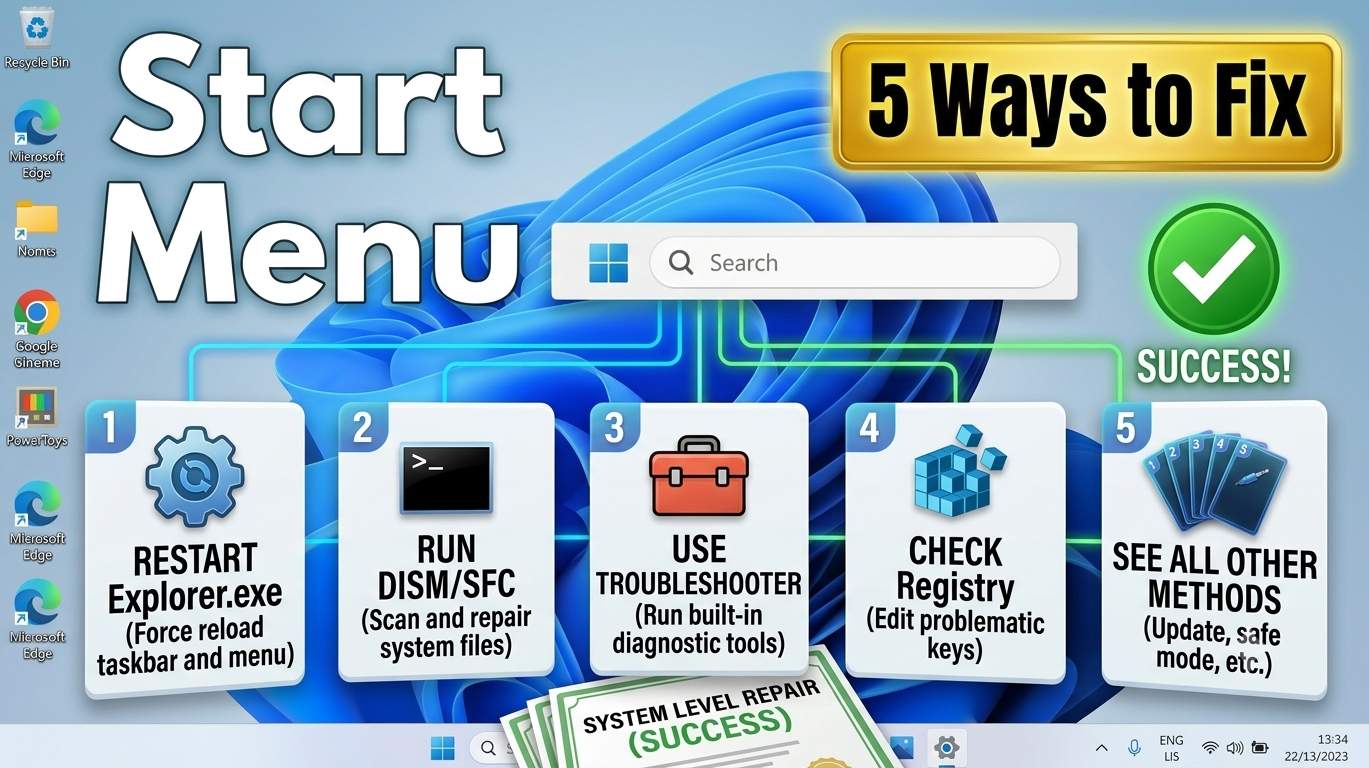
Quick answer
Most Start menu failures are fixed in the first three steps, and none of them touches your files.
Press Ctrl + Shift + Esc to open Task Manager. Restart Windows Explorer, then end the Start and Search processes. If that does not help, restart the PC with Restart (not Shut down), install updates, and re-register the Start packages from an administrator PowerShell window. On Windows 11 24H2 or 25H2, also register the three XAML packages.
- Restart Explorer and the Start processes from Task Manager (Fix 1).
- Do a full restart and turn off Fast Startup (Fix 2).
- Test the Windows key against the mouse click (Fix 3).
- Install updates or remove the one that broke Start (Fix 4).
- Register the Start and XAML packages with PowerShell (Fix 7 and Fix 9).
- Test a new user account, then repair or reinstall Windows (Fix 11, Fix 14).
Commands here run with administrator rights. They are safe for the tasks described, but copy them exactly, read what each one does, and keep a backup of important files before the last resort fixes.
Diagnose your Start menu in 30 seconds
Answer up to three questions. You get the fixes that match your situation, in the right order.
Open your tools without the Start menu
You do not need Start to repair Start. Use these shortcuts and Run commands. Press Windows + R, type the command and press Enter.
| Tool | Keyboard shortcut | Or type in Run |
|---|---|---|
| Task Manager | Ctrl + Shift + Esc | taskmgr |
| Run box | Windows + R | Opens the box itself |
| Settings | Windows + I | ms-settings: |
| Windows Update | Windows + I, then Windows Update | ms-settings:windowsupdate |
| Terminal (Admin) | Windows + X, then A | Task Manager → File → Run new task → powershell (tick administrative rights) |
| Installed updates | None | appwiz.cpl, then View installed updates |
| Services | None | services.msc |
| System Restore | None | rstrui |
| Event Viewer | None | eventvwr.msc |
| Recovery menu | Hold Shift and click Restart on the sign-in screen | Troubleshoot → Advanced options |
Press Ctrl + Esc, which also opens Start. If keyboard shortcuts fail altogether, press Ctrl + Alt + Del and choose Task Manager, then use File → Run new task to start any tool by name.
Decoders: symptoms and the parts behind them
The first table matches what you see to the likely cause. The second names the parts Start depends on, so the names in Task Manager make sense.
What you see
| What you see | What it usually means | Go to |
|---|---|---|
| Start does nothing when clicked, and the Windows key does nothing | The Start process crashed or its package registration is damaged | Fix 1, Fix 7, Fix 9 |
| The mouse click works but the Windows key does not | A key lock, keyboard software, a remap or a policy | Fix 3, Fix 12 |
| Windows + R and Windows + X work, but Start does not | The Start host process or its packages | Fix 1, Fix 7, Fix 8, Fix 9 |
| The taskbar is frozen and nothing responds | Explorer is hung, the PC is overloaded or an update broke it | Fix 1, Fix 2, Fix 4, Fix 5 |
| Critical Error: Your Start menu isn't working | Damaged registration, profile or update | Fix 9, Fix 7, Fix 11, Fix 5 |
| Start opens blank or white | Damaged Start layout file or a package problem | Fix 8, Fix 7, Fix 1 |
| Start opens, but search shows nothing or keeps loading | The search service, index or web suggestions | Fix 6, Fix 1 |
| Start works for one user but not another | A damaged profile or a policy for that user | Fix 11, Fix 12 |
| Fails only right after sign-in or startup | Fast Startup, startup load or a shell hook | Fix 2, Fix 10, Fix 9 |
| Started right after an update | A bad update or unregistered shell packages | Fix 4, Fix 9, Fix 13 |
| Taskbar and Settings also fail on 24H2 or 25H2 | XAML packages not registered after provisioning | Fix 9 |
The parts behind Start
| Part | What it does | When it fails | Go to |
|---|---|---|---|
| explorer.exe (Windows Explorer) | Draws the taskbar, desktop, File Explorer and the Start button | Taskbar vanishes or freezes | Fix 1, Fix 2 |
| StartMenuExperienceHost.exe | Draws the Start panel | Start does not open, or flashes and closes | Fix 1, Fix 7, Fix 8 |
| SearchHost.exe | Shows the search box and results in Start | Search is blank or stuck | Fix 6, Fix 1 |
| Windows Search service (WSearch) | Builds and reads the search index | No results, or results are slow | Fix 6 |
| MicrosoftWindows.Client.CBS and XAML packages | Hold the code that Start, the taskbar and Settings are built from | Start, Settings and taskbar fail together | Fix 7, Fix 9 |
| start2.bin in your profile | Stores your pinned layout | Blank Start or missing pins | Fix 8 |
Read the crash in Event Viewer
- Press Windows + R, type
eventvwr.mscand press Enter. - Open Windows Logs → Application and click Filter Current Log, then choose Error.
- Look for entries with Application Error or Application Hang that name StartMenuExperienceHost.exe, SearchHost.exe or explorer.exe, near the time Start failed.
- The faulting module name tells you what to look at. A name that belongs to a program you installed points to that program (Fix 10). Windows names point to repairs (Fix 5, 7 and 9).
Before you start
Two minutes of preparation prevents most surprises.
The 15 fixes, from quick resets to last resort
Work from the top. Each fix is labelled Safe, Caution or Removes apps or data. The right-hand column shows what success looks like and what to do if it fails. Mark fixes as tried to track your progress.
Quick resets
Five-minute fixes that do not change your system.
1Restart Windows Explorer and the Start processesSafeAbout 5 minutesThe fastest fix, and it clears most hangs
Use this when
Start does not respond when you click it or press the Windows key, it opens and closes at once, or the taskbar feels frozen.
Why it works
The taskbar and the Start button live in Windows Explorer, and the Start panel is drawn by a separate process called StartMenuExperienceHost. If either hangs, Start looks dead. Restarting them reloads the shell without a full reboot and does not touch your files.
Steps
- Press Ctrl + Shift + Esc to open Task Manager. If it opens small, click More details.
- On the Processes tab, right-click Windows Explorer and choose Restart. The taskbar disappears for a moment and returns.
- Find Start (StartMenuExperienceHost.exe) and Search (SearchHost.exe) in the list, or on the Details tab. Right-click each and choose End task. Windows starts them again the next time you open Start or Search.
- If Explorer is missing, or the screen is blank, choose File → Run new task, type
explorer.exeand click OK. - Click Start and press the Windows key. Test both.
taskkill /f /im StartMenuExperienceHost.exe
taskkill /f /im SearchHost.exe
taskkill /f /im explorer.exe
start explorer.exe
- taskkill /f /im: force-closes the named process
- start explorer.exe: starts the taskbar and desktop again
That is normal when Explorer is closed. Press Ctrl + Shift + Esc, choose File → Run new task and run explorer.exe to bring it back.
2Do a full restart, wait for startup and turn off Fast StartupCautionAbout 10 minutesFixes Start that fails right after sign-in
Use this when
Start works after a while but not right after you sign in, or it fails only after a normal Shut down.
Why it works
Windows 11 does a hybrid shutdown (Fast Startup) by default, which keeps part of the system state. Start can load into a half-ready shell. Many startup apps also slow the shell down for a couple of minutes after sign-in. A real restart and fewer startup apps give Start a clean start.
Steps
- Use Restart, not Shut down. Restart always reloads Windows fully.
- After you sign in, wait 2 to 3 minutes before you judge Start, because startup apps are still loading.
- Turn off Fast Startup: press Windows + R, type
powercfg.cpl, click Choose what the power buttons do → Change settings that are currently unavailable, untick Turn on fast startup (recommended) and click Save changes. - Open Task Manager → Startup apps. Right-click apps with High startup impact that you do not need right away (updaters, launchers, chat apps) and choose Disable.
- Check free space on drive C. Windows needs several gigabytes free to work properly. Free some if the drive is nearly full.
- As a last quick test, press Ctrl + Alt + Del, choose Sign out, then sign in again.
3Test the Windows key, your keyboard and the Start buttonSafeAbout 10 minutesIs it Start, or just the key?
Use this when
Clicking the Start button works but the Windows key does not, or the other way round.
Why it works
A locked Windows key, keyboard software, a remapped key or a policy can disable the key while Start itself is fine. Testing both ways splits a keyboard problem from a Start problem.
Steps
- Click the Start button with the mouse. Then try Ctrl + Esc, which also opens Start. Then press the Windows key.
- Mouse works, key does not: look for a Win lock or Game mode key on your keyboard, often a key with a crossed-out Windows logo, or an Fn + Windows combination. Check Fn Lock too.
- Close or check keyboard software such as Logitech G HUB, Razer Synapse or Corsair iCUE. Many have a game mode that disables the Windows key.
- If you use PowerToys, open Keyboard Manager and check that the Windows key is not remapped.
- Plug in a different keyboard, or use the on-screen keyboard, to see if the problem follows the keyboard.
- Run the two read-only checks below to see if a policy or key map disables the Windows key.
reg query "HKCU\Software\Microsoft\Windows\CurrentVersion\Policies\Explorer" /v NoWinKeys
reg query "HKLM\SYSTEM\CurrentControlSet\Control\Keyboard Layout" /v "Scancode Map"
- NoWinKeys: a value of 1 disables Windows key shortcuts
- Scancode Map: if this exists, a program has remapped or disabled keys
If a query says it cannot find the value, no policy or key map is blocking the key. The cause is the keyboard, its software or Start.
Updates and system health
Rule out a bad update, damaged files and a broken search service.
4Install updates, or remove the update that broke StartCautionAbout 20 to 40 minutesWhen it began after an update
Use this when
Start stopped after a Windows update, or your PC is behind on updates.
Why it works
Cumulative updates can break shell components, and later updates often fix them. Installing the newest update fixes known problems. Removing the one that started the problem shows whether it is the cause.
Steps
- Open Settings without Start: press Windows + I, or press Windows + R and type
ms-settings:windowsupdate. - Click Check for updates, install everything, and restart. Also open Advanced options → Optional updates for display and chipset drivers.
- To remove an update: open Windows Update → Update history → Uninstall updates, or press Windows + R, run
appwiz.cpland click View installed updates. Choose the most recent update from around the time the problem began and click Uninstall. - If Settings will not open, hold Shift and click Restart on the sign-in screen, then choose Troubleshoot → Advanced options → Uninstall Updates → Uninstall latest quality update.
- Pause updates for a week after removing one, so it does not reinstall at once.
- Check Microsoft's Windows release health page for known issues with your version.
wusa /uninstall /kb:NNNNNNN
- /kb:NNNNNNN: replace NNNNNNN with the KB number you want to remove. Some cumulative updates cannot be removed this way
Microsoft has confirmed that after some cumulative updates, Windows 11 24H2 and 25H2 can fail to register shell packages. Start, Settings, the taskbar and Search can then stop working. If this matches your case, go to Fix 9.
5Repair Windows system files with DISM and SFCSafeAbout 20 to 40 minutesFixes corrupted Windows files
Use this when
Start fails along with other problems, such as Settings not opening, random crashes or error messages in Windows.
Why it works
DISM repairs the Windows component store, which holds the clean copies of system files. SFC then replaces any damaged protected files from that store. Your personal files are not touched.
Steps
- Press Ctrl + Shift + Esc to open Task Manager, choose File → Run new task, type
powershell, tick Create this task with administrative privileges and click OK. - Run
DISM /Online /Cleanup-Image /RestoreHealthfirst. It can sit at a percentage for a long time. Let it finish. - Then run
sfc /scannow. Wait for Verification 100% complete. - Restart the PC and test Start.
- If SFC says it found files it could not fix, run DISM again, then SFC again. The details are in the file
C:\Windows\Logs\CBS\CBS.log.
DISM /Online /Cleanup-Image /RestoreHealth
sfc /scannow
- DISM … /RestoreHealth: repairs the Windows component store using Windows Update
- sfc /scannow: checks protected system files and replaces damaged ones
6Fix Start menu search and the Windows Search serviceCautionAbout 15 minutesStart opens, but search is blank or stuck
Use this when
Start opens, but typing finds nothing, shows a white box, keeps loading or only shows web results.
Why it works
Typing in Start is handled by a separate search process and by the Windows Search service and its index. If the service stops or the index is damaged, Start opens but search fails. Web suggestions can also hold the box up.
Steps
- Open Settings → System → Troubleshoot → Other troubleshooters, find Search and Indexing and click Run. Tick the problem that matches what you see.
- Press Windows + R, type
services.msc, find Windows Search, right-click it and choose Restart. Set Startup type to Automatic (Delayed Start). - Rebuild the index: open Settings → Privacy & security → Searching Windows → Advanced indexing options → Advanced → Rebuild. It can take a while, and search results may be incomplete until it finishes.
- End the Search (SearchHost.exe) process in Task Manager, as in Fix 1, and try again.
- Optional: if search hangs while it waits for web results, switch off web suggestions with the registry command below, then restart Explorer. This is the one registry change that is widely used for this problem.
net stop wsearch
net start wsearch
reg add "HKCU\Software\Policies\Microsoft\Windows\Explorer" /v DisableSearchBoxSuggestions /t REG_DWORD /d 1 /f
- net stop / net start wsearch: restarts the Windows Search service
- DisableSearchBoxSuggestions: turns off web suggestions in Start search (set it to 0 or delete it to reverse)
Repair the Start components
Re-register packages, reset the layout cache and remove tools that hook the shell.
7Re-register the Start menu and shell apps with PowerShellCautionAbout 15 minutesRepairs the Start app registration
Use this when
Start does not open, shows Critical Error, or other built-in features such as Settings also misbehave.
Why it works
Start and the taskbar are built from app packages. If their registration is damaged, the shell cannot start them. Re-registering rewrites the registration from the files already on your PC. It does not delete your files or apps.
Steps
- Press Ctrl + Shift + Esc to open Task Manager, choose File → Run new task, type
powershell, tick Create this task with administrative privileges and click OK. - Run the first block below. It re-registers the Start menu, shell and search packages. Red errors for packages that do not exist on your PC are harmless.
- Restart the PC and test Start.
- Only if it still fails, run the second block, which re-registers every built-in app. It can take several minutes and may show many red lines. That is normal.
- Restart again and test.
foreach ($n in "Microsoft.Windows.StartMenuExperienceHost","Microsoft.Windows.ShellExperienceHost","MicrosoftWindows.Client.CBS","Microsoft.Windows.Search") {
  Get-AppxPackage -AllUsers $n | ForEach-Object { Add-AppxPackage -DisableDevelopmentMode -Register "$($_.InstallLocation)\AppXManifest.xml" }
}- Get-AppxPackage -AllUsers: finds each package installed on the PC
- Add-AppxPackage -Register: rewrites its registration from the files on disk
Get-AppXPackage -AllUsers | ForEach-Object { Add-AppxPackage -DisableDevelopmentMode -Register "$($_.InstallLocation)\AppXManifest.xml" }8Reset the Start menu layout cacheCautionAbout 10 minutesFixes a blank or glitchy Start. Pins reset.
Use this when
Start opens blank or white, pinned apps are missing, the layout is scrambled or Start crashes as soon as it opens.
Why it works
Start keeps your pinned layout in a small file in your profile. If that file is damaged, Start can crash or show nothing. Renaming it makes Windows build a new one. Your apps and files are not touched, but your pins go back to the default.
Steps
- Press Ctrl + Shift + Esc and make sure you are signed in as the affected user.
- Press Windows + R and paste
%LocalAppData%\Packages\Microsoft.Windows.StartMenuExperienceHost_cw5n1h2txyewy\LocalState, then press Enter. - Rename start2.bin to start2.bin.old. If you also see start.bin, rename it the same way. If the folder or file is missing, skip this fix.
- Open the folder TempState next to it and delete its contents if there are any.
- Restart Explorer (Fix 1) or restart the PC. Open Start. Windows rebuilds the layout.
- Pin your apps again. If it did not help, rename the files back by removing .old.
ren "%LocalAppData%\Packages\Microsoft.Windows.StartMenuExperienceHost_cw5n1h2txyewy\LocalState\start2.bin" start2.bin.old
- ren: renames the file so Windows creates a fresh one. Rename it back to undo
9Register the XAML packages after a 24H2 or 25H2 updateCautionAbout 10 minutesA confirmed Microsoft issue since mid-2025
Use this when
You use Windows 11 24H2 or 25H2 and Start fails to open or shows a critical error, and Settings, the taskbar or Search also fail. It often happens on a new sign-in or after provisioning a PC.
Why it works
Microsoft confirmed in November 2025 that after provisioning with a cumulative update released on or after July 2025 (for example KB5062553 or KB5065789), shell packages can fail to register in time. Explorer, Start, Settings, the taskbar and Search then misbehave. Registering the three XAML packages by hand fixes it.
Steps
- Sign in as the affected user. This command registers packages for the user who runs it.
- Press Ctrl + Shift + Esc to open Task Manager, choose File → Run new task, type
powershell, tick Create this task with administrative privileges and click OK. - Run the three commands below, one after another.
- Restart the PC and test Start, Settings and Search.
- IT admins: on non-persistent setups such as VDI, Microsoft recommends a synchronous logon script that registers these packages before Explorer starts. See Microsoft's support document for the script.
- Check Microsoft's Windows release health page to see whether a fix is included in your update, and install the newest update.
Add-AppxPackage -Register -Path 'C:\Windows\SystemApps\MicrosoftWindows.Client.CBS_cw5n1h2txyewy\appxmanifest.xml' -DisableDevelopmentMode
Add-AppxPackage -Register -Path 'C:\Windows\SystemApps\Microsoft.UI.Xaml.CBS_8wekyb3d8bbwe\appxmanifest.xml' -DisableDevelopmentMode
Add-AppxPackage -Register -Path 'C:\Windows\SystemApps\MicrosoftWindows.Client.Core_cw5n1h2txyewy\appxmanifest.xml' -DisableDevelopmentMode
- MicrosoftWindows.Client.CBS: core Windows 11 shell package
- Microsoft.UI.Xaml.CBS: XAML user interface components
- MicrosoftWindows.Client.Core: core client package used by the shell
The commands point to folders that already exist on every Windows 11 PC. They do not download anything.
10Remove Start menu tweaks, then try a clean bootCautionAbout 20 to 40 minutesWhen another program is interfering
Use this when
Start broke after you installed a customization tool, a security suite or a PC maker utility, or you have used a Windows 10 style Start tool.
Why it works
Programs that change the Start menu or taskbar hook into the shell. After a Windows update they can stop matching it and crash Start. A clean boot shows whether any startup program is responsible.
Steps
- Uninstall tools that change Start or the taskbar: StartAllBack, Start11, ExplorerPatcher, Windhawk mods, TranslucentTB and similar. Use Settings → Apps → Installed apps, then restart.
- Temporarily turn off or uninstall third-party security suites and PC maker utilities that add overlays. Switch Windows Security back on if you remove another one.
- Clean boot: press Windows + R, type
msconfig, open Services, tick Hide all Microsoft services and click Disable all. - On Startup, click Open Task Manager, disable every startup app, close it, click OK and restart.
- Test Start. If it works, re-enable half of the services and startup apps at a time, restarting each time, to find the one that breaks it.
- When you are done, open msconfig again, choose Normal startup and restart.
Profile and policy
Find out whether your account or a policy is the cause.
11Test with a new user accountCautionAbout 15 to 30 minutesTells you if your profile is damaged
Use this when
Start fails for one user but you think the PC is otherwise fine, or the earlier fixes did not help.
Why it works
A new account has a clean profile and clean Start settings. If Start works there, your own profile is damaged and the system is fine. If it fails there too, the problem is system-wide.
Steps
- Open Settings → Accounts → Other users → Add account. If Settings will not open, use the commands below in an administrator Command Prompt.
- Sign out and sign in to the new account. Give Windows a few minutes to set up the profile, then test Start.
- Works in the new account: copy your files from
C:\Users\YourOldName(Desktop, Documents, Pictures, Downloads and so on) to the new account, then use the new account as your main one. - Fails in the new account too: the problem is system-wide. Go to Fix 5, Fix 9 and Fix 14.
- Remove the test account when you no longer need it. Do not delete your old profile until you have copied everything you need.
net user TestUser * /add
net localgroup administrators TestUser /add
- net user TestUser * /add: creates the account and asks you to type a password
- net localgroup administrators: makes the test account an administrator so it can do the repairs
Do not delete your old profile folder until you have copied all your files, including browser bookmarks and app data you care about.
12Check Group Policy and registry restrictionsCautionAbout 15 to 20 minutesWork, school or tweaked PCs
Use this when
The PC belongs to a workplace or school, or you changed policies or registry settings, and Start or its key shortcuts are disabled or limited.
Why it works
Policies can hide Start features, disable the Windows key or block changes to the taskbar. They override everything above, so no repair works until the policy is removed.
Steps
- Run the report command below. It saves a Group Policy report to your Desktop. Open the HTML file and look under Start Menu and Taskbar.
- Windows 11 Pro or Enterprise: press Windows + R, type
gpedit.mscand open User Configuration → Administrative Templates → Start Menu and Taskbar. Policies set to Enabled that you did not set yourself are suspects. On your own PC, set them to Not Configured. - Windows 11 Home has no Group Policy Editor. Use the registry checks below.
- Run the two registry queries. If you see values you did not set, such as NoWinKeys or DisableSearchBoxSuggestions, decide whether you need them.
- Work or school PC: do not change policies. Ask your IT team, because the settings may be managed on purpose or by a company tool.
gpresult /h "%USERPROFILE%\Desktop\gp-report.html"
reg query "HKCU\Software\Microsoft\Windows\CurrentVersion\Policies\Explorer"
reg query "HKLM\SOFTWARE\Policies\Microsoft\Windows\Explorer"
- gpresult /h: saves a readable report of the policies applied to you
- reg query: lists policy values. It changes nothing
There is no single registry fix for Start in Windows 11. Avoid copy-pasted registry tweaks from unknown pages, and back up the key before you change anything.
Recovery and last resorts
Roll back, repair Windows in place or reset it.
13Use Safe Mode, Windows Recovery and System RestoreCautionAbout 30 minutesWhen Start and Settings are both dead
Use this when
You cannot open Settings or Start, or an update broke things and you want to go back to an earlier state.
Why it works
The Windows Recovery Environment works outside the normal desktop, so a broken Start does not block it. From there you can remove the latest update or restore a working restore point.
Steps
- From the sign-in screen, click the power icon, hold Shift and click Restart. Windows opens the blue recovery menu. If you are signed in, hold Shift while you click Restart in the Start menu or press Ctrl + Alt + Del and use the power icon.
- Choose Troubleshoot → Advanced options.
- Uninstall Updates: choose Uninstall latest quality update. If that does not help, try Uninstall latest feature update if that option is offered.
- System Restore: choose System Restore and pick a restore point from before Start broke. Your documents are kept, but programs installed after that point are removed.
- Safe Mode: open Startup Settings → Restart and press 4 for Safe Mode, or 5 for Safe Mode with Networking. In Safe Mode, uninstall suspect programs, run SFC and DISM (Fix 5), and test whether the problem comes from a third-party program.
- From the normal desktop, you can start System Restore with Windows + R and
rstrui.
14Repair install Windows 11, keeping your files and appsCautionAbout 60 to 90 minutesReplaces Windows files without removing your data
Use this when
Start and other Windows features are still broken after the fixes above, and Windows files cannot be repaired.
Why it works
A repair install reinstalls Windows over itself. It replaces every system file and resets system components, but keeps your files, apps and most settings.
Steps
- Back up important files to an external drive or cloud storage first. Make sure the PC has enough free space (about 20 GB) and a stable internet connection, and plug it in.
- Open Settings → System → Recovery and look for Fix problems using Windows Update, then click Reinstall now.
- If Settings does not open, download the Windows 11 ISO from Microsoft, right-click it and choose Mount, then run setup.exe.
- Choose to Keep personal files and apps. Use the same language and edition as your current Windows.
- Let it run. The PC restarts several times. This can take an hour or more.
- After it finishes, install Windows updates and test Start before you change anything else.
15Reset this PC (last resort)Removes apps or dataAbout 90 minutes or moreReinstalls Windows. Back up first.
Use this when
Every fix above failed, or the PC is too unstable to repair.
Why it works
Resetting returns Windows to a clean state. If Start still fails on a clean Windows, the cause is not your settings or apps, and you should check Microsoft's known issues or the hardware.
Steps
- Back up everything to an external drive or cloud storage and save your BitLocker key and Microsoft account details.
- Open Settings → System → Recovery → Reset this PC → Reset PC and choose Keep my files (removes apps and resets settings, keeps files) or Remove everything after a checked backup.
- If Settings does not open, use the sign-in screen: hold Shift, click Restart, then Troubleshoot → Reset this PC.
- Choose Cloud download for a fresh copy of Windows, or Local reinstall if your connection is poor.
- After the reset, install Windows updates first and test Start before you reinstall your apps. Add apps back a few at a time.
See our guide How to Fix "Reset This PC" Not Working in Windows 11.
Special cases
Some setups fail for their own reasons. Find yours and go straight to the matching fix.
| Your setup | Why Start can fail | What to do |
|---|---|---|
| Work or school PC | Policies or managed updates control Start | Do not change policies. Collect the report in Fix 12 and ask IT. |
| Cloud PC, VDI or the first sign-in on a new PC | Shell packages may not register in time after provisioning | Fix 9. IT admins can use Microsoft's synchronous logon script. |
| Windows 10 style Start tools | They hook the shell and can break after updates | Remove them first (Fix 10). |
| Gaming keyboard | A Win lock or game mode key disables the Windows key | Fix 3. |
| Multiple monitors | The taskbar or Start can appear on the wrong display | Unplug extra monitors to test, check Show my taskbar on all displays, then Fix 1. |
| Virtual machine (VMware, VirtualBox, Hyper-V) | Low memory, no graphics acceleration or missing guest tools | Give 4 GB of RAM or more, install guest tools, then Fix 2 and 9. |
| Windows 11 Home | No Group Policy Editor | Use the registry queries in Fix 12. |
| Upgraded from Windows 10 | Old apps, drivers and profile leftovers | Fix 10, 11 and 14. |
| Dell, HP, Lenovo or other maker laptops | Maker utilities, touchpad and keyboard software can interfere | Update drivers (Fix 4) and test a clean boot (Fix 10). |
Command cheat sheet
Grouped by what the commands do. Open an administrator PowerShell from Task Manager → File → Run new task if Start will not open.
Read-only: safe to run any time
winver
Get-AppxPackage -AllUsers Microsoft.Windows.StartMenuExperienceHost | Select Name,Version,InstallLocation,Status
Get-WinEvent -FilterHashtable @{LogName='Application'; ProviderName='Application Error'} -MaxEvents 30 | Where-Object Message -match 'StartMenuExperienceHost|SearchHost|explorer' | Format-List TimeCreated,Message- winver: shows your Windows version and build
- Get-AppxPackage: shows whether the Start package is installed and its state
- Get-WinEvent: lists recent crashes that mention Start, Search or Explorer
tasklist /fi "imagename eq StartMenuExperienceHost.exe"
gpresult /h "%USERPROFILE%\Desktop\gp-report.html"
- tasklist: checks whether the Start process is running
- gpresult: saves a report of the policies applied to you
Changes the shell or packages: use with care
taskkill /f /im StartMenuExperienceHost.exe
taskkill /f /im explorer.exe
start explorer.exe
DISM /Online /Cleanup-Image /RestoreHealth
sfc /scannow
net stop wsearch
net start wsearch
- taskkill: closes the named process
- DISM and sfc: repair Windows files
- net stop / start wsearch: restarts the search service
Add-AppxPackage -Register -Path 'C:\Windows\SystemApps\MicrosoftWindows.Client.CBS_cw5n1h2txyewy\appxmanifest.xml' -DisableDevelopmentMode
Add-AppxPackage -Register -Path 'C:\Windows\SystemApps\Microsoft.UI.Xaml.CBS_8wekyb3d8bbwe\appxmanifest.xml' -DisableDevelopmentMode
Add-AppxPackage -Register -Path 'C:\Windows\SystemApps\MicrosoftWindows.Client.Core_cw5n1h2txyewy\appxmanifest.xml' -DisableDevelopmentMode
Use Settings or the recovery menu for Reset this PC and repair installs, so Windows can check for problems and show you the options (Fix 14 and 15).
Keep it from happening again
Do’s and don’ts
Do
- Start with the quick, safe resets
- Use Task Manager and Run instead of Start
- Test a new user account before a reset
- Back up before a repair install or reset
- Check Microsoft’s known issues for your version
Don’t
- Paste random registry tweaks
- Download “Start menu fixer” programs
- Delete your user profile without copying files
- Turn off Windows Update for good
- Reset Windows before trying the simple fixes
Frequently asked questions
Why is my Windows 11 Start menu not working?
How do I fix the Windows 11 Start button not working?
Why does my Start menu not open on Windows 11 after an update?
What does Critical Error: Your Start menu isn't working mean?
How do I open Task Manager, Settings or PowerShell if Start does not work?
Why does Start menu search not work in Windows 11?
Is there a registry fix for the Windows 11 Start menu?
Can I fix the Windows 11 Start menu from Command Prompt or PowerShell?
Why does my Windows key not open Start but the Start button works?
Why does the Start menu only fail for one user on my PC?
Why is my Start menu blank or white in Windows 11?
Will resetting the Start menu layout delete my apps or files?
Is it safe to re-register all apps with PowerShell?
Does a clean boot fix Start menu problems?
What should I do if Start does not work on a work or school PC?
My Start menu does not work on the second monitor or the taskbar is missing. What should I do?
Why does the Start menu not work in a virtual machine such as VMware or VirtualBox?
Does the same fix work for Windows 10?
Can I get the Windows 10 style Start menu back in Windows 11?
Is my Windows 11 Start menu bug a hardware problem?
Will Reset this PC delete my files?
How can I stop the Start menu from breaking again?
Bottom line
When the Windows 11 Start menu stops working, the cause is usually a hung Start or Explorer process, damaged shell package registration after an update, a blocked Windows key, a damaged profile or a policy. Restart Explorer and the Start processes from Task Manager, do a full restart, test the Windows key, install updates, then register the Start and XAML packages. Test a new user account before you repair or reset Windows, and back up first.
Run the diagnosis again