How to Fix “No Internet” After Upgrading to Windows 11 Wi-Fi & Ethernet fix
You upgraded or updated to Windows 11 and the internet vanished: no Wi-Fi networks, “No Internet” on a connected network, Ethernet that shows nothing, or a browser that says you are offline. This playbook explains why upgrades break networking, matches your symptom to the right fix, and shows how to get drivers even when you have no connection.
netsh winsock reset and ipconfig /flushdns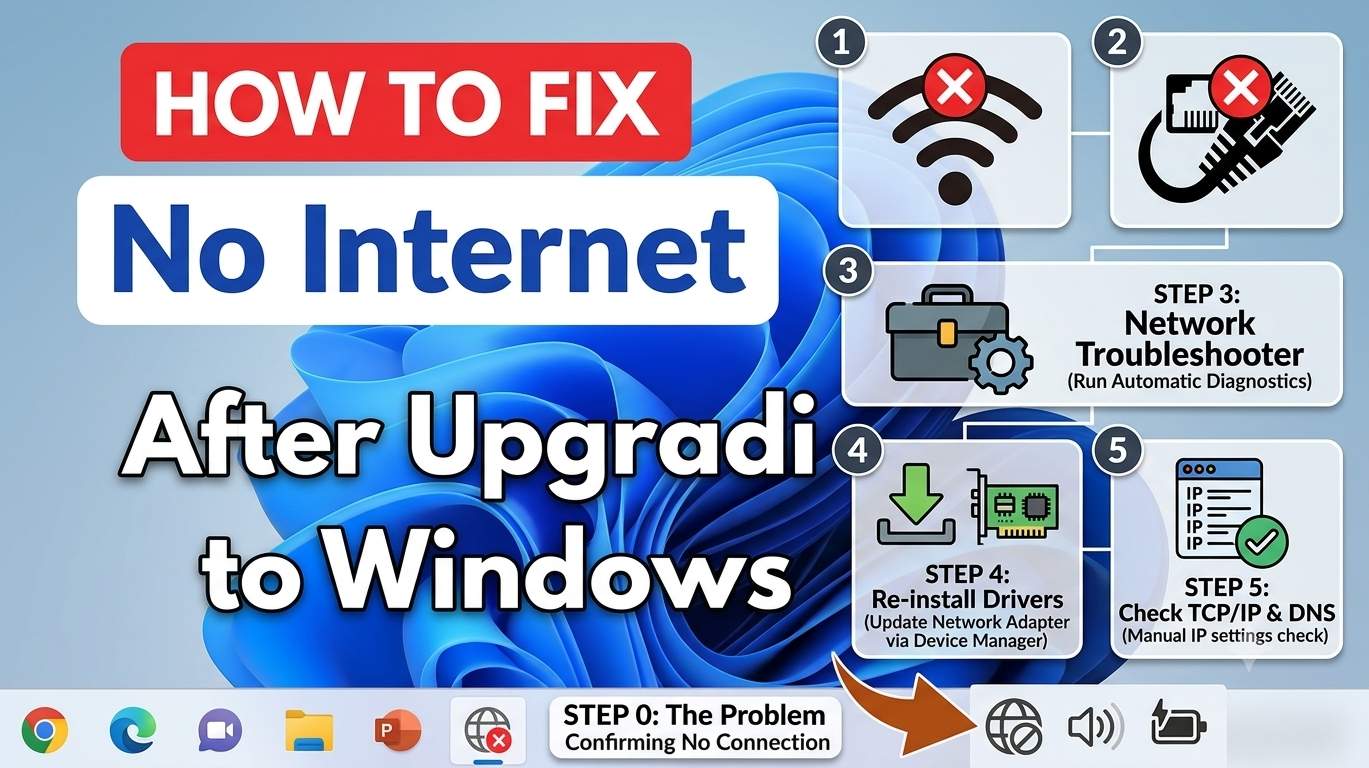
Quick Answer
Test another device on the same Wi-Fi and restart the router. If only the PC is offline, open Device Manager and update, roll back or reinstall the network adapter driver. Then run netsh winsock reset, netsh int ip reset and ipconfig /flushdns, set DNS to a public server, turn off any proxy or VPN, and try Network reset. If it started right after an update, uninstall that update or use Go back.
- Rule out the router with a second device (Fix 1).
- Enable the adapter and fix the driver (Fix 2 and 3).
- Reset the network stack and check DNS (Fix 4 and 5).
- Remove proxy, VPN or security blockers (Fix 6).
- Network reset, then rollback or repair if needed (Fix 9, 11 and 12).
Find Your Fix in 10 Seconds
Pick what you see. You get an ordered list of fixes, and each link opens the fix below.
Why Internet Breaks After an Upgrade to Windows 11
The cause is usually one of five layers. Knowing which layer helps you pick the right fix.
| Layer | What goes wrong | Typical symptom | Go to |
|---|---|---|---|
| Router and provider | Router stuck, provider outage, wrong cable | Other devices offline too | Fix 1 |
| Adapter and driver | Driver replaced, missing or incompatible; adapter disabled | No Wi-Fi option, yellow warning, Network Controller | Fix 2, Fix 3 |
| Network stack | Winsock, TCP/IP or DNS left in a bad state | Connected, “No Internet”, 169.254 address | Fix 4, Fix 5 |
| Software in the way | Proxy, VPN, firewall, security agent, virtual adapters | Browser or apps fail, works in Safe Mode | Fix 6, Fix 10 |
| Power and services | Adapter powered down, stopped services, Fast Startup | Drops after sleep, adapter disappears | Fix 7 |
A full upgrade (for example from Windows 10) replaces many components and drivers, while a monthly update changes fewer. In both cases the network driver and leftover VPN or security software are the usual suspects.
Message and Symptom Decoder
| What you see | What it usually means | Go to |
|---|---|---|
| Wi-Fi icon with “No Internet” or a globe | Connected to the router but no route to the internet | Fix 1, Fix 4, Fix 5 |
| “No Internet, secured” | Wi-Fi security is fine, DNS or gateway issue | Fix 5, Fix 6 |
| “Can’t connect to this network” | Saved profile or driver issue, wrong band or security | Fix 8, Fix 3 |
| No Wi-Fi networks found or no Wi-Fi tile | Adapter disabled, missing driver or radio off | Fix 2, Fix 3, Fix 12 |
| Ethernet: “Unidentified network” or cable unplugged | Driver, cable, port or DHCP issue | Fix 3, Fix 5, Fix 1 |
| “Limited connectivity” | No valid IP address from the router | Fix 5, Fix 4 |
| ERR_INTERNET_DISCONNECTED | The browser sees no connection at all | Fix 1, Fix 2 |
| DNS_PROBE_FINISHED_NO_INTERNET / ERR_NAME_NOT_RESOLVED | Names cannot be resolved, DNS or proxy problem | Fix 5, Fix 6 |
| ERR_PROXY_CONNECTION_FAILED | A proxy is set but not working | Fix 6 |
Before You Start Checklist
Collect these details first. Your ticks are saved in this browser.
The Escalation Ladder
Go down the ladder only when the step above did not help. Green steps are low impact and amber steps change more.
- Basics: Airplane mode, router, second device⏱ 10 minImpact: None
- Troubleshooter and enable the adapter⏱ 5 minImpact: None
- Update, roll back or reinstall the driver⏱ 10–20 minImpact: None
- Reset Winsock, IP stack and DNS⏱ 5 minImpact: None
- Check IP, DNS and DHCP⏱ 10 minImpact: None
- Proxy, VPN and security software⏱ 15 minImpact: None
- Power saving, Fast Startup and services⏱ 10 minImpact: None
- Forget network, band and router settings⏱ 10 minImpact: None
- Network reset⏱ 10 min +Impact: Low
- Safe Mode with Networking and clean boot⏱ 15–30 minImpact: None
- Uninstall update or go back⏱ 15–30 minImpact: Low
- Repair Windows, BIOS and hardware⏱ 30–90 minImpact: Low
The 12 Fixes in Detail
Each fix shows when to use it, why it works, the steps and commands, what success looks like and what to do if it fails.
01Rule out the basics: Airplane mode, router and a second deviceImpact: None⏱ 10 minAlways first
- Check Airplane mode and the Wi-Fi toggle. Press Windows + A and look at the Wi-Fi and Airplane mode tiles. Also try the Wi-Fi or airplane key on your keyboard and any physical switch on the laptop.
- Restart Windows with Start, Power, Restart (not Shut down).
- Power-cycle the router and modem. Unplug both for 30 seconds, plug the modem in first, wait until its lights settle, then plug in the router.
- Test another device (a phone) on the same Wi-Fi. If it also has no internet, the problem is the router or your provider. If it works, the problem is this PC.
- Try a different path. Plug in an Ethernet cable, or connect the PC to your phone’s hotspot. This shows whether Windows can get online at all.
- Check date and time. A wrong clock can break secure websites. Open Settings, Time and language, Date and time, and turn on Set time automatically.
02Run the troubleshooter and make sure the adapter is enabledImpact: None⏱ 5 minDisabled adapter
- Open Settings → System → Troubleshoot → Other troubleshooters and run Network and Internet. Also run Network Adapter if it is listed.
- Press Windows + R, run
ncpa.cpl, and look at your Wi-Fi and Ethernet adapters. - If one says Disabled, right-click it and choose Enable.
- Open Settings → Network & internet → Advanced network settings to see all adapters and enable any that are off.
ncpa.cpl
- ncpa.cpl — opens the Network Connections page with all adapters
03Update, roll back or reinstall the network adapter driverImpact: None⏱ 10–20 minMost common cause
- Open Device Manager (
devmgmt.msc) and expand Network adapters. Look for a yellow warning icon or an entry under Other devices. - Roll back. Double-click the adapter, open the Driver tab and click Roll Back Driver if it is available. Restart.
- Reinstall. If rollback is not available, right-click the adapter, choose Uninstall device (tick the box to remove the driver if the driver is the problem) and restart. Windows tries to install a driver again at startup.
- Pick another driver. Right-click the adapter, choose Update driver → Browse my computer → Let me pick and try an older or different listed driver.
- Install the maker’s driver. Download the Wi-Fi or LAN driver for your exact model from your laptop maker or the chip maker (Intel, Realtek, Qualcomm, MediaTek). See the section on getting drivers when you have no internet.
pnputil /scan-devices
netsh wlan show drivers
- pnputil /scan-devices — asks Windows to scan again for hardware that needs a driver
- netsh wlan show drivers — shows the Wi-Fi driver name, version and supported radio types
04Reset Winsock, the IP stack and DNS from Command PromptImpact: None⏱ 5 minConnected but no internet
- Open Terminal (Admin) or Command Prompt (Admin).
- Run the commands below one by one.
- Restart the PC, then test the internet again.
netsh winsock reset
netsh int ip reset
ipconfig /release
ipconfig /renew
ipconfig /flushdns
- netsh winsock reset — resets the Windows Sockets catalog that apps use for networking
- netsh int ip reset — resets TCP/IP settings to defaults
- ipconfig /release — drops your current IP address
- ipconfig /renew — asks the router for a new IP address
- ipconfig /flushdns — clears cached website addresses
05Check IP address, DNS and DHCPImpact: None⏱ 10 minPages will not load
- Run
ipconfig /alland read your adapter: the IPv4 Address, Default Gateway and DNS Servers. - An address that starts with 169.254 means Windows did not get an address from the router (DHCP). Restart the router, run
ipconfig /renew, and make sure the adapter is set to obtain an IP address automatically. - Test the connection: ping a public IP, then a website name. If the IP works but the name does not, DNS is the problem.
- Set DNS manually: Settings → Network & internet → Wi-Fi (or Ethernet) → your network → DNS server assignment → Edit → Manual. Use a public DNS such as 1.1.1.1 and 8.8.8.8, or your provider’s DNS.
- As a test, open
ncpa.cpl, right-click the adapter, choose Properties and untick Internet Protocol Version 6 (TCP/IPv6). Turn it back on if it does not help.
ipconfig /all
ping 8.8.8.8
ping google.com
- ping 8.8.8.8 — tests raw internet reach without DNS
- ping google.com — tests that names can be turned into addresses
06Turn off proxy, VPN and security software that may be blockingImpact: None⏱ 15 minBrowser or some apps fail, VPN or Zscaler in use
- Open Settings → Network & internet → Proxy. Turn on Automatically detect settings and turn off Use a proxy server unless you rely on one.
- Disconnect any VPN, and in Settings → Network & internet → VPN remove old profiles. Check ncpa.cpl for leftover VPN adapters.
- Temporarily disable or uninstall third-party firewalls, antivirus, web filters and agents such as Zscaler, and test again. On a work PC, ask IT first.
- Check the system proxy used by some services and reset it if it is wrong.
- In Chrome, open Settings, System, and use the option that opens your computer’s proxy settings. Also try another browser to see if the problem is browser-specific.
netsh winhttp show proxy
netsh winhttp reset proxy
- netsh winhttp show proxy — shows the system-wide WinHTTP proxy
- netsh winhttp reset proxy — removes the system-wide proxy setting
VPN, Zscaler, 802.1x and policy settings are often set by your organization. Changing them may break access to company resources, so involve IT before removing them.
07Fix power saving, Fast Startup and network servicesImpact: None⏱ 10 minDrops after sleep or random disconnects
- In Device Manager, double-click your Wi-Fi or Ethernet adapter, open Power Management and untick Allow the computer to turn off this device to save power.
- Open Control Panel → Power Options → Choose what the power buttons do → Change settings that are currently unavailable and untick Turn on fast startup.
- Press Windows + R, run
services.msc, and check these are Running with startup set to Automatic: WLAN AutoConfig (Wi-Fi only), DHCP Client, DNS Client, Network Location Awareness and Network List Service. - Restart the PC and test after sleep again.
services.msc
- services.msc — opens the Services list so you can check and restart network services
08Forget the network, change the Wi-Fi band and check router settingsImpact: None⏱ 10 min“Can’t connect to this network”
- Open Settings → Network & internet → Wi-Fi → Manage known networks, choose your network and click Forget.
- Reconnect and re-enter the password carefully.
- If your router has separate 2.4 GHz and 5 GHz networks, try the other one. Some older adapters or drivers struggle with one band.
- Open your network’s properties and set Random hardware addresses to Off for that network, as a test.
- On the router, make sure the security mode is a current one (WPA2 or WPA3) and consider updating the router firmware. Restart the router afterwards.
netsh wlan show interfaces
netsh wlan show wlanreport
- netsh wlan show interfaces — shows the connected network, signal, band and security mode
- netsh wlan show wlanreport — creates a detailed Wi-Fi connection report you can open in a browser
09Use Network resetImpact: Low⏱ 10 min + restartEverything else failed
- Write down your Wi-Fi password and any VPN settings.
- Open Settings → Network & internet → Advanced network settings → Network reset.
- Click Reset now and confirm. The PC restarts.
- After the restart, reconnect to Wi-Fi, set your network type and re-add VPN profiles.
Saved Wi-Fi networks are forgotten, VPN profiles and virtual adapters may be removed, and networks may revert to Public. Your files are not touched.
10Isolate software with Safe Mode with Networking and a clean bootImpact: None⏱ 15–30 minTest whether software is blocking
- Press Windows + R, run
msconfig, open the Boot tab, tick Safe boot and choose Network, then OK and restart. (If Windows will not start, use Shift + Restart → Troubleshoot → Advanced options → Startup Settings → Restart and press 5.) - Test the internet in Safe Mode. If it works, a program or driver is the cause.
- Return to msconfig, untick Safe boot, and on the Services tab tick Hide all Microsoft services and Disable all. Restart and test.
- Re-enable services in small groups until the problem returns to find the culprit. Common ones are VPN clients, firewalls, old Wi-Fi utilities, network optimizers and virtual network drivers.
- When done, choose Normal startup in msconfig.
11Uninstall the latest update or go back to the previous WindowsImpact: Low⏱ 15–30 minStarted right after an update or upgrade
- Uninstall an update: open Settings → Windows Update → Update history → Uninstall updates, pick the most recent update and uninstall it, then restart.
- Go back after an upgrade: open Settings → System → Recovery and look for Go back. It is only offered for a limited time after the upgrade, and only if the old Windows files are still on the drive.
- Pause updates for a short time, check Windows release health and your maker’s support page, and install the update again when a fix is available.
Windows 10 support ended on October 14, 2025, so upgrading is the way forward. Windows 11 22H2 and 23H2 Home and Pro editions have also reached end of servicing, so check your version at Settings, System, About and plan to move to a supported release.
12Repair Windows, then check BIOS and hardwareImpact: Low⏱ 30–90 minMissing adapter or last resort
- Run the file repair tools in Terminal (Admin), then restart.
- If it still fails, try an in-place repair install, which keeps your files and apps. Our guide on fixing Reset This PC explains the steps in detail.
- Open the BIOS or UEFI setup (usually F2, Del, F10 or Esc at startup). Look for settings called Wireless LAN, WLAN, Onboard LAN or Wireless Radio, make sure they are enabled, and install any BIOS update from your maker.
- If the adapter still does not appear, the Wi-Fi card or LAN chip may not be seated or may have failed. A USB Wi-Fi adapter or a USB-C to Ethernet adapter is a good stopgap. Check that it has a Windows 11 driver, especially on Windows on ARM PCs.
DISM /Online /Cleanup-Image /RestoreHealth
sfc /scannow
- DISM — repairs the Windows component store
- sfc /scannow — replaces damaged system files
See also: How to Fix “Reset This PC” Not Working in Windows 11 for the repair install and recovery steps.
No Internet? How to Get Drivers Offline
If the adapter driver is the problem, you need another way to get a driver onto the PC.
- Phone USB tethering. Connect an Android phone by USB and turn on USB tethering in its hotspot and tethering settings. Windows usually installs the needed driver automatically and gives the PC internet. iPhones can share internet over USB if the Apple device drivers are installed.
- Phone hotspot. If any network adapter still works, connect to your phone’s Wi-Fi hotspot.
- Temporary Ethernet. A cable to the router, or a USB to Ethernet adapter that has a built-in driver.
- Another PC and a USB drive. On a working PC, open your laptop maker’s support page, enter the exact model and Windows 11, download the Wi-Fi and LAN drivers (Intel, Realtek, Qualcomm or MediaTek), copy them to a USB drive and install them.
- Use the hardware ID. In Device Manager open the adapter, go to Properties, Details, Hardware Ids, and note the VEN and DEV values. Search them on the Microsoft Update Catalog or the chip maker’s site from another PC.
Get-NetAdapter | Format-Table Name, InterfaceDescription, Status, LinkSpeed
- Get-NetAdapter — lists your network adapters with their model name and status
Take the driver for your exact laptop or motherboard model and Windows 11. If the maker has no Windows 11 driver yet, the chip maker’s generic driver or a Windows 10 driver for the same chip often works.
Special Cases
💻 Dell, HP, Lenovo laptops
Use the support page for your exact model, or the maker’s support app if you can get online. Install the chipset, Wi-Fi and LAN drivers, and any BIOS update.
🎮 Gaming laptops
Many use Killer or similar networking software. If it is installed, update it or remove it as a test, then use the plain driver from the chip or laptop maker.
🖥️ Desktop PCs
Install the motherboard’s LAN or Wi-Fi driver from its maker, check that onboard LAN is enabled in the BIOS, and try a USB Wi-Fi adapter or a different network card.
🧩 Windows on ARM
ARM PCs need ARM-compatible drivers. Use drivers from the PC maker or Windows Update, and check that any USB adapter lists Windows 11 on ARM support.
🧪 Virtual machines
After a host upgrade, VMware, VirtualBox and Hyper-V virtual adapters can break. Repair or reinstall the virtualization software and set bridged mode to the correct physical adapter.
🐧 Dual boot with Linux
If internet works in Linux but not Windows, the Windows driver is the problem. Also turn off Fast Startup and hibernation in Windows, since they can leave a Wi-Fi card in a stuck state between systems.
🏢 Work or school PCs
Group Policy, Intune, SCCM, VPN, Zscaler and 802.1x settings may control networking. Run gpupdate /force, update the VPN or security client for Windows 11, and ask IT before changing anything.
🔄 Upgraded from Windows 10
Old VPN clients, firewall drivers and virtual adapters can carry over and break networking. Remove or reinstall them with versions that support Windows 11.
Known Issues and Reports in 2026
What was found in public sources on October 12, 2026. Always confirm on Windows release health for your exact version and build.
Microsoft has confirmed past cases where a Windows 11 update left some Wi-Fi adapters unable to connect to some networks, especially enterprise, school or public networks using 802.1x. It was resolved with a Known Issue Rollback, and uninstalling the update was the manual workaround. This shows the pattern: a fix may arrive by rollback or a later update.
Microsoft Q&A and Tech Community threads in 2026 describe Wi-Fi or Ethernet problems after some Windows 11 updates, including adapters that did not return after sleep and reports involving Realtek adapters. These are user reports, and I could not verify them against Microsoft documentation. Treat them as hints about where to look, not confirmed bugs.
In practice, most “no internet after upgrade” cases come down to a driver that did not carry over cleanly, which a rollback, reinstall or a maker’s driver fixes. Check Windows release health for your version to see whether a known issue exists, and install the latest updates and driver versions.
Fixes Compared
Pick the gentlest fix that matches your symptom.
| Fix | What it changes | Forgets Wi-Fi or VPN? | Best for |
|---|---|---|---|
| Troubleshooter and enable adapter | Re-enables adapters, fixes simple settings | No | Disabled or misconfigured adapter |
| Driver rollback or reinstall | Replaces the network driver | No | Missing adapter, warning icon, after upgrade |
| Winsock, IP and DNS reset | Resets software network layers | No | Connected but no internet |
| Manual DNS or proxy fix | Changes DNS and proxy settings | No | Websites fail by name, browser errors |
| Network reset | Reinstalls all adapters, resets networking | Yes | Deep corruption, everything else failed |
| Uninstall update or Go back | Removes the update or the upgrade | No | Started right after an update |
| Repair install | Reinstalls Windows keeping files and apps | No | Damaged Windows files |
Command Cheat Sheet
Run these in Terminal or Command Prompt as administrator unless noted.
| Command | What it does |
|---|---|
ipconfig /all | Shows IP, gateway, DNS and adapter details |
ping 8.8.8.8 | Tests internet reach without DNS |
ping google.com | Tests that names resolve |
ipconfig /release and ipconfig /renew | Drops and requests a new IP address |
ipconfig /flushdns | Clears the DNS cache |
netsh winsock reset | Resets the Winsock catalog (restart needed) |
netsh int ip reset | Resets TCP/IP to defaults |
netsh winhttp show proxy | Shows the system proxy |
netsh winhttp reset proxy | Removes the system proxy |
netsh wlan show drivers | Shows the Wi-Fi driver and supported features |
netsh wlan show wlanreport | Creates a Wi-Fi connection report |
Get-NetAdapter (PowerShell) | Lists adapters and their status |
ncpa.cpl, devmgmt.msc, services.msc | Opens Network Connections, Device Manager and Services (Run dialog) |
After You’re Back Online
Do’s and Don’ts
✅ Do
- Test another device before changing the PC
- Use drivers from your laptop or chip maker
- Change one setting at a time
- Note your Wi-Fi and VPN details before Network reset
- Check Windows release health for known issues
🚫 Don’t
- Install driver-updater tools or random “internet fixer” apps
- Reset Windows before trying the driver and network fixes
- Leave Windows Update paused forever after a one-off problem
- Remove work VPN or security tools without IT approval
- Edit the registry for networking without a backup
Frequently Asked Questions
Why is there no internet after upgrading or updating to Windows 11?
How do I fix Wi-Fi connected but no internet in Windows 11?
How do I fix Ethernet showing Unidentified network or no connection?
Why is the Wi-Fi option missing after the Windows 11 upgrade?
How can I get a driver when I have no internet?
Is Network reset safe?
Should I uninstall the Windows update that broke my internet?
Does this guide work for Windows 11 Home and Pro?
Why does only Chrome or my browser say no internet?
Why does my internet stop working after sleep in Windows 11?
Can a VPN or Zscaler cause no internet after the upgrade?
Will this work on a Dell, HP, Lenovo or gaming laptop?
Why is there no internet in my virtual machine after upgrading the host to Windows 11?
When is it a hardware problem?
Bottom line
Most “no internet after upgrading to Windows 11” problems are fixed by checking the router with a second device, then repairing the network adapter driver. After that, reset Winsock, IP and DNS, remove proxy, VPN or security blockers, and use Network reset if you must. If it started with a specific update, uninstall it or go back, and use offline driver methods when you cannot get online.
Back to the fix finder