Quick answer
Start here: turn off Filter Keys, Sticky Keys and Toggle Keys in Settings → Accessibility → Keyboard, switch off Num Lock, then restart. If one key still repeats, clean under it. If the keyboard types by itself even in the BIOS, the keyboard is failing and needs replacing.
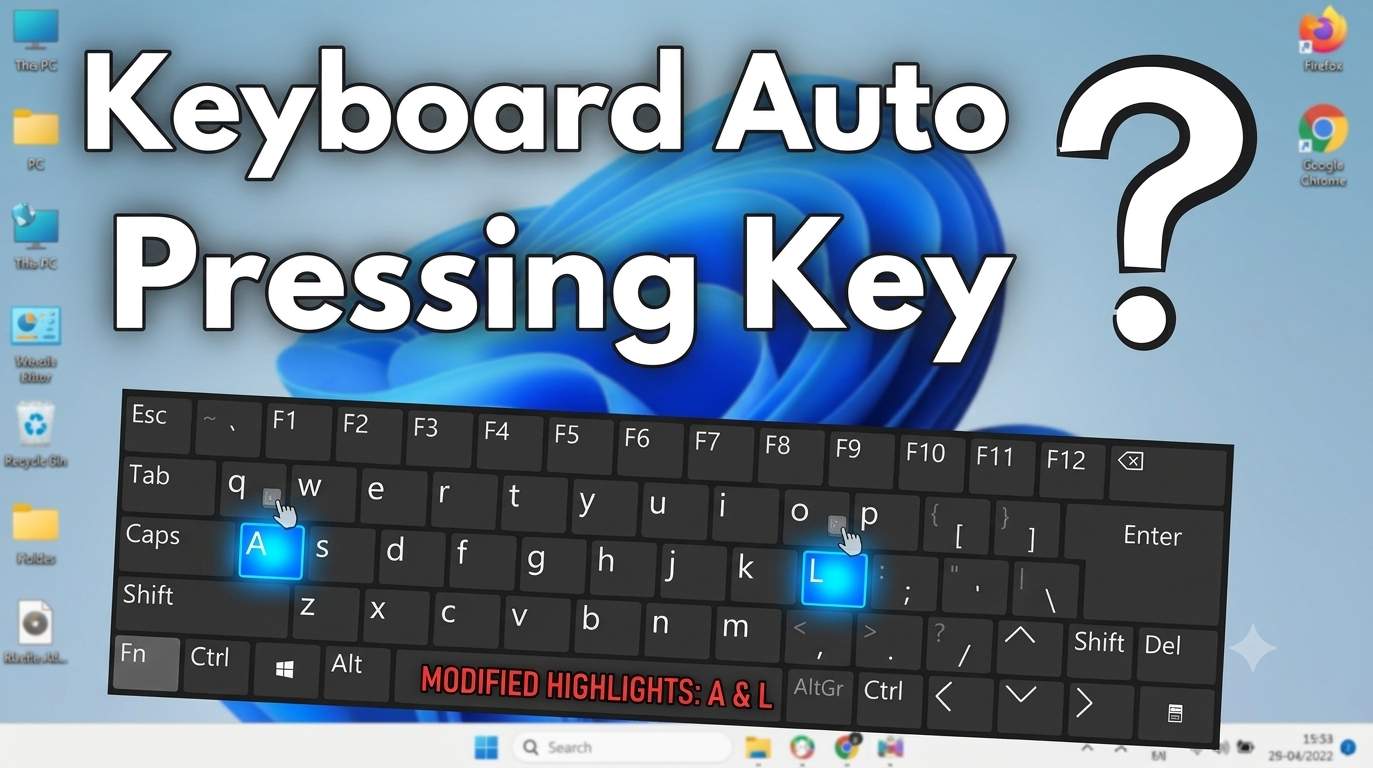
A keyboard that types on its own is usually one of two things: a physical key that is stuck or shorted, or a Windows setting or program changing what your keys do. Both are fixable, and the test below tells you which one you have.
The 60-second test: software or hardware?
- Notepad test. Open Notepad and stop touching the keyboard. Watch whether characters appear.
- On-screen keyboard. Press Win+Ctrl+O. It highlights keys as they register, so you can see which one is stuck, including Ctrl, Alt or Win.
- Safe Mode. Hold Shift while clicking Restart, then choose Troubleshoot → Startup Settings → Safe Mode. If the typing stops, a driver or app is to blame.
- BIOS test. Restart and open the BIOS or UEFI screen (often F2, Del or Esc). If keys still act up there, Windows is not involved, so it is hardware.
- Second device. For an external keyboard, plug it into another computer. Same fault there means the keyboard is bad.
Pick your symptom
Why keyboard keys type automatically
| Cause | Typical sign | Fix |
|---|---|---|
| Stuck, dirty or shorted key | One letter repeats or types alone | Fix 2 |
| Filter, Sticky or Toggle Keys | Doubled letters, delays, beeps, odd shortcuts | Fix 3 |
| Num Lock, Caps Lock or wrong layout | Numbers instead of letters, symbols, backwards text | Fix 4 |
| Bad or outdated keyboard driver | Started after an update, wrong keys | Fix 5 |
| Macro, remote or gaming software | Fine in Safe Mode, bad in Windows | Fix 6 |
| Low battery, interference, loose USB | Wireless keyboard types in bursts | Fix 7 |
| Liquid, worn membrane, damaged ribbon cable | Typing even in BIOS, many keys at once | Fix 8 |
Restart and isolate the problem
Shut down fully instead of just restarting. Hold Shift and click Shut down to skip Fast Startup, wait 30 seconds, then power on. Unplug USB devices you do not need, especially unknown ones, then run the test above. Install pending Windows updates afterward.
Free a stuck key and clean the keyboard
- Power the computer off and unplug the keyboard.
- Press the problem key 20 times, firmly and from the sides, to release grit.
- Turn the keyboard sideways and use short bursts of compressed air under the keys.
- Dab around the key with a cotton swab lightly dampened with 70% isopropyl alcohol.
- On detachable keycaps, lift the cap gently, clean the switch area and press it back down.
Do not pour liquid into a laptop keyboard. If you spilled a drink, power off now and see Fix 8.
Turn off Filter Keys, Sticky Keys and Toggle Keys
These accessibility features change how Windows reads keystrokes. They can switch on by accident: holding Shift for 8 seconds offers Filter Keys, and pressing Shift five times offers Sticky Keys.
- Open Settings → Accessibility → Keyboard.
- Turn off Sticky keys, Filter keys and Toggle keys, and untick the shortcut options so they cannot trigger again.
- Open Control Panel → Keyboard and raise Repeat delay, then lower Repeat rate to stop multiple letters from one press.
- In Settings → Accessibility → Mouse, make sure Mouse keys is off. It lets the number pad move the pointer.
If you rely on these features for hand tremors, keep Filter Keys on and tune it instead of removing it.
Check Num Lock, Caps Lock, Fn lock and layout
- Numbers instead of letters: many laptops embed a number pad in U I O J K L M. Press Num Lock or Fn+Num Lock to turn it off. This is why a J can type a 1.
- Wrong or garbled characters: press Win+Space until the layout reads English (US). Remove extra layouts in Settings → Time & language → Language & region.
- Backwards typing: a right-to-left layout or direction toggle is active. Ctrl+left Shift usually returns to left-to-right in layouts that support both.
- Arrow keys not moving: Scroll Lock may be on.
- All caps or function keys acting up: check Caps Lock and Fn Lock (a key with a padlock icon).
Run the troubleshooter and reinstall the keyboard driver
- Open Settings → System → Troubleshoot → Other troubleshooters and run Keyboard if it is listed. If it is missing, use Get Help.
- Right-click Start → Device Manager → expand Keyboards.
- Right-click your keyboard (for example HID Keyboard Device or Standard PS/2 Keyboard) → Uninstall device. Do not tick the delete-driver option.
- Restart. Windows reinstalls the driver automatically.
- Download the latest keyboard, chipset and BIOS updates from your laptop maker's support page (HP, Dell, Lenovo, ASUS, Acer).
If the problem began right after an update, open Settings → Windows Update → Update history → Uninstall updates and remove the newest one as a test.
Find software that injects keystrokes
Macro tools such as AutoHotkey, gaming keyboard software, auto-clickers, remote-support apps and some text-expander programs can send keystrokes.
- Open Task Manager → Startup apps and disable anything you do not recognize or need.
- Press Win+R, type
msconfig, open Services, tick Hide all Microsoft services, click Disable all and restart (a clean boot). - If typing is normal, re-enable services in small groups until it returns.
- Run Windows Security → Virus & threat protection → Scan options → Microsoft Defender Antivirus (offline scan).
Uninstall remote-access tools you did not install yourself. A malicious USB device can also type commands, so remove any you do not recognize.
Fix wireless and external keyboard problems
- Replace or recharge the batteries. A weak battery causes repeats and dropouts.
- Move the USB receiver to a front port on a short extension, away from routers and external drives.
- Remove the Bluetooth device in Settings and pair it again.
- Try another USB port and a different cable.
- Rest your wrists off the keys. Heavy palm contact can hold keys down on thin keyboards.
Treat hardware damage
If the BIOS test showed the fault, the keyboard itself is failing. Common causes are liquid residue, a worn membrane layer, a pinched ribbon cable, or heat swelling a battery under the keyboard.
- Use an external USB keyboard to work safely right away.
- To stop a laptop keyboard from sending phantom keys, open Device Manager, right-click the internal keyboard and choose Disable device (or uninstall it). You can re-enable it later.
- If the laptop is under warranty, contact the manufacturer before opening it.
- Otherwise have a technician replace the keyboard. Many laptop keyboards cost far less than a new machine.
Swollen battery warning: if the trackpad clicks poorly or the case bulges, stop using the laptop and have the battery checked.
Specific key problems (E, F, G, H, J, R, V, X, Z)
When one letter misbehaves, the pattern tells you a lot. Use this table before you replace anything.
| What happens | Most likely cause | What to do |
|---|---|---|
| J types 1, K types 2, L types 3 | Laptop Num Lock is on | Num Lock or Fn+Num Lock (Fix 4) |
| R, F or E keeps repeating | Debris under the key or a worn switch | Clean it (Fix 2). If it also repeats in the on-screen keyboard test, replace the keyboard. |
| G and H, or Z and Y, swapped | Wrong layout (for example German QWERTZ) | Win+Space to English (US) |
| V or X dead, others fine | Dirt, a lifted keycap or a damaged contact | Reseat the keycap, then test in the BIOS |
| A key types after you press another | Key ghosting or limited rollover | Use a keyboard with n-key rollover for gaming |
| One key types a letter plus a symbol (k becomes 2k#) | Filter Keys, a layout mismatch or a text shortcut | Fix 3 and Fix 4 |
| Shift or Ctrl seems permanently pressed | Stuck modifier or Sticky Keys | Tap each modifier twice, then Fix 3 |
Ghosting is not ghost typing
Ghost typing means keys register without you pressing them. Ghosting means a keyboard cannot read many keys held at once, so a key you pressed does not register, or an extra one appears. Gaming keyboards advertise n-key rollover to avoid it. If the problem happens only while holding several keys, it is likely ghosting and not a fault.
When it happens only in one app or situation
| Where | Why it happens | Fix |
|---|---|---|
| Excel or Word (numbers, arrow keys act strange) | Scroll Lock, Num Lock or Sticky Keys is on | Toggle Scroll Lock and Num Lock, then check the status bar |
| Chrome or Edge text boxes | A browser extension, autofill or text expander | Try a private window, then disable extensions one by one |
| Games | Overlay, macro or auto-clicker software | Close the overlay and keyboard software, then test (Fix 6) |
| VS Code or other editors | Auto-complete, snippets or extension shortcuts | Disable extensions or test in Notepad first |
| Remote Desktop or a virtual machine | Keys stuck after a connection drops | Press every modifier key once, then reconnect |
| Only after sleep or wake | Driver or power-management glitch | Fix 5, and turn off Fast Startup |
| Only at the sign-in screen | Hardware, or a layout different from your account | BIOS test, then Fix 4 |
Advanced Windows fixes
Roll back the keyboard driver
In Device Manager, double-click your keyboard, open the Driver tab and click Roll Back Driver if it is available. This undoes a bad driver update.
Repair Windows files
Run these in an administrator Terminal, then restart:
DISM /Online /Cleanup-Image /RestoreHealth
sfc /scannow
Reset Filter Keys, Sticky Keys and Toggle Keys to defaults
If the settings keep switching on, reset their stored flags to the usual default values, then sign out and back in. Back up your registry first.
reg add "HKCU\Control Panel\Accessibility\Keyboard Response" /v Flags /t REG_SZ /d 126 /f
reg add "HKCU\Control Panel\Accessibility\StickyKeys" /v Flags /t REG_SZ /d 506 /f
reg add "HKCU\Control Panel\Accessibility\ToggleKeys" /v Flags /t REG_SZ /d 58 /f
Rule out your profile
Create a new local account in Settings → Accounts → Other users and test typing there. If it works, your original profile or its settings are the cause.
Built-in hardware diagnostics by brand
Major makers include a keyboard test that runs outside Windows, which is the cleanest hardware check you can get.
| Brand | Tool | How to open it |
|---|---|---|
| HP | PC Hardware Diagnostics UEFI | Restart and tap F2 |
| Dell | SupportAssist pre-boot check | Restart and tap F12 |
| Lenovo | Lenovo Diagnostics or Vantage | Tap F10 at startup, or use the Vantage app |
| ASUS | MyASUS system diagnosis | Open the MyASUS app |
| Acer | Acer Care Center | Open the Care Center app |
Keys vary by model. If a tool reports a keyboard failure, you have proof for a warranty claim.
Repair, replace or live with it?
| Situation | Best move |
|---|---|
| Fixed by a setting, layout or Num Lock | Nothing to buy. Keep the settings off. |
| External keyboard that fails on a second PC | Replace it. A new one often costs less than an hour of troubleshooting. |
| Laptop keyboard fails in the BIOS, under warranty | Warranty repair |
| Laptop keyboard fails in the BIOS, out of warranty | Replace the keyboard module, or use an external one |
| Liquid spill | Power off and dry it, then repair promptly before corrosion spreads |
| Bulging battery or warped case | Stop using the laptop and get it inspected |
How to prevent keyboard problems
- Keep drinks away from the keyboard and clean it with compressed air every few months.
- Turn off the Sticky Keys, Filter Keys and Toggle Keys shortcuts if you do not use them.
- Install keyboard and BIOS updates from your PC maker, not random driver sites.
- Remove macro and auto-clicker tools you no longer use.
- Replace wireless keyboard batteries early and keep the receiver away from interference.
- Keep a spare USB keyboard for emergencies.
Final checklist: Notepad test, on-screen keyboard, Safe Mode, BIOS, then Filter Keys, Num Lock and layout, then driver, then software, then hardware. Stop at the first step that fixes it.
Mac, Chromebook, iPhone and Android
| Device | Where to look |
|---|---|
| Mac | System Settings → Accessibility → Keyboard: turn off Sticky Keys and Slow Keys. Check System Settings → Keyboard for Key repeat rate and Delay until repeat. Try Safe Mode. |
| Chromebook | Settings → Device → Keyboard for repeat settings, and Accessibility → Keyboard for sticky keys. Powerwash only as a last resort. |
| iPhone | Settings → General → Keyboard: review Text Replacement, Auto-Correction and Shortcuts. Restart and update iOS. |
| Android | Settings → System → Languages & input: clear Gboard cache, check text shortcuts and personal dictionary, and update the keyboard app. |
Frequently asked questions
Why is my keyboard typing by itself?
The most common causes are a stuck or dirty key, Filter Keys or Sticky Keys settings, a wrong layout or Num Lock state, a bad driver, background software such as macro tools, or failing hardware. Test in Notepad and the BIOS to tell software from hardware.
How do I stop my keyboard from typing multiple letters?
Turn off Filter Keys, then increase the repeat delay and lower the repeat rate in Keyboard Properties. If one key still repeats, clean under it or replace the keyboard.
Why does my keyboard type numbers instead of letters?
On many laptops Num Lock turns letters such as J, K, L, U, I and O into number keys. Press Num Lock or Fn plus the Num Lock key to switch it off.
How do I know if the problem is hardware or software?
If the keyboard still types by itself in the BIOS or UEFI setup screen, or on a second computer, the cause is hardware. If it behaves normally there but fails in Windows, it is software, a driver or a setting.
Why is my keyboard typing backwards?
A right-to-left language layout or text direction may be active. Switch layouts with Windows plus Space and make sure English (US) is selected. Some layouts change text direction with Ctrl plus Shift.
Can a virus make my keyboard type on its own?
It is possible but uncommon. Remote-access tools, macro software or a malicious USB device can inject keystrokes. Run a Microsoft Defender offline scan and unplug unknown USB devices.
Why does my laptop keyboard type on its own after spilling a drink?
Liquid leaves residue that connects key contacts, so keys register without being pressed. Shut the laptop down, let it dry, and have the keyboard cleaned or replaced. Use an external keyboard meanwhile.
Is it safe to keep using a keyboard that types by itself?
Not while you are entering passwords or editing important files, because random keystrokes can send commands, delete data or submit forms. Use an external keyboard until the fault is fixed.
Why do some letters type numbers on my laptop?
Many laptops have an embedded number pad on keys such as U, I, O, J, K, L and M. When Num Lock is on, those keys type numbers. Press Num Lock or Fn plus Num Lock to switch it off.
How do I reset Filter Keys and Sticky Keys in Windows?
Open Settings, Accessibility, Keyboard and turn off Sticky keys, Filter keys and Toggle keys. If they keep turning on, reset their registry flags to the default values, then sign out and back in.
Should I replace my laptop keyboard or buy an external one?
If the keyboard fails in the BIOS and the laptop is under warranty, request a warranty repair. Otherwise an external keyboard is the cheapest immediate fix, and you can disable the internal keyboard in Device Manager.
Why does my keyboard type on its own only when I wake the computer?
A driver or power-management glitch is likely. Reinstall the keyboard driver, install BIOS and chipset updates, and turn off Fast Startup to test.