How to Fix JPG/JPEG Files Not Opening in Windows 11
You double-click a photo and nothing happens, Photos closes at once, the picture opens in the wrong app, or you get a “can’t open this file” error. This guide explains why JPG and JPEG files stop opening and walks through every fix in plain language, from default apps and the Photos app to PowerShell, system repair, damaged files and app-specific problems.
Quick Answer
If a JPG or JPEG file will not open in Windows 11, the cause is almost always one of four things. The file itself may be damaged or incomplete, the file may not really be a JPEG even though its name ends in .jpg, Windows may be pointing .jpg files at the wrong or a broken app, or the Microsoft Photos app may be outdated or corrupted. The quickest way to tell which one you are dealing with is to open the same picture in Paint and in a browser such as Microsoft Edge or Google Chrome. If it opens in either of them, the picture is healthy and the problem is the app that Windows uses by default. If it refuses to open anywhere, the file is the problem and you should focus on re-downloading it, unblocking it, copying it to a local folder or restoring it from a backup.
When the problem is the default app, work in this order. Open Settings → Apps → Default apps, type .jpg in the search box and make sure Photos (or another viewer you trust) is selected, then do the same for .jpeg. Next, update Photos from the Microsoft Store, then open Settings → Apps → Installed apps → Microsoft Photos → Advanced options and use Repair, and if that fails, Reset. If the app is still broken, reset or re-register it with a PowerShell command, run the System File Checker and DISM to repair Windows itself, and check whether the trouble started right after a Windows update. Those steps solve the large majority of cases without touching your pictures.
None of these fixes delete your photos. Repair and Reset only affect the Photos app and its own settings, not the image files stored in your folders, on your USB drive or in OneDrive. The rest of this guide explains each step in plain language, including what to do when the problem appears only in Adobe Photoshop, Word, Excel, Outlook, Chrome, Google Drive, OneDrive, on a USB drive, on a work computer, or on an HP, Dell or Lenovo laptop.
Why JPG and JPEG Files Stop Opening in Windows 11
A JPG file looks simple, but opening it involves a chain of parts that all have to work: the file must be complete and correctly encoded, Windows must know which app is responsible for it, that app must start and be able to decode the image, and nothing such as security software or a permissions rule may block the process. A break anywhere in that chain produces the same symptom from your point of view, which is that you double-click the picture and nothing useful happens. That is why one generic piece of advice never works for everyone, and why it helps to understand the common failure points before trying fixes.
The first group of causes lives in the file. A download that stopped halfway, a photo copied from a memory card that was pulled out too early, a USB drive with file system errors, or an email attachment that was cut short can all leave a JPG that is partly there but cannot be decoded. A zero-byte file is the extreme example. Another file-level cause is a wrong extension: a picture saved as HEIC, WebP, AVIF or PNG and then renamed to .jpg will fail in many apps because the extension says one thing and the contents say another. Some JPEGs are also unusual on purpose or by accident, for example CMYK JPEGs from print workflows, files with damaged metadata, or files written by unusual software, and a few apps that handle ordinary JPEGs without trouble will refuse them.
The second group of causes lives in Windows settings. Windows remembers a default app for every file type. If you installed an editor, a PDF tool or a photo organizer, it may have taken over .jpg and then been removed or broken, leaving Windows trying to launch something that no longer works. If you changed the default by mistake, the picture may open in a browser, a code editor or an app that cannot display images at all. In that case it can look as if the file is broken when only the association is wrong.
The third group lives in the app. In Windows 11 the Microsoft Photos app is the normal viewer, and it is updated through the Microsoft Store rather than only through Windows Update. An out-of-date version, a failed update, corrupted app data or a damaged app registration can stop it from launching or make it close immediately, and then every picture seems to be affected. The fourth group lives in Windows itself: damaged system files, a faulty cumulative update, a graphics driver problem that makes the viewer show a black or blank screen, or a profile problem that affects only one user account.
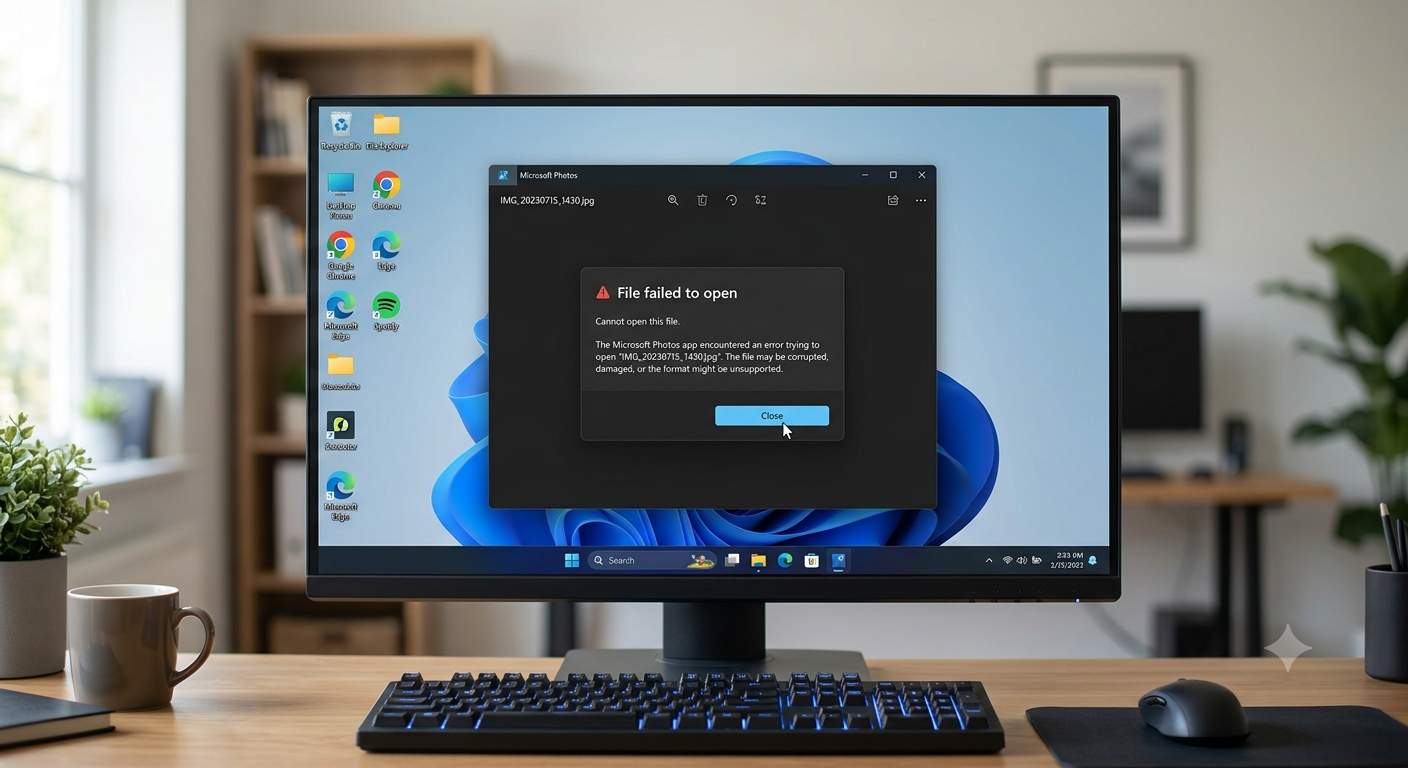
Finally, there are external causes: antivirus or ransomware protection blocking access, files stored online only in OneDrive or Google Drive and not actually downloaded, network share permissions, and, on managed work computers, policies that restrict which apps may run. The error messages you may see include “This app can’t open”, “Photos can’t open this file because the format is unsupported or the file is damaged”, “Windows Photo Viewer can’t open this picture”, “The specified procedure could not be found”, or a numeric code such as 2147219196, or there may simply be no message at all. The rest of this guide goes through each of these causes and the matching fix.
JPG vs JPEG: Is There Any Difference?
There is no difference in the picture format. JPEG stands for Joint Photographic Experts Group, the committee that created the standard, and JPG is simply the same name shortened to three letters because older versions of Windows required file extensions to be three characters long. Today both .jpg and .jpeg describe exactly the same kind of file, and you can rename one to the other without converting anything. Windows also recognises related extensions such as .jpe and .jfif as JPEG-type images.
The reason this matters for troubleshooting is that Windows stores the default app separately for each extension. It is entirely possible for a .jpeg file to open correctly in Photos while a .jpg file opens in a different app or fails, because the two extensions were associated at different times by different programs. When you fix default apps later in this guide, always set .jpg and .jpeg both, and if you also receive .jfif files from social media or browsers, set that one too. A quick test is to rename a stubborn .jpg to .jpeg (or the other way around) and try again. If the renamed copy opens, you have proof that the problem is the association and not the picture.
First Work Out What Kind of Problem You Have
Before you change anything, spend two minutes answering four questions, because the answers tell you which fixes to try first and save a lot of random clicking. The first question is whether the problem affects one picture or all of them. If only one file or a handful of files fail while others open normally, the files are the likely culprit, and the sections about file checks, unblocking and repairing damaged JPEGs matter most. If every JPG fails, the cause is almost certainly the default app, the Photos app or Windows itself.
The second question is whether the problem affects one app or every app. Drag the picture into Microsoft Edge or Google Chrome and open it in Paint. If it displays in a browser or in Paint, the file is fine. If it opens in Photoshop but not in Photos, you again have an app problem, or a JPEG that uses an unusual encoding that Photos does not like. If it fails everywhere, the file is damaged or is not really a JPEG.
The third question is when it started. If the trouble began right after a Windows update, a Microsoft Store update, a new graphics driver, or the installation of a photo or PDF program, that event is your top suspect and you can reverse it or repair around it. If it started after a malware warning, or the file names suddenly gained odd extensions, treat it as a security issue first. The fourth question is where the files live. Pictures stored on the desktop or in the Pictures folder behave differently from pictures on a USB stick, a network share, an email attachment or a cloud-only OneDrive folder, and many “JPG will not open” cases turn out to be a location problem rather than a file problem.
Also note exactly what you see. Nothing happening at all, an app that opens and closes instantly, a black or blank viewer window, an error message, a red cross or placeholder in Word, or a picture opening in the wrong program are five different symptoms with different causes. A short note of what you see, and when it started, will make every later step easier.
Fix 1: Restart Windows and Test a Different Picture
It sounds too basic to matter, but a full restart clears stuck processes, finishes pending updates and reloads the app that handles pictures, and it genuinely fixes a surprising number of cases where the Photos app hangs or silently refuses to open. Use Start → Power → Restart rather than Shut down, because with Fast Startup enabled a normal shutdown in Windows 11 does not fully reset the system, while a restart does. After the restart, wait a minute for background tasks to settle before testing.
Then test with more than one picture. Open a JPG you did not create, for example one from a different folder, a wallpaper image from C:\Windows\Web, or a screenshot you have just taken. If those open normally, Windows and the Photos app are working and the picture you were trying to open is the problem. If nothing opens, Windows or the default app is the problem. This single test splits the whole troubleshooting tree in two and is the best use of your first minute.
Fix 2: Check the File Extension and the File Size
Windows hides known file extensions by default, which means a file called holiday.jpg might actually be named holiday.jpg.jpg, holiday.jpg.txt or holiday.jpg.crdownload. To see what is really there, open File Explorer, choose View → Show → File name extensions, and look at the full names. A double extension, a leftover .crdownload or .part from an unfinished browser download, or an unexpected extension appended after .jpg tells you straight away why the file does not open.
Next, right-click the file, choose Properties and look at the size. A file that is 0 KB is empty and cannot be repaired, and you need to download or copy it again from the original source. A photo that should be several megabytes but shows only a few kilobytes is probably cut short. If the size looks reasonable, also check the Type of file line. If it says JPG File or JPEG File, Windows recognises the extension. If it says File, or names another app, the association is broken, which the default-app fix below handles.
It is worth knowing what a real JPEG looks like inside. If you open a copy of the file in Notepad (close it without saving, and do not try this on a huge file), a genuine JPEG starts with the characters ÿØÿ followed shortly by JFIF or Exif. A HEIC photo from an iPhone shows the word ftyp and heic or heix near the start, a PNG starts with the letters PNG, and a WebP starts with RIFF and contains WEBP. If your “JPG” turns out to be one of those, it was simply renamed, and the right solution is to open it with an app that supports its real format or convert it properly, not to repair it.
Fix 3: Open the Picture in Paint, Edge or Chrome to Test the File
This is the most useful diagnostic step in the whole guide. Right-click the picture, choose Open with, and pick Paint. If Paint is not listed, choose Choose another app and select it from the list. Then drag the same file into an open Microsoft Edge or Google Chrome window. These three programs use different code to decode images, so if the picture shows in any of them, the file is not damaged.
If the picture opens in Paint or a browser, use File → Save as → JPEG picture in Paint, or right-click a picture in a browser, and save a fresh copy under a new name. A newly written, standard JPEG often opens everywhere, which is a quick way round files with odd metadata or encoding. If it opens in a browser but not in Photos, the problem is Photos or the default association, and the next fixes apply. If it does not open in any of the three, jump ahead to the sections on re-downloading, unblocking, drive errors and repairing a truly damaged JPEG.
Fix 4: Unblock and Copy the File (Downloads, Email, Outlook, Google Drive, USB, ZIP)
Files that arrive from another computer can carry a mark that tells Windows to treat them with suspicion, and in some cases that stops an app from opening them or makes it open them in a restricted mode. Right-click the file, choose Properties, and at the bottom of the General tab look for a line reading “This file came from another computer and might be blocked to help protect this computer”. If you see it, tick Unblock, press Apply and try again. Only do this for files you trust.
The location of a file is just as important as the file. Pictures opened straight from an email in Outlook or the new Outlook, from inside a ZIP archive, from a browser’s download bar, from a USB drive or from a network share are often opened from a temporary location, and a partial or locked temporary copy can fail even though the original is fine. The fix is to save the file first. Save the attachment to your Desktop or Pictures folder, extract the whole ZIP rather than double-clicking a picture inside it, copy files from the USB stick or network folder to your local drive, and then open the local copy. If a download looks incomplete, delete it and download again, ideally in another browser, and check that the final size matches what the sender or website says.
For cloud storage, a picture may appear in File Explorer without being on your computer at all. A cloud icon next to an OneDrive file means it is stored online only, and a Google Drive for desktop file may be streamed rather than saved. Right-click the file or folder and choose Always keep on this device in OneDrive, or make it available offline in Google Drive, wait for the sync to finish, and then open it. If the sync is stuck or shows errors, pause and resume syncing, or sign out and in again, since an unsynced placeholder file can behave like a corrupt file.
Fix 5: Set the Right Default App for JPG and JPEG Files
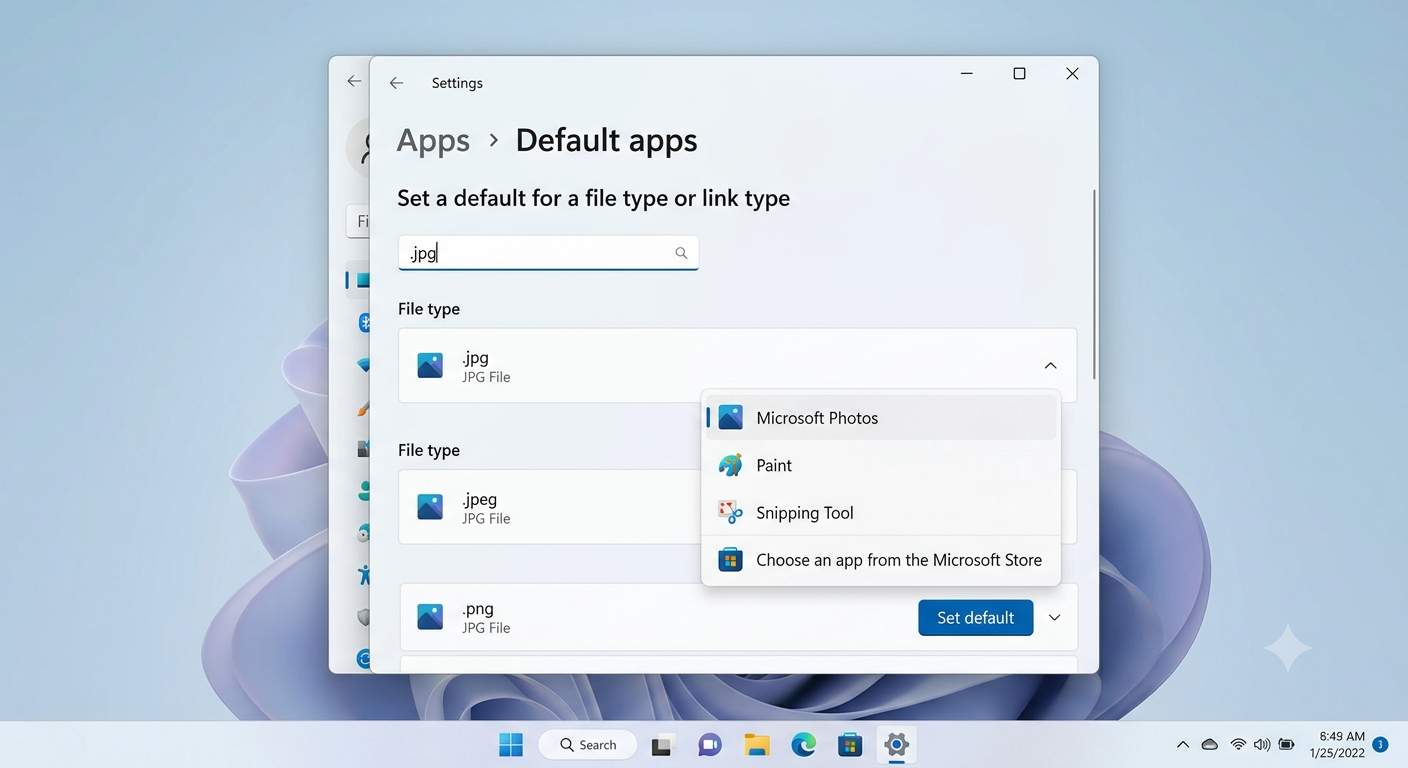
If pictures open in the wrong app, open in nothing, or give an “unknown application” message, the default association is probably at fault. On Windows 11, open Settings → Apps → Default apps. In the box that says “Enter a file type or link type”, type .jpg, and you will see the app currently assigned. Choose Photos (or Paint, or another viewer you like) and select Set default. Repeat the process for .jpeg, and for .jfif and .jpe if you use them. You can also set Photos as the default for many image types at once by opening the Photos entry in the app list and setting each extension from there.
There is also a shortcut from the file itself. Right-click a JPG, choose Open with → Choose another app, pick the app you want, and tick Always use this app to open .jpg files before pressing OK. If the app you want is not in the list, scroll to the bottom, choose More apps, and then Look for another app on this PC to browse to its program file. When Windows refuses to apply the change, the usual causes are a broken app that still holds the association or a setting enforced by a work policy. Restarting and doing it again, or using the Settings route rather than right-click, normally works.
If the list is full of conflicts, you can wipe all defaults and start clean. At the bottom of the Default apps page, in Windows 11 under Related settings, choose Reset all default apps. This returns every file type to Microsoft’s defaults, which means your PDF reader, browser and other choices will also reset, but it removes any stubborn broken association. Many guides suggest editing the registry key that stores the choice for .jpg, and I do not recommend it: Windows protects that setting with a hash so that it cannot be changed casually, and manual edits often fail or make things worse.
Keep in mind that changing the default is also the fix for the common situation where a picture opens in a web browser, Notepad or another program by mistake. If you have just installed or removed software such as Adobe Photoshop, Lightroom, a PDF suite or a customization tool and the picture handling changed, set the default again afterwards, because the most recently installed app often claims the association. Several users report exactly this with Photoshop, where the properties show “unknown application” until the default is set by hand in Windows Settings.
Fix 6: Update the Microsoft Photos App
Photos is not updated only by Windows Update. Microsoft ships new versions through the Microsoft Store, so a PC that installs Windows updates normally can still run a very old, buggy Photos build, especially if the Store was disabled, signed out or blocked for a while. To update it, open the Microsoft Store, click Library in the left menu, press Get updates, and wait while updates for Photos and other apps install. You can also search for Microsoft Photos in the Store and check whether the button says Update or Open.
If the Store itself will not load, shows a blank window or refuses to update, fix that first, because Photos depends on it. Check that the date, time and region are correct, sign in again, and run the Store cache reset in the next-but-one section. After updating, restart Photos and try the problem file again. Updates alone solve many “Photos opens and closes” and “Photos can’t open this file” complaints that appear right after a Windows feature update.
Fix 7: Repair and Then Reset the Photos App
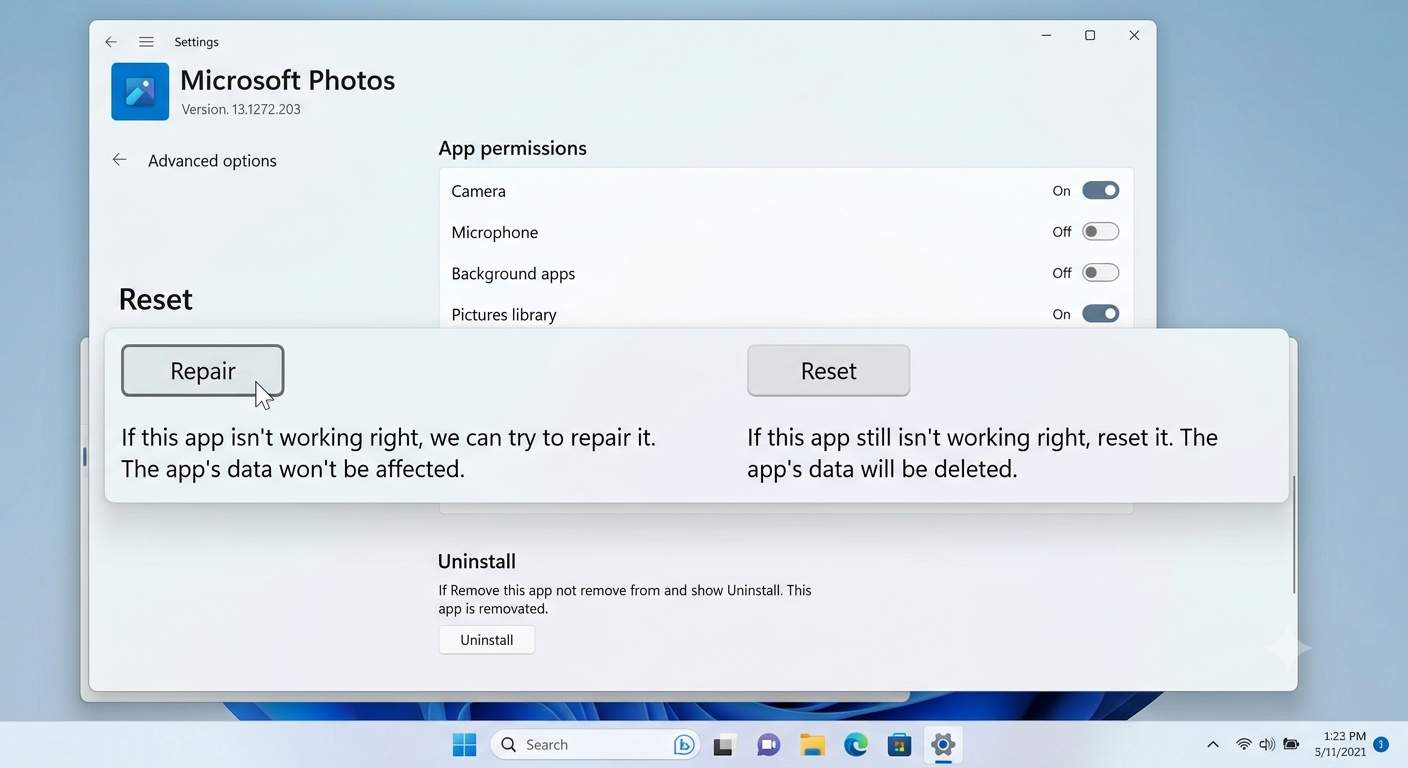
Windows 11 includes a built-in repair and reset tool for apps installed from the Store, and it is the single most effective fix when Photos itself is the problem. Open Settings → Apps → Installed apps, find Microsoft Photos in the list, click the three dots on the right and choose Advanced options. Scroll to the Reset section. First press Terminate to close any background processes, then press Repair. Repair attempts to fix the app without deleting its data, and it takes a few seconds, after which a tick appears next to the button. Try your picture again.
If Repair does not help, use Reset on the same page. Reset reinstalls the app’s settings to the freshly installed state and deletes its local data, which means things like app preferences and cached thumbnails are cleared. It does not delete the pictures in your folders, your OneDrive or your Pictures library. After resetting, open Photos once from the Start menu so that it initialises properly, and then try the file again. On Windows 10 the path is Settings → Apps → Apps & features → Microsoft Photos → Advanced options, and the same two buttons are there.
Fix 8: Reset, Re-register or Reinstall Photos with PowerShell or Windows Terminal
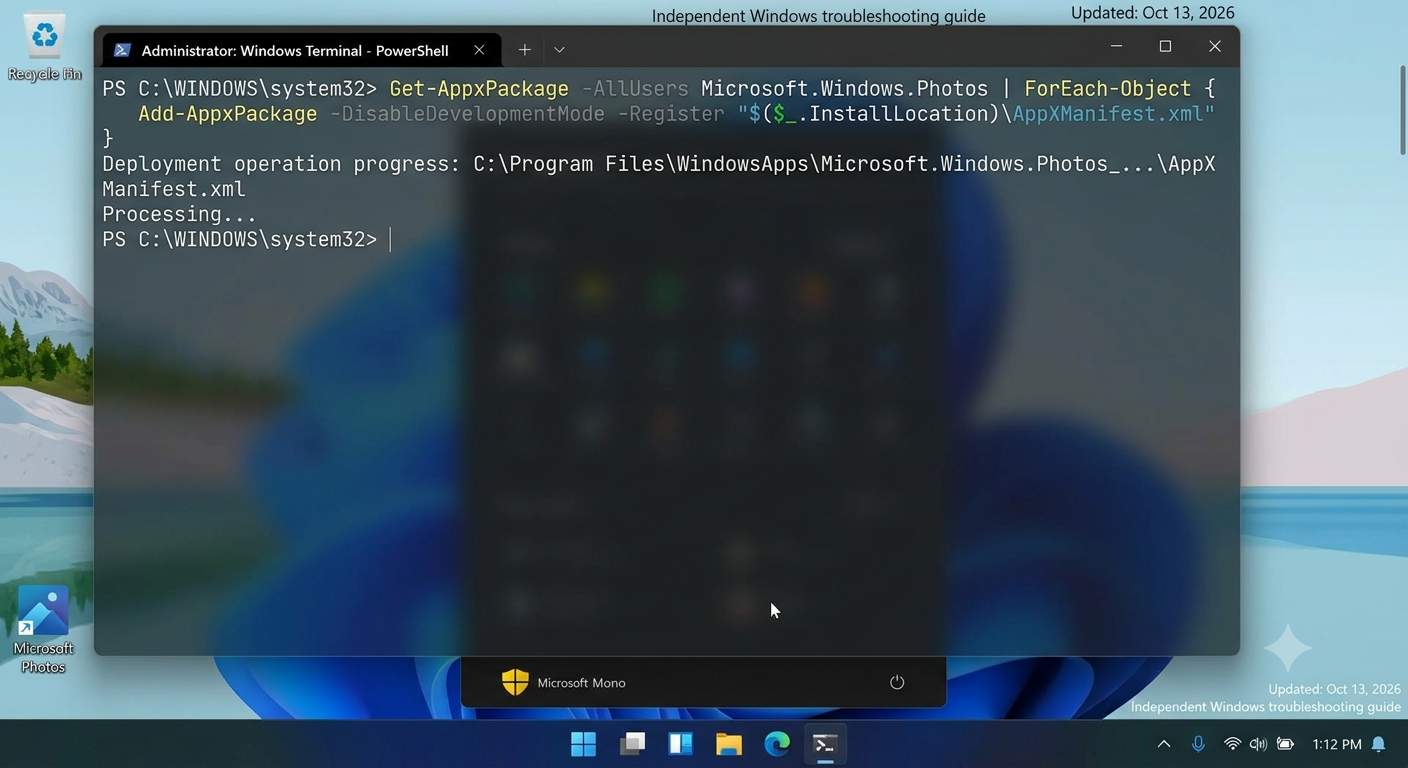
If the Settings buttons do nothing, the app’s registration with Windows may be damaged, and a command line fix usually repairs that. Right-click the Start button and choose Terminal (Admin) in Windows 11 or Windows PowerShell (Admin) in Windows 10, and allow the prompt. The same commands also work when you search for and run Windows Terminal or PowerShell as administrator from the Start menu, and they are the answer to the many searches that ask for a “command line”, “terminal” or “through cmd” fix. Note that these commands are PowerShell commands, so in an old black Command Prompt window you should first type powershell and press Enter.
The gentlest option is to reset Photos from the command line. This does the same job as the Reset button but works when the Settings page does not.
Get-AppxPackage Microsoft.Windows.Photos | Reset-AppxPackage
If that fails or reports an error, re-register the app. This tells Windows to read the app’s manifest again and rebuild its registration for all users, and it is a standard fix for apps that will not start.
Get-AppxPackage -AllUsers Microsoft.Windows.Photos | ForEach-Object { Add-AppxPackage -DisableDevelopmentMode -Register "$($_.InstallLocation)\AppXManifest.xml" }Red error text in this step is not always a failure, since PowerShell sometimes reports items that are already registered, so restart Windows and test the picture before assuming it failed. As a last resort, remove Photos completely and install a clean copy. Run the first command below, restart, then open the Microsoft Store, search for Microsoft Photos and install it again. Because you are removing the app, set Paint as a temporary default viewer first so you can still open pictures while you work.
Get-AppxPackage Microsoft.Windows.Photos | Remove-AppxPackage
Fix 9: Run the Windows Store Apps Troubleshooter and Reset the Store Cache
Windows includes an automatic troubleshooter for Store apps, and it can detect and repair problems with permissions, licences or the app cache that affect Photos. In Windows 11, open Settings → System → Troubleshoot → Other troubleshooters, find Windows Store Apps and press Run. On Windows 10 the route is Settings → Update & Security → Troubleshoot → Additional troubleshooters → Windows Store Apps. Follow its prompts, apply any fixes it offers and restart.
If Store apps in general are acting up, clear the Store’s own cache. Press Windows + R, type wsreset.exe and press Enter. A blank command window opens for a short time, and then the Microsoft Store starts by itself, which tells you the reset is complete. This clears only the Store’s cache and does not remove your apps or purchases. Afterwards, return to the Store, check for updates in Library and test Photos again.
Fix 10: Repair Windows System Files with SFC and DISM
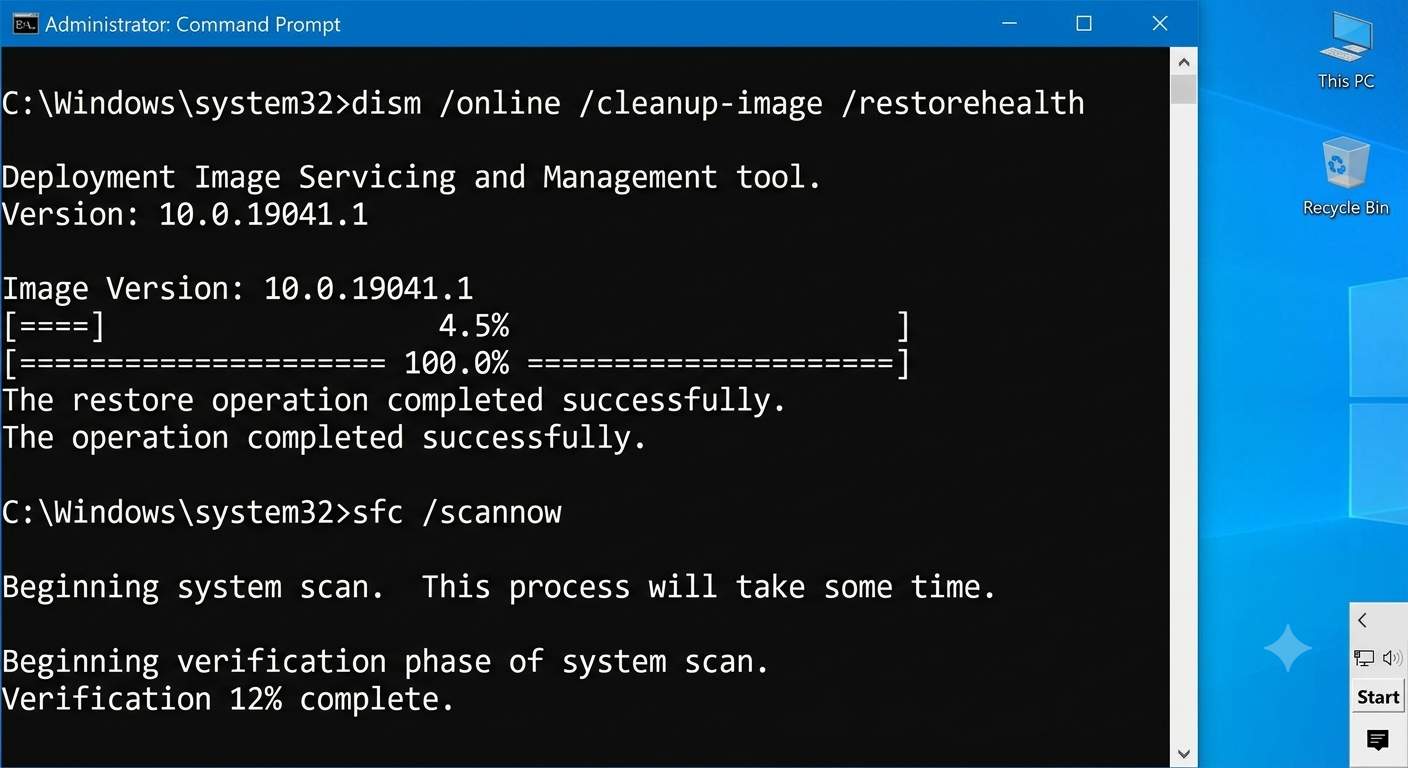
When the same problem affects several apps, or Photos repair keeps failing, the cause may be damaged Windows system files. Two built-in tools check for that, and you should run them in order from an elevated window. Open Terminal (Admin) or search for Command Prompt, right-click it and choose Run as administrator. First run DISM, which repairs the component store that Windows uses as a source of healthy files, and then run the System File Checker, which replaces damaged system files using that source.
DISM /Online /Cleanup-Image /RestoreHealth
sfc /scannow
Each command can take ten to thirty minutes, and the progress percentage sometimes pauses for a long time, which is normal, so do not close the window. DISM needs an internet connection to fetch replacement files when the local copy is damaged. When SFC finishes it tells you whether it found nothing, repaired files, or found files it could not repair. If it says it repaired files, restart and test. If it cannot repair some files, run DISM again, then SFC again, and consider the in-place repair upgrade described under the Windows update section below.
Fix 11: JPG Stopped Opening After a Windows Update or Upgrade
If the problem started right after a Windows update, especially a feature update such as moving to a newer version of Windows 11, first install anything still pending. Open Settings → Windows Update, press Check for updates, and also expand Advanced options → Optional updates, where driver and quality fixes sometimes wait. Microsoft often corrects problems introduced by an update in a later patch, so the cheapest fix is simply to be fully up to date, and then also update Photos in the Store.
If you are fully updated and the trouble began with one specific update, you can remove that update as a test. Go to Settings → Windows Update → Update history → Uninstall updates, pick the most recent update by its install date and uninstall it, then restart. Pause updates for a short time while you test, and once you know the cause, report it through the Feedback Hub so Microsoft can fix it. Be careful: security updates matter, so treat this as a temporary test and not a permanent state, and re-enable updates when the issue is solved.
If that does not help and SFC and DISM could not repair the system, there are two stronger options. System Restore, found by searching for “Create a restore point” and choosing System Restore, returns Windows files and settings to an earlier date without touching your documents, as long as a restore point exists from before the problem. The most thorough option is an in-place repair upgrade, in which you download the Windows 11 ISO from Microsoft, run setup from inside Windows, and choose to keep your files and apps. It reinstalls Windows system files over the top, and fixes deep corruption while keeping your data. Back up important files before you do it. The Settings → System → Recovery page also offers a Reset this PC option, but treat that as a last resort and not a first step.
Fix 12: Check the Drive for Errors, Permissions and Storage Problems
If the problem pictures are all on one drive, such as an external hard disk, a USB stick, an SD card or a second internal drive, the drive may have file system errors, and this is one of the most common reasons a handful of JPGs refuse to open after being copied or moved. In File Explorer, right-click the drive, choose Properties → Tools → Check, and let Windows scan it. You can do the same from an administrator window.
chkdsk D: /scan
If the scan reports problems, run chkdsk D: /f to fix them. This can take a while and locks the drive during the process, so make sure nothing is copying. Before repairing a failing drive that holds irreplaceable photos, copy everything you can to another disk first, because repairing sometimes moves damaged data into recovery files. Also check that the drive is not nearly full, since very low disk space can interrupt a save and leave truncated files. A drive that disconnects at random, or that shows a lot of unreadable files, may be failing and should be backed up and replaced.
Permissions can also block a picture. If the file came from an old computer or another user account, right-click it, choose Properties → Security, and make sure your account has Read permission. If not, use Advanced to take ownership and grant yourself access. On a network share (SMB), the same applies: ask the owner for read access, or copy the file locally. Files inside protected locations such as another user’s profile can also be unavailable. Windows Security’s Controlled folder access, covered next, can block apps from reading or writing certain folders too.
Fix 13: Check Windows Security, Antivirus and Possible Virus Damage
Security software can interfere in two ways. It may quarantine or block a picture it considers suspicious, or it may stop an app from reading a protected folder. Open Windows Security → Virus & threat protection → Protection history to see whether the file was blocked or removed, and restore it if you trust it. Also open Ransomware protection → Controlled folder access. If it is on, apps such as an editor or a viewer that are not on its allowed list can be blocked from your Pictures or Documents folders, and you can either allow the app or switch the feature off temporarily to test.
A virus or malware infection is a less common cause but deserves attention if many pictures failed at once, or file names changed. Ransomware typically renames files with a strange extension, such as photo.jpg.locked, and photos that suddenly will not open alongside a ransom note are a security emergency, not a viewer problem. In that case disconnect from the network, do not pay or rename files, run a full scan with Windows Security (and the Microsoft Defender Offline scan option), and restore from a backup. For ordinary cases, run Quick scan and then Full scan from Scan options, and if you use a third-party antivirus, check whether it has a quarantine area that holds your pictures.
Fix 14: Use Another Image Viewer (and Why Windows Photo Viewer Is Not the Answer)
If Photos remains stubborn after repair, reset and reinstall, you do not have to lose your afternoon to it. Windows 11 includes Paint, which opens JPGs quickly and sets nothing up, and Microsoft Edge and Chrome display them too. Many people also install a lightweight dedicated viewer, and well-known free options such as IrfanView, XnView MP, ImageGlass and Honeyview are all fine choices, so install one from the vendor’s official site and set it as the default for .jpg and .jpeg using Fix 5. A third-party viewer also helps with unusual JPEGs, since it ships its own decoder and does not depend on the Windows components that Photos uses.
You may see advice to bring back the old Windows Photo Viewer from Windows 7 by editing the registry. It is not included in Windows 11, the registry trick is unofficial, it supports fewer file types and it is not updated. It is not recommended as a fix. Choosing a maintained alternative is safer and gives you better support for modern files.
Fix 15: Convert or Re-save a Stubborn JPG, and Fix Mislabelled HEIC, WebP and AVIF Files
If one picture or a small set of pictures will not open in Photos but opens in another program such as Photoshop, Paint.NET or a browser, re-saving the file is often the quickest cure. Open it in the program that can display it, choose Save as or Export, and save a new JPEG with a new name. Several Windows 11 users have reported that a few JPEGs which opened in older versions of Windows would not open in Photos or Paint on newer builds, but opened after being saved again from Photoshop Elements. The cause is usually an unusual structure or damaged metadata in the original, and the fresh copy is standard. Use a copy and keep the original until you are sure.
If the inside of the file is not a JPEG at all, as explained in the extension check, then rename it back to its real extension or convert it. iPhone photos in the HEIC format need the HEIF Image Extensions from the Microsoft Store, and Windows may also ask for the HEVC Video Extensions (the manufacturer may include it), after which HEIC files open in Photos. WebP and AVIF are supported in current Windows 11 builds, but older builds may need an update or the matching Store extension. An easier route is to share or export from the phone as “Most Compatible” JPEG, or to convert the files with a trusted tool. Online converters work, but avoid uploading private photos to unknown websites.
Also look at whether the file might be a CMYK or otherwise special JPEG. Print-oriented software can save JPEGs in CMYK colour mode, and many viewers fail or show wrong colours with them. Open the file in an editor that supports it and convert the image to RGB before saving as a normal JPG.
Fix 16: Repair or Recover a Truly Damaged JPG
If a JPG does not open in any program, you have a damaged file. Start with the cheap options before using repair software. Check for another copy: the original memory card or phone, a cloud backup in OneDrive, Google Photos or iCloud, an older email attachment, File History, or a backup drive. Right-click the folder that contained the file and choose Properties → Previous Versions to see whether Windows kept an earlier version through File History or restore points. Also look in the Recycle Bin and in any cloud service’s trash.
When no copy exists, a damaged JPEG can sometimes be partially recovered. If the top part of the image loads and the rest is grey or missing, the file was truncated, and any viewer that tolerates errors, as many browsers and some third-party viewers do, will show the part that exists. Dedicated JPEG repair tools can rebuild a missing header using a healthy sample photo from the same camera, which helps in a lot of memory card cases, but results vary, so choose reputable software, use a copy of the file, and be wary of tools that ask for payment before showing a preview. If the photos were lost from a card or drive that you have since kept using, stop writing to it immediately, because every new file reduces the chance of recovery.
App-by-App Fixes: Adobe, Office, Outlook, Teams, Chrome, Edge, OneDrive and More
Adobe Photoshop and other Adobe apps. Messages such as “Could not complete your request because it is not the right kind of document” or “because an unknown or invalid JPEG marker type is found” usually mean that the file is not really a JPEG, as explained earlier, or that it is damaged. Check the real format with the Notepad test, rename if needed, or open the file in a browser to see whether it is intact. If JPGs open in Photoshop but not in Photos, the file is probably fine. If Photoshop will not become the default, set it through Windows Settings as described in Fix 5 rather than relying on the installer.
Word, Excel and PowerPoint. A pasted or inserted picture that shows a red cross, a blank box or the message “This picture can’t be displayed” may be a placeholder issue. In Word, open File → Options → Advanced and make sure Show picture placeholders is not ticked, and also confirm that the document is not in a compatibility or protected view that blocks content, where you may need to press Enable Editing. Insert the picture using Insert → Pictures → This Device instead of copy and paste, and use Office’s Repair option from Settings → Apps → Installed apps → Microsoft 365 or Office → Modify when the problem affects every document.
Outlook and the new Outlook. Attachments are opened from a temporary location, and a damaged temporary folder or a blocked attachment can stop the picture from loading. Save the attachment to your computer first and open it from there. If the preview pane is blank, turn the preview off and on again, make sure Photos is the default for .jpg, and ask the sender to resend the picture as a normal JPEG if it looks truncated.
Microsoft Teams. If images in a chat will not load or open, open the same message in a browser version of Teams to check whether it is a local problem, then sign out and clear the Teams cache. A picture that opens in the browser but not in the desktop app points to the app, not the file.
Google Chrome and Microsoft Edge. If a JPG will not display in a browser, the picture may be damaged or the browser may be having a rendering problem. Test it in a private window to rule out extensions, then turn off hardware acceleration in the browser settings and restart. If a downloaded JPG opens in neither browser, the file is the problem. If it opens in the browser but not in Photos, return to Fixes 5 to 8.
OneDrive, Google Drive and other cloud services. Make sure the file is actually downloaded to the PC, as covered in Fix 4. A cloud placeholder is not the real picture until it has downloaded, and apps may fail to open or preview placeholder files.
File Explorer thumbnails, the preview pane and wallpaper. If pictures open but show blank icons, open File Explorer → three dots → Options → View and make sure Always show icons, never thumbnails is unticked, then clear the thumbnail cache with Disk Cleanup by choosing Thumbnails. If File Explorer itself freezes when you click a picture, restart it from Task Manager (right-click Windows Explorer, choose Restart). If a JPG will not become your wallpaper, choose it through Settings → Personalization → Background → Browse photos or right-click the picture and choose Set as desktop background, and use a standard JPEG that is not unusually large.
Windows Media Player. This player is built for audio and video and does not display pictures, so a JPG that does nothing in it is not broken. Open pictures in Photos, Paint or a browser instead.
Work PCs, Group Policy, Virtual Machines and LTSC Editions
On a managed computer, such as a business or school PC, the usual reason JPGs will not open is policy and not a fault. An administrator can lock default apps with a default associations file, restrict the Microsoft Store or block specific apps, and when that happens the Settings changes in Fix 5 either do not stick or revert after a restart. Group Policy settings only exist on Pro, Enterprise and Education editions and not on Windows 11 Home, so a home user will not find them. If you are on a work device, do not try to bypass the restrictions. Ask your IT team to allow Photos or another approved viewer, and give them the exact file and error message.
In virtual machines and remote desktops, such as VirtualBox, VMware, Hyper-V and VDI environments, the Photos app may simply not be installed, the Store may be unavailable, or the virtual graphics driver may stop the viewer from drawing the image. Install Paint or a third-party viewer inside the virtual machine, and check that the guest tools or additions are installed and current. Also note that Windows 11 Enterprise LTSC editions usually ship without the Microsoft Store and the modern Photos app, so there is no Photos app to repair, and you need Paint or a third-party viewer.
Dell, HP, Lenovo and Other Laptops: Drivers and Customization Tools
Laptop makers rarely change how JPGs open, but their utilities can still matter. If the Photos app opens to a black, white or flickering window, or crashes when displaying an image, the graphics driver is a common suspect. Update the display driver through Windows Update → Advanced options → Optional updates, or from your manufacturer’s support page: Dell SupportAssist, HP Support Assistant or Lenovo Vantage, and the Intel, AMD or NVIDIA driver pages for the graphics chip. Install the update, restart, and test again. If the problem started after a driver update, roll it back from Device Manager → Display adapters → Properties → Driver → Roll Back Driver.
Third-party customization tools can also interfere. Skin packs, transformation packs, taskbar and Start menu replacements and shell mods change how Explorer and the shell behave, and they can break file associations, thumbnails or context menus after a Windows update. If your problem began after installing one, disable or uninstall it as a test. Also be careful with “registry cleaner” and “PC optimizer” programs, which sometimes remove file association entries that they wrongly think are unused. If you used one before the trouble began, the default apps reset in Fix 5 is the first thing to try.
Keyboard Shortcuts and Right-Click Tricks When the Picture Will Not Open
A few keyboard and right-click habits help you diagnose and work around the problem. Select the picture and press Enter to open it with the default app, or press Shift + F10 (or the Menu key) to open the full right-click menu, where Open with lets you try another app. On Windows 11 the new compact menu hides some entries, so choose Show more options to see the classic menu with the full Open with list. Press Alt + Enter to open Properties for the selected file, Windows + E to open File Explorer, Windows + I to open Settings, and Ctrl + Shift + Esc to open Task Manager if an app has frozen.
If the Open with menu is missing or empty, that is itself a clue that the file association or the shell is damaged, and Fix 5 and the SFC steps apply. If double-clicking does nothing at all, check Task Manager for a stuck Photos process, end it and try again. As a quick workaround at any time, you can drag the picture onto an open Paint window or a browser tab, which bypasses the default app completely.
Windows 10 Differences and the End of Support
Most of this guide applies equally to Windows 10, with small differences in menu names. Default apps are under Settings → Apps → Default apps, the Photos Repair and Reset buttons are under Apps & features, the Store troubleshooter lives under Update & Security, and the PowerShell, SFC, DISM and CHKDSK commands are identical. Windows 10 also still has the older Windows Photo Viewer entry in some upgraded installations, which can confuse the Open with list, so choose Photos explicitly.
It is worth knowing that Microsoft ended regular support for Windows 10 on October 14, 2025, unless you are enrolled in the Extended Security Updates programme. This does not make your pictures stop opening, but it means new fixes for Photos and Windows components arrive more slowly, and staying on an unsupported system carries security risk. If your computer meets the requirements, moving to Windows 11 is the better long-term answer to recurring problems, and if it does not, keep Windows 10 fully patched and consider a maintained third-party viewer.
What Other Users Report: Patterns Worth Knowing
Reading user reports across forums shows a few recurring patterns. The most common is that JPGs stop opening in Photos after a Windows upgrade, and the usual fixes that solve it are updating Photos in the Store, then Repair and Reset, and then re-registering the app with PowerShell. A second pattern involves the error code 2147219196 or the message that the specified procedure could not be found, which users typically see after moving to a newer Windows build, and the same sequence of Photos repair, reset and system file repair resolves most of those cases.
A third pattern, reported on Windows 11 builds such as 24H2 and 25H2, is that a small number of specific JPGs open fine on Windows 10 or in Photoshop but fail in Photos and even in Paint on the newer system. People found that the files were unusual in their encoding or metadata, and that opening them in an editor and saving a fresh copy produced a file that opened everywhere. The lesson is that an image can be “valid” for one program and not for another, so when only a few files fail, re-saving them is quicker than reinstalling Windows. A fourth pattern is the Adobe default app problem, where Photoshop cannot be selected as the default for .jpg and the Properties page shows “unknown application”, which is solved by setting the default manually in Windows Settings.
How to Stop It Happening Again
Prevention is mostly habit. Keep Windows and the Microsoft Store apps updated, and restart after large updates. Set your default apps once and avoid installers that quietly take over image types, by choosing custom install and unticking file association options. Let downloads finish completely before opening them, and eject USB drives and memory cards properly with Safely Remove Hardware instead of pulling them out. Keep at least a few gigabytes of free space on your system drive so that saves are not cut short.
Most important, keep a backup of photos you care about, following the simple rule of three copies on two kinds of storage with one off-site, for example your PC, an external drive and a cloud service. A backup turns a damaged picture from a disaster into a ten-second restore. Finally, if you edit or export pictures often, save standard sRGB JPEGs and avoid renaming files to change their format, and the files you create will open everywhere.
Frequently Asked Questions
Why are my JPG files not opening in Windows 11?
The usual causes are a damaged or incomplete file, a file that is not really a JPEG, a wrong or broken default app, an outdated or corrupted Photos app, or damaged system files. Open the picture in Paint and a browser to see whether the file itself is fine, then set the default app and update, repair or reset Photos.
How do I set JPG files to open with Photos in Windows 11?
Open Settings, then Apps, then Default apps, type .jpg in the search box, choose Microsoft Photos and press Set default. Repeat for .jpeg. You can also right-click a picture, choose Open with, Choose another app, pick Photos and tick Always.
How do I repair or reset the Photos app?
Open Settings, Apps, Installed apps, find Microsoft Photos, click the three dots, choose Advanced options, and press Terminate, then Repair. If that fails, press Reset. You can also reset it with the PowerShell command Get-AppxPackage Microsoft.Windows.Photos | Reset-AppxPackage.
Why will a JPG open in Paint or Chrome but not in Photos?
That means the file is intact and the problem is the Photos app or the default association. Update Photos in the Microsoft Store, repair and reset it, and set the default app again. If only a few files behave this way, they may have unusual encoding, and saving a fresh copy from Paint or an editor usually fixes them.
Can I open a JPG file without the Photos app?
Yes. Paint, Microsoft Edge, Google Chrome and free viewers such as IrfanView, XnView MP and ImageGlass all open JPG files. You can drag the picture into any of them, or use Open with from the right-click menu.
Why did my JPG files stop opening after a Windows update?
An update can leave Photos out of date or change associations or system components. Install pending updates, update Photos in the Store, repair and reset Photos, run SFC and DISM, and if the trouble began with one update, test by uninstalling it from Update history.
Is there a difference between JPG and JPEG?
No. They are the same format, and JPG is a shorter extension from the days of three-character file names. Windows stores the default app separately for each extension, so set both .jpg and .jpeg.
Why does my JPG show 0 KB or will not open after download?
A zero-byte or very small file means the download or copy failed, and it cannot be repaired. Delete it and download it again, check for leftover extensions such as .crdownload, and save email attachments to your computer before opening them.
How can I repair a corrupted JPG file?
First look for another copy in a backup, cloud storage, File History or Previous Versions. If none exists, try opening the file in another viewer or editor and saving it again, and use reputable JPEG repair software on a copy for harder cases.
Do these fixes work on Windows 10?
Yes. The default apps, Photos repair and reset, PowerShell, SFC, DISM and CHKDSK steps are the same, with small differences in menu names. Windows 10 support ended on October 14, 2025, so consider moving to Windows 11 if your PC supports it.
Bottom Line
JPG and JPEG files that will not open in Windows 11 look like a mystery, but the cause is nearly always findable in a few minutes. Test the same picture in Paint and a browser to learn whether the file or the app is at fault. If the file is fine, fix the default app for .jpg and .jpeg, update the Photos app, repair and reset it, and if needed re-register it with PowerShell and repair Windows with DISM and SFC. If the file is the problem, unblock it, copy it to a local folder, re-download it, convert a mislabelled HEIC or WebP, check the drive for errors, and restore from a backup when it is truly damaged.
Work through the fixes in order, restart between the bigger steps, and stop as soon as the picture opens, because you do not need to do them all. If everything fails, a reliable third-party viewer gets you back to your photos right away while you decide whether a deeper Windows repair is worth the effort.