How to Fix External Microphone Not Working in Windows 11
Windows 11 does not show your microphone, the level bar stays flat, your headset plays sound but nobody hears you, or it works in Settings but not in Teams, Zoom or Discord. This playbook matches your symptom to the right fix, whether your microphone uses a 3.5 mm jack, USB or Bluetooth, and takes you from a 2-minute check to a driver repair, in the order that protects your settings best.
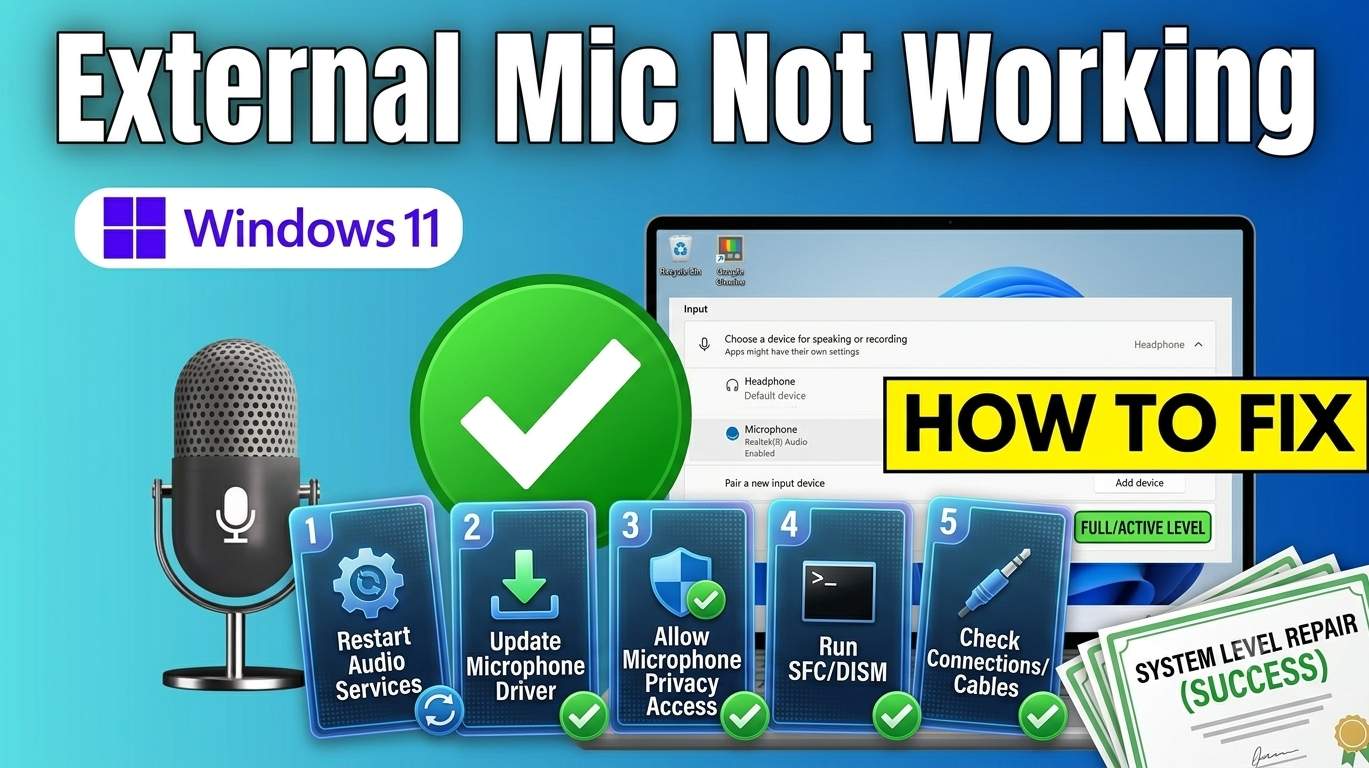
Quick Answer
Unplug and replug the microphone, check any mute switch and make sure it is in the right jack or USB port. Then open Settings → System → Sound and choose your microphone under Input, with the volume turned up. Open Settings → Privacy & security → Microphone and turn on microphone access, including for desktop apps. If the microphone is not listed, run mmsys.cpl, show disabled devices and Enable it. Set the microphone inside Teams, Zoom or Discord, restart the Windows Audio services, and update or reinstall the audio driver. For Bluetooth headsets, choose the Hands-Free input.
- Check the basics: plug, mute switch, right jack, another device (Fix 1).
- Choose the input and raise the volume (Fix 2).
- Allow microphone access in Privacy settings (Fix 3).
- Enable the device and set it as default (Fix 4).
- Set the microphone inside your app (Fix 6).
- Restart audio services, then update or reinstall the driver (Fix 8 and 9).
Find Your Fix in 10 Seconds
Pick what you notice. You get an ordered list of fixes to try, and each link opens the fix below.
How Windows 11 Gets Your Voice (and Where It Breaks)
Five stages sit between your voice and the app. The place where it stops tells you which fix to open.
Symptom Decoder
Match what you notice to the most likely cause and the fix to open first.
| What you notice | Most likely cause | Go to |
|---|---|---|
| Microphone missing from Sound settings | Loose connection, disabled device or driver problem | Fix 1, 4, 9 |
| Listed, but the level bar stays flat | Wrong default input, muted or very low volume | Fix 2, 1, 3 |
| Works in Settings but silent in one app | Privacy access off or wrong mic chosen in the app | Fix 3, 6 |
| One app works, then another goes silent | Exclusive mode conflict | Fix 7 |
| Stopped right after an update | Driver or permission changed by the update | Fix 9, 11 |
| Bluetooth headset has sound but no mic | Hands-Free profile not used | Fix 10, 2 |
| Quiet, muffled or hissing voice | Levels, boost, enhancements or format | Fix 7, 2 |
| USB microphone keeps dropping | Hub, port, power saving or cable | Fix 10, 8 |
Before You Start Checklist
Two minutes of setup makes every test clearer.
The Escalation Ladder
Move down the ladder only when the step above did not help. Green steps are quick checks, amber steps change drivers and services, and the red step is the biggest repair.
- Check the basics: plug, mute, jack, another device⏱ 5 minData risk: None
- Choose the right input and raise the volume⏱ 5 minData risk: None
- Allow microphone access in Privacy settings⏱ 5 minData risk: None
- Enable a disabled microphone, set as default⏱ 10 minData risk: None
- Run the Recording Audio troubleshooter⏱ 5 minData risk: None
- Set the microphone inside your app⏱ 10 minData risk: None
- Turn off exclusive mode and enhancements⏱ 10 minData risk: None
- Restart the Windows Audio services⏱ 5 minData risk: None
- Update, reinstall or roll back the audio driver⏱ 15–30 minData risk: Low
- Fix jack, USB and Bluetooth problems⏱ 15–20 minData risk: None
- Remove a recent update, repair Windows files⏱ 20–40 minData risk: Low
- Reset sound settings, test hardware, repair install⏱ 30–90 minData risk: Low
The 12 Fixes in Detail
Each fix shows when to use it, why it works, the exact steps and commands, what success looks like and what to do if it fails.
01Check the basics: plug, mute switch, right jack, another deviceData risk: None⏱ 5 minAlways start here
- Replug the microphone firmly, wait for the Windows connection sound and restart the PC once.
- Look for a mute control. Many headsets and USB mics have a mute switch, button or knob. Many laptops have a mic mute key (often F4 or F8 with a mic icon). In supported apps such as Teams you can also use Windows + Alt + K to mute and unmute.
- Use the right jack. A laptop with one 3.5 mm combo jack needs a headset plug with a mic (usually three black bands, four metal sections). A mic-only plug or a stereo-only plug needs a splitter or a USB audio adapter. On a desktop, use the pink mic jack, not the green or blue one.
- Try another USB port and plug straight into the PC, not into a hub or dock. Try a different cable if the mic has a removable one.
- Test on another device, such as a phone or another PC. If it fails there too, the microphone, cable or adapter is faulty (Fix 12).
- Unplug other headsets, webcams and audio gadgets for now so they cannot take over the input.
A plug with two black bands is usually stereo-only or mic-only. A plug with three black bands usually carries both headphone sound and the microphone.
02Choose the right input device and raise the volumeData risk: None⏱ 5 minMic listed but silent
- Open Settings → System → Sound and scroll to Input.
- Under Choose a device for speaking or recording, select your external microphone by name (for example Headset Microphone, USB Audio Device or the brand name).
- Click that device and check Input volume. Move the slider to a high value (70 to 100) and make sure the mute option is off.
- Click Start test and speak. The bar should move. Stop the test when you are done.
- If the bar moves but your voice is still too quiet, go to Fix 7 for the Levels and boost settings.
Windows 11 updates move some labels around. If you do not see an option, look for the same words inside the selected microphone's Properties page.
03Allow microphone access in Privacy settingsData risk: None⏱ 5 minWorks in test, not in apps
- Open Settings → Privacy & security → Microphone.
- Turn on Microphone access.
- Turn on Let apps access your microphone, then scroll the app list and make sure the app you use is switched On.
- Turn on Let desktop apps access your microphone. Teams, Zoom, Discord and most classic programs count as desktop apps and use this switch.
- Check the Recent activity list on the same page. It shows which apps used the microphone lately, which helps confirm that access works.
- Restart the app, or sign out and in again, and test it.
If the switches are greyed out, an organisation policy controls them. Ask your IT team. Some security suites also have a microphone protection feature that can block apps, so check their settings.
04Enable a disabled microphone and set it as defaultData risk: None⏱ 10 minMic not showing up
- Press Windows + R, type
mmsys.cpland press Enter. Open the Recording tab. - Right-click an empty area and tick Show Disabled Devices and Show Disconnected Devices.
- Right-click your microphone. If you see Enable, click it.
- Right-click it again and choose Set as Default Device, then Set as Default Communication Device.
- Speak. The green bar next to the mic should move.
- You can also check Settings → System → Sound → Advanced → All sound devices (name varies by build) for a microphone marked as not allowed, and choose Allow.
mmsys.cpl
- mmsys.cpl — opens the classic Sound control panel with the Recording tab
05Run the Recording Audio troubleshooterData risk: None⏱ 5 minLet Windows check it
- Open Settings → System → Troubleshoot → Other troubleshooters.
- Find Recording Audio and click Run. Windows may open the Get Help app to run it.
- Choose your external microphone when asked and follow the suggestions it shows.
- Apply any fix it offers, restart the PC and test the microphone again.
06Set the microphone inside Teams, Zoom, Discord or your browserData risk: None⏱ 10 minOne app does not hear you
- Teams: click the three dots, open Settings → Devices and choose your microphone.
- Zoom: open Settings → Audio → Microphone and choose your microphone. Click Test Mic.
- Discord: open User Settings → Voice & Video, set Input Device to your microphone and run Let's Check.
- Chrome or Edge: click the lock icon in the address bar, set Microphone to Allow, then open the site's settings and choose the right input. You can also review all sites under the browser's Privacy settings, in the Site permissions or Microphone section.
- Close other apps that might hold the microphone, such as recorders or other meeting apps, then restart the app you want to use.
- Remote Desktop: before connecting, open Show options → Local Resources → Remote audio → Settings and set Remote audio recording to Record from this computer.
- Virtual machine: make sure the VM has audio input enabled and the USB microphone is passed through to the VM.
Most meeting apps have a test button. If the app's own test shows your voice, the microphone works and any remaining problem is in the meeting settings.
07Turn off exclusive mode and enhancements, and fix levelsData risk: None⏱ 10 minQuiet, distorted or app conflicts
- Press Windows + R, run
mmsys.cpland open the Recording tab. Double-click your microphone. - On the Advanced tab, untick Allow applications to take exclusive control of this device.
- Still on Advanced, set Default Format to 1 channel, 16 bit, 48000 Hz (or 44100 Hz) and click Apply. Try the other formats if one does not work.
- On the Levels tab, make sure the microphone is not muted and set the volume high. If your voice is still too quiet, raise Microphone Boost a little. If there is hiss, lower it.
- Turn enhancements off. Open Settings → System → Sound, click your microphone and set Audio enhancements to Off (or the device default). Also turn off noise suppression or voice effects in any sound software from the maker, such as the Realtek Audio Console, Nahimic or Dolby.
- Click OK and test again.
08Restart the Windows Audio servicesData risk: None⏱ 5 minAudio stuck after sleep or update
- Press Windows + R, type
services.mscand press Enter. - Find Windows Audio, right-click it and choose Restart. Do the same for Windows Audio Endpoint Builder. Confirm if Windows asks about dependent services.
- Double-click each one and make sure Startup type is Automatic.
- Or open Command Prompt (Admin) and run the commands below instead. Then test the microphone.
net stop audiosrv
net stop AudioEndpointBuilder
net start AudioEndpointBuilder
net start audiosrv
sc config audiosrv start= auto
sc config AudioEndpointBuilder start= auto
- net stop / net start — stops and starts the Windows Audio and Endpoint Builder services in the right order
- sc config … start= auto — makes both services start automatically with Windows
09Update, reinstall or roll back the audio driverData risk: Low⏱ 15–30 minStarted after an update
- Right-click Start and open Device Manager. Expand Audio inputs and outputs and Sound, video and game controllers. Look for your microphone and your sound chip (for example Realtek).
- Right-click the microphone and choose Update driver → Search automatically for drivers. Also check Settings → Windows Update → Advanced options → Optional updates for audio drivers.
- For the best match, download the newest audio driver from your laptop or motherboard maker's support page (not a random driver site) and install it.
- If it still fails, right-click the device and choose Uninstall device (do not tick the option to delete the driver software), then restart. Windows reinstalls it.
- If it began after an update, double-click the device, open the Driver tab and click Roll Back Driver if the button is available.
- As a test, choose Update driver → Browse my computer → Let me pick from a list and pick High Definition Audio Device, the generic Microsoft driver. If the microphone works with it, you can keep it.
Driver updater tools from unknown sites often install the wrong driver or unwanted software. Use Windows Update or your PC maker's support page.
10Fix jack, USB and Bluetooth problemsData risk: None⏱ 15–20 minDepends on how it connects
3.5 mm jack
- When you plug in, answer the What device did you plug in? prompt (if shown by the Realtek Audio Console) with Microphone or Headset.
- On a desktop, use the rear panel jack. Front-panel jacks need the case cable connected to the motherboard, and the BIOS option for HD Audio enabled.
USB microphone or audio interface
- Plug it straight into a different USB port. Avoid hubs and docks, and try a USB 2.0 port if you have one.
- Open Control Panel → Power Options → Change plan settings → Change advanced power settings → USB settings → USB selective suspend setting and set it to Disabled.
- Check the microphone's own gain knob, mute light and any software from the maker. For an XLR microphone on an audio interface, check the gain knob and 48V phantom power for condenser microphones.
Bluetooth headset
- Open Settings → Bluetooth & devices → Devices, remove the headset and pair it again. Disconnect it from your phone first if it connects to both.
- In Settings → System → Sound, choose the Headset (Hands-Free) entry for input. Bluetooth headset microphones use that profile, and the sound quality drops while the mic is active. That is normal.
When the microphone starts, many Bluetooth headsets switch to a lower-quality Hands-Free mode so they can send your voice. Quality returns when the call ends.
11Remove a recent update and repair Windows filesData risk: Low⏱ 20–40 minBroke right after an update
- Open Settings → Windows Update → Update history → Uninstall updates. Pick the most recent update from around the time the microphone broke and click Uninstall.
- Or use System Restore: press Windows + R, run
rstrui, and choose a restore point from before the problem. - Open Command Prompt (Admin) and run the two repair commands below, then restart.
- If you removed an update, pause updates for a few days (Settings → Windows Update → Pause updates) until a fixed update or driver is available.
DISM /Online /Cleanup-Image /RestoreHealth
sfc /scannow
- DISM … /RestoreHealth — repairs the Windows component store
- sfc /scannow — checks protected system files and replaces damaged ones
12Reset sound settings, test the hardware and repair Windows (last resort)Data risk: Low⏱ 30–90 minNothing else worked
- Open Settings → System → Sound → Advanced and choose Reset sound devices and volumes for all apps to the recommended defaults. Then select your microphone again (Fix 2).
- Test the hardware. Try the microphone on another PC or a phone. Try a different cable or adapter. Plug in a USB headset or a known-good microphone to the same PC to see whether the PC's audio works at all.
- Repair install Windows 11. Open Settings → System → Recovery and look for Fix problems using Windows Update, or run setup.exe from a Windows 11 ISO and choose Keep personal files and apps.
- If a repair install does not help and another microphone works, replace the faulty microphone, cable or adapter. If no microphone works on this PC, contact the maker, since the audio jack or sound chip may be faulty.
If you decide to reset the whole PC, see our guide How to Fix "Reset This PC" Not Working in Windows 11. Back up your files first.
Microphone Works Only in Some Apps
If Windows hears you but one app does not, work through these checks:
- Run the app's own test. Teams, Zoom and Discord all have a microphone test. If it shows your voice, the problem is the meeting settings.
- Pick the microphone inside the app (Fix 6). Apps do not always follow the Windows default.
- Check the three Privacy switches in Settings → Privacy & security → Microphone (Fix 3).
- Close other apps that may hold the microphone, and turn off exclusive mode (Fix 7).
- Browsers: allow the microphone for the website in the address bar and in the browser's site permissions.
- Remote Desktop or a virtual machine: turn on audio recording for the session or the VM (Fix 6).
Connection Types Compared
Each way of connecting a microphone fails in a different way.
| Connection | Common problem | Quick check | See |
|---|---|---|---|
| 3.5 mm jack | Wrong plug type or jack prompt | Check for a plug with a mic and answer the jack prompt | Fix 1, Fix 10 |
| USB microphone | Port, hub or power saving | Try another USB port without a hub | Fix 10, Fix 8 |
| Bluetooth headset | Hands-Free profile not used | Choose the Headset (Hands-Free) input | Fix 10, Fix 2 |
| USB audio interface (XLR) | Gain, phantom power or driver | Check the gain knob and 48V for condenser mics | Fix 10, Fix 9 |
| Webcam microphone | Selected input is the wrong one | Choose the webcam input in Sound settings | Fix 2, Fix 6 |
| Built-in laptop mic | Switched off when a headset is plugged in | Unplug the headset, then choose the built-in input | Fix 2, Fix 4 |
What Is Normal and What Is Not
Use these as general guidance, since every PC and microphone is different.
| What you see | Normal? | What to do |
|---|---|---|
| The level bar moves when you speak | Normal | The microphone works. Check the app if you still cannot be heard. |
| The built-in laptop mic stops working while a headset is plugged in | Normal | Unplug the headset to use the built-in mic again. |
| Bluetooth sound quality drops when the mic starts | Normal | It returns when the call ends (Fix 10). |
| A little hiss at high boost | Often normal | Lower Microphone Boost (Fix 7). |
| Microphone disappears after sleep | Not normal | Restart audio services and update the driver (Fix 8 and 9). |
| USB microphone disconnects at random | Not normal | Change the port, cable and power saving (Fix 10). |
| No microphone works on this PC | Not normal | Check the driver, then the hardware (Fix 9 and 12). |
After You Fix It Checklist
Do’s and Don’ts
✅ Do
- Test the microphone on another device first
- Check mute switches and the plug type
- Change one setting at a time
- Pick the microphone inside each app
- Use drivers from your PC maker or Windows Update
- Create a restore point before driver changes
🚫 Don’t
- Use driver updater tools from unknown sites
- Plug a mic-only plug into a headset jack without an adapter
- Leave microphone privacy switches off by mistake
- Ignore a yellow warning in Device Manager
- Disable audio services permanently
- Reset Windows before trying the simple fixes
Frequently Asked Questions
Why is my external microphone not working in Windows 11?
Why does Windows 11 not show my external microphone?
How do I enable an external microphone in Windows 11?
How do I allow apps to use my microphone in Windows 11?
Why does my microphone work in Windows but not in Teams, Zoom or Discord?
Why did my microphone stop working after a Windows update?
Why does my headset microphone not work in the 3.5 mm jack?
Why does my Bluetooth headset microphone not work in Windows 11?
Why does my USB microphone keep disconnecting?
Why is my microphone too quiet in Windows 11?
What does Allow applications to take exclusive control mean?
Is it safe to restart the Windows Audio services?
How do I make Remote Desktop use my local microphone?
Why does my microphone not work in a virtual machine?
Are the steps the same for Windows 10 and for Dell, HP, Lenovo and Acer laptops?
How can I tell whether the microphone or the PC is broken?
When should I replace the microphone or get repair?
Bottom line
Most external microphone problems in Windows 11 come down to the connection, the wrong default input, blocked privacy access, a disabled device or an audio driver problem. Check the plug and mute switch, choose the microphone under Input, allow microphone access, enable the device, set it inside your app, and restart the audio services. Then update or reinstall the driver. If the microphone fails on other devices too, replace it.
Back to the fix finder