Windows 11 · Windows 10 · Updated October 16, 2026
How to Boost Laptop Speaker Volume on Windows 11
Windows stops at 100%, and small laptop speakers have limited power. But most “too quiet” cases come from a low link in the chain, not weak hardware. This guide goes stage by stage, from free checks to a system-wide dB boost.
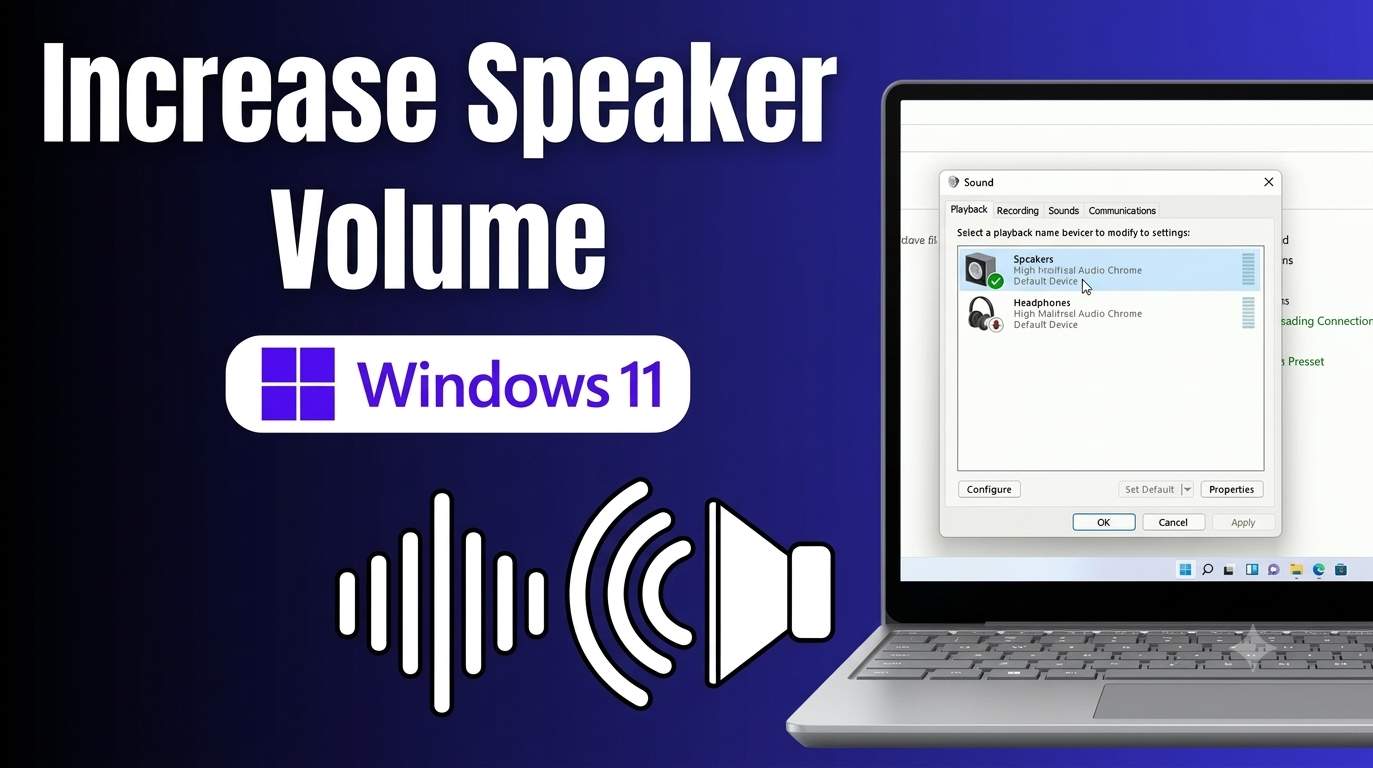
Quick answer
1) Raise Quick Settings and the Volume mixer. 2) Turn on Loudness Equalization (mmsys.cpl). 3) Set Communications to Do nothing. 4) Install the maker’s audio driver and app. 5) For extra gain, use Equalizer APO with a small Preamp.
Windows has no master volume above 100%. Software boost adds gain and can distort. A bigger speaker or amp is the only way to gain real power.
Why it is quiet: decoder
Match your symptom to the likely cause and the fix numbers.
| Symptom | Likely cause | Fix # |
|---|---|---|
| Everything is quiet | Low master, wrong device, generic driver | 1, 2, 6, 7 |
| One app or tab is quiet | Per-app slider, quiet source | 1, 9, 10 |
| Calls are quiet, or music dips in calls | Communications ducking | 5 |
| Quiet after a Windows update | Driver swapped or settings reset | 15, 6 |
| Voices low, effects loud | Uneven dynamics | 4 |
| Crackles when turned up | Clipping, speaker limit, driver | 6, 14 |
| Bluetooth is quiet | Two volumes: PC and speaker | 2, 14 |
| Only one side is loud | Balance, Mono audio, damage | 2, 14 |
Build my boost route
Answer three questions and get the fixes in the best order for you.
Boost calculator (dB)
Equalizer APO uses decibels. See what a number means before you set it.
Preamp: 6 dB
The 15 ways, stage by stage
Each stage adds more gain and more risk. Stop as soon as the sound is loud enough.
Check the basics
Free and fast. Solves most “quiet” cases.
1Max every volume slider in the chainNo changesTypical gain: Often the whole fix
How it helps: Windows multiplies several volume levels together: the keyboard or master level, the device level, the per-app level, the player and the website. One low link makes everything quiet.
- Press Win + A and drag the Quick Settings volume to 100.
- Open Settings → System → Sound → Volume mixer and raise the app you use (Chrome, Edge, Teams, Zoom, Spotify). Each app has its own slider.
- Max the slider inside the player or website (YouTube, Netflix, VLC).
- Use the laptop’s volume keys. If they do nothing, try them with Fn held, or toggle the Fn Lock key.
Not enough? Go to Fix 2.
2Confirm the right output device and its own levelNo changesTypical gain: Often large
How it helps: Windows may send sound to a monitor, a headset dock or a disconnected Bluetooth device, or the device’s own level may be low.
- Open Settings → System → Sound. Under Output, choose your laptop speakers.
- Select that device and check its Volume slider and the Mono audio switch (turn it off unless you need it).
- Open
mmsys.cpl, double-click the speakers and check the Levels tab. Balance should be equal left and right. - Bluetooth speakers also have their own volume. Raise it on the speaker.
mmsys.cpl
Not enough? Try the Windows settings in Stage 2.
Windows sound settings
Built-in options, no downloads.
3Test Audio enhancements on and offChanges settingsTypical gain: Small to moderate, varies by driver
How it helps: Effects from the driver can add punch, or they can reduce level. Which one wins depends on your laptop, so test both.
- Open Settings → System → Sound and select your speakers.
- If you see Audio enhancements or Enhance audio, switch between the options and play the same track each time.
- Keep the setting that sounds louder without crackle.
Some drivers, including some Realtek ones, do not show the Windows toggle. Use Fix 4 or Fix 7 instead.
Not enough? Fix 4.
4Turn on Loudness EqualizationChanges settingsTypical gain: Moderate. Lifts quiet parts
How it helps: This built-in effect evens out loud and quiet parts, so quiet speech and dialogue get louder. It does not raise the 100% limit.
- Press Win + R, type
mmsys.cpland press Enter. - On Playback, right-click your speakers and choose Properties → Enhancements.
- If boxes are greyed out, clear Disable all enhancements first. Tick Loudness Equalization, then Apply and OK.
Loudness Equalization is dynamic gain. If voices sound unnatural or effects pump in volume, switch it off.
Not enough? No Enhancements tab? Your driver does not offer it. Go to Fix 6 and 7.
5Stop Windows lowering sound during callsChanges settingsTypical gain: Large in Teams, Zoom and Meet
How it helps: Windows can cut other sound by 50% or more when it detects a call. Calls then feel quiet, and so does music after them.
- Open
mmsys.cpland go to the Communications tab. - Choose Do nothing and click OK.
- In Teams or Zoom, open the audio settings, pick your speakers, run the speaker test and raise the in-app volume.
Not enough? Fix 6.
8Turn off Spatial sound and check LevelsChanges settingsTypical gain: Small
How it helps: Virtual surround and spatial effects can reduce perceived volume on small laptop speakers.
- In Settings → System → Sound, open your speakers and set Spatial audio to Off.
- In
mmsys.cpl→ speaker Properties → Levels, make sure Speakers and any other sliders show 100.
Not enough? Fix 9 or 10 for app-only boost.
15Reset audio basics: troubleshooter, services and formatChanges settingsTypical gain: Fixes sudden quiet sound
How it helps: After a Windows update, the audio service, the default format or exclusive-mode apps can leave sound quiet or clipped.
- Open Settings → System → Troubleshoot → Other troubleshooters and run Playing Audio.
- In
mmsys.cpl, open speaker Properties → Advanced. Try another Default Format (such as 24 bit, 48000 Hz), and clear Allow applications to take exclusive control as a test. - Restart the audio service with the command below, then retest.
Restart-Service -Name Audiosrv -Force
Not enough? Update or roll back the driver (Fix 6).
Driver and maker app
Matches Windows to your speakers.
6Install the maker’s audio driver, or roll back a bad oneChanges settingsTypical gain: Moderate to large when the driver was generic
How it helps: A generic “High Definition Audio Device” driver is often quieter and has no maker tuning. The PC maker’s driver includes speaker profiles.
- Open Device Manager → Sound, video and game controllers. Note the name of your audio device.
- Visit your laptop maker’s support page (Dell, HP, Lenovo, Acer, MSI, ASUS, Surface) and install the current audio driver for your exact model.
- Quiet since an update? Right-click the device, open Properties → Driver and choose Roll Back Driver if it is available.
- Restart, then recheck the sliders from Fix 1.
Get-PnpDevice -Class MEDIA | Select-Object FriendlyName, Status, Manufacturer
Not enough? Try Fix 7.
7Use the laptop maker’s audio appInstalls softwareTypical gain: Moderate
How it helps: Maker apps tune loudness, dialogue and speaker profiles for your exact speakers.
- Open the Start menu and search Audio, Realtek, Dolby, Nahimic, MaxxAudio or Sound. Open the app that matches your laptop (see the brand table below).
- If none is installed, get Realtek Audio Console or Dolby Access from the Microsoft Store, or the app listed on your maker’s support page. Realtek’s console needs a matching driver.
- Choose a profile such as Music, Movie or Voice, and try options named Loudness, Dialogue boost or Speaker boost.
Not enough? Fix 11.
One app or tab
Boost only what is quiet.
9Boost one browser tab with an extensionInstalls softwareTypical gain: Large, in that browser only
How it helps: Browser boosters add gain to tab audio only, which is handy for quiet YouTube or meetings.
- Open the Chrome Web Store or Edge Add-ons.
- Pick a volume booster with many reviews. Check what permissions it asks for before you install, because many request access to site data.
- Add it, open the tab that is quiet and set the boost in small steps. Remove it when you no longer need it.
Install only from the official store, read the permissions and remove ones you do not use.
Not enough? Fix 11 for all apps.
10Use VLC for quiet filesInstalls softwareTypical gain: Large, VLC only
How it helps: VLC can amplify files above 100% in its own player.
- Install VLC from videolan.org and open your file.
- Drag the VLC volume slider above 100. It goes to 125% by default.
- For more headroom, open Tools → Preferences → Interface and raise Maximum volume displayed.
Above about 150% many files clip. Lower it if you hear crackle.
Not enough? Fix 11.
13Command line and PowerShell: what they can and cannot doNo changesTypical gain: None above 100%
How it helps: People search for a command to boost volume. Windows has no built-in command that goes past 100%. Commands can only press the volume keys.
- Open Windows Terminal or PowerShell.
- Run the command below. Each press adds about 2%, so 50 presses reach 100%.
- To go past 100%, use Equalizer APO (Fix 11) or hardware (Fix 14).
1..50 | ForEach-Object { (New-Object -ComObject WScript.Shell).SendKeys([char]175) }Whole system, in dB
The way to go beyond normal 100%.
11System-wide boost with Equalizer APOInstalls softwareTypical gain: Large. Set in dB
How it helps: Equalizer APO is a free, open-source audio engine that applies gain to everything played through a chosen device. That is how you go above the normal 100% level.
- Download Equalizer APO from its SourceForge page (version 1.4.2 is the latest listed, with Windows 11 and ARM64 support). Run the installer.
- In the Configurator, tick your speakers on the Playback devices tab. Leave the default Install as SFX/EFX unless you have problems. Restart if asked.
- Open
C:\Program Files\EqualizerAPO\config\config.txtin Notepad (as Administrator). Add the Preamp line below and save. - Play audio. If the sound is louder, increase by 2 dB at a time. Stop when you hear crackle, then go back down a step.
- Optional: install Peace, a friendly front end for Equalizer APO, if you want sliders.
Preamp: 6 dB
High gain causes clipping and can strain small speakers. Keep it moderate. Remove the line to undo.
Not enough? No change? Open the Configurator again and try another Troubleshooting option (SFX/MFX or LFX/GFX). After a major Windows update, re-run the Configurator.
12A simpler app: FxSound or similarInstalls softwareTypical gain: Moderate to large
How it helps: Some apps wrap a booster and presets in one window, with no config file.
- Download the app only from its official website.
- Select your speakers as the output in the app and switch on its boost or loudness preset.
- Test with a quiet video, and keep the setting you can tolerate without distortion.
S mode only installs Microsoft Store apps, so Equalizer APO and desktop boosters will not install. Use Fix 1 to 8 or switch out of S mode.
Hardware
When software is not enough.
14Hardware: external speakers, amp or better placementNo changesTypical gain: Largest and safest
How it helps: Small laptop drivers have limited power. More power comes from a bigger speaker or an amp, not from software.
- Plug in external speakers or headphones, or use HDMI to a monitor or TV.
- Use a Bluetooth speaker for rooms. Raise both the PC and speaker volume.
- A USB DAC or amp helps hard-to-drive headphones.
- Set the laptop on a hard, flat surface. Do not cover the speaker grilles. Clean dust from the grilles with a soft brush.
Crackling or buzzing at low volume can mean a damaged speaker or loose connector. Have the laptop checked rather than boosting.
Methods compared
| Method | Boost | Scope | Risk | Cost |
|---|---|---|---|---|
| Sliders and mixer | Small to large | Per app | None | Free |
| Loudness Equalization | Moderate | Device | Low | Free |
| Maker audio app | Moderate | Device | Low | Free |
| VLC | Large | VLC only | Medium | Free |
| Browser extension | Large | Browser tab | Privacy, distortion | Free or paid |
| Equalizer APO | Large, in dB | Whole device | Distortion if too high | Free |
| External speaker or amp | Largest | Whole PC | Lowest | Paid |
Which audio app does my laptop use?
These are common pairings. Check your maker’s support page for your exact model.
| Brand | Usual audio app |
|---|---|
| Dell | Waves MaxxAudio, often with Realtek |
| HP | HP Audio Control, Bang & Olufsen or Realtek Console |
| Lenovo | Dolby Access or Lenovo Vantage audio options |
| Acer | Acer TrueHarmony, Waves or Realtek Console |
| MSI, ASUS | Nahimic, Sonic Studio or Armoury Crate audio |
| Surface | Dolby Atmos settings in Sound |
Keep it safe
Do
- Raise gain 2 dB at a time
- Stop at the first crackle
- Prefer external speakers for loud use
- Keep speaker grilles clear and clean
Don’t
- Push gain to the maximum
- Install boosters from unknown sites
- Boost headphones to a painful level
- Ignore buzzing, rattling or heat
Frequently asked questions
How do I boost laptop speaker volume on Windows 11?
Can Windows 11 go louder than 100%?
What is Loudness Equalization and where is it?
There is no Enhancements tab. What now?
Why is my laptop speaker volume so low?
Why is my laptop quiet after a Windows update?
Why is volume low only in Teams or Zoom?
Why is YouTube or Netflix quiet but system sounds are loud?
Is there a keyboard shortcut to increase volume above max?
Can I boost volume from the command line or cmd?
Is Equalizer APO safe?
Does it work on Windows 10?
How do I boost a Bluetooth speaker or headset?
Which audio app does my laptop use?
Will boosting damage my speakers?
Does Windows 11 have a built-in equalizer?
Can I boost volume in a virtual machine?
Does Windows 11 Home or Pro matter?
When should I get external speakers?
Bottom line
Fix the chain first, then add gain. Max every slider, enable Loudness Equalization, install the right driver, and only then raise a small Equalizer APO preamp. If it still is not enough, use external speakers.
Run the planner again