How to Adjust Text Size & Desktop Icon Size in Windows 11
Text too small, icons too big, labels cut off, or everything tiny on a new laptop or monitor? Windows 11 has separate controls for text, overall scale, desktop icons, File Explorer and the taskbar. This playbook shows what each one changes, how to get the combo you want, and how to fix blurry text and icons that reset or move.
Quick Answer
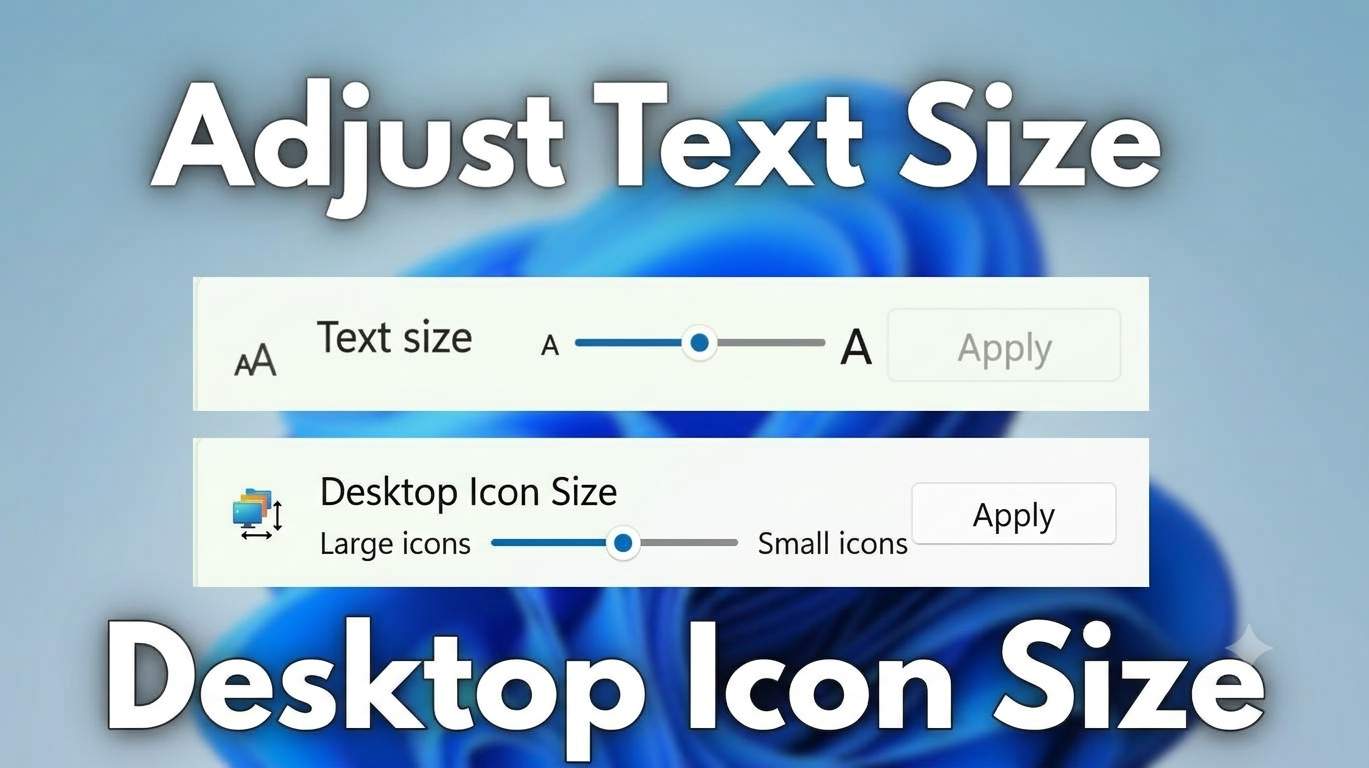
For text only, open Settings → Accessibility → Text size and drag the slider. For everything, open Settings → System → Display and change Scale. For desktop icons, right-click the desktop, choose View and pick Large, Medium or Small icons, or hold Ctrl and scroll. Windows 11 has no separate setting for icon label text, so combine Text size with icon size to get what you want.
- Text too small? Text size slider (Method 1).
- Whole screen too small? Scale (Method 2).
- Icons only? View menu or Ctrl + scroll (Method 3).
- Labels, spacing or layout? Methods 4, 5 and 6.
- Folders, taskbar, apps, monitors? Methods 7 to 10.
- Blurry or resetting? Method 12.

Find Your Method in 10 Seconds
Pick what you want to change. You get the best methods in order, and each link opens the steps below.
What Changes What
Each control affects different things. This table prevents most confusion.
| Control | Text | Desktop icons | Icon labels | Taskbar icons | Scope |
|---|---|---|---|---|---|
| Text size slider | Yes | No | Yes | No | Your account |
| Display Scale | Yes | Yes | Yes | Yes | Each monitor |
| Resolution | Smaller or larger by inverse | Same | Same | Same | Each monitor, keep Recommended |
| View menu or Ctrl + scroll | No | Yes | No | No | Desktop or one folder |
| Taskbar size options | No | No | No | Yes | Taskbar |
| Browser or Office zoom | Page content only | No | No | No | One app or site |
| Magnifier | Temporary zoom | Temporary zoom | Temporary zoom | Temporary zoom | Whole screen, while on |

If only the words are small, use Text size. If the whole screen looks small, use Scale. If only desktop icons are wrong, use View or Ctrl + scroll.
Icons and Labels: Pick Your Combo
Because labels have no separate size setting, combine the controls.
| What you want | Do this | Methods |
|---|---|---|
| Bigger labels, same icon size | Raise Text size, keep Medium icons | Method 1, Method 3 |
| Bigger icons, same labels | Use Large icons or Ctrl + scroll up, leave Text size at 100% | Method 3 |
| Both bigger | Raise Scale to 125% or 150%, or combine Text size with Large icons | Method 2, Method 1, Method 3 |
| Smaller icons and labels to fit more | Small icons, Text size 100%, lower Scale or use native resolution | Method 3, Method 2 |
| Labels cut off or wrapping badly | Change icon size or adjust icon spacing | Method 3, Method 5 |
| Icons far apart or too tight | Adjust IconSpacing and IconVerticalSpacing | Method 5 |
| Everything tiny on a 4K or high resolution screen | Use the Recommended Scale, often 150% to 200% | Method 2 |

Before You Start Checklist
Your ticks are saved in this browser.
The Method Ladder
Start at the top. Easy methods first, advanced ones last.
- Text size slider⏱ 2 minEasy
- Display Scale⏱ 3 minEasy
- Desktop icon size⏱ 1 minEasy
- Icon label text: what is possible⏱ 5 minBasic
- Icon spacing registry values⏱ 10 minAdvanced
- Arrange desktop and icon settings⏱ 3 minEasy
- File Explorer sizes and Compact view⏱ 2 minEasy
- Taskbar and Start sizes⏱ 3 minBasic
- App zoom and Magnifier⏱ 2 minEasy
- Per-monitor settings⏱ 5 minBasic
- Registry, PowerShell, managed PCs⏱ 10 minAdvanced
- Fix blur, resets and moving icons⏱ 15 minBasic
The 12 Methods in Detail
Each method lists who it suits, what it changes, the steps and commands, what you will see and how to undo it.
01Change text size only: Settings → Accessibility → Text sizeEasy⏱ 2 minText only, icons stay the same
- Press Windows + U to open Accessibility, or open Settings → Accessibility.
- Click Text size.
- Drag the Text size slider to the right to enlarge text. A preview shows the result.
- Click Apply and wait while Windows updates.
- Close and reopen apps that did not change.
ms-settings:easeofaccess-display
- ms-settings:easeofaccess-display — opens the Text size page in Accessibility
The slider runs from 100% (default) to 225%. Start with small steps, such as 110% or 125%. Some older apps and parts of Windows still follow Scale instead, so they may not change.
02Make everything bigger or smaller with Display ScaleEasy⏱ 3 minText, apps, icons and taskbar together
- Right-click the desktop and choose Display settings, or open Settings → System → Display.
- Select the monitor you want to change at the top.
- Under Scale & layout, open Scale and choose a value such as 125% or 150%.
- Leave Display resolution on the value marked Recommended.
- Sign out and back in if some apps look wrong.
ms-settings:display
- ms-settings:display — opens Display settings
Custom scaling can cause blurry text, oversized windows and cut-off dialogs, and it needs a sign-out. Standard values such as 100%, 125%, 150%, 175% and 200% are the most reliable.
03Change desktop icon size: right-click View or Ctrl + scrollEasy⏱ 1 minDesktop icon pictures
Option A: View menu
- Right-click an empty spot on the desktop.
- Choose View, then Large icons, Medium icons or Small icons.
Option B: Ctrl and the scroll wheel
- Click an empty spot on the desktop.
- Hold Ctrl and scroll the mouse wheel up to enlarge icons or down to shrink them.
Option C: Laptop touchpad
- Hold Ctrl and use a two-finger scroll on the touchpad.
An accidental Ctrl + scroll is a very common cause. A changed display scale or resolution also resizes everything.
04Change desktop icon label text: what Windows 11 can and cannot doBasic⏱ 5 minIcon label text size
- Bigger labels, same icons: raise Text size (Method 1) and keep your current icon size.
- Bigger icons, same labels: use Large icons or Ctrl + scroll (Method 3) and leave Text size alone.
- Everything bigger: raise Scale (Method 2), or combine a higher Text size with Large icons.
- Smaller labels: lower Text size to 100% and, if needed, lower Scale or use a higher resolution that your screen supports natively.
- Labels cut off or wrapping: change icon size or increase icon spacing (Method 5).
Old Windows 10 registry files that change IconFont may not work the same on Windows 11 and can affect other items. Because there is no supported label-only control, use the combos above, and avoid unverified tools that change system fonts.
05Adjust icon spacing and label width with the registryAdvanced⏱ 10 minLabels wrap or cut off, spacing too wide or tight
- Note your current values first. Defaults vary by Windows version and scale. A common default is around -1125.
- Press Windows + R, run
regedit, and go toHKEY_CURRENT_USER\Control Panel\Desktop\WindowMetrics. - Right-click WindowMetrics, choose Export and save a backup.
- Double-click IconSpacing (horizontal) or IconVerticalSpacing (vertical) and enter a negative number. A more negative value gives more space, for example -1500 or -1800.
- Sign out and back in, or restart Windows Explorer.
Get-ItemProperty "HKCU:\Control Panel\Desktop\WindowMetrics" | Select-Object IconSpacing, IconVerticalSpacing
- Get-ItemProperty — reads the current spacing values so you can note them before editing
These are string values, and the minus sign matters. Restore your saved original values, or the note you made, to undo the change. Windows 11 versions since 22H2 changed default spacing, so do not copy numbers blindly from older guides.
06Arrange the desktop: Auto arrange, Align to grid, Show icons, Desktop icon settingsEasy⏱ 3 minMessy, missing or jumping icons
- Right-click the desktop and open View.
- Tick or untick Auto arrange icons. Leave it off if you want to place icons freely.
- Tick Align icons to grid for neat spacing.
- Make sure Show desktop icons is ticked.
- To add This PC, Recycle Bin, Network and User’s Files, open Settings → Personalization → Themes → Desktop icon settings.
- In that window, untick Allow themes to change desktop icons if themes keep changing your icons.
rundll32.exe shell32.dll,Control_RunDLL desk.cpl,,0
ms-settings:themes
- rundll32 … desk.cpl,,0 — opens the Desktop Icon Settings dialog directly
- ms-settings:themes — opens the Themes page
07Resize File Explorer icons and use Compact viewEasy⏱ 2 minFolder views
- Open File Explorer and click View on the toolbar.
- Choose Extra large icons, Large icons, Medium icons, Small icons, List, Details or Tiles.
- Or hold Ctrl and scroll the mouse wheel inside the folder.
- Open View → Show → Compact view to tighten spacing between items.
- To use the same view for every folder of that type, open See more (…) → Options → View → Apply to Folders.
File Explorer shortcuts
Ctrl + Shift + 1: Extra large iconsCtrl + Shift + 2: Large iconsCtrl + Shift + 3: Medium iconsCtrl + Shift + 4: Small iconsCtrl + Shift + 5: ListCtrl + Shift + 6: Details
08Resize taskbar and Start iconsBasic⏱ 3 minTaskbar too big, small or crowded
- Right-click the taskbar and choose Taskbar settings, or open Settings → Personalization → Taskbar.
- Expand Taskbar behaviors.
- Look for Show smaller taskbar buttons and choose Always, When taskbar is full or Never.
- On newer builds you may see Taskbar size with a smaller preset instead.
- For bigger taskbar icons, raise Scale (Method 2).
ms-settings:taskbar
- ms-settings:taskbar — opens Taskbar settings
The Show smaller taskbar buttons option arrived in Windows 11 builds in early 2025, and Microsoft has tested newer taskbar size and position controls in Insider builds in 2026. If you do not see them, your build does not have them yet. Registry tricks to resize the taskbar are unsupported.
09Zoom inside apps: browsers, Office, Teams and MagnifierEasy⏱ 2 minOne app only, temporary zoom
- Browsers and many apps: press
Ctrl + Plusto zoom in,Ctrl + Minusto zoom out andCtrl + 0to reset. - Edge: Settings, Appearance, Fonts lets you change the default font size. Chrome has a similar fonts setting.
- Word, Excel, Outlook: use the zoom slider at the bottom right, or Ctrl + scroll.
- Magnifier: press Windows + Plus to zoom the screen, Windows + Minus to zoom out and Windows + Esc to close.
- Teams and similar apps: check the app’s own zoom or appearance settings.
10Set sizes per monitor, laptop and external displaysBasic⏱ 5 minMultiple monitors
- Open Settings → System → Display and click Identify to see monitor numbers.
- Select a monitor, set its Scale and keep Display resolution on Recommended.
- Repeat for each monitor.
- Use Make this my main display for the one that should hold the taskbar and icons.
- For remote desktop or virtual machines, adjust the client’s display or smart sizing settings if text looks wrong.
Windows remembers desktop icon positions by monitor. Connecting monitors in a consistent order helps icons stay where you put them.
11Use registry, PowerShell and scripts (managed PCs)Advanced⏱ 10 minIT admins and automation
- Read the current text scale from PowerShell.
- To set it by script for the current user, write TextScaleFactor (a number matching the slider, 100 to 225).
- Sign out and sign in, or restart apps, so Windows picks up the change.
- Test on one account first. The Settings slider also updates other values, so a script alone may not give identical results.
Get-ItemProperty "HKCU:\Software\Microsoft\Accessibility" -Name TextScaleFactor
- TextScaleFactor — the stored text size percentage for the current user
reg add "HKCU\Software\Microsoft\Accessibility" /v TextScaleFactor /t REG_DWORD /d 125 /f
- /d 125 — sets the text size to 125 percent (use a value from 100 to 225)
I did not find a built-in Group Policy or Intune setting for text size or desktop icon size. Organizations usually deploy a script or user profile settings. Test carefully, and do not edit the registry on machines you do not manage.
12Fix blurry text, icons that reset, icons that move and missing Scale optionsBasic⏱ 15 minProblems after changing sizes
Blurry text
- Set Scale to a standard value and keep resolution on Recommended.
- Open Settings → System → Display → Scale and turn on Let Windows try to fix apps so they’re not blurry if it appears.
- Run Adjust ClearType text from Start search.
- For one app, open its shortcut Properties, Compatibility, Change high DPI settings and try overriding scaling.
Icons revert size or rearrange
- Right-click the desktop, View, and turn Auto arrange icons off.
- Untick Allow themes to change desktop icons in Desktop icon settings.
- Keep monitor setup and resolution consistent, since display changes and Explorer restarts can rebuild the layout.
- Check OneDrive desktop sync, which can add icons after updates.
- Restart Windows Explorer from Task Manager and test again.
Clear a damaged icon cache
- Press Windows + R, paste the path below and press Enter.
- Delete files named
iconcache*(skip any in use), then restart Explorer or the PC.
%localappdata%\Microsoft\Windows\Explorer
- iconcache* — these files hold cached icon pictures and are rebuilt automatically
Reset to defaults
- Text size to 100% and Scale to Recommended.
- Desktop icons to Medium icons, icon spacing back to your noted values, and Auto arrange as you prefer.

Recommended Settings by Screen
Use the value Windows marks Recommended first. These are only typical starting points.
| Screen | Typical Scale | Text size tip |
|---|---|---|
| 13 to 15 inch laptop, 1920 x 1080 | 125% (some use 100%) | Add 110% to 125% text size if still small |
| 22 to 24 inch monitor, 1920 x 1080 | 100% | Raise Text size a little rather than Scale |
| 27 inch monitor, 2560 x 1440 | 100% to 125% | Adjust icons with View |
| 27 to 32 inch monitor, 3840 x 2160 (4K) | 150% | Try 125% to 175% if you prefer |
| 13 to 16 inch laptop, 4K or 3K | 150% to 200% | Move in small steps |
| TV used as a monitor | 150% to 200% | Larger helps at a distance |

Accessibility and Low-Vision Setup
| Tool | Where | What it helps with |
|---|---|---|
| Text size | Settings → Accessibility → Text size | Larger text without changing layout |
| Scale | Settings → System → Display | Larger text, apps and icons together |
| Mouse pointer size and color | Settings → Accessibility → Mouse pointer and touch | Easier to find the pointer |
| Text cursor indicator | Settings → Accessibility → Text cursor | Easier to see the typing cursor |
| Magnifier | Windows + Plus | Temporary zoom for any screen |
| Contrast themes | Settings → Accessibility → Contrast themes | Higher contrast text and windows |
| Visual effects | Settings → Accessibility → Visual effects | Turn off transparency and animations if distracting |
| ClearType | Search for ClearType in Start | Sharper text on LCD screens |
Scripts, Registry and Managed PCs
| Item | Location | Notes |
|---|---|---|
| Text size | HKCU\Software\Microsoft\Accessibility\TextScaleFactor | Stores the Text size percentage. Sign out and in after changing |
| Icon spacing | HKCU\Control Panel\Desktop\WindowMetrics, IconSpacing and IconVerticalSpacing | String values, negative numbers, defaults vary |
| Other size values | WindowMetrics, for example IconFont and Shell Icon Size | Not recommended to edit by hand |
| Display scale | Settings → System → Display | No simple supported command. Use Settings |
| Policy or Intune | No built-in setting found | Use a script run in the user context, and test first |
Changing registry values affects the signed-in account. Back them up first, test on one PC and do not edit machines you do not manage. Some community guides mention a policy named Disable desktop icon reordering under User Configuration, Administrative Templates, Desktop, which I could not confirm, so check your policy editor before relying on it.
What Others Report in 2026
Public sources checked on October 12, 2026. These are user reports and notes, not guaranteed behavior.
Microsoft Q&A and Tech Community threads from 2025 and 2026 describe desktop icons that rearrange or return to a default layout or size after restarts or updates. Replies point to display or resolution changes, Explorer restarts, multi-monitor setups and the Auto arrange option, and one Microsoft Q&A answer states that Microsoft is aware of icons reverting size after reboot. Suggested steps include turning off Auto arrange, stopping themes from changing icons, keeping monitor order stable and clearing the icon cache.
A May 2026 Microsoft Q&A answer notes that an update can re-enable folder sync, such as OneDrive Desktop sync, which can bring many unexpected files and icons onto the desktop. Check whether your desktop path points to OneDrive and turn off Desktop sync if you do not want it.
Windows 11 added Show smaller taskbar buttons in early 2025. During 2026 Microsoft has tested taskbar position and a dedicated taskbar size control in Insider builds, and public sources describe them as close to release but dependent on your channel and build. Check Settings, Personalization, Taskbar, Taskbar behaviors on your PC.
Shortcuts and Paths Cheat Sheet
| What | Shortcut, path or command |
|---|---|
| Accessibility settings | Windows + U |
| Open Settings | Windows + I |
| Text size page | ms-settings:easeofaccess-display |
| Display and Scale | ms-settings:display |
| Taskbar settings | ms-settings:taskbar |
| Themes and desktop icon settings | ms-settings:themes |
| Desktop Icon Settings dialog | rundll32.exe shell32.dll,Control_RunDLL desk.cpl,,0 |
| Resize desktop or folder icons | Ctrl + mouse wheel |
| File Explorer views | Ctrl + Shift + 1 to Ctrl + Shift + 6 |
| Zoom in, out, reset | Ctrl + Plus, Ctrl + Minus, Ctrl + 0 |
| Magnifier on, out, off | Windows + Plus, Windows + Minus, Windows + Esc |
| Read text size (PowerShell) | Get-ItemProperty "HKCU:\Software\Microsoft\Accessibility" -Name TextScaleFactor |
After You Finish
Do’s and Don’ts
✅ Do
- Start with Text size or Scale, not the registry
- Keep resolution on Recommended
- Change one setting at a time
- Back up before editing the registry
- Use Ctrl + 0 to reset app zoom
🚫 Don’t
- Use custom scaling unless you must
- Lower resolution to make things bigger, which blurs text
- Use unverified font or icon changer tools
- Copy icon spacing numbers from old guides without noting your own
- Forget that a stray Ctrl + scroll resizes icons
Frequently Asked Questions
How do I change text size and desktop icon size in Windows 11?
How do I change the text size of desktop icons in Windows 11?
What is the difference between Text size and Scale?
Why did my desktop icons suddenly get bigger or smaller?
How do I reduce icon size on the desktop in Windows 11?
Does the Text size slider change taskbar icons?
How can I change desktop icon spacing or text width?
Can I change text size with Command Prompt or PowerShell?
Is there a Group Policy for text size or icon size?
Do these steps work on Windows 11 Home and Pro?
Why is my text blurry after I changed the scale?
Why do my desktop icons go back to the default size or rearrange after restart?
What is the best scale for a laptop or monitor?
How do I make File Explorer icons bigger?
Does changing text size affect Windows 10 as well?
How do I reset everything to default?
Bottom line
In Windows 11, Text size changes only text, Scale changes everything, and the View menu or Ctrl with the wheel changes desktop icons. Windows has no separate setting for icon label text, so combine Text size with icon size, and use the registry spacing values only if you need them. Keep resolution on Recommended, use standard Scale values, and check Auto arrange, themes and cloud sync if icons reset or move.
Back to the method finder