Windows 11 · Windows 10 · 2026 guide
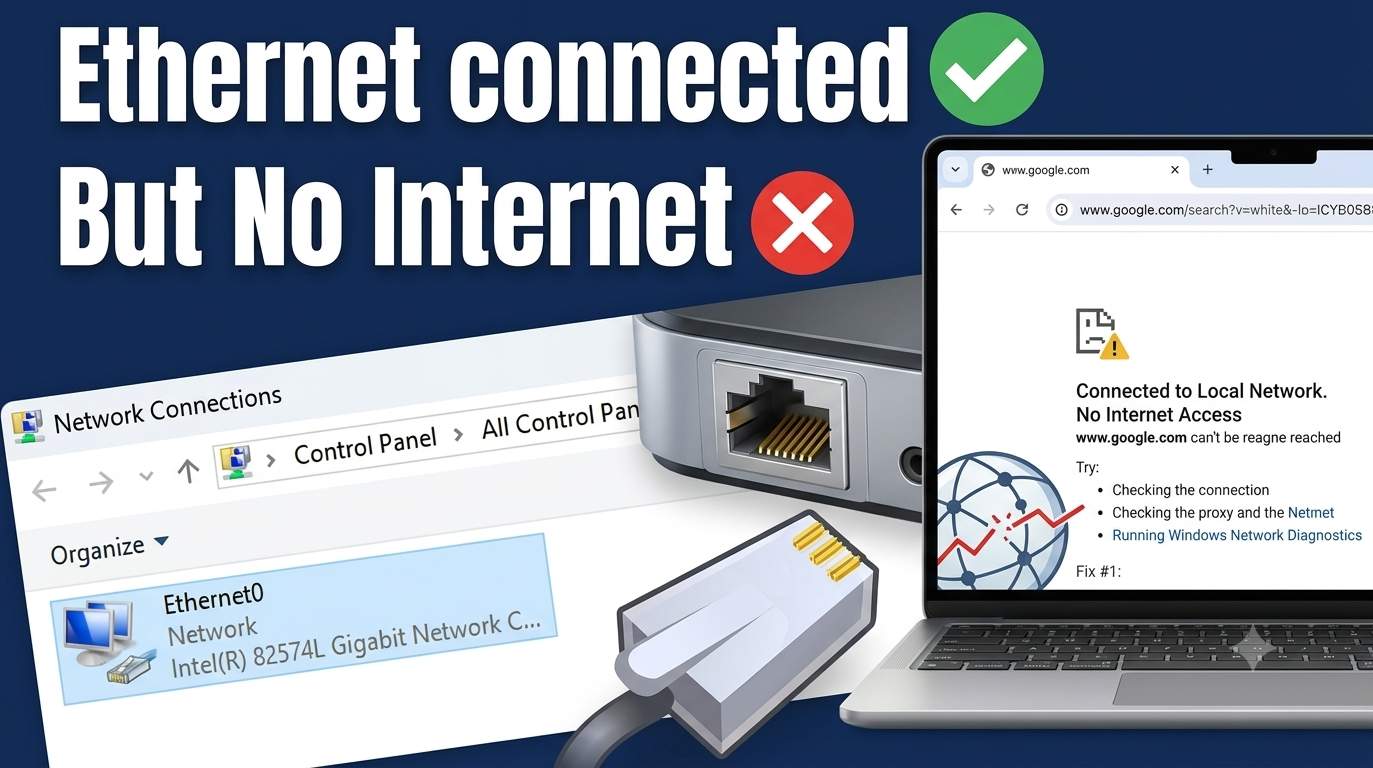
Ethernet Is Connected but No Internet Access
The cable is in and Windows says Connected, yet nothing loads. The break is always somewhere on a short path: cable, address, router, modem, DNS. This guide finds which step with a five-rung ping test, then gives you 16 fixes in the order that saves time.
Updated October 15, 2026. Windows 11 25H2 and 26H2 menus; Windows 10 notes included.
Quick answer
Restart modem, router and PC in that order. Swap the cable and port. Run ipconfig /all: a 169.254 address means the router never gave you an IP. Then renew the lease, set IP and DNS to automatic, reinstall the Ethernet driver and reset Winsock.
Other devices online?
No: the router, modem or ISP is the problem. Start at Fix 1 and 4.
Yes: the problem is your PC or its cable. Go to the ladder.
Wi-Fi works on this PC?
Yes: the ISP is fine. Fix the wired path (Fix 2, 6, 11). Disable Ethernet to use Wi-Fi meanwhile.
No: likely a Windows network or VPN issue (Fix 8, 13).
The five-rung ping ladder
Run each test, mark Pass or Fail. The first failed rung shows where it breaks and which fixes to use.
ipconfig /all
ping <your default gateway>
ping 1.1.1.1
ping google.com
- Rung 2: read the IPv4 address in ipconfig
- Rung 3: the gateway is the router, often 192.168.x.1
- Rung 4: tests the internet by number, without DNS
- Rung 5: tests name lookup, which uses DNS
Why Windows says connected but no internet
“Connected” only means a link to the router. “Internet” means Windows’ probe reached msftconnecttest.com. These can differ.
| Windows says | What it usually means |
|---|---|
| Ethernet · No internet | Link and address OK, probe failed |
| Unidentified network | No valid gateway or profile |
| Network cable unplugged / Not connected | No link at all |
| Limited (older Windows) | Same as no internet |
Windows prefers the wired route, using a lower interface metric. If the wired route is broken but still “up”, traffic can go down it and fail. Disable Ethernet to force Wi-Fi while you fix it.
Decoder: what your results mean
| You see | Meaning | Go to |
|---|---|---|
169.254.x.x | No DHCP answer | Fix 7, 14, 2, 11 |
0.0.0.0, blank, or Media disconnected | No link | Fix 2, 3, 10, 11 |
| Normal address, no default gateway | Bad static settings | Fix 6, 14 |
| Normal address and gateway, gateway ping fails | Cable, switch or router port | Fix 2, 3, 14 |
Gateway pings, 1.1.1.1 fails | Router WAN, modem or ISP | Fix 1, 4 |
1.1.1.1 pings, google.com fails | DNS | Fix 6, 7, 8 |
| Everything pings, Windows still warns | Probe blocked or app issue | Fix 9, 8 |
The 16 fixes
Phase A checks hardware and the ISP. B fixes Windows addressing. C fixes the adapter. D covers routers and managed networks.
Rule out cable, router and ISP
Nothing here changes Windows.
1Power-cycle modem, router and PC in the right orderSafe10 min
Why it works: A stuck DHCP lease, a hung router or a frozen modem session produces exactly this: link up, no internet. Order matters because each device gets its address from the one upstream.
- Shut down the PC. Unplug the modem and the router (if separate) from power. Wait a full 60 seconds.
- Plug in the modem first. Wait until its online or internet light is steady (2 to 5 minutes).
- Plug in the router. Wait 2 minutes until the WAN or internet light is on.
- Start the PC last. Test a website, not just the Windows icon.
If it fails: Test a phone on the router’s Wi-Fi. If it is offline too, go to Fix 4.
2Test the cable, the port and the link lightSafe10 min
Why it works: A damaged cable can still give a link but drop packets, which Windows reports as connected with no internet. Cheap or kinked cables fail at gigabit speed.
- Look at the PC port and the router port. A steady or blinking light on both ends means a link. No light means cable, port or adapter.
- Swap in a different cable (Cat5e or Cat6, under 50 m). Press the clip until it clicks.
- Move the cable to another LAN port on the router. Do not use the WAN or Internet port.
- Open Settings → Network & internet → Ethernet and check the speed. 10 or 100 Mbps on a gigabit link often means a bad cable.
If it fails: Try the cable with a laptop. If the laptop works, the PC adapter is at fault (Fix 10 to 12).
3Bypass the switch, dock, powerline or USB adapterSafe10 min
Why it works: Every device in the path is another place for a fault. Test the shortest path first.
- Plug the PC straight into the router with one short cable. Remove switches, wall-plate jacks, powerline adapters and docks.
- If you use a USB or USB-C Ethernet adapter, try another USB port, or the built-in port.
- Note: a phone sharing internet by USB tethering also shows up as an Ethernet adapter and can win over your real one. Unplug it.
If it fails: If a direct cable works, the removed device is the fault.
4Check whether the router or ISP is the problemSafe10 min
Why it works: If every device on the router is offline, no Windows setting will fix it.
- Check another device on the same router, Wi-Fi or cable. If all are offline, the fault is upstream.
- Read the lights. Modem: online or internet steady. Router: WAN or internet steady, not amber or red.
- Open your ISP app or outage page (Xfinity, Verizon, Jio, Google Fiber and others show outages in the app).
- Log into the router page (often
192.168.0.1or192.168.1.1) and check the WAN status and IP.
If it fails: If the router WAN has no IP, call the ISP. If it has an IP and other devices work, continue to Phase B.
Fix Windows addressing and DNS
IP, DNS, VPN, proxy and the probe.
5Read your IP address with ipconfigSafe3 min
Why it works: The address Windows holds tells you which rung broke. A 169.254.x.x address means no DHCP server answered.
- Press Win + R, type
cmd, Enter. Runipconfig /all. - Find your Ethernet adapter. Read IPv4 Address, Default Gateway and DNS Servers.
- 169.254.x.x: DHCP failed (Fix 7, 14). No gateway: bad static settings (Fix 6). Normal address and gateway: continue the ping ladder.
ipconfig /all
route print
ping 127.0.0.1
It is Automatic Private IP Addressing. Windows gave itself an address because the router never offered one.
If it fails: If the Ethernet adapter is missing from the list, go to Fix 11.
6Set IP and DNS back to automatic, or use public DNSChanges settings5 min
Why it works: A leftover static IP from an old network, or a dead ISP DNS server, gives the same symptom. Public DNS also rescues ISP DNS outages.
- Press Win + R, run
ncpa.cpl. Right-click Ethernet → Properties. - Open Internet Protocol Version 4 (TCP/IPv4) → Properties. Choose Obtain an IP address automatically.
- For DNS, test Use the following DNS server addresses with
1.1.1.1and8.8.8.8. OK, then disable and enable the adapter.
Set-NetIPInterface -InterfaceAlias "Ethernet" -Dhcp Enabled
Set-DnsClientServerAddress -InterfaceAlias "Ethernet" -ServerAddresses 1.1.1.1,8.8.8.8
# undo DNS:
Set-DnsClientServerAddress -InterfaceAlias "Ethernet" -ResetServerAddresses
If it fails: Use a name from Get-NetAdapter if yours is not called Ethernet.
7Release, renew and flushSafe3 min
Why it works: Forces a new DHCP lease and clears bad cached DNS answers.
- Open Command Prompt as Administrator.
- Run the three commands below, then test a website.
ipconfig /release
ipconfig /renew
ipconfig /flushdns
If it fails: If renew says it cannot contact a DHCP server, the router is not answering (Fix 14) or the adapter is broken (Fix 11).
8Turn off VPN, proxy and virtual adaptersChanges settings10 min
Why it works: VPN clients, security tools and Hyper-V or VM adapters add routes and filters. A leftover proxy sends all browsing to a dead server.
- Disconnect and quit any VPN or zero-trust client for a test. Zscaler, Cisco and WireGuard are common.
- Open Settings → Network & internet → Proxy and turn off Use a proxy server and unwanted setup scripts.
- In
ncpa.cpl, disable virtual adapters (vEthernet, VMware, VirtualBox) one at a time and retest. - Run the winhttp check below. Reset it only if it shows a proxy you do not use.
netsh winhttp show proxy
netsh winhttp reset proxy
If it fails: On a work PC, ask IT before removing VPN or proxy settings.
9When websites load but Windows still says no internetSafe5 min
Why it works: Windows shows the warning when its own probe fails, even if other traffic works. The probe fetches a small file from msftconnecttest.com.
- Open a browser and try several sites. If they load, your connection works and only the indicator is wrong.
- Check firewalls, DNS filters and VPNs that block
msftconnecttest.com. - Run the read-only check below. The value should be 1 or missing. Do not turn probing off to hide the warning.
Get-ItemProperty 'HKLM:\SYSTEM\CurrentControlSet\Services\NlaSvc\Parameters\Internet' -Name EnableActiveProbing
Resolve-DnsName www.msftconnecttest.com
If it fails: If name lookups fail, go back to Fix 6.
Fix the adapter and driver
Adapter cycle, driver, advanced settings, reset.
10Run the troubleshooter and cycle the adapterSafe3 min
Why it works: Disabling and enabling rebinds the adapter and its filter drivers. It fixes many post-update glitches.
- Open Settings → System → Troubleshoot → Other troubleshooters and run Network and Internet.
- Open
ncpa.cpl, right-click Ethernet, choose Disable, wait 10 seconds, then Enable.
If it fails: If Enable is greyed out or the adapter is missing, go to Fix 11.
11Reinstall, roll back or replace the Ethernet driverChanges settings15 min
Why it works: A bad or half-installed driver is the usual cause when the adapter works on Wi-Fi days but not on cable, especially after an update.
- Right-click Start, open Device Manager → Network adapters.
- Right-click your Ethernet adapter (Realtek, Intel, Killer, USB GbE). If Roll Back Driver is available after an update, use it first.
- Otherwise choose Uninstall device and restart. Windows reinstalls it.
- Still failing? Use another PC to download the driver from your PC or motherboard maker, copy it over by USB, and install it.
If it fails: If the adapter never appears, check the BIOS for an onboard LAN switch, and test a USB Ethernet adapter.
12Tune adapter properties that cause silent dropsChanges settings10 min
Why it works: Power-saving and offload features misbehave on some Realtek and Intel adapters and on some routers.
- In Device Manager, open the adapter’s Properties → Advanced.
- Set Energy Efficient Ethernet and Green Ethernet to Disabled. Set Speed & Duplex to Auto Negotiation.
- Set Large Send Offload v2 (IPv4 and IPv6) to Disabled.
- Open the Power Management tab and clear Allow the computer to turn off this device to save power.
Get-NetAdapterAdvancedProperty -Name "Ethernet"
Disable-NetAdapterLso -Name "Ethernet"
If it fails: Change one setting at a time so you know which one helped.
13Reset the network stack, or Network reset as the last stepResets things10 min
Why it works: Repairs a corrupted Winsock catalog or TCP/IP stack. Network reset removes and reinstalls all adapters.
- Run the Winsock and IP resets below in an Administrator Command Prompt, then restart.
- Still broken? Open Settings → Network & internet → Advanced network settings → Network reset and choose Reset now.
- If the problem began right after a Windows update, try Settings → Windows Update → Update history → Uninstall updates for that update, or use System Restore.
netsh winsock reset
netsh int ip reset
ipconfig /flushdns
It forgets saved Wi-Fi passwords and removes VPN adapters. Note your Wi-Fi password and reinstall VPN software afterwards.
If it fails: Move to Phase D.
Router, network rules and last checks
For stubborn cases.
14Fix router DHCP, address conflicts and filtersChanges settings15 min
Why it works: If the router runs out of addresses, hands out a duplicate or blocks your MAC address, the PC gets 169.254 or an address that does not work.
- Log into the router. Open the LAN, DHCP and Connected devices pages (Asus, Netgear, eero, Google Wifi and Xfinity all have them).
- Check that DHCP is on, the pool is not full, and there is no duplicate address. Reserve an address for the PC.
- Turn off MAC filtering or parental controls for a test.
- If you added a second router or a gateway in bridge mode, check that only one device runs DHCP.
- Update the router firmware, then reboot it.
If it fails: Factory reset only as a last resort, after writing down your ISP login details.
15Unauthenticated, captive or managed networksChanges settings10 min
Why it works: Work, school, hotel and dorm networks can block a port until you sign in or the PC passes 802.1X.
- Open a browser. Try
http://neverssl.comto trigger a sign-in page. - In
services.msc, make sure Wired AutoConfig is running if your network uses 802.1X. Ask the network admin for the profile. - Check the Windows Security firewall and any third-party antivirus. Turn it off briefly to test, then turn it back on.
If it fails: Ask the network admin if your port or MAC address is blocked.
16Last checks: malware, clean boot and hardwareChanges settings30 min
Why it works: Rare, but a hijacked DNS setting, a conflicting service or a dead port still happen.
- Run a full scan in Windows Security. Check that DNS settings were not changed to an address you do not recognise.
- Try a clean boot with
msconfigand startup apps disabled, to find a conflicting program. - Boot a Linux live USB. If Ethernet fails there too, the port, motherboard or cable is at fault. Use a USB Ethernet adapter as a workaround.
If it fails: Call the ISP with your test results and replace the adapter if needed.
Other devices and systems
The same ladder applies. These are the first steps per device.
| Device | First steps |
|---|---|
| Xbox, PlayStation, smart TV | Run the console’s network test, power-cycle router, set DNS to 1.1.1.1 and 8.8.8.8 |
| Mac | System Settings → Network → Ethernet → Details → Renew DHCP Lease |
| Ubuntu, Kali | Toggle wired in Settings → Network, check nmcli device status, then resolvectl status |
| Android with USB Ethernet | Try another adapter and cable, and turn off Private DNS to test |
| Hyper-V guest | Check the virtual switch type and the bound physical adapter |
| NAS (QNAP, Synology) | Check DHCP vs static IP, gateway and DNS in the NAS network settings |
Frequently asked questions
Why is my Ethernet connected but there is no internet access?
Ethernet shows no internet but Wi-Fi works. Why?
What does a 169.254 IP address mean?
What does the yellow triangle or Unidentified network mean?
The router has internet but only my PC is offline. What should I do?
Windows says no internet but websites open. Is that normal?
Should I reset the router?
How do I fix Ethernet connected but no internet on Windows 10?
Why did Ethernet break after a Windows update?
Does a VPN cause Ethernet connected but no internet?
Why does Ethernet say connected but no internet on Xbox, PlayStation or a smart TV?
Ethernet connected but no internet on Mac or Ubuntu?
Ethernet connected but no internet in a Hyper-V virtual machine?
Does Windows 11 Home or Pro matter?
Can a bad cable still show Connected?
Do I need to change DNS to 1.1.1.1 or 8.8.8.8?
Will Network reset delete my files?
When should I call my ISP?
Is it a virus?
Bottom line
Find the failing rung first. A 169.254 address points to DHCP, the router or the cable. A working gateway but failing 1.1.1.1 points to the modem or ISP. A working IP but failing name lookup points to DNS. Fix that rung, then test a real website.
Run the ladder again