Quick answer
Most Windows 11 echo problems come from a setting, not broken hardware. Try these three first:
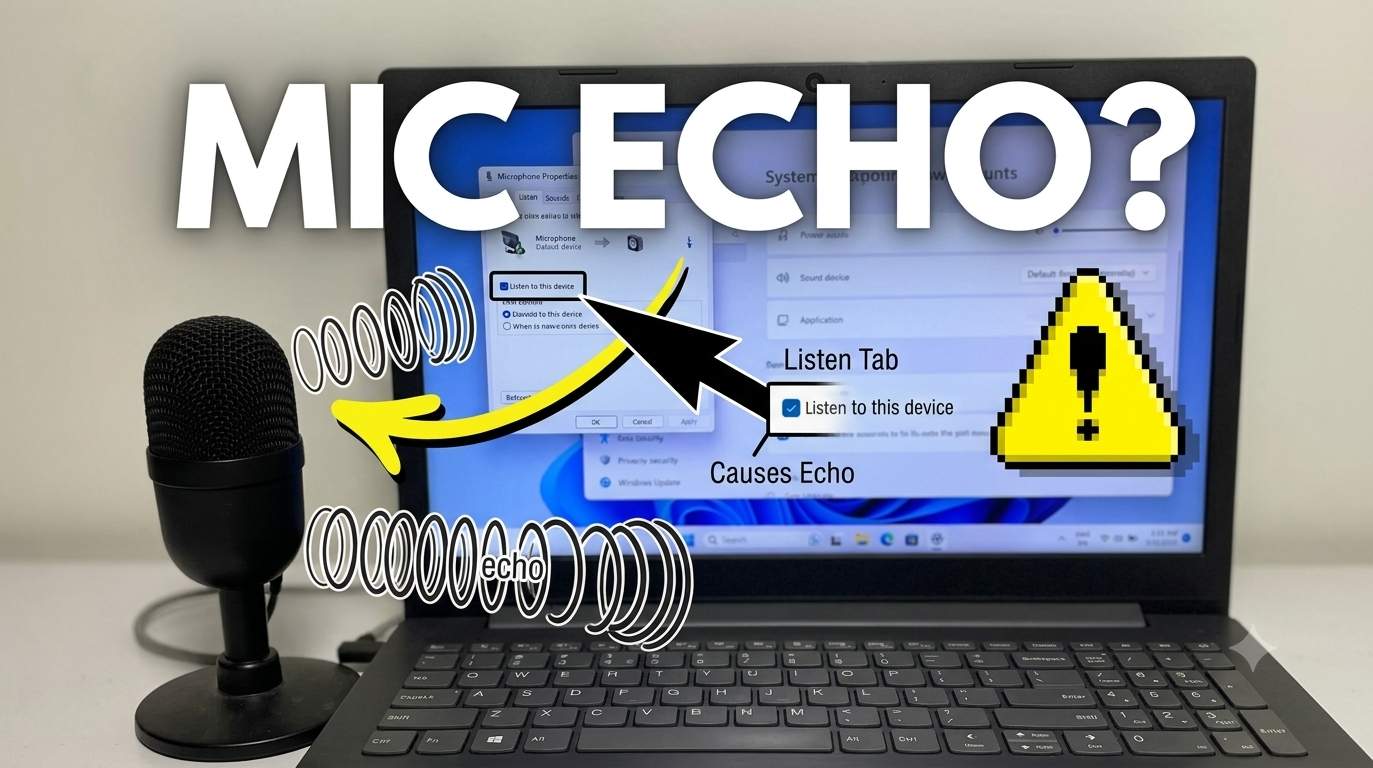
- Open Settings > System > Sound > More sound settings > Recording, open your microphone's Properties > Listen, and uncheck Listen to this device.
- Turn Audio enhancements off for both your speakers and microphone.
- Make sure Stereo Mix is disabled and your headset or speakers are the default devices.
An echo in Windows 11 usually means audio is being captured and played back a second time. That loop can happen inside Windows (a setting that routes the microphone to your speakers), inside an app (two sound outputs running at once), or in the room (your speakers feeding sound into your mic). Because the loop can start in any of these places, the fix is to find where it begins.
The steps below work whether you use a laptop, a desktop PC, a Dell, HP, Lenovo or ASUS machine, wired or Bluetooth headphones, or a gaming headset.
Why echo and repeating sound happen on Windows 11
Windows 11 handles audio in two directions: playback (sound going out to speakers or headphones) and recording (sound coming in from a microphone). An echo appears when part of the outgoing sound re-enters the incoming path, or when the same sound is played twice with a small delay.
Knowing which of these four you have saves time. A loop you hear yourself is almost always a software setting. A loop that other people hear is usually acoustic or an app setting. A sound that stutters or repeats with no microphone involved points to the driver.
Find the cause of your echo
Match what you hear to the most likely cause, then jump to that fix.
| What you notice | Likely cause | Go to |
|---|---|---|
| You hear your own voice in your headphones | Listen to this device, headset sidetone | Fix 1, Fix 8 |
| Others on a call hear you echo | Speakers feeding the mic, or two devices joined to the same call | Fix 10, Hardware tips |
| Laptop speakers sound hollow or doubled | Audio enhancements, spatial sound, driver | Fix 2, Fix 6 |
| Game or music audio leaks into your mic | Stereo Mix, wrong default device | Fix 3 |
| Sound plays on monitor and speakers together | Duplicate outputs over HDMI | Fix 9 |
| Sound repeats or stutters in a loop | Driver glitch, stuck audio service | Fix 6, Fix 7 |
| Echo began after an update or at startup | Driver replaced, Fast Startup | Fix 11 |
1Turn off “Listen to this device”
Fixes: hearing your own voice, mic echo in headphones
- Press Win + I, then go to System > Sound.
- Scroll down and select More sound settings.
- Open the Recording tab, right-click your microphone and choose Properties.
- Go to the Listen tab and uncheck Listen to this device.
- Click Apply, then OK.
Repeat this for every microphone listed, including a webcam mic.
2Disable audio enhancements and spatial sound
Fixes: hollow, reverb-like or doubled sound
- Go to Settings > System > Sound and select your speakers or headphones under Output.
- Set Audio enhancements to Off and Spatial sound to Off.
- Go back, select your microphone under Input, and turn its enhancements off too.
On older builds, open More sound settings, choose the device, click Properties > Enhancements, and tick Disable all enhancements. Test again before moving on. Features such as Dolby, DTS and Realtek effects can add reverb that sounds like an echo.
3Disable Stereo Mix and set the right default devices
Fixes: game audio echoing through the microphone
- Open More sound settings > Recording.
- If Stereo Mix or What U Hear appears, right-click it and choose Disable. If it is hidden, right-click empty space and tick Show Disabled Devices.
- Right-click your real microphone and choose Set as Default Device and Set as Default Communication Device.
- On the Playback tab, do the same for your headset or speakers.
Stereo Mix records everything your PC plays. If a game or chat app picks it as the microphone, teammates hear the game and themselves again.
4Lower Microphone Boost and input level
Fixes: mic picking up speaker sound
- In Recording, open your microphone Properties > Levels.
- Set Microphone Boost to 0 dB or +10 dB at most.
- Keep the microphone level between 60 and 80, and speak at normal volume.
A high gain lets the mic pick up your speakers, which creates the echo loop heard by everyone else.
5Turn off exclusive mode
Fixes: sound conflicts between apps
- Open Properties for both your playback and recording device.
- On the Advanced tab, uncheck Allow applications to take exclusive control of this device.
- Try a different format, such as 16 bit, 48000 Hz, and click Apply.
6Update, roll back or reinstall the audio driver
Fixes: repeating sound, distortion, post-update echo
- Right-click Start and open Device Manager.
- Expand Sound, video and game controllers and right-click your audio device (for example Realtek Audio).
- Choose Update driver > Search automatically for drivers.
- If the problem started recently, open Properties > Driver > Roll Back Driver when available.
- If that fails, choose Uninstall device and restart. Windows reinstalls a basic driver on boot.
For the most reliable result, download the audio driver from your laptop or motherboard maker (Dell, HP, Lenovo, ASUS, MSI) using your model number or service tag, and install that version.
7Run the troubleshooter and restart audio services
Fixes: sound stuck in a loop
- Go to Settings > System > Troubleshoot > Other troubleshooters and run Playing Audio and Recording Audio.
- If the sound still repeats, restart the audio service. Open Windows Terminal (Admin) and run:
Restart-Service -Name Audiosrv -Force
Restart-Service -Name AudioEndpointBuilder -Force
You can also press Win + R, type services.msc, and restart Windows Audio and Windows Audio Endpoint Builder.
8Fix Bluetooth headphones and headset echo
Fixes: echo using Bluetooth, gaming headset sidetone
- Open Settings > Bluetooth & devices, remove the headset, then pair it again.
- In Sound, make sure only one entry for the headset is the default. Avoid mixing Hands-Free and Stereo profiles for the same call.
- Open the headset's own app (Logitech G HUB, Razer Synapse, SteelSeries GG, Jabra Direct) and lower or switch off Sidetone or Mic monitoring.
- Update the headset firmware and the Bluetooth driver in Device Manager.
9Stop duplicate output over HDMI or a monitor
Fixes: sound playing twice from different speakers
- Open Settings > System > Sound.
- Choose one Output device, not both your monitor (HDMI) and laptop speakers.
- In More sound settings > Playback, disable the outputs you do not use.
- Check that an app is not set to a different device under Volume mixer.
If two outputs play the same audio slightly out of sync, it sounds exactly like an echo.
10Fix echo in Teams, Zoom, Chrome and other apps
Fixes: echo during calls and meetings
- Microsoft Teams: go to Settings > Devices, pick the right speaker and microphone, and set Noise suppression to Auto or High.
- Zoom: open Settings > Audio, turn off Automatically adjust microphone volume, and use Suppress background noise. Leave audio on your computer only if a nearby phone or second laptop is also in the meeting, because two devices in one room create echo.
- Chrome and Edge: look for a tab with a speaker icon and mute duplicates. Open
chrome://settings/content/microphoneand confirm the correct microphone. - Discord and games: select your actual headset for input and output, and turn off any option that shares system audio.
Use headphones if possible. They remove the speaker-to-mic path, which is the root of most call echo.
11Echo after a Windows update or at startup
Fixes: echo that returns after every boot
- Reinstall the manufacturer audio driver (Fix 6), because updates often swap in a generic driver.
- Open Control Panel > Power Options > Choose what the power buttons do, click Change settings that are currently unavailable, and untick Turn on fast startup.
- Open Settings > Apps > Startup and disable audio utilities you do not need, then restart.
- If the echo began right after a specific update, open Settings > Windows Update > Update history > Uninstall updates and remove it.
12Repair system files
Last software step
Open Windows Terminal (Admin) and run these one at a time. Each can take several minutes.
sfc /scannow
DISM /Online /Cleanup-Image /RestoreHealth
Restart your PC when both finish, then test your sound again.
Fixes by scenario
Windows 11 laptop (Dell, HP, Lenovo, ASUS)
Laptops often ship with vendor audio software such as Dell Waves MaxxAudio, Realtek Audio Console or Nahimic. Open that app and switch effects to Off or Flat, and disable any microphone effects such as echo cancellation presets that stack on top of Windows. Then reinstall the driver from your maker's support page (Fix 6).
Windows 11 desktop PC
On a desktop, the front headphone jack and rear jack are separate devices. If both show in Sound settings, set one as default and disable the other. Check that the motherboard audio and a GPU HDMI audio device are not both playing (Fix 9).
Gaming and streaming (OBS, Discord, Xbox)
In OBS, make sure Desktop Audio is not also captured by your microphone through Stereo Mix. In Discord, set Input Device to your real mic, and turn off Echo Cancellation only if you use a hardware mixer. If a teammate hears the game, use headphones and disable Stereo Mix (Fix 3).
YouTube, Chrome and streaming video
If a video's sound repeats, check for a second tab or a picture-in-picture window playing the same video. Right-click the tab and choose Mute site on duplicates. Also test in Microsoft Edge to see if the browser is the cause.
Headphones plugged in and speakers still playing
If sound comes from both, open Sound > Output and choose only the headphones. In the Realtek console, turn off Make front and rear output devices play two different audio streams simultaneously.
How to test that the echo is fixed
- Open Settings > System > Sound, select your microphone, and use Test your microphone. The input bar should move only when you speak.
- Record yourself with the Sound Recorder app while music plays quietly. If the recording contains the music, your mic is still capturing speaker output.
- Start a call with a friend or use a Teams or Zoom test call, and ask whether they hear you twice.
- Restart the PC and test again, because some settings only show their problem after a reboot.
Common mistakes to avoid
- Changing many settings at once. You will not know which change helped.
- Installing driver packs from random sites. Use your PC maker or Windows Update.
- Ignoring a second microphone. A webcam or monitor mic can be the one echoing.
- Turning volume up to hear over echo. This worsens the acoustic loop.
- Forgetting the communications default. Windows has a default device and a separate default communication device, and apps may use either.
Hardware tips that stop echo for good
- Keep your microphone away from speakers, and point it toward your mouth.
- Lower speaker volume during calls, or switch to headphones.
- Try a different USB port, a different cable, or another headset to rule out a faulty device.
- If the echo happens on every device and app, even after a clean driver install, the audio chip may be failing. Contact the manufacturer or a repair shop.
How to prevent echo from coming back
- Keep one default microphone and one default speaker, and disable the rest.
- Install audio driver updates only from your manufacturer or Windows Update, and create a restore point before major driver changes.
- Turn off enhancements once, then check them again after big Windows feature updates.
- Use a headset for meetings, especially in rooms with hard walls.
- Keep your headset firmware and companion app up to date.
When to contact support
Contact your PC manufacturer if the echo continues on a fresh driver, with several headsets, and in every app. At that point, the audio chip or motherboard audio may be faulty, and a warranty repair is the right path. Before you call, note your model, Windows version and build (Settings > System > About), the audio driver version from Device Manager, and which fixes you tried.
Frequently asked questions
Why is my sound echoing on Windows 11?
The usual causes are Listen to this device being on, Stereo Mix selected as the microphone, audio enhancements, an outdated or corrupted driver, or speakers feeding sound into the mic.
How do I stop microphone echo on Windows 11?
Open Sound settings, choose More sound settings, and in the Recording tab open your microphone's Properties. Uncheck Listen to this device on the Listen tab, then turn off enhancements and lower Microphone Boost.
Why do I hear myself in my headphones?
Either Windows is routing your mic to the output, or your headset has sidetone turned on. Check Fix 1 and Fix 8.
Can a Windows 11 update cause audio echo?
Yes. Updates can replace your driver or reset sound settings. Reinstall the manufacturer driver or roll back the driver in Device Manager.
Do these steps work on Windows 11 Home and Pro?
Yes. They are the same on Home, Pro and Enterprise, and on laptops and desktops.
Is the echo caused by my laptop speakers or the microphone?
Test with headphones and a different app. If the echo disappears with headphones, the speakers are feeding your mic. If it remains, focus on drivers and settings.
Why does my sound repeat or loop for a second on Windows 11?
A short repeating loop usually points to a stuck audio buffer or a driver problem. Restart the Windows Audio service (Fix 7), reinstall the driver (Fix 6), and turn off exclusive mode (Fix 5).
Why is there echo on Zoom or Teams only?
If echo only occurs in one app, check that app's device settings, and make sure no second device is joined to the same meeting in the same room.
Should I leave Stereo Mix enabled?
Only if you need to record system sound. Otherwise keep it disabled so it is never picked as a microphone by mistake.
Can a virus cause echo or repeating sound?
It is unlikely. Audio echo is almost always a setting, driver or room issue. A malware scan with Windows Security is still a harmless extra check.
Final checklist
- Listen to this device is off.
- Enhancements and spatial sound are off.
- Stereo Mix is disabled and defaults are correct.
- The audio driver comes from your PC maker.
- Only one output device and one call device is active.
Still stuck? Note your PC model, Windows version (Settings > System > About) and the app where the echo appears, and share them with your manufacturer's support team.